

Attach a file
On the Home or New Conversation page, click the paperclip icon in the chat box and select the files you want Mesa to use, or drag and drop them into the chat box.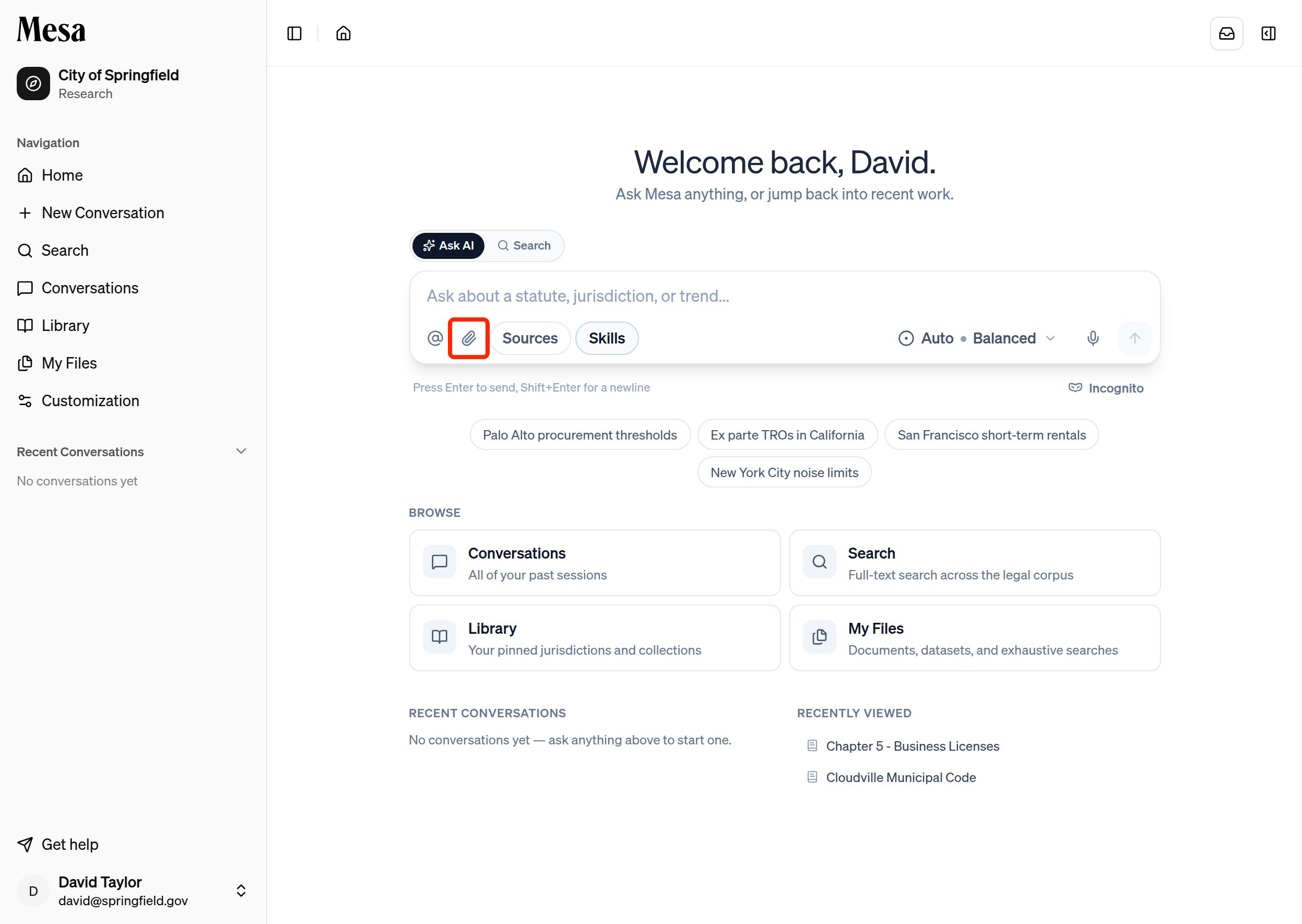
Tag a file in a conversation
1
Open the chat box
Go to the Home page or New Conversation page.
2
Open the file picker
Click the 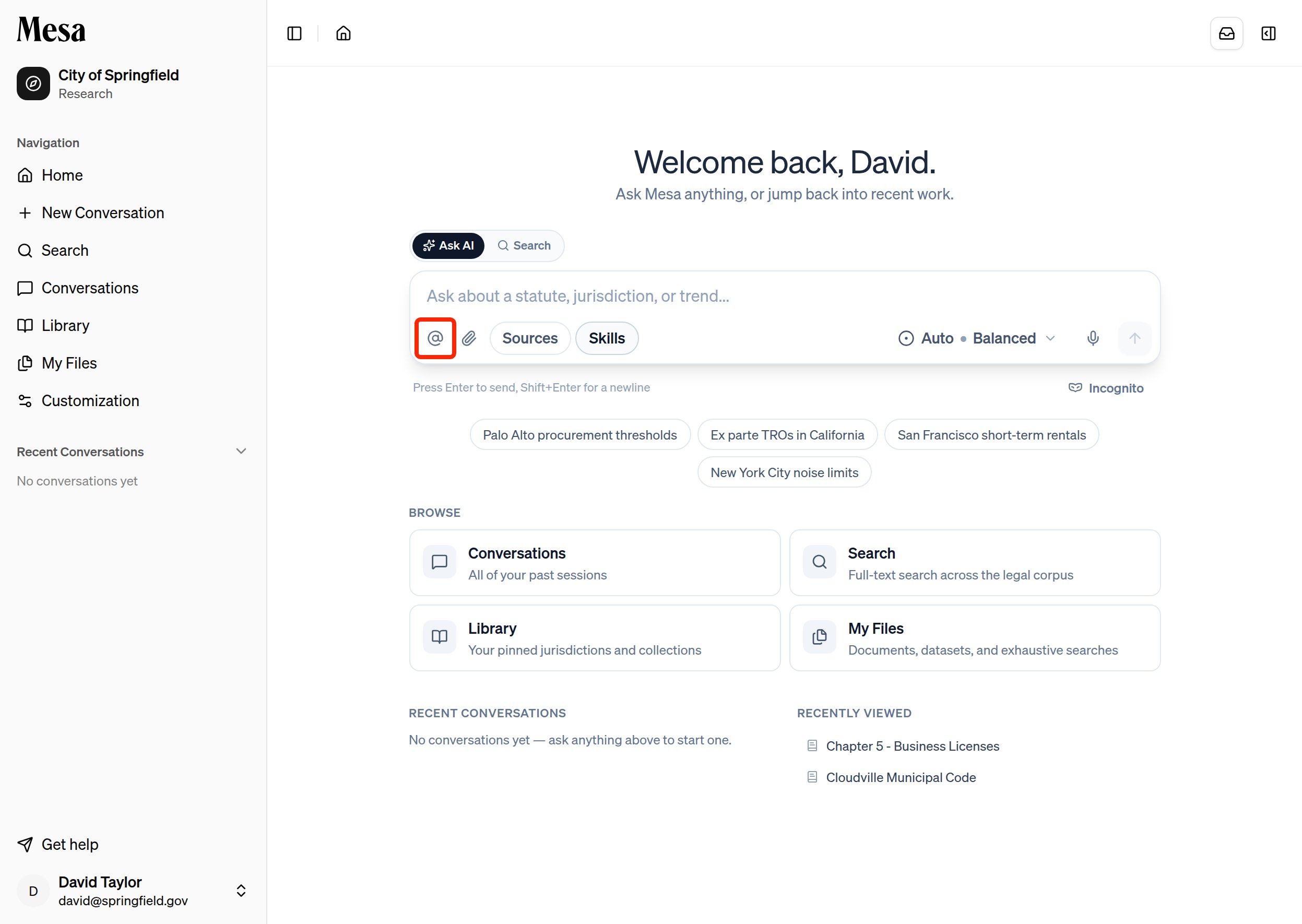
@ symbol at the bottom-left of the chat box, or type @ directly and select Select from my files.3
Choose your file
Select the file you want Mesa to reference.
4
Finish your prompt
Continue typing and send your message. Mesa uses the tagged file in its response.
Tag with a link
The@ picker isn’t the only way to reference something. Almost anything in Mesa with its own page (a file, a conversation, a report, a dataset, or a piece of Library content) has a copy link button next to its title. This is the quickest way to pull the exact thing you’re looking at into a new conversation.
1
Copy the link
Open the item you want to reference and click the link icon next to its title.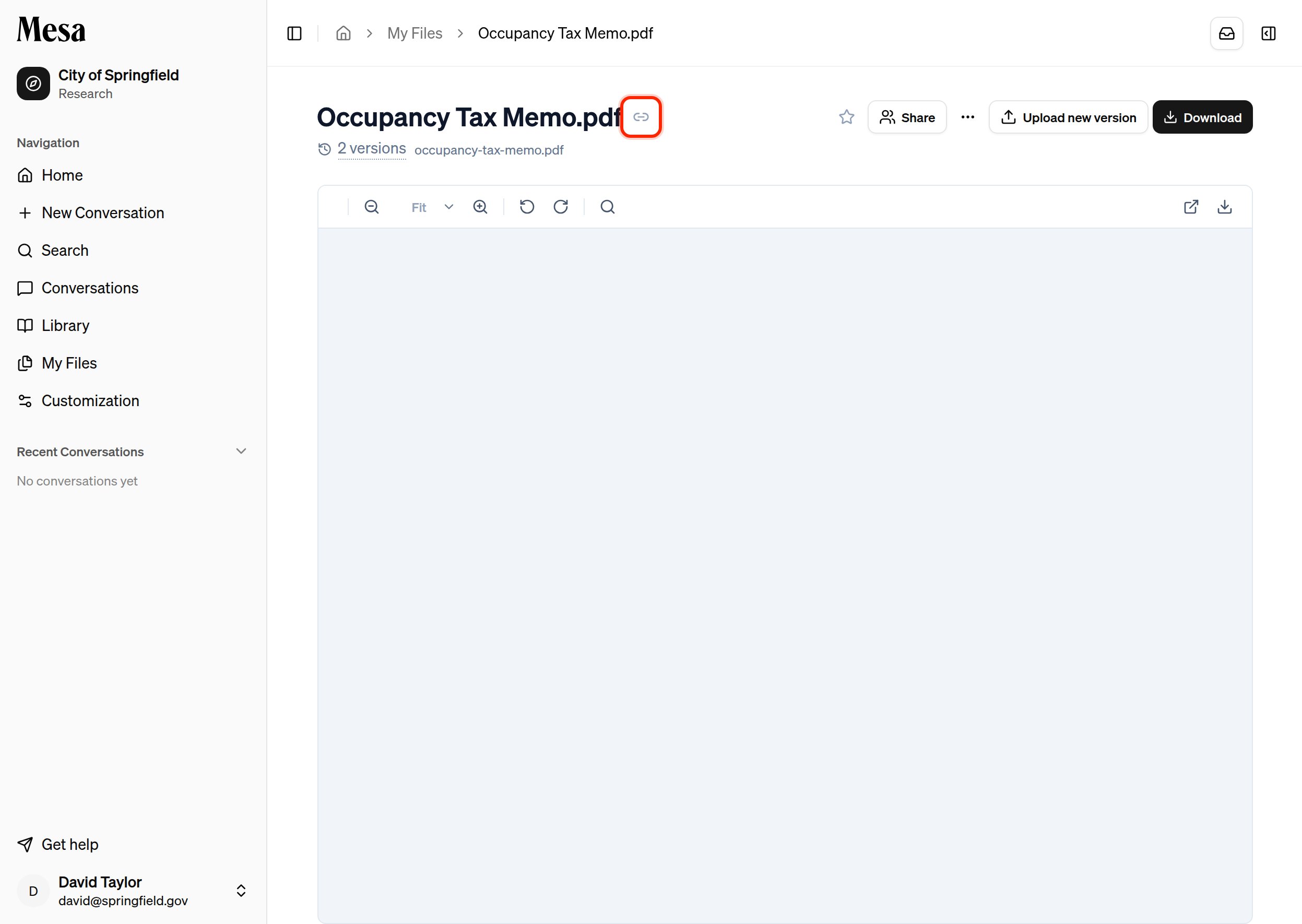
2
Paste it into a conversation
Go to a chat box and paste. Mesa recognizes the link and turns it into a reference to that item, the same as if you’d tagged it with 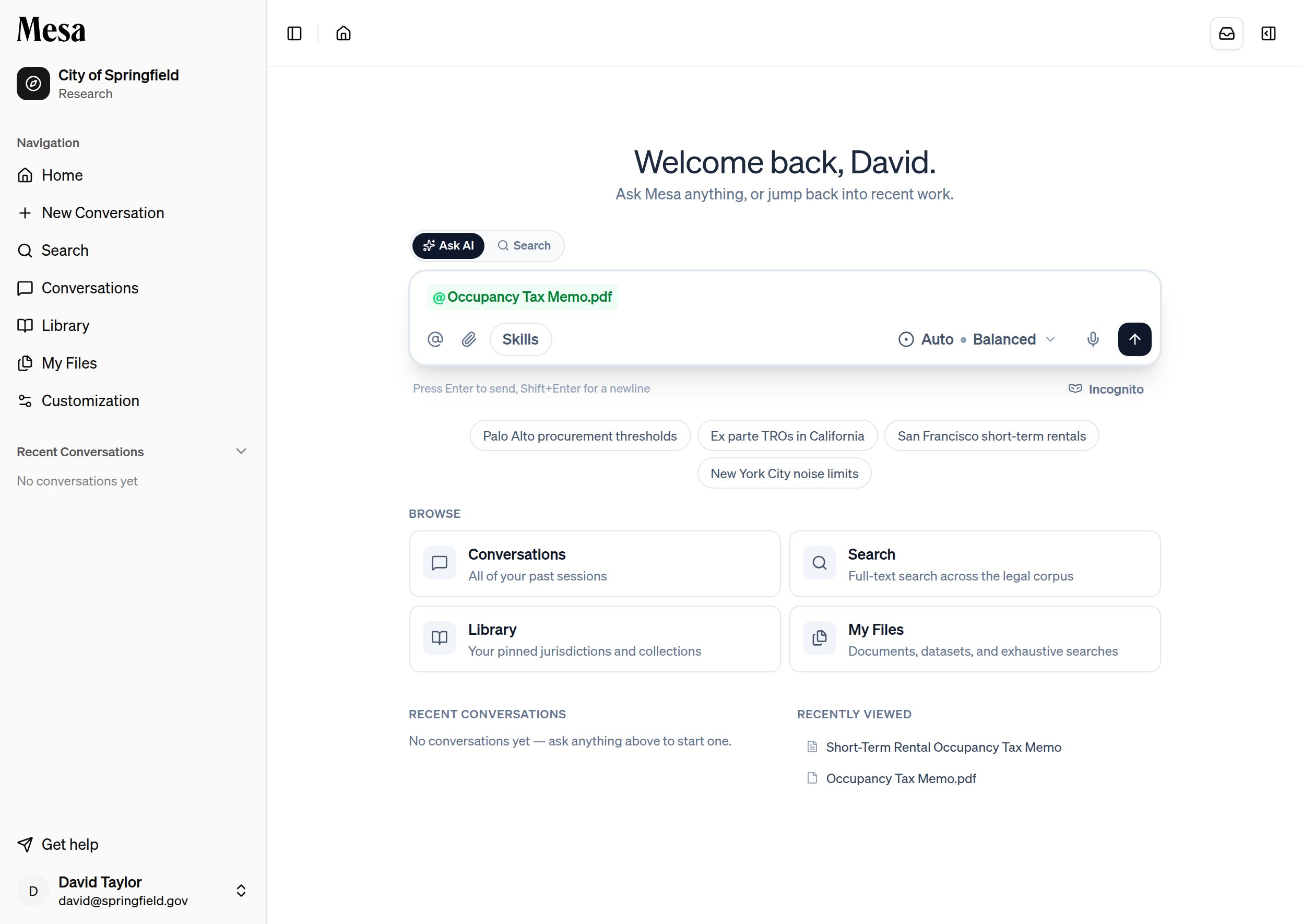
@.3
Finish your prompt
Keep typing and send. Mesa uses the referenced item when it responds.
Related articles
Files
Manage the saved documents that you can tag in conversations.
Connections
Import documents from connected external storage accounts.
Batches
Run one task across every file or provision in a set.