

Publish to the portal
When the owner of a report clicks Publish, Mesa creates a link to the report on your organization’s portal and copies it to the clipboard. Send that link to anyone who needs to read the report. See Publish a report for the steps.What readers see
Signing in
Opening a portal link takes the reader to your organization’s portal. If they aren’t signed in, they click Sign in and enter their email address. The first time someone signs in to your portal, they’re asked to create an account with your organization. It takes one click on Create account.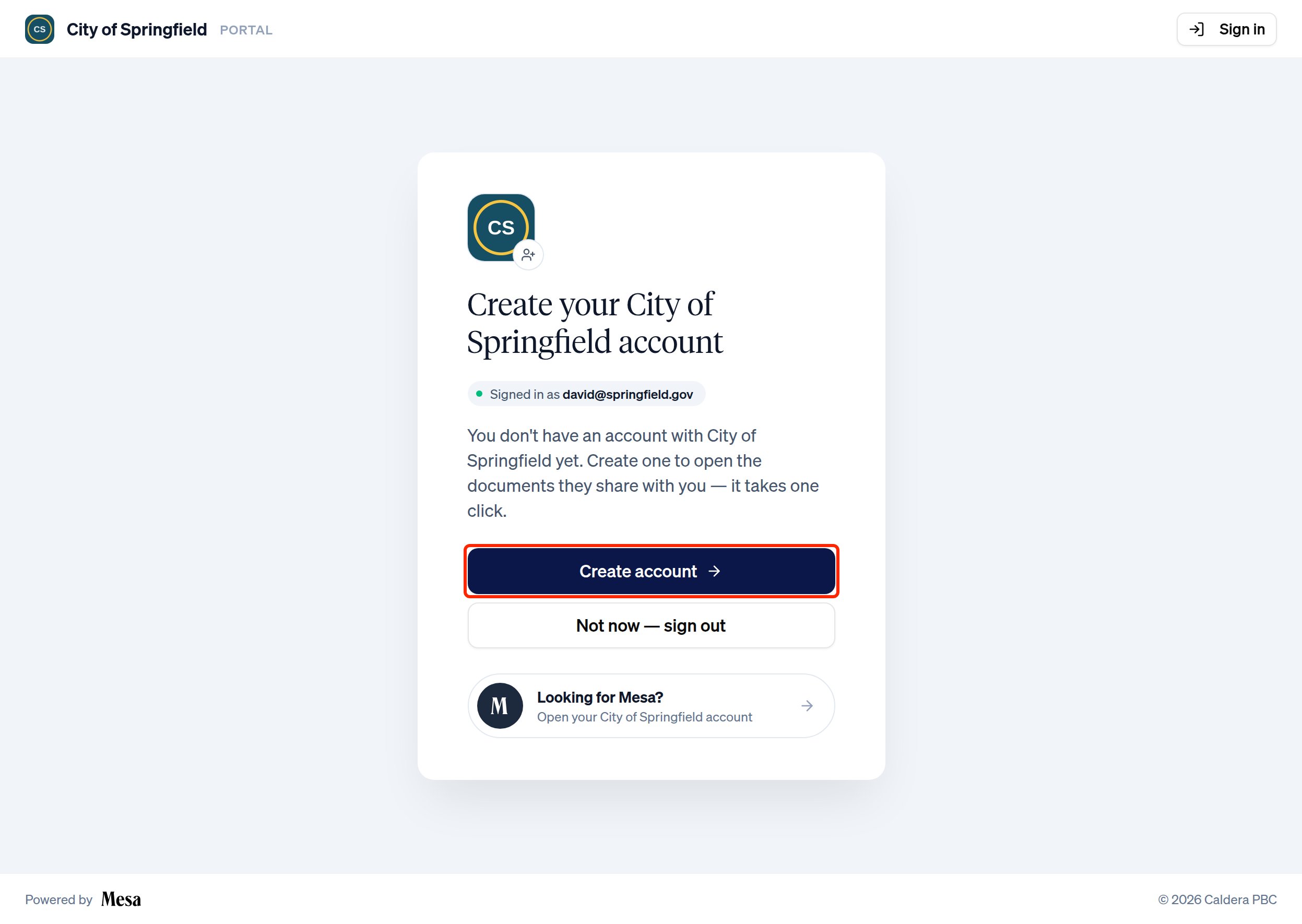
Reading a document
After signing in, the reader sees the published report as a clean, read-only page under your organization’s name. The page always shows the report’s latest revision.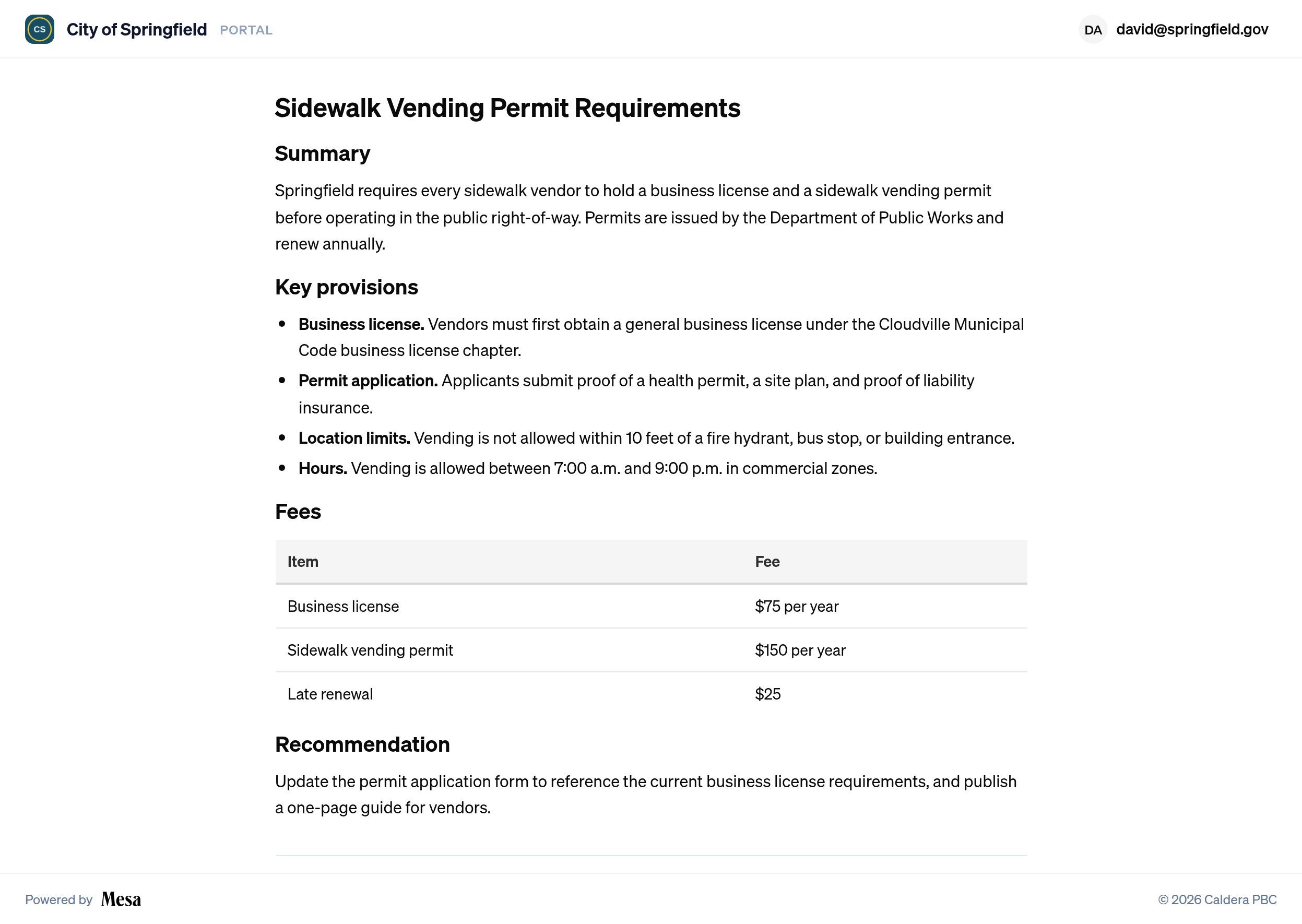
Your documents
The portal’s home page, Your documents, lists every document the reader has opened on your portal, so they can come back to it later.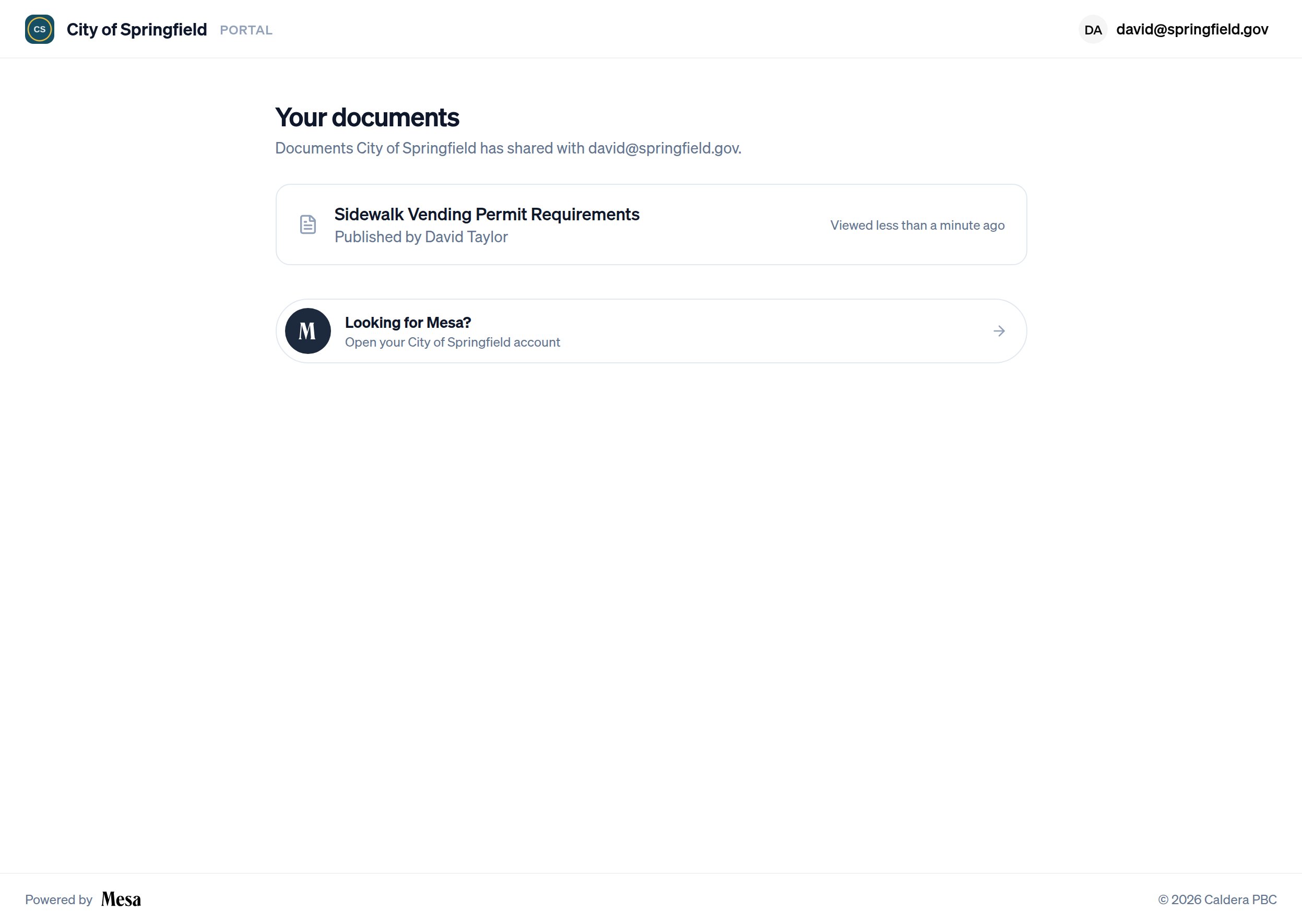
If a reader also has a Mesa account in your organization, the portal shows a Looking for Mesa? link that takes them back to their workspace.
Related articles
Reports
Edit, share, and publish the reports Mesa writes for you.
Organization settings
Add the logo shown on your portal.
Accounts
Switch between your organizations and portals.