

Browse your files
Open My Files from the sidebar. Use the tabs at the top to switch between the different file types on your account.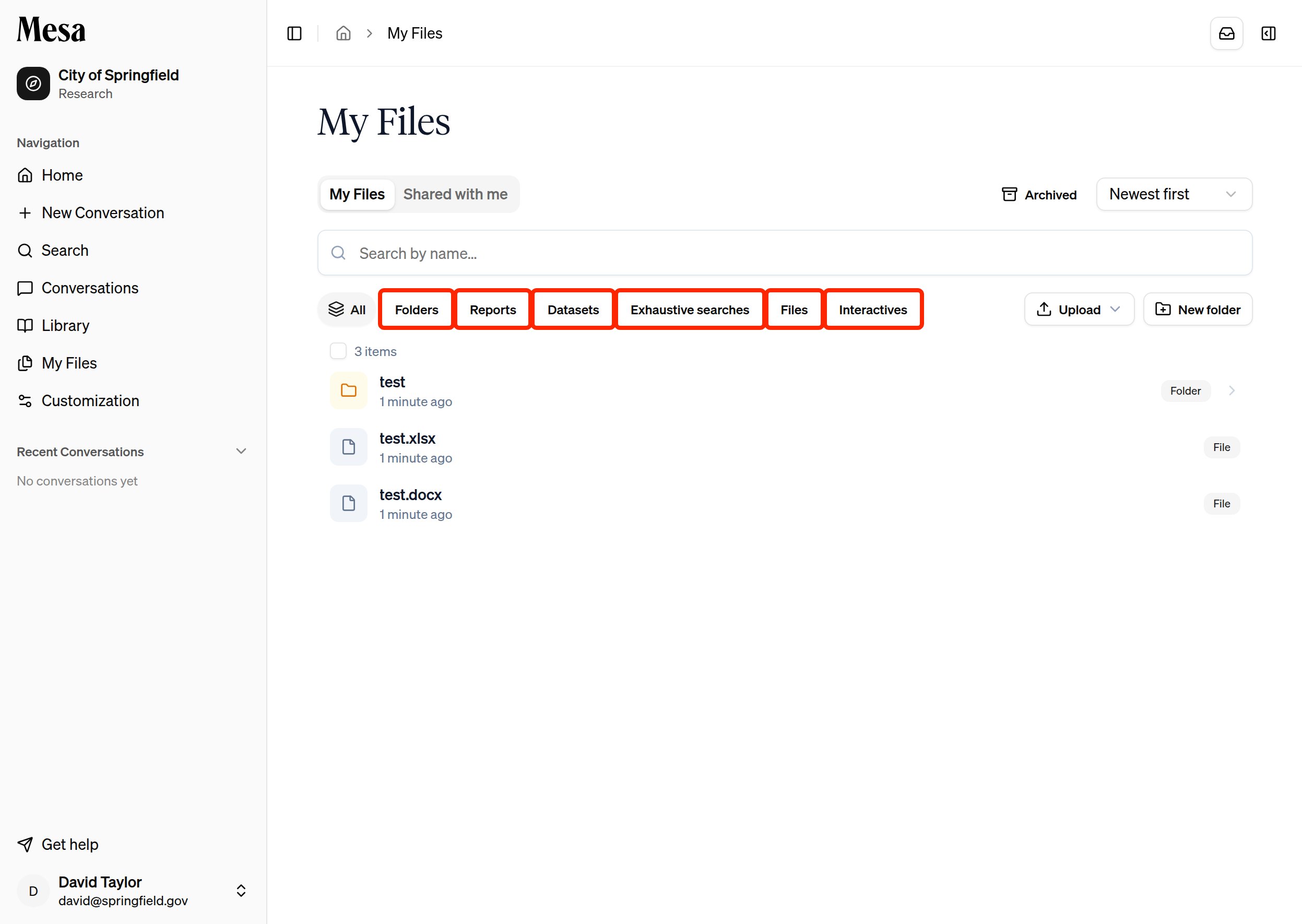
Organize with folders
Click New folder in the top-right to create a folder. Move files in by dragging and dropping them, or by selecting them and clicking Move items.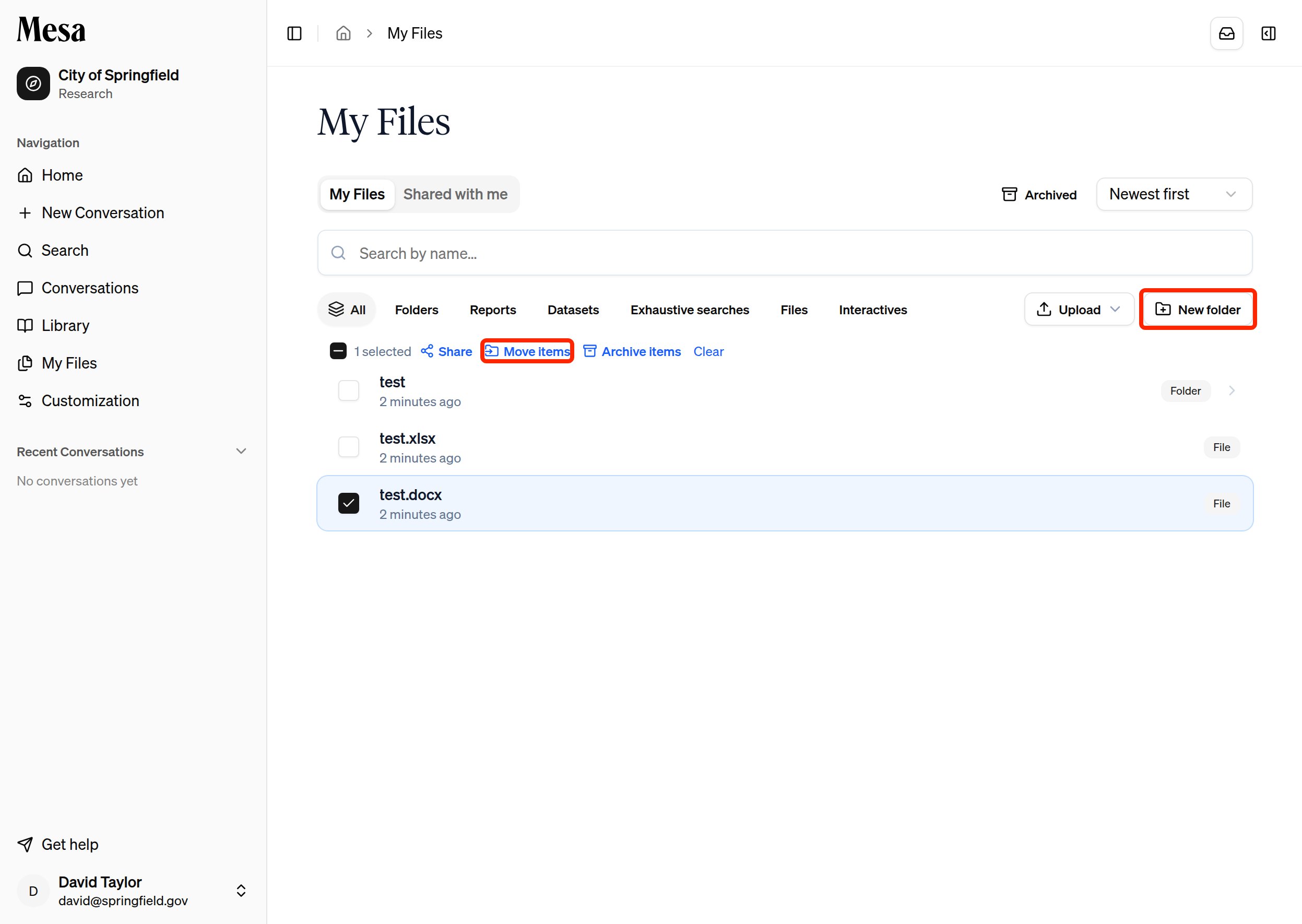
Open and manage a file
Double-click a file name to open it in a dedicated view. From there you can Share, Download, Upload new version, or Rename it (under the three dots menu).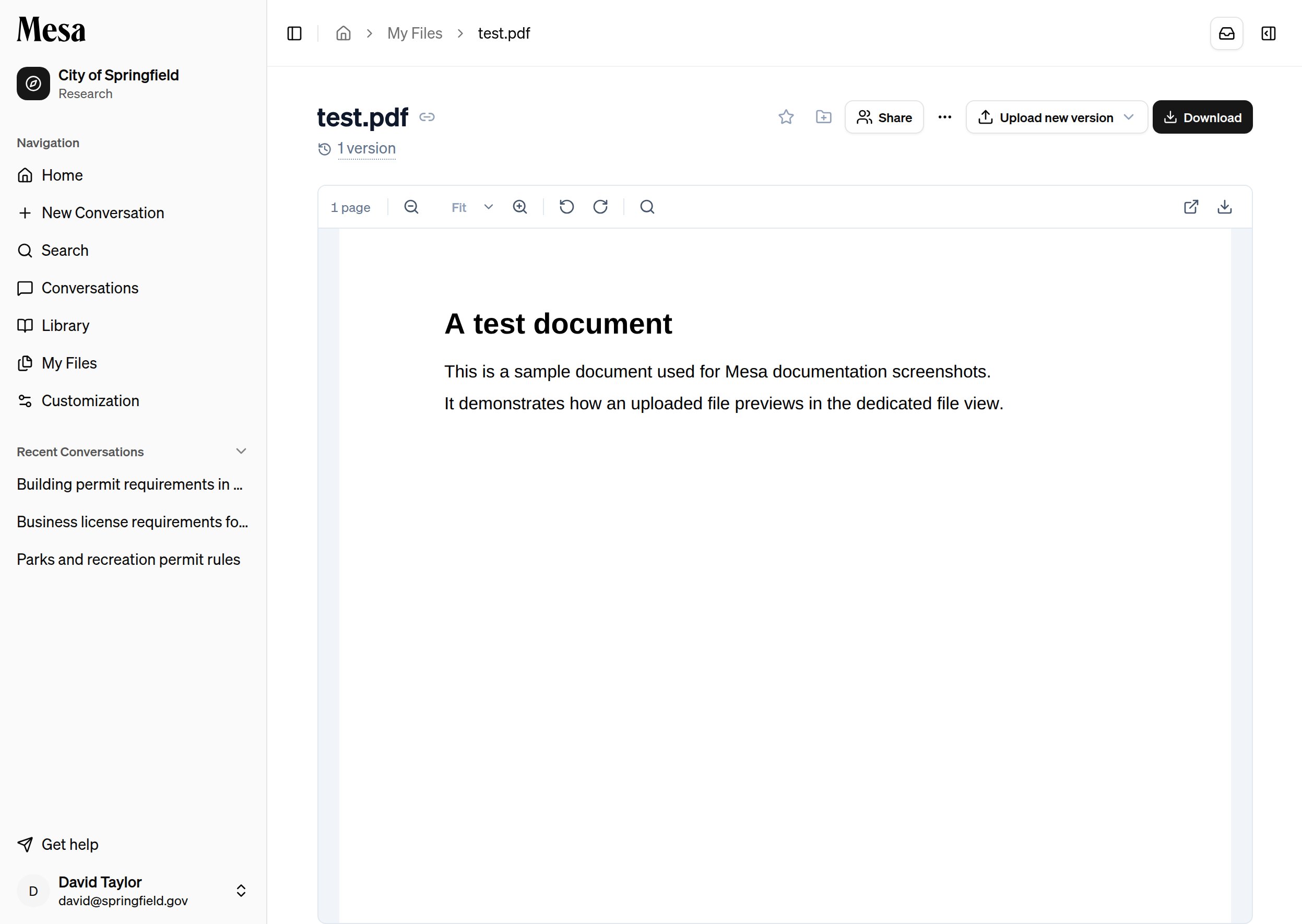
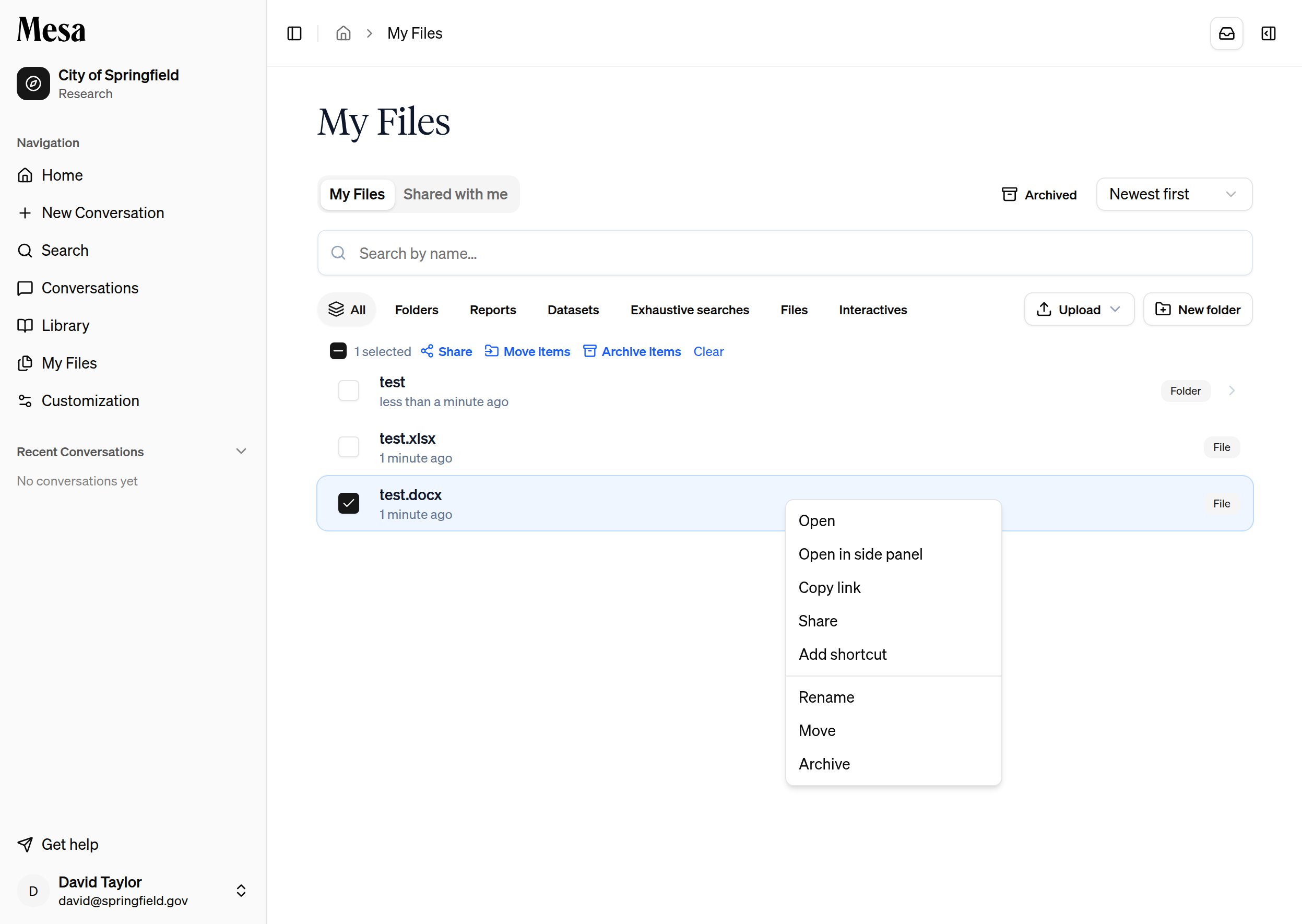
File actions at a glance
Share an item
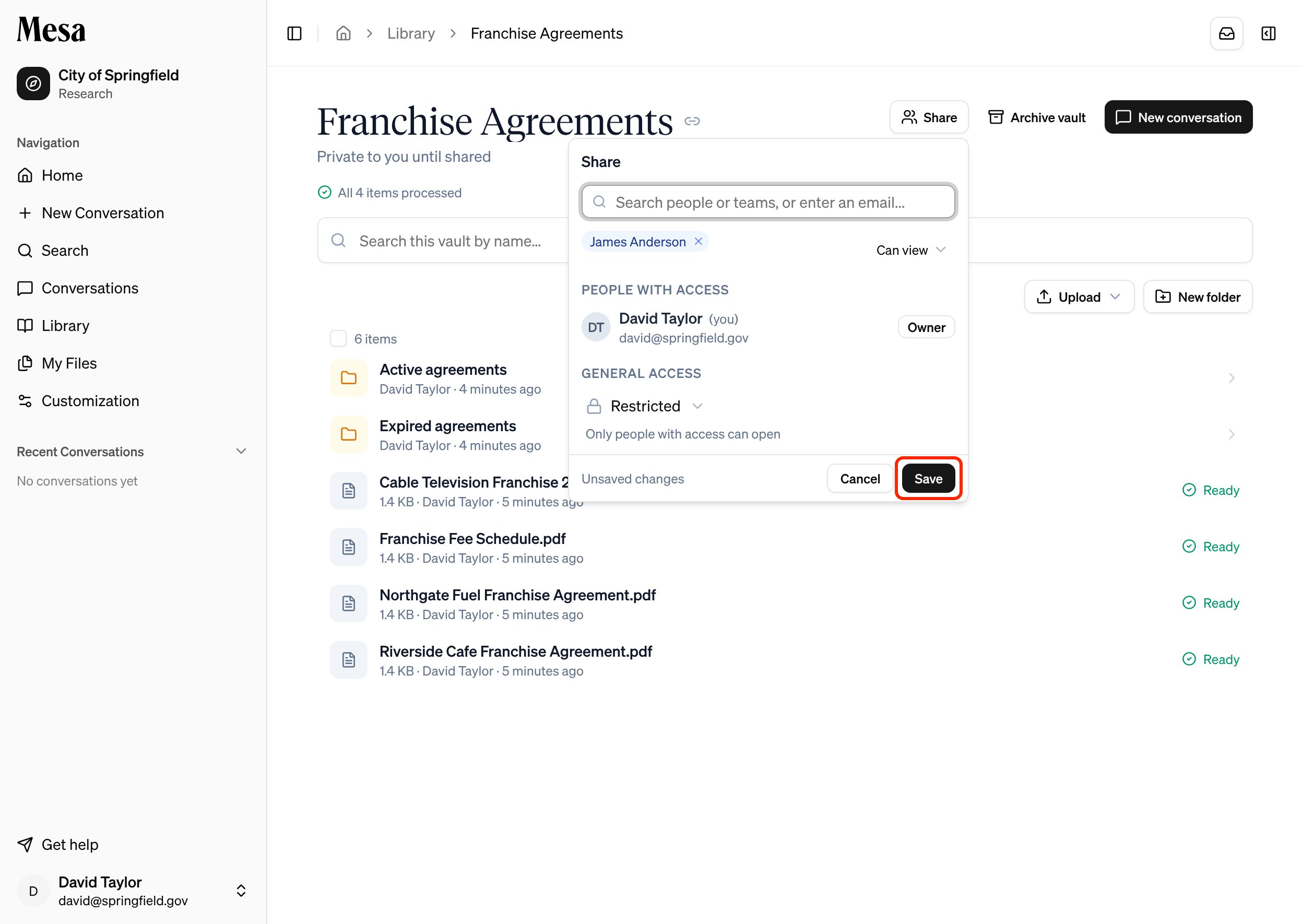
Files, folders, reports, interactives, skills, and vaults all share the same way. Click Share (or the share icon) to open the share popover: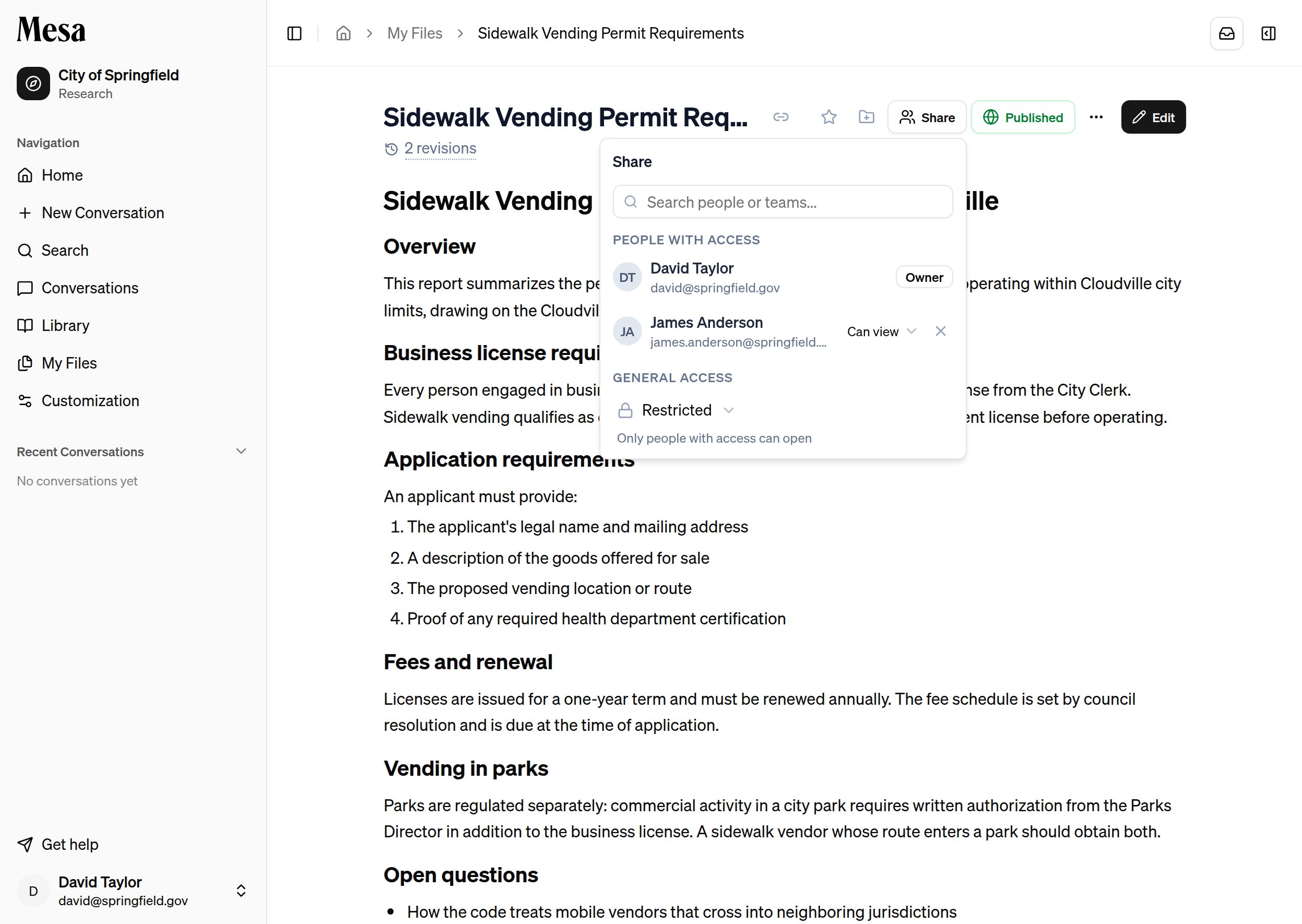
- Add people or teams: search for a member of your organization or a team and give each one Can view or Can edit access. Use the dropdown next to them to change their access or remove it.
- General access controls everyone else. Restricted (the default) means only the people and teams you’ve added can open the item. Switch it to your organization to let anyone in it view, or edit if you choose.
- Anything inside a shared folder inherits that folder’s access automatically.
Common item actions
Reports, interactives, datasets, and other items you open from My Files have the same controls in their header:Switch views and sort
Use the top bar to switch between your working files, files shared with you, and archived files. You can also change the sort order in the main view when you need to find a document quickly.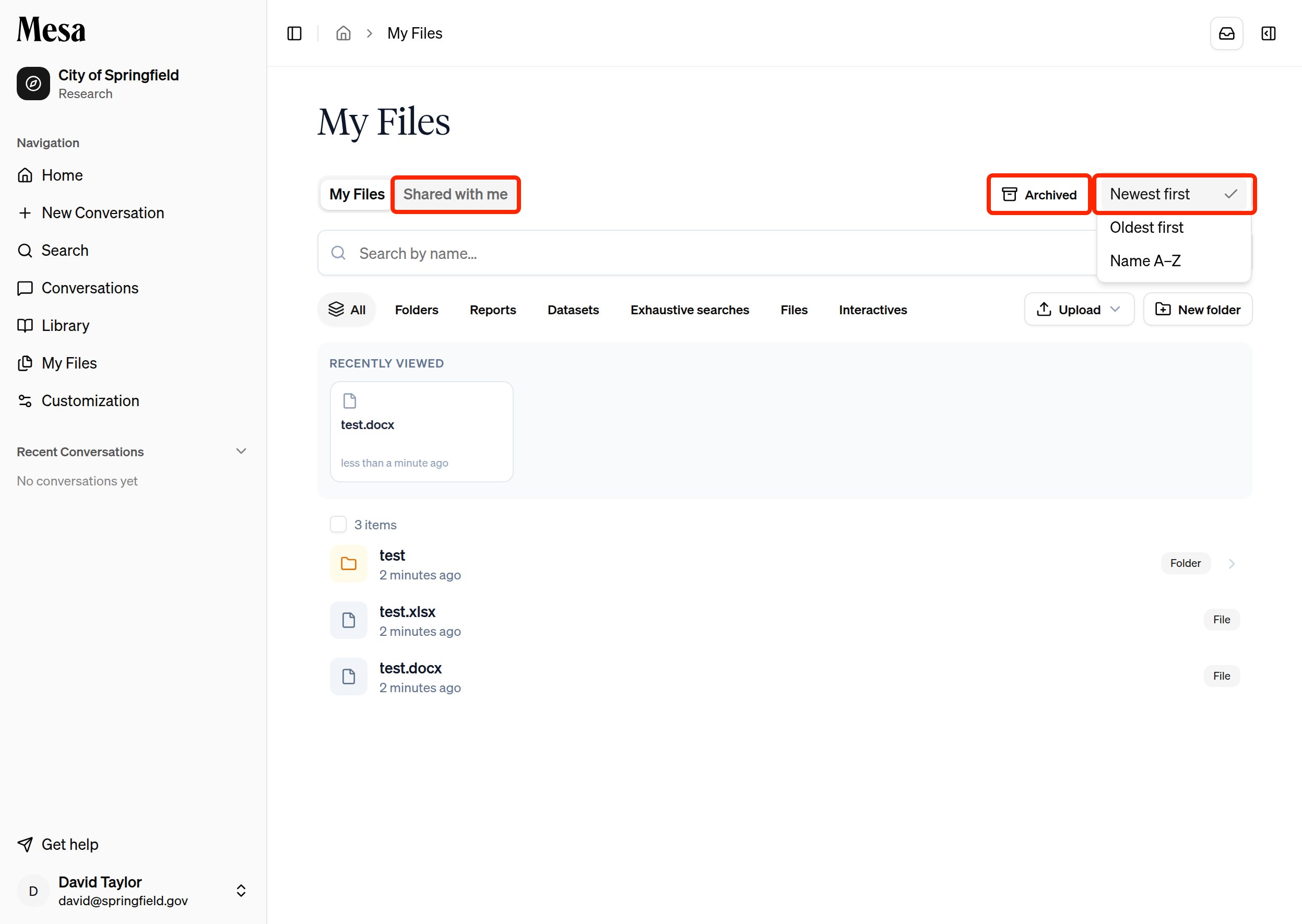
Related articles
Attachments and tagging files
Reference saved files directly in a Mesa conversation.
Connections
Import documents from external storage instead of uploading manually.
Batches
Review the datasets that batches save back into your files.