

- A report, dataset, file, or interactive
- A conversation
- A legal provision or a whole legal code from the Library
Add a shortcut
Look for the Add to My Files button (a folder-with-a-plus icon) on the item you want to file; it sits next to the share and bookmark controls on reports, files, datasets, interactives, and library content, and on each row in your Conversations list.1
Click Add to My Files
Open the item and click the Add to My Files icon.
2
Choose where to file it
Pick the folder in My Files where the shortcut should live, then click Add shortcut here.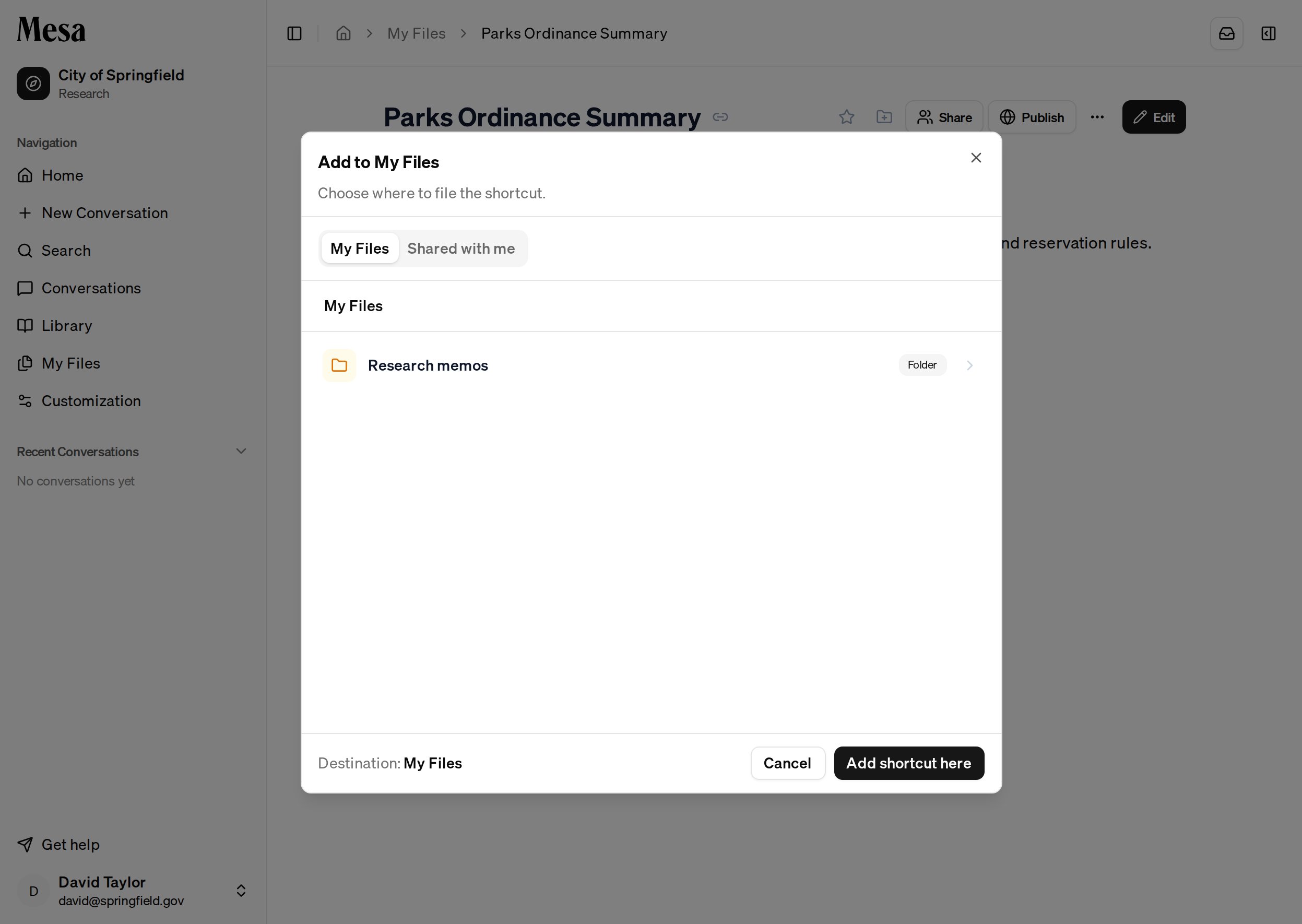
Spot a shortcut
In My Files, a shortcut borrows the icon of whatever it points at but is clearly marked with a Shortcut badge and a small arrow on its icon. Double-click it to open the original.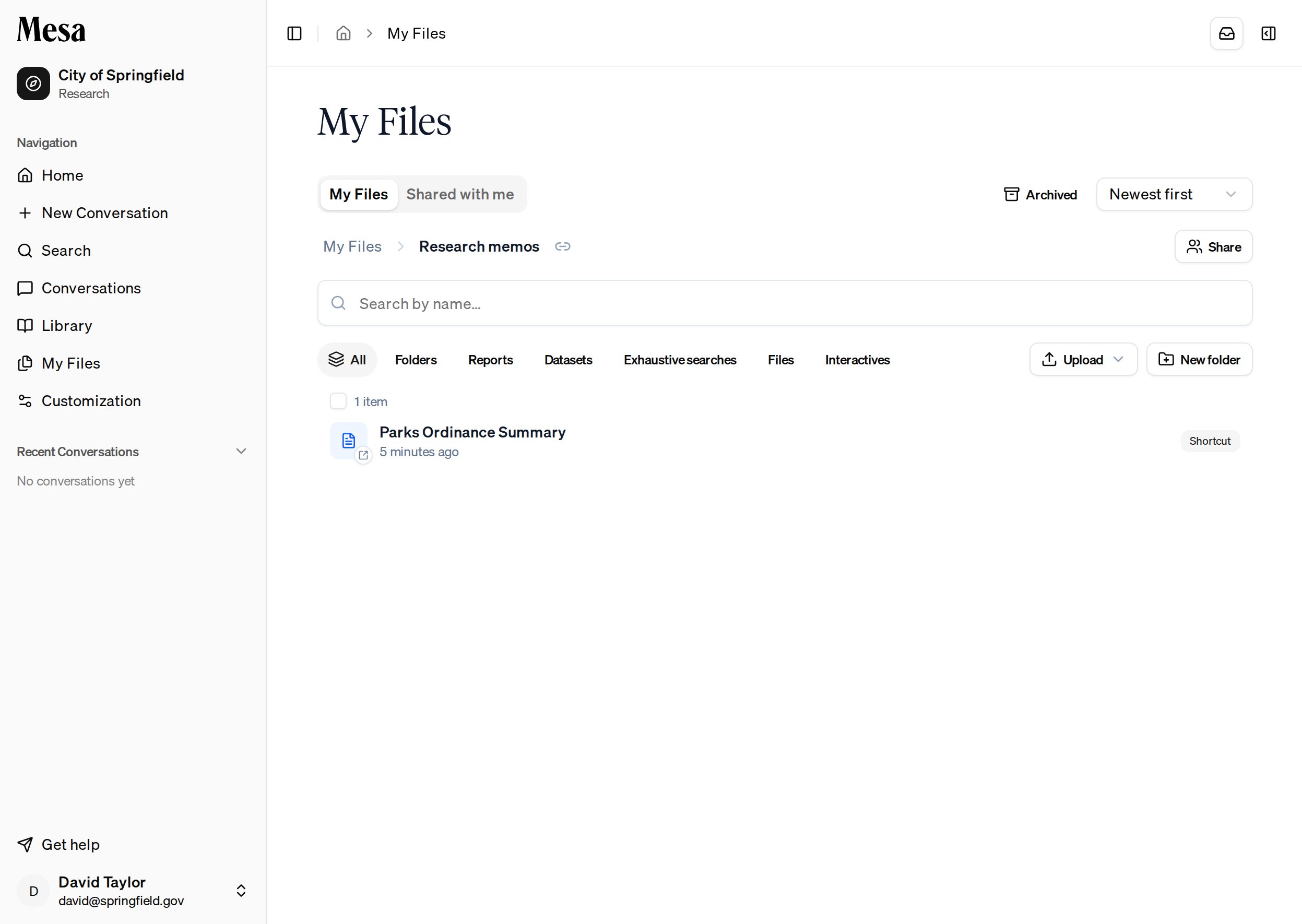
A shortcut only points; it grants no access of its own. If the original is later deleted, or shared only with people who can’t see it, the shortcut says so instead of opening.
Related articles
Files
Organize the folders your shortcuts live in.
Attachments and tagging files
Pull a saved item into a conversation instead of filing a shortcut.
Interactives
File a shortcut to an agent-built tool wherever you need it.