

Skills vs. preferences
Create a skill
1
Open the Skills section
Go to your Customization page in the sidebar. Under For you, find the Skills section and click New.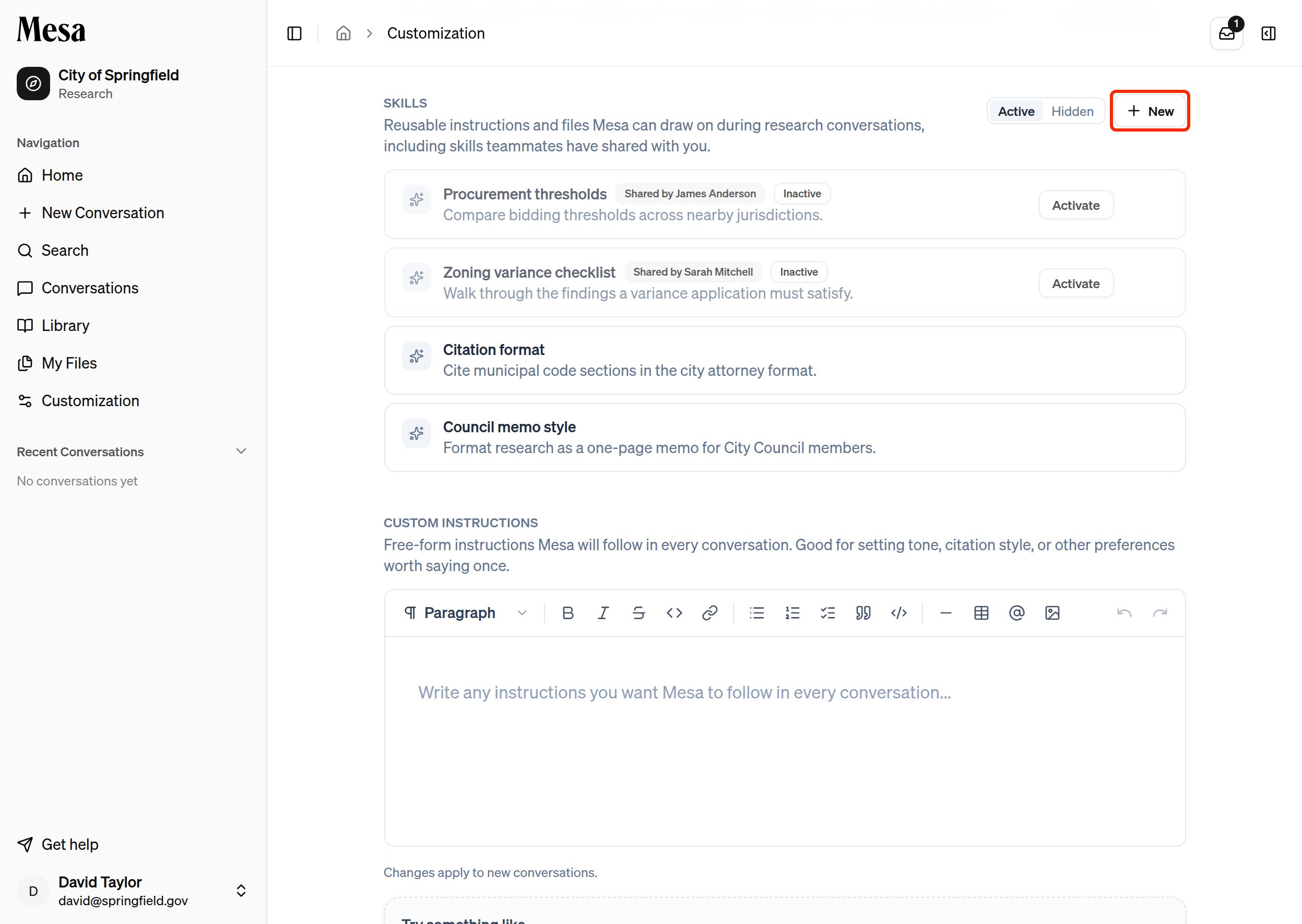
2
Name and describe the skill
Give the skill a name and a short description. Mesa reads the description when deciding whether to apply the skill automatically, so be specific about when it should be used.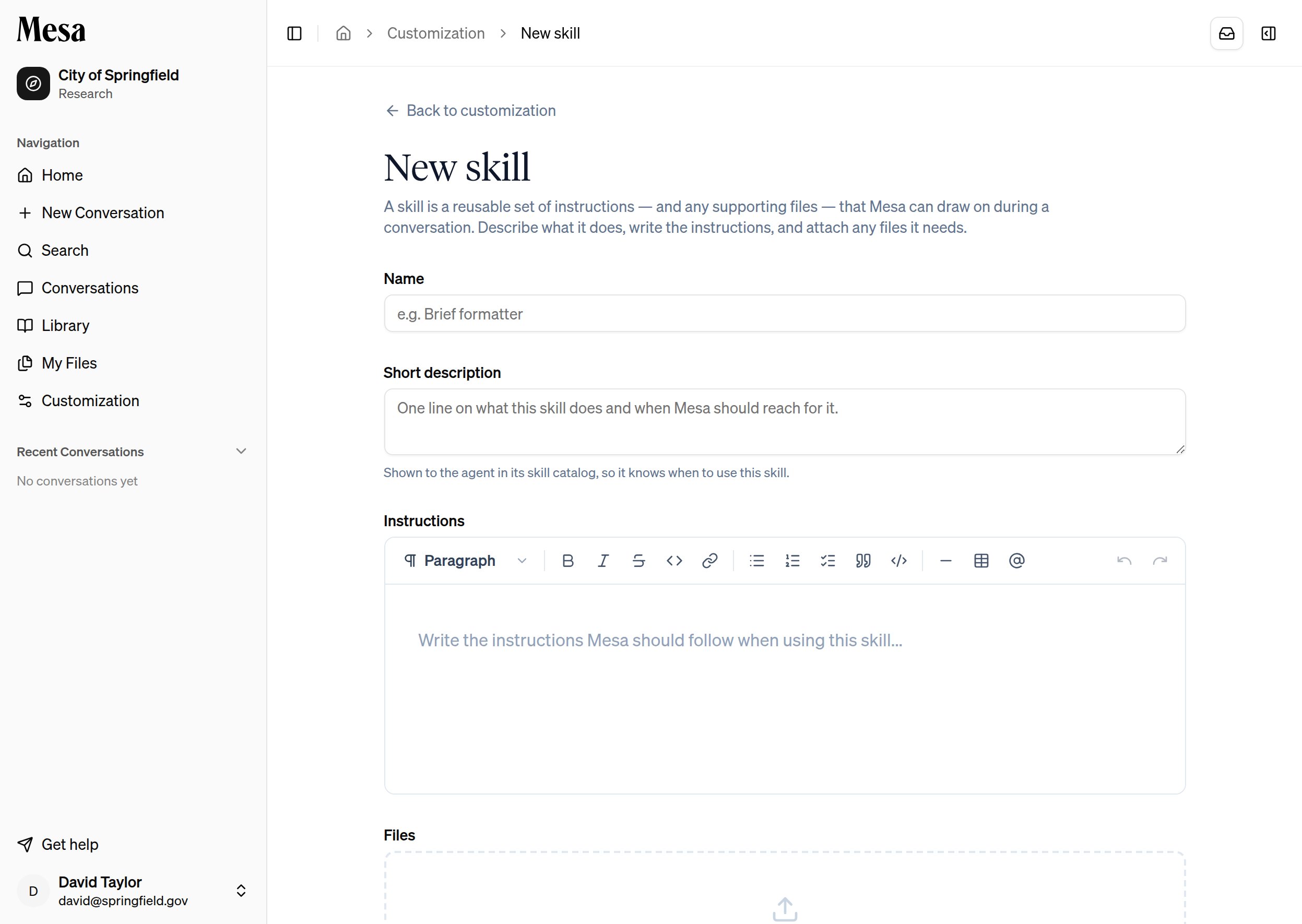
Don’t agonize over the description; you can always invoke a skill manually, as described below.
3
Add instructions and files
Instructions are everything Mesa should know when using the skill:
- For a reusable set of guidelines, write the guidelines directly in the instructions.
- For supporting documents, explain what each file is and how Mesa should use it.
- For custom scripts, explain how to run the code you wrote.
Scripts work best when Mesa can use them without reading every line. Include a CLI and describe its commands in the instructions, or write functions and document their parameters and behavior.
4
Save the skill
Save it, and it’s immediately available in your conversations.
Let Mesa write the skill for you
You don’t have to build a skill by hand. When you’ve just walked the agent through a task in a conversation, ask it to save the approach: “turn this into a skill,” “remember how to do this next time,” or “make this reusable.” The agent interviews you as needed, drafts the instructions, and saves the skill to your Customization page, where it behaves exactly like one you wrote yourself. It’ll ask before changing or removing an existing skill.Download a skill’s files
Open a skill from the Skills section to edit it. Each file attached to the skill has a download button on its row, so you can retrieve a copy of any file the skill uses.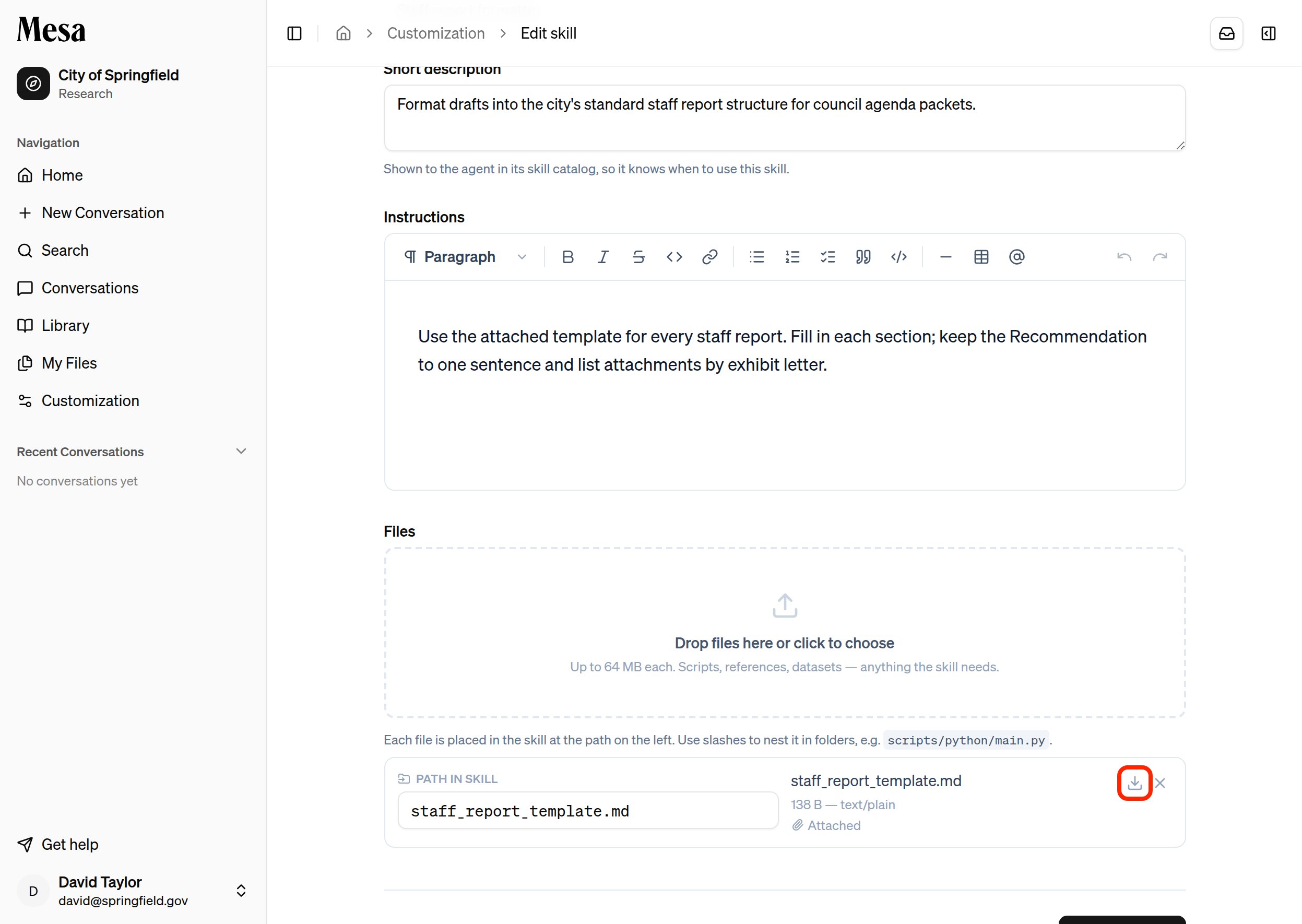
Share a skill
Skills you create are private until you share them. Hover over one of your skills in the Skills section and click the share icon. The Share popover works the same way as for any item; see Share an item.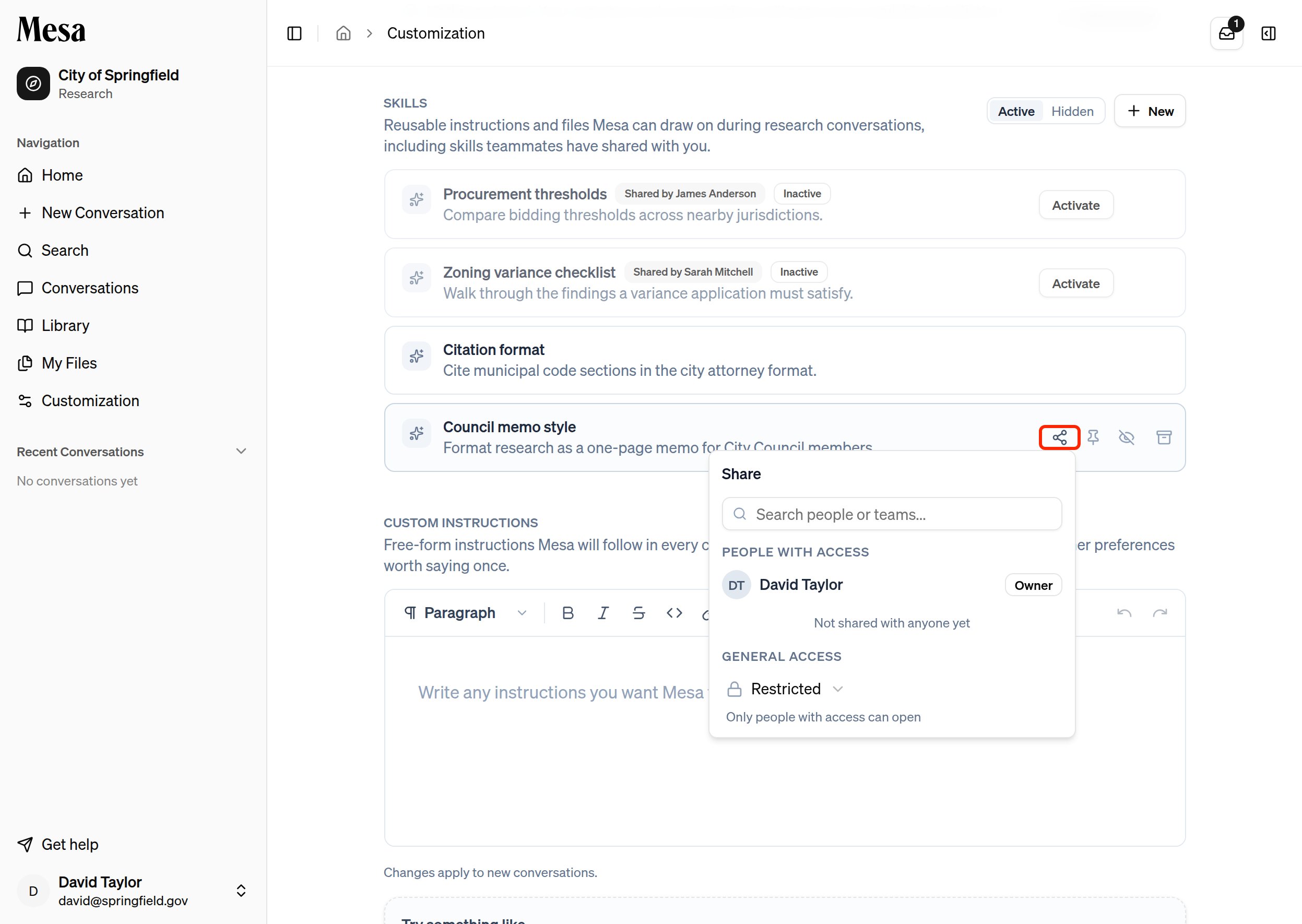
Skills shared with you
When a teammate shares a skill with you, you get a notification. The skill appears in your Skills section with a Shared by label and an Inactive badge. Mesa doesn’t use an inactive skill until you click Activate.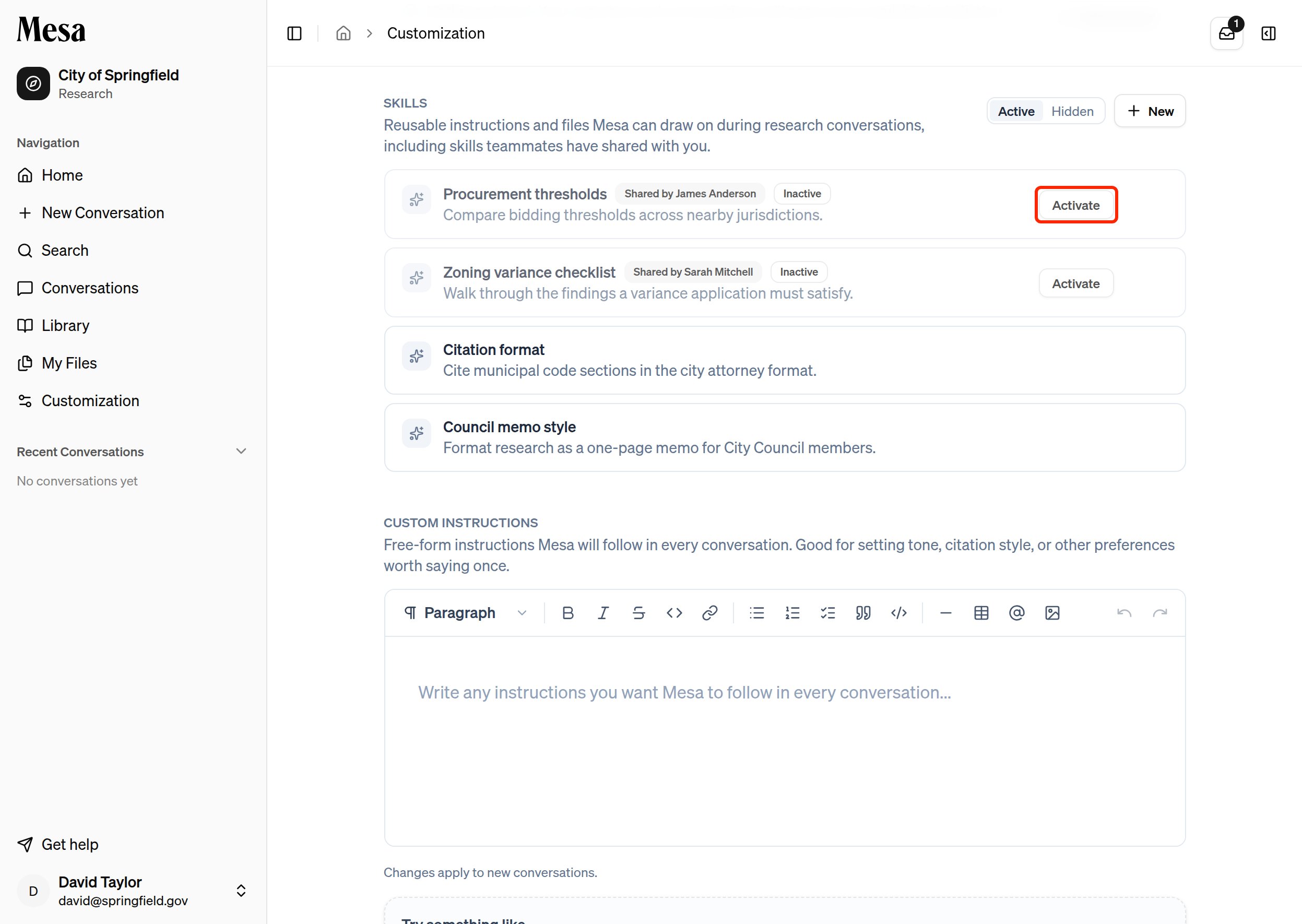
Hide or remove a skill
Hover over a skill and click the hide icon to take it out of your list. On your own skills, the icon is labeled Hide skill. On skills shared with you, it’s labeled Remove from your skills. Mesa stops using a hidden skill, and it no longer appears in the Skills picker on the chat box. To bring a skill back, switch the toggle at the top of the Skills section from Active to Hidden, hover over the skill, and click Restore skill.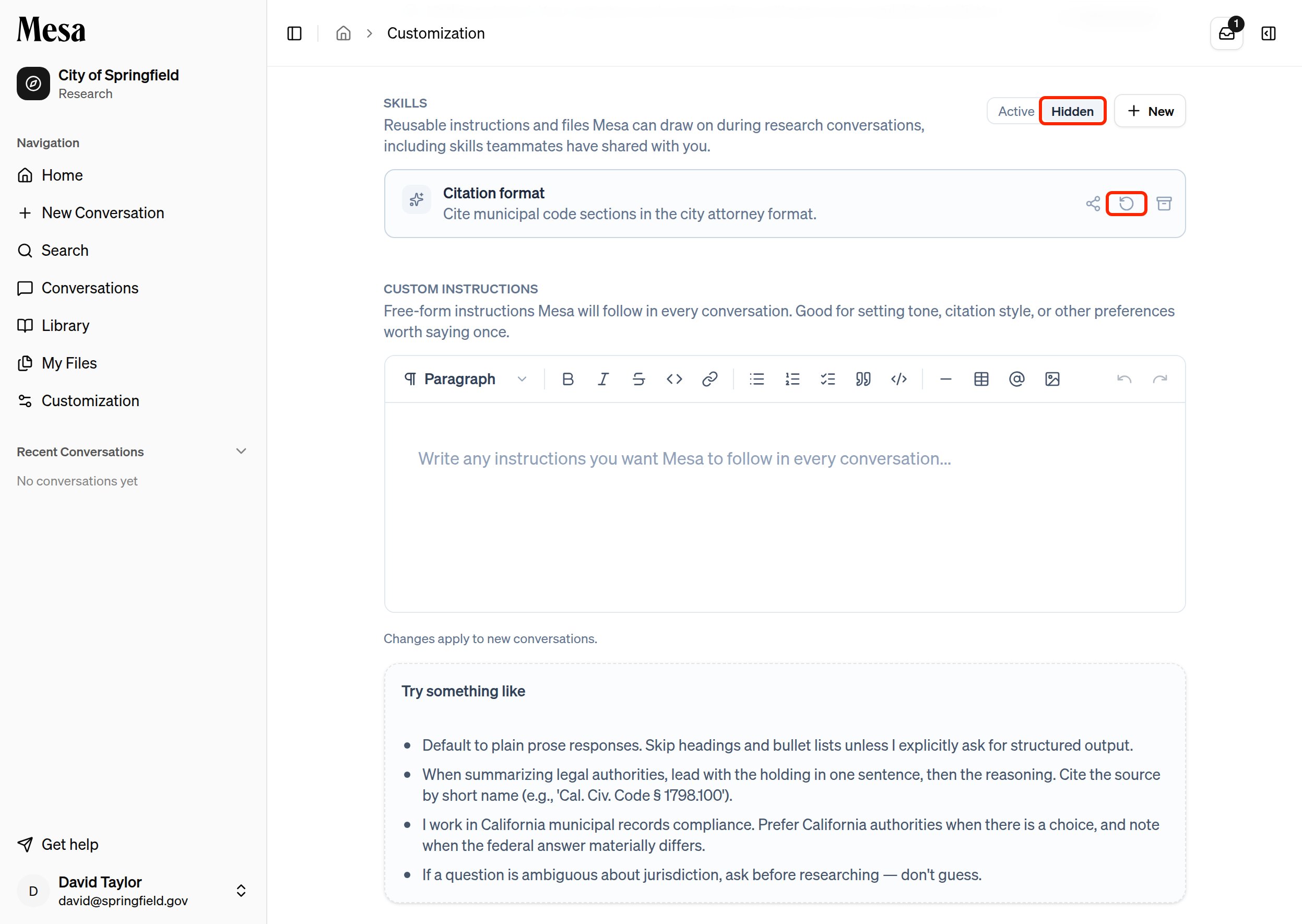
Pin a skill for your organization
Owners can make a skill active by default for everyone in the organization. Share the skill with your organization first, then hover over it and click the pin icon (Pin as an organization default). Pinned skills show a Pinned badge.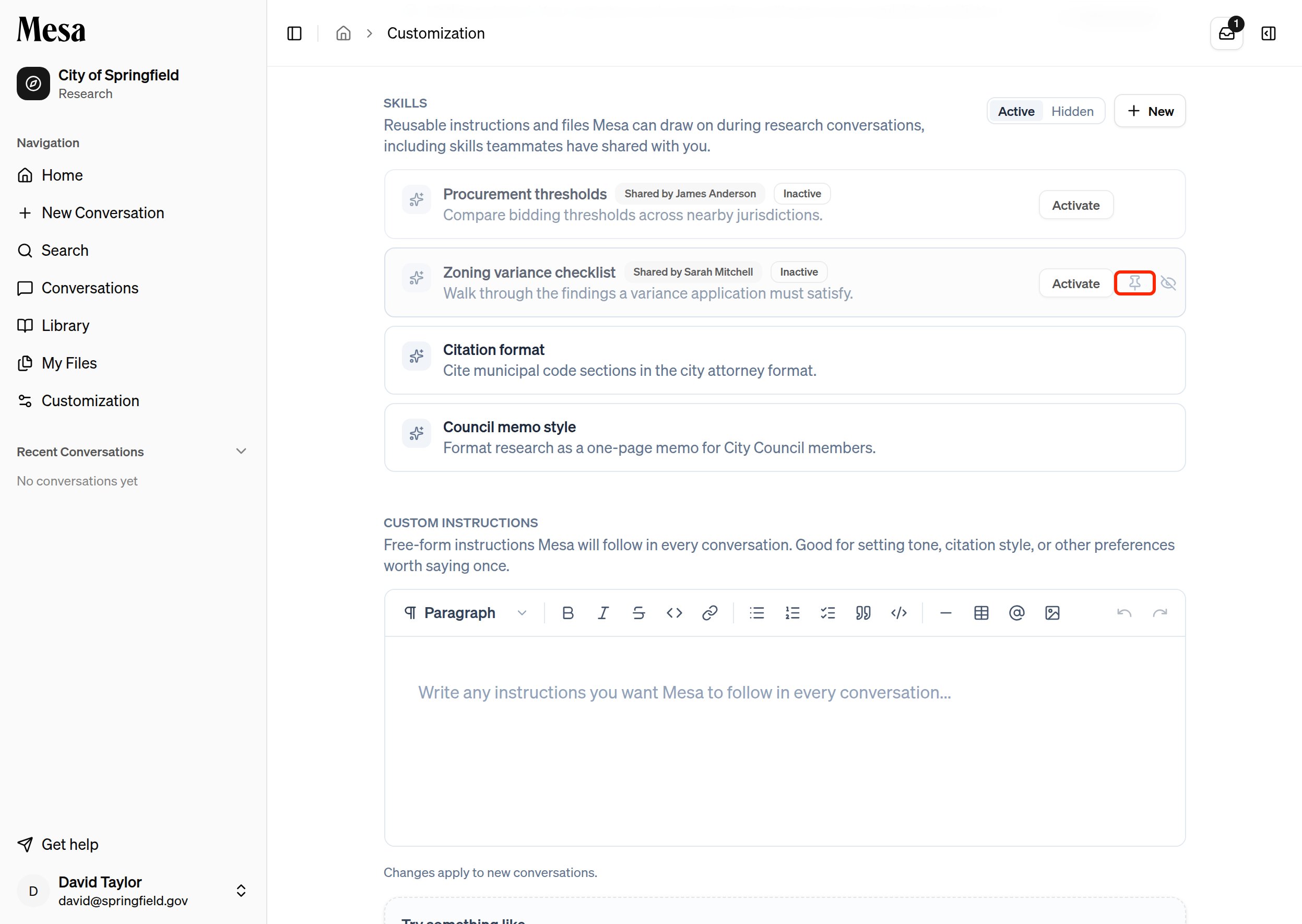
Use a skill in a conversation
Mesa can see your own skills, the shared skills you’ve activated, and skills pinned for your organization. It applies them automatically when a request matches a skill’s description. To invoke one explicitly, click the Skills button on the Home or New Conversation page and select the skill you want Mesa to use.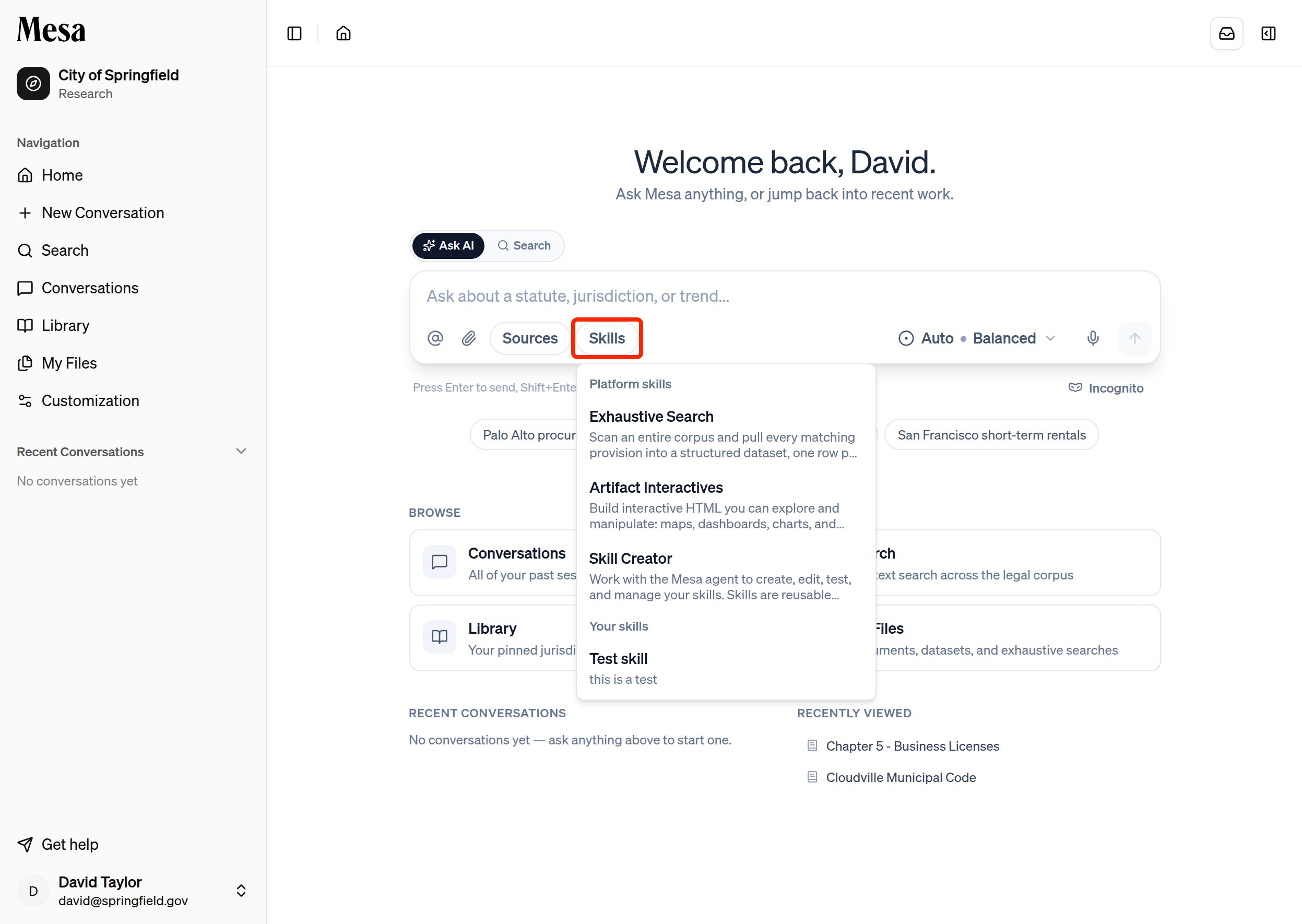
Write instructions that work
- State what the skill is for, what it should output, and any rules it must follow.
- If you attach code or scripts, describe what each function or command does and how Mesa should use it.
- For document templates, put the template structure directly in the instructions and tell Mesa to follow it.
- Keep skills task-specific; move anything that should apply everywhere into Preferences.
Related articles
Preferences
Set general instructions and memories that apply to every conversation.
Organization customization
Set shared defaults for everyone in your organization.
Writing effective prompts
Turn your best prompt patterns into skills worth saving.