

Edit organization-wide settings
1
Open the Customization page
Go to Customization from the left sidebar.
2
Switch to the organization tab
Click the For your organization tab.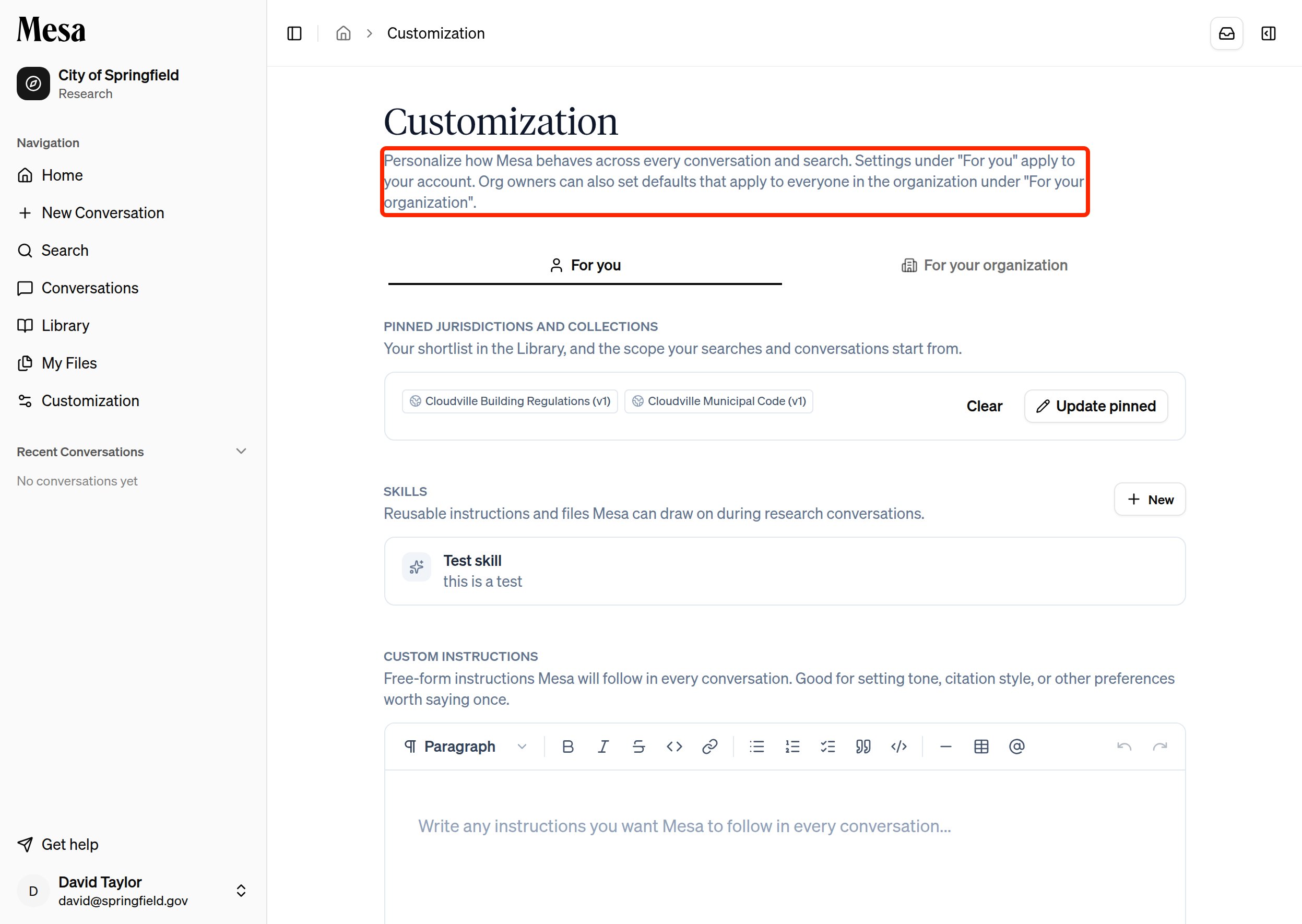
3
Make your changes
Edit the settings you want to apply organization-wide. Changes apply to the members of your organization.
What you can customize organization-wide
- Pinned jurisdictions and collections: surface important Library content to all members by default.
- Pinned skills: make a skill active by default for every member. Pinning happens from the Skills section on your For you tab, not from the organization tab. See Pin a skill for your organization.
- Organization preferences: apply shared custom instructions across the organization.
- Example prompts and example searches: give members one-click starting points on the chat box and the search page.
Example searches
Example searches are suggested searches you curate for your team. Each pairs a short chip label with a query and, optionally, the collection to run it against. They appear as clickable chips on the Search page and the home page’s search tab; clicking one runs the search immediately.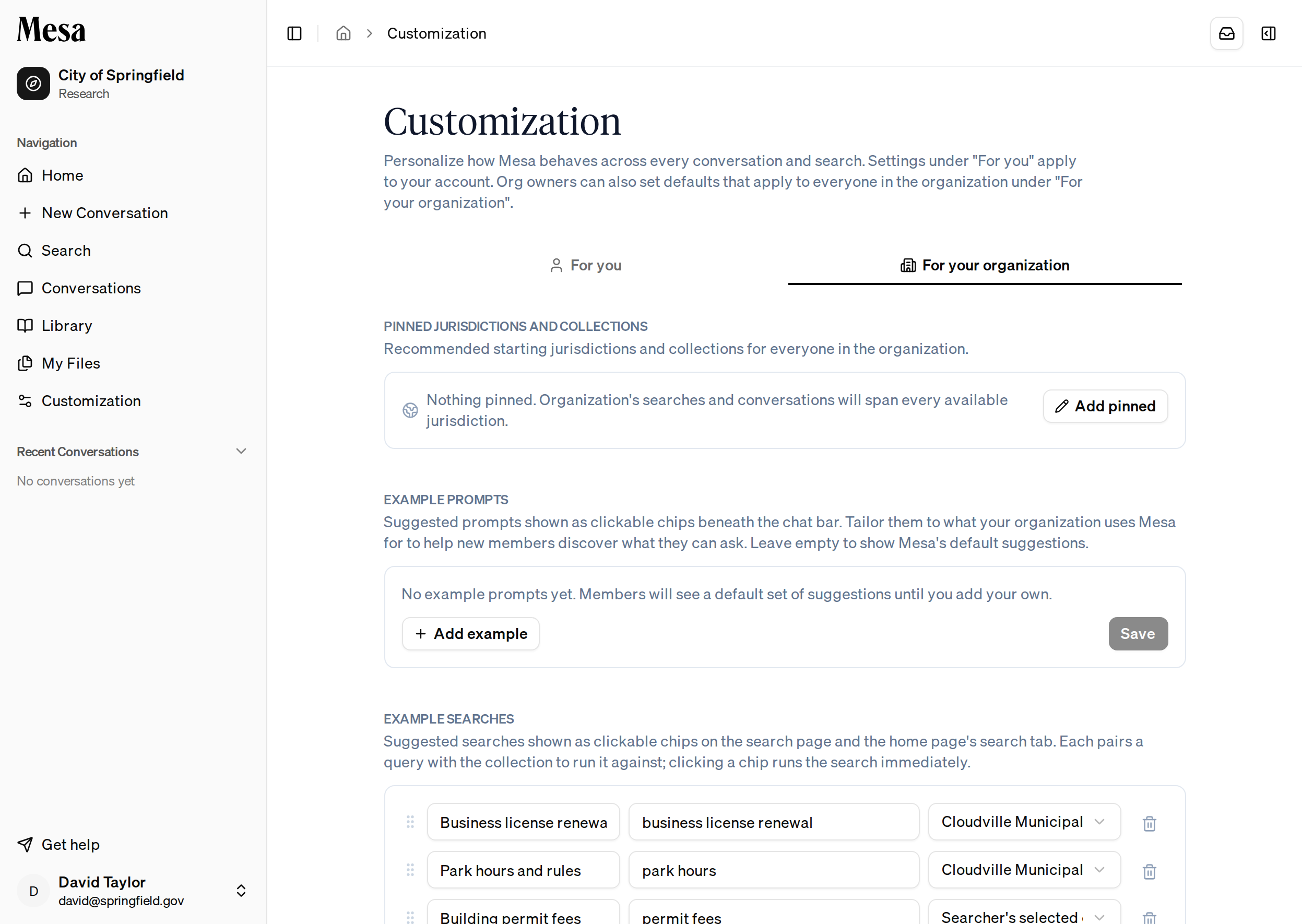
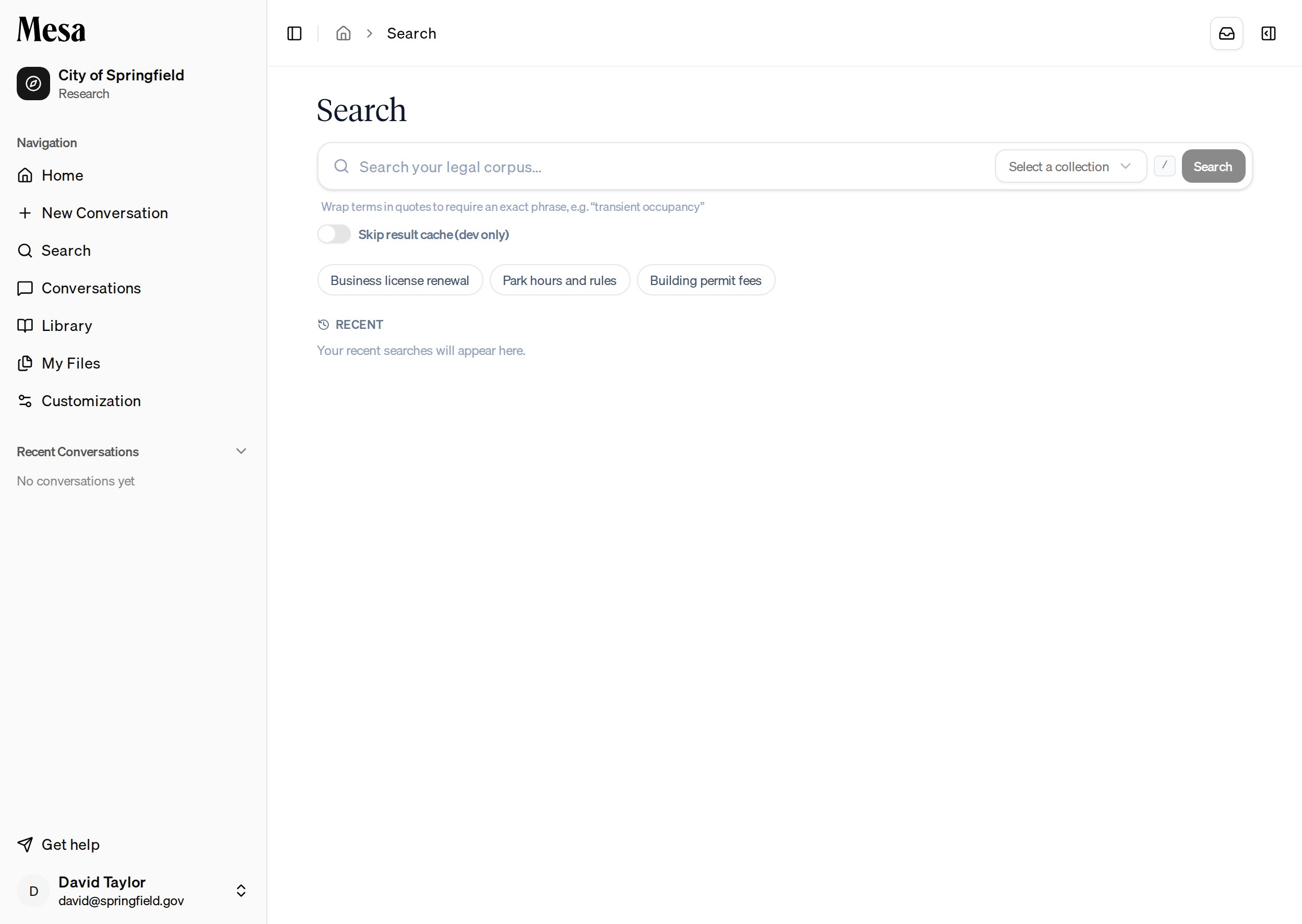
There’s no default set; members see example searches only once you’ve added them.
Personal vs. organization customization
Related articles
Skills
Create reusable instructions, share them, and pin them for the organization.
Preferences
Understand personal preferences before setting shared defaults.
Library
Browse and pin the content you want to surface for your team.
Organization admin
Manage members, roles, and usage allocations.