

Top bar
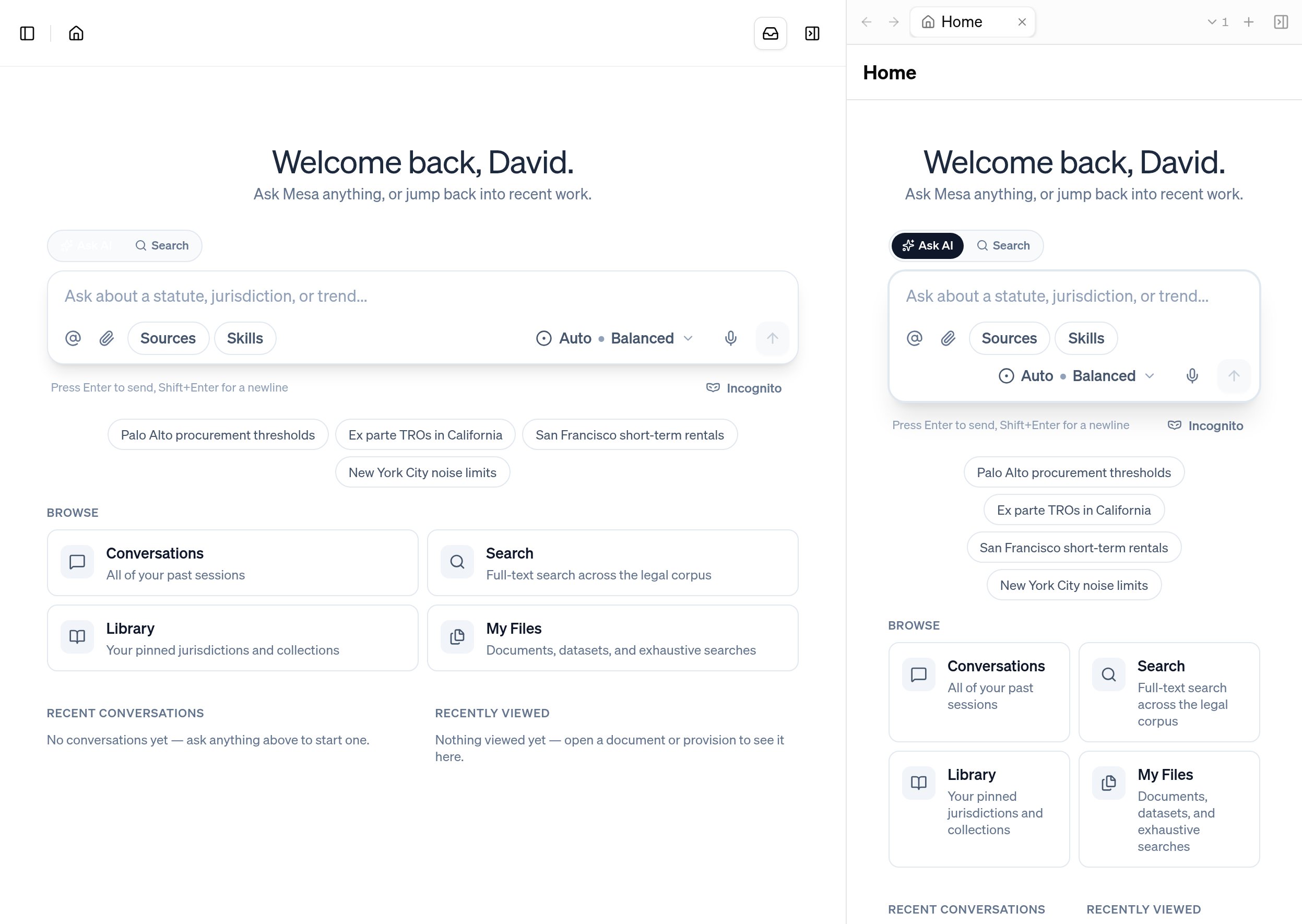
Click your organization name in the top-left to open a dropdown with links to other pages, including your settings. If you hold the Owner role, you’ll also see the Organization page here.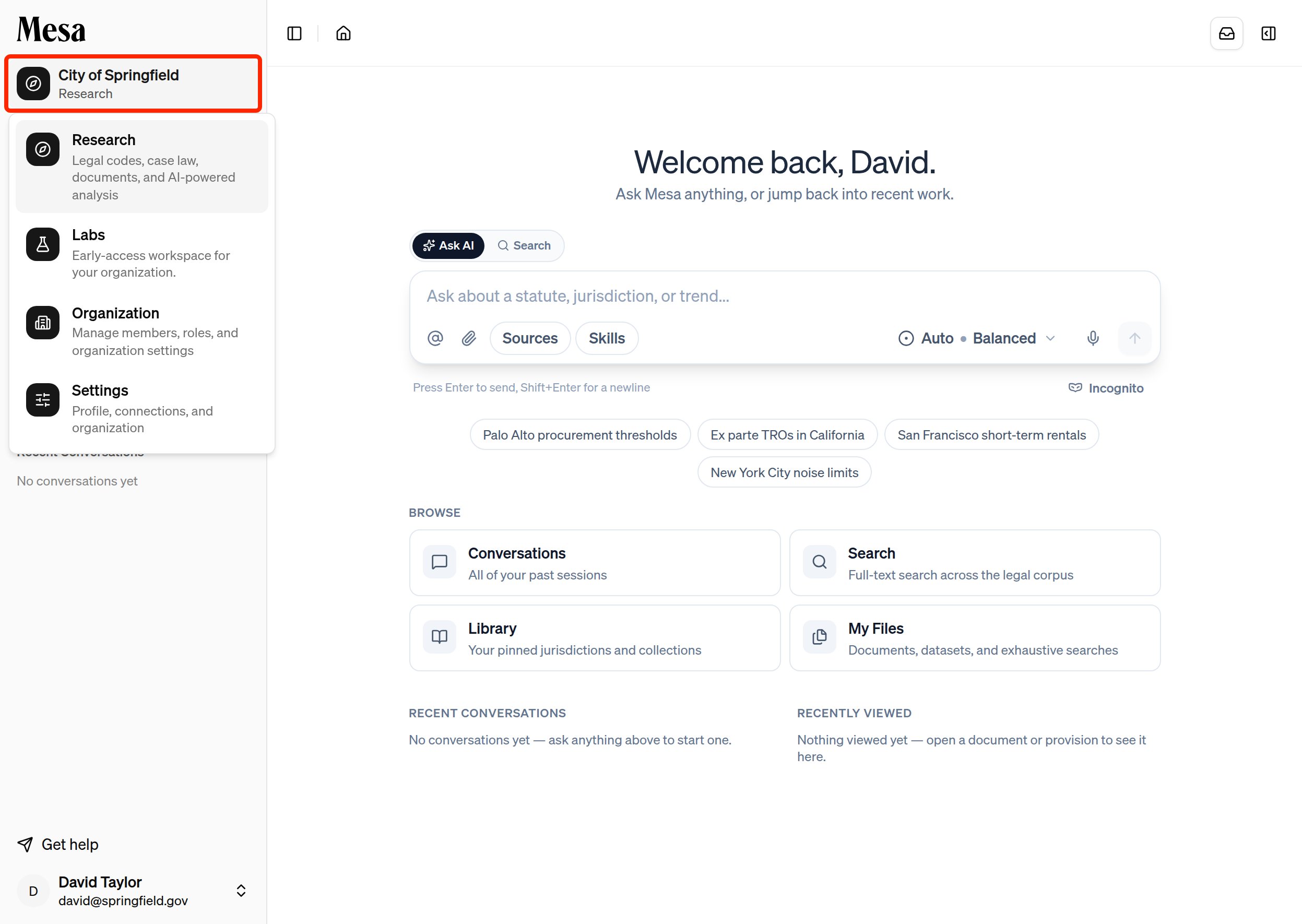
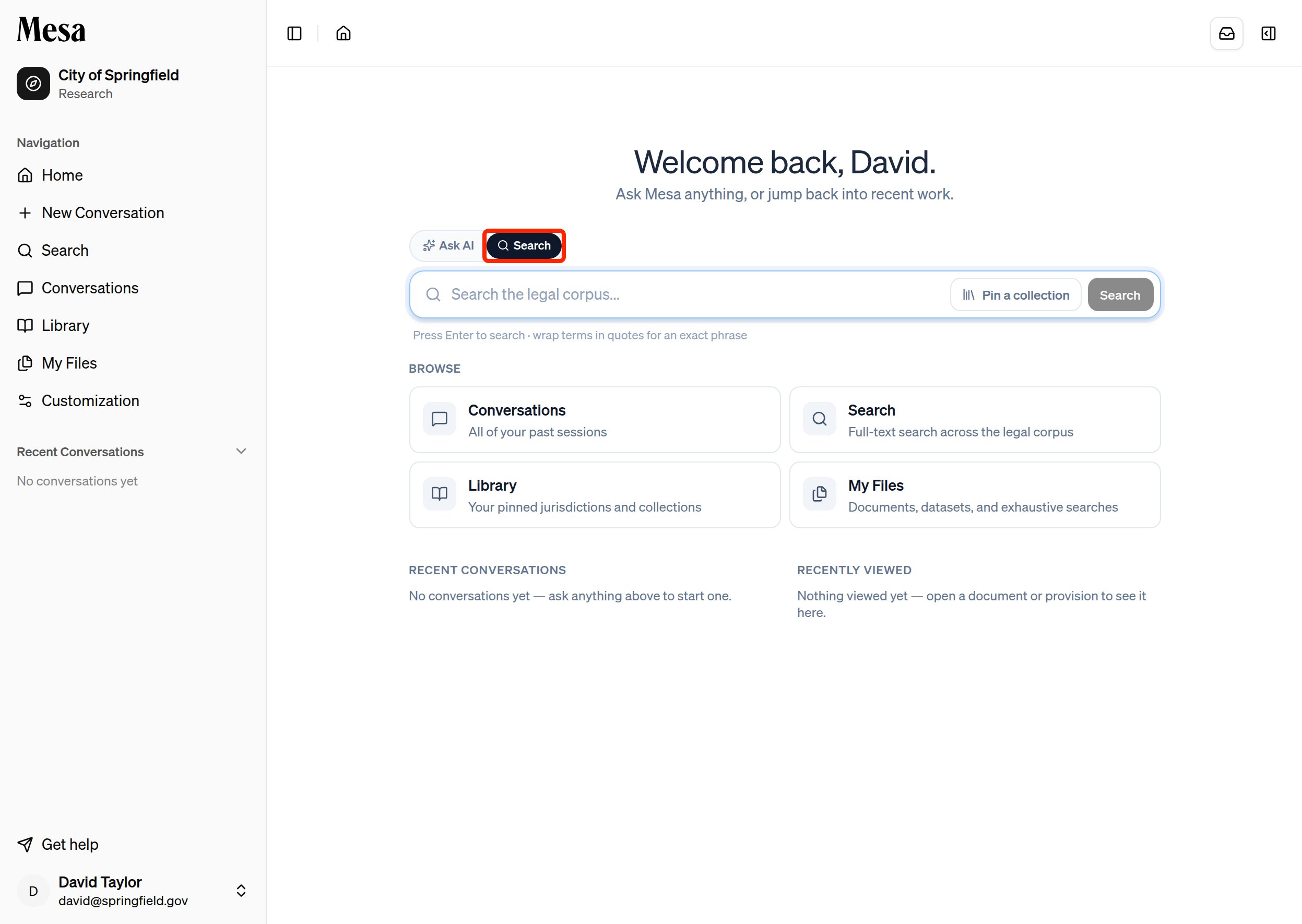
Search and Ask AI
The toggle in the center of the home page switches between two modes:- Search looks through a curated legal corpus.
- Ask AI sends your request to Mesa’s agents for research, drafting, and analysis.
Notifications and side panel
The bell icon in the top-right opens your notifications, where Mesa alerts you when long-running requests finish.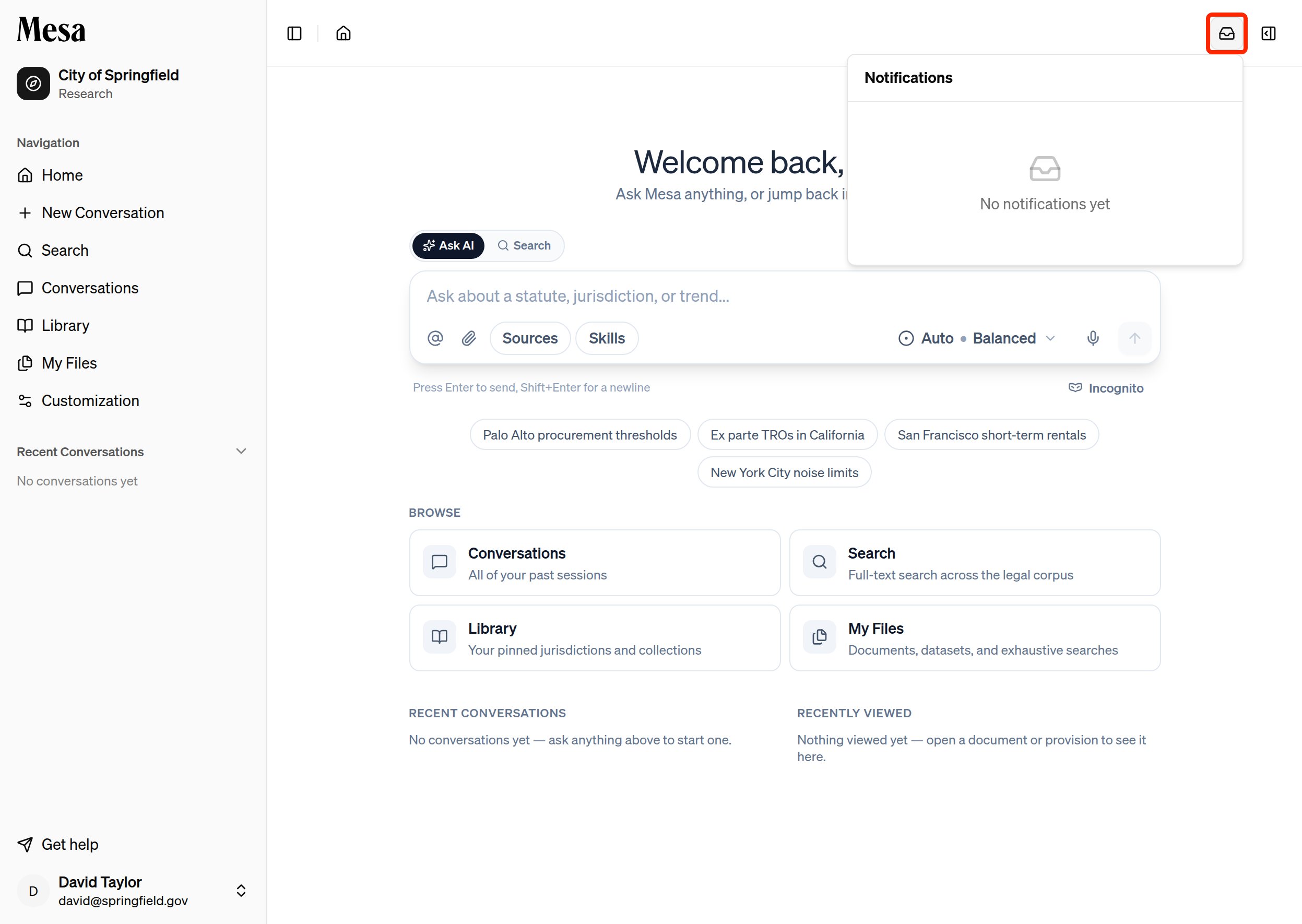
Sidebar
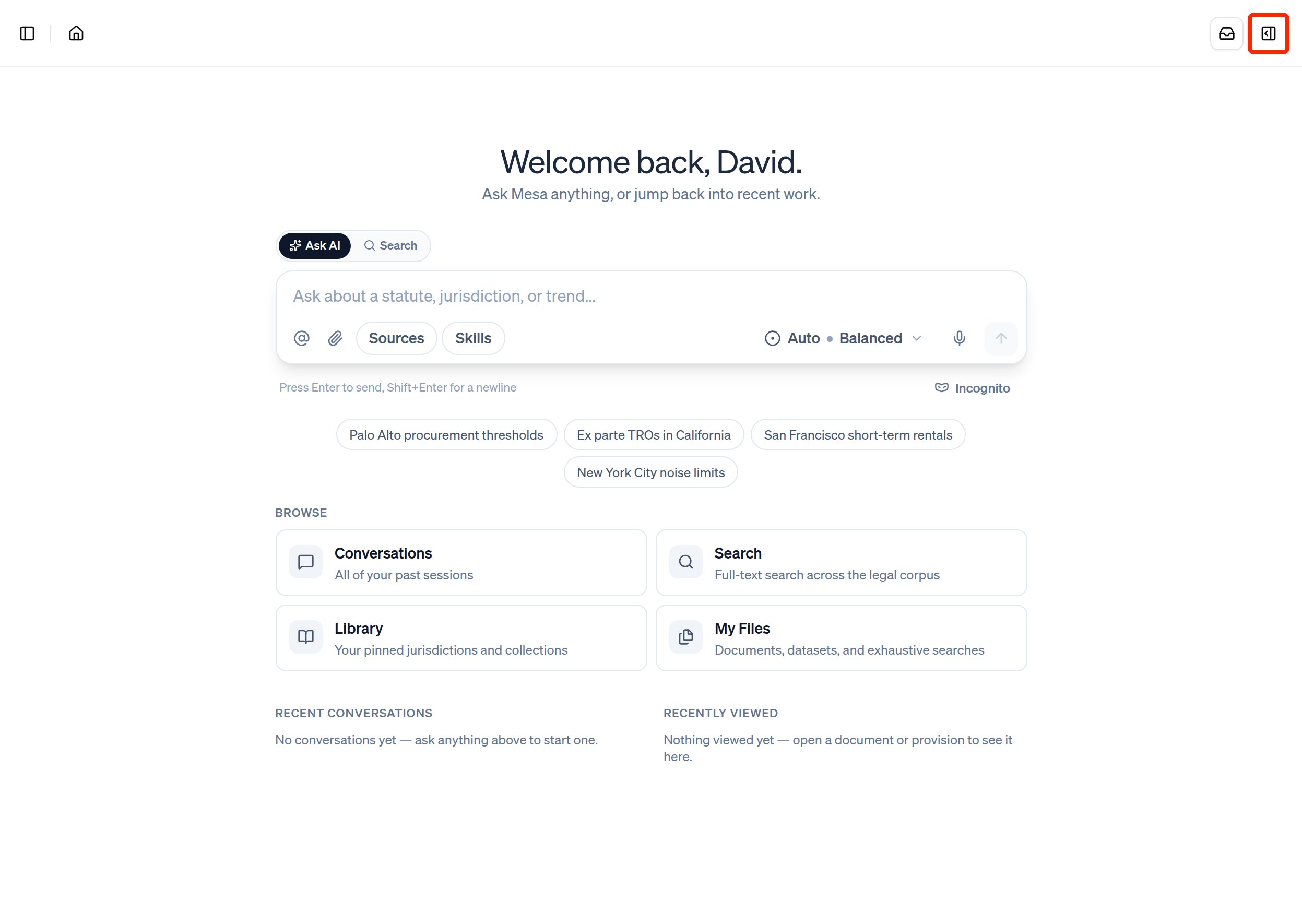
The left sidebar holds everything you’ve created and saved in Mesa. You can resize it: drag the sidebar’s right edge to make it wider or narrower, and Mesa remembers the width you choose in that browser. To control whether the sidebar stays pinned open or overlays the page, see Settings.Conversations
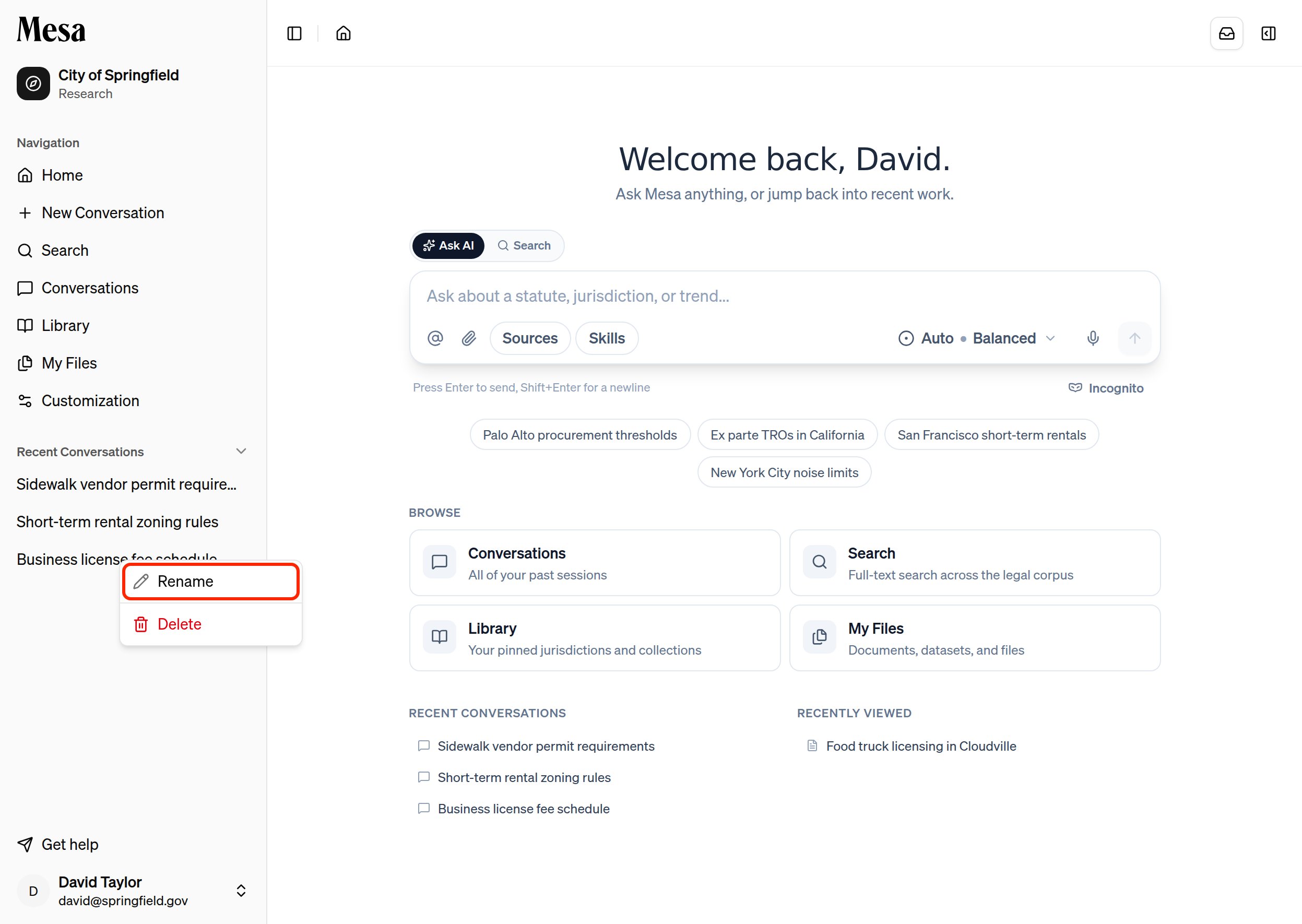
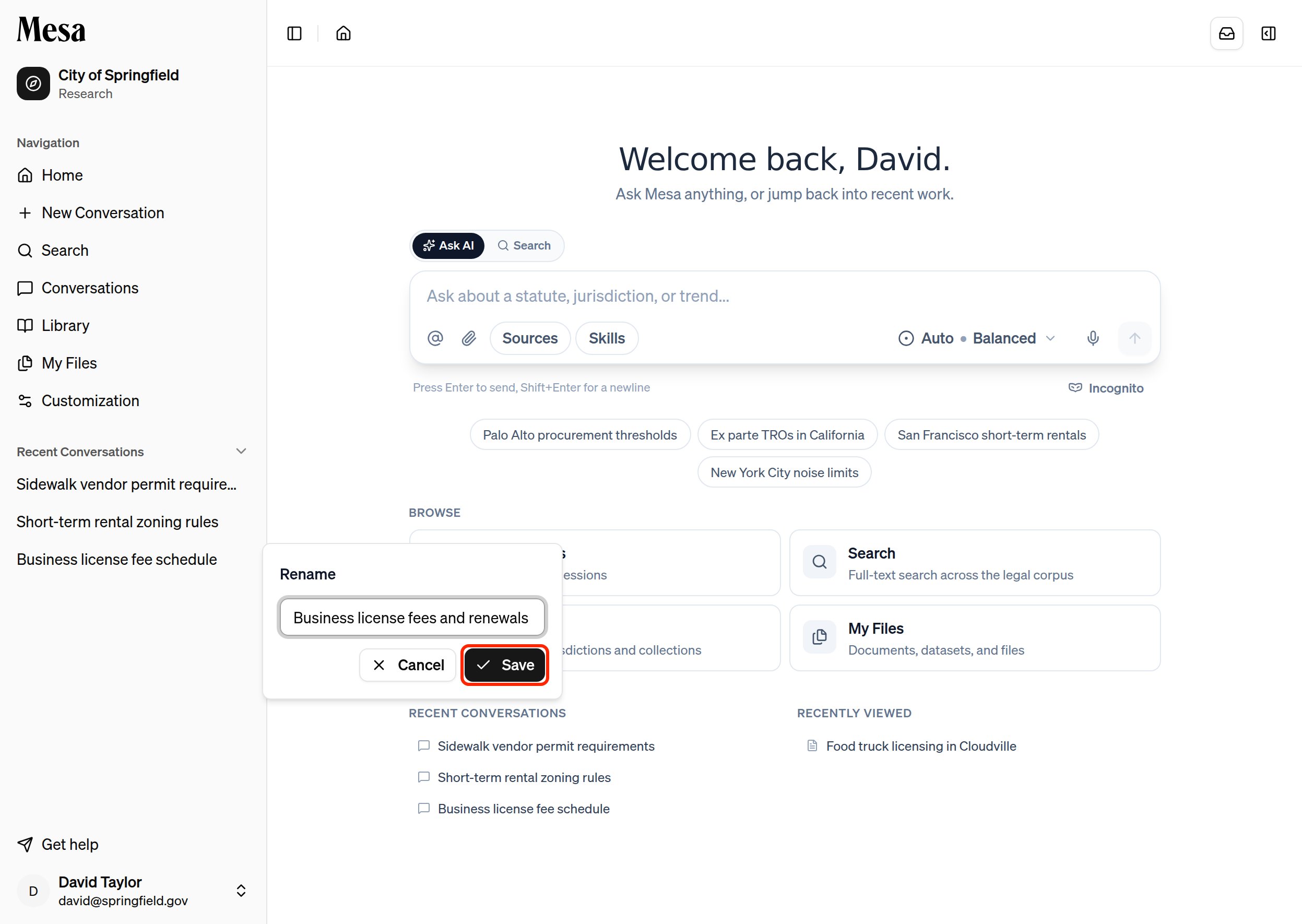
Click Conversations to see a list of all your prior conversations and pick up where you left off.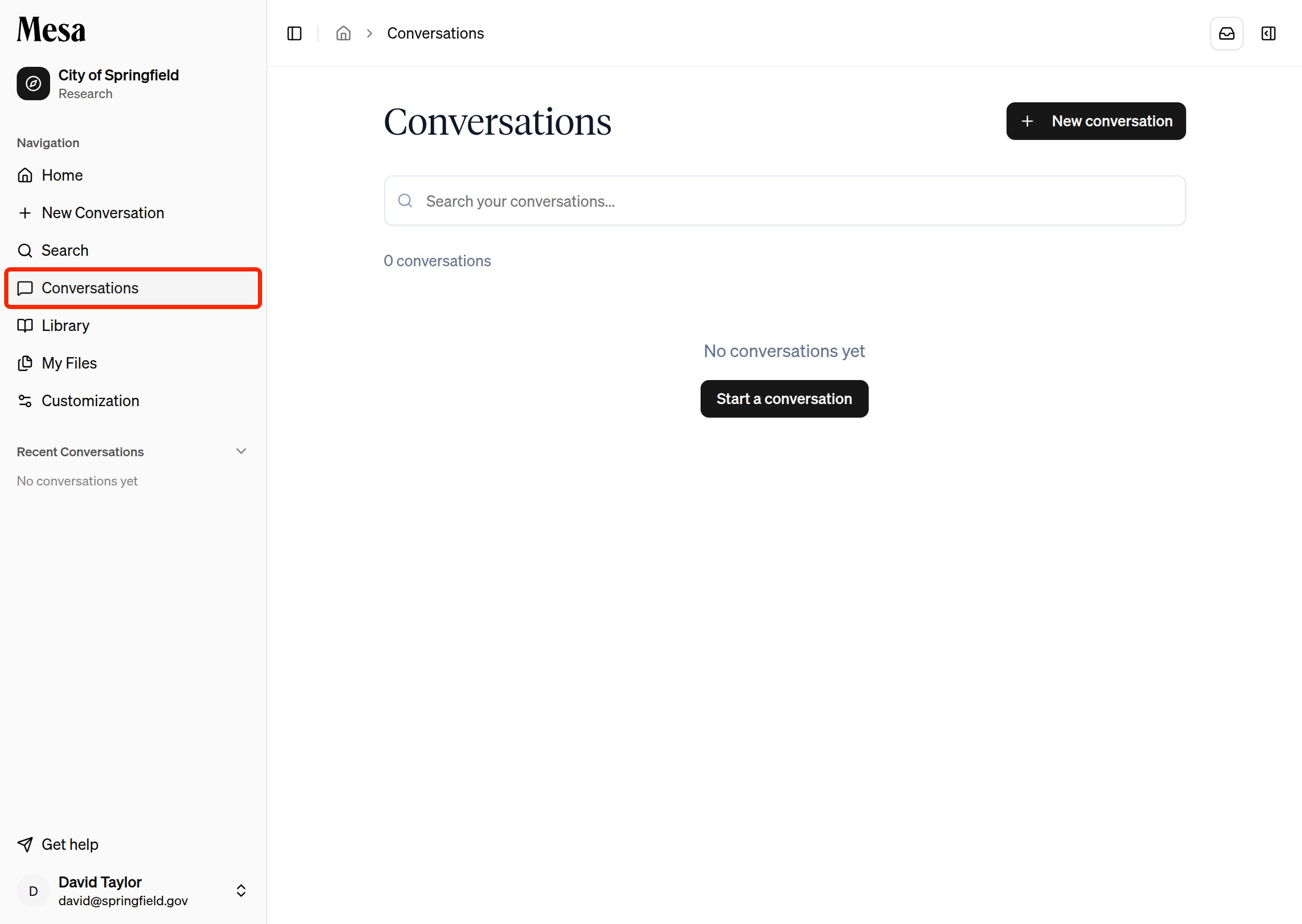
Library
The Library tab shows jurisdictions and collections pinned by you or your organization. Click Browse the full library to find specific jurisdictions to read, or My annotations in the top-right to review the highlights and notes you’ve made.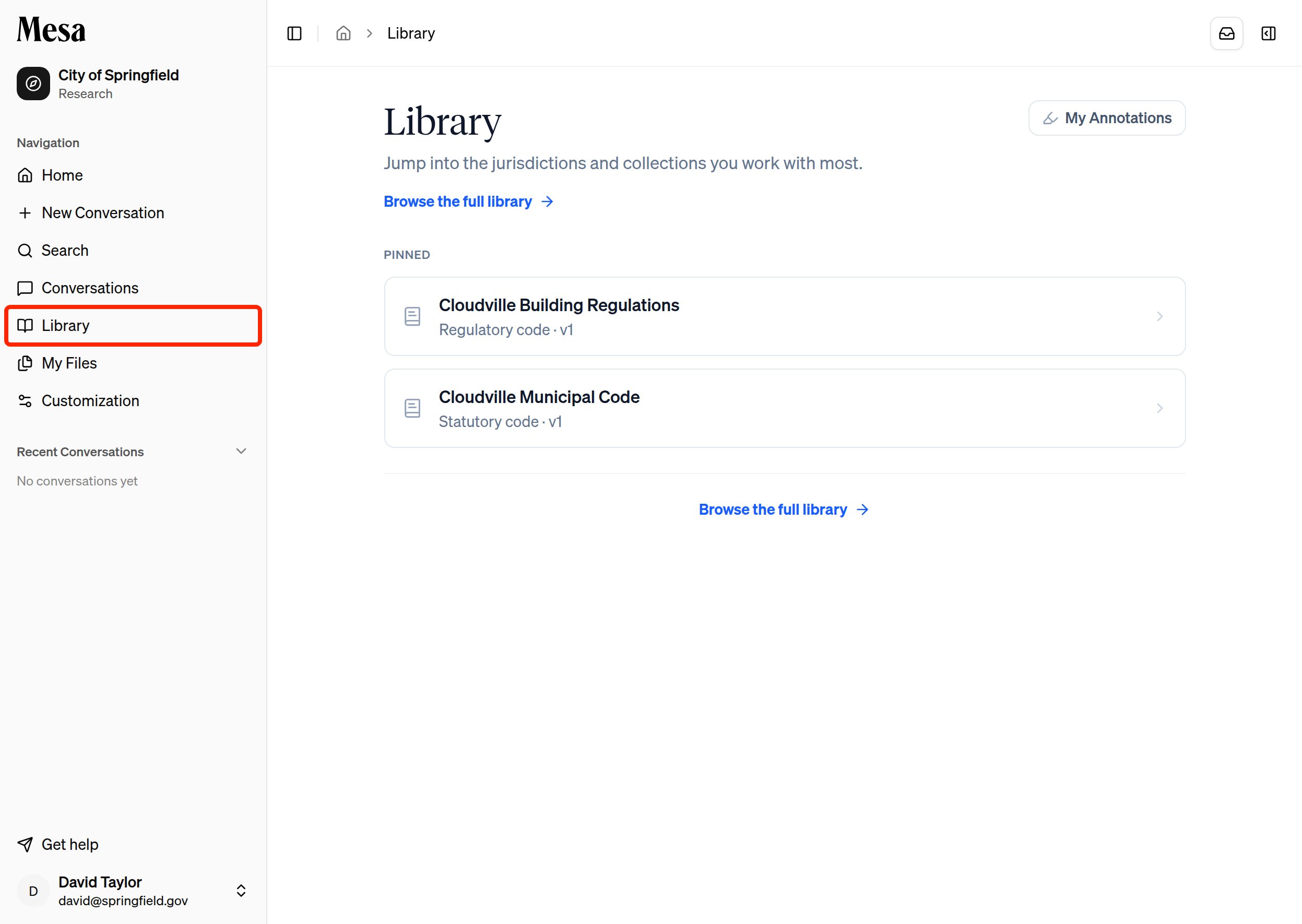
My Files
The My Files tab shows all of your uploads, organized by category.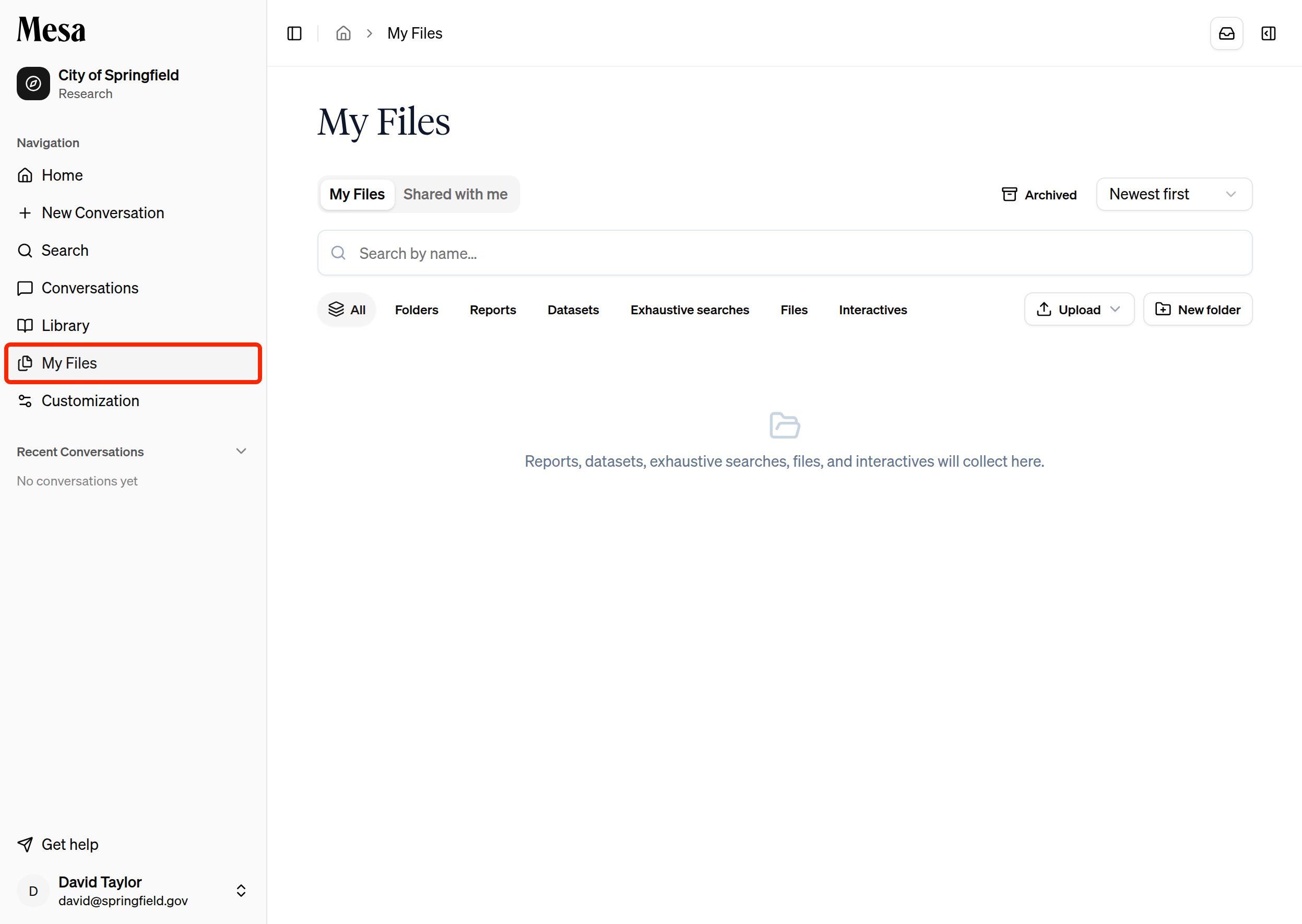
Customization
The Customization tab is where you set up personal and organization-wide features, including skills and preferences.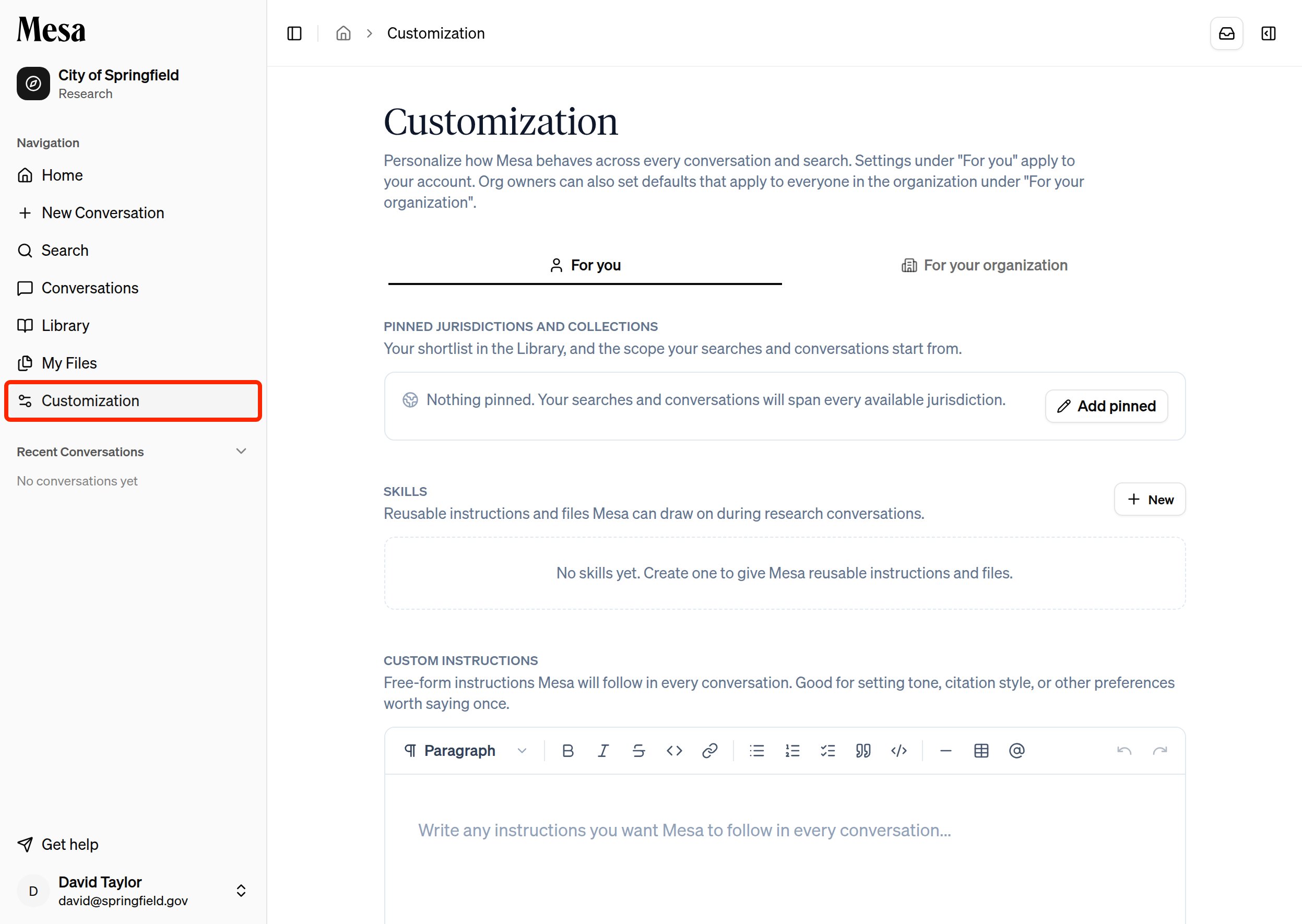
Your account menu
Click your name at the bottom of the sidebar to open your account menu. It shows your daily and weekly usage limits, lets you choose how the sidebar behaves, and links to Settings. If you have more than one account, or an invitation waiting, it also has Switch account; see Accounts. Click Log out to sign out.Related articles
Getting started with Mesa
Walk through your first conversation from login to finished request.
Settings
Configure your theme, sidebar behavior, and message controls.
Models
Pick the right model and effort level before starting chat work.