

When to use a batch
Good fits include:
- Finding every provision in a code that creates a duty, sets a deadline, or imposes a fee.
- Asking the same question of many jurisdictions’ codes.
- Reviewing a large document collection and sorting or flagging each document.
- Pulling the same fields out of many sources into one spreadsheet.
Start a batch
Describe the whole job in your message and say what you want back. When you ask for every matching item, the agent runs a batch automatically.Find every provision in the Cloudville Municipal Code and the Cloudville Building Regulations that sets a fee, and build me a dataset with the section, the fee amount, and who pays it.The more precisely you describe what counts, what doesn’t, and which details to record for each match, the more consistent the results. For very large jobs, the agent first runs a small sample, checks the results, and tells you the expected cost of the full run before starting it.
Follow a batch’s progress
When the batch starts, a batch card appears in the conversation. The top line shows how many items (units) the batch has and which model runs them. Below it, one square per unit fills in as work finishes, with counts for Completed, Failed, Running, and Pending, the percentage done, and an estimate of the time left. Running now lists the units in progress.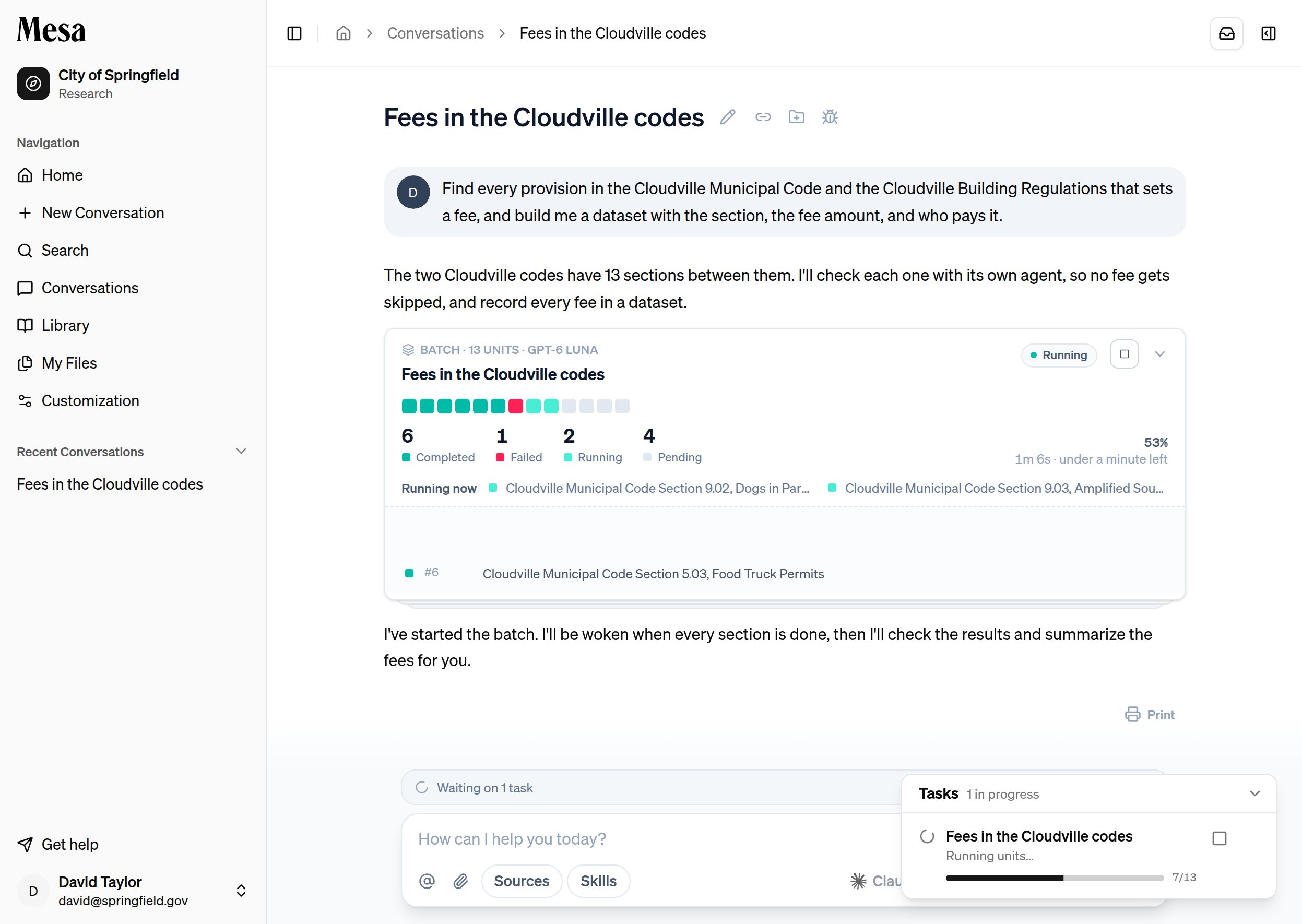
Review individual units
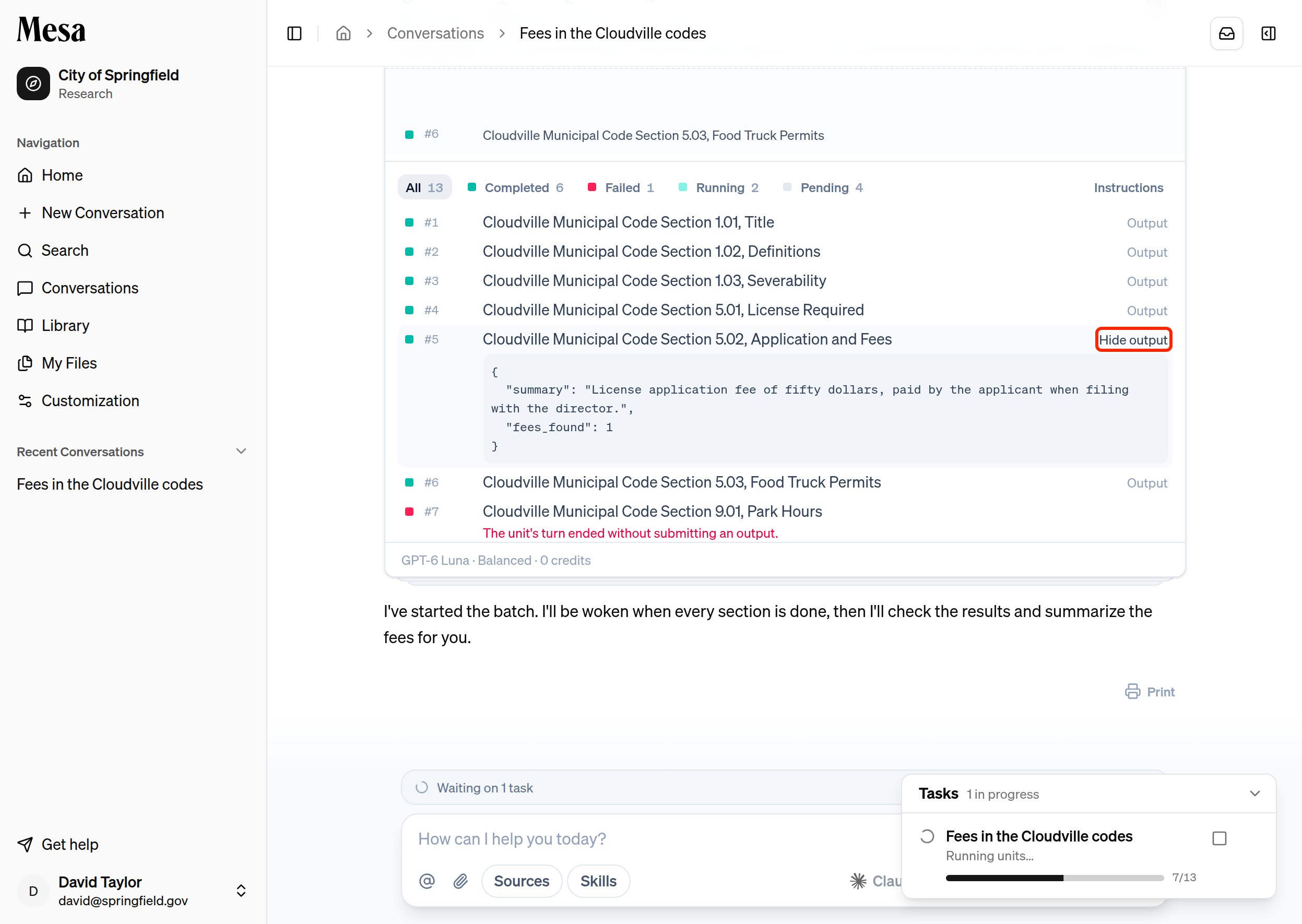
Click the top of the batch card to expand it into a list of every unit. Use the All, Completed, Failed, Running, and Pending filters to narrow the list, and click Instructions to read the instructions every unit received.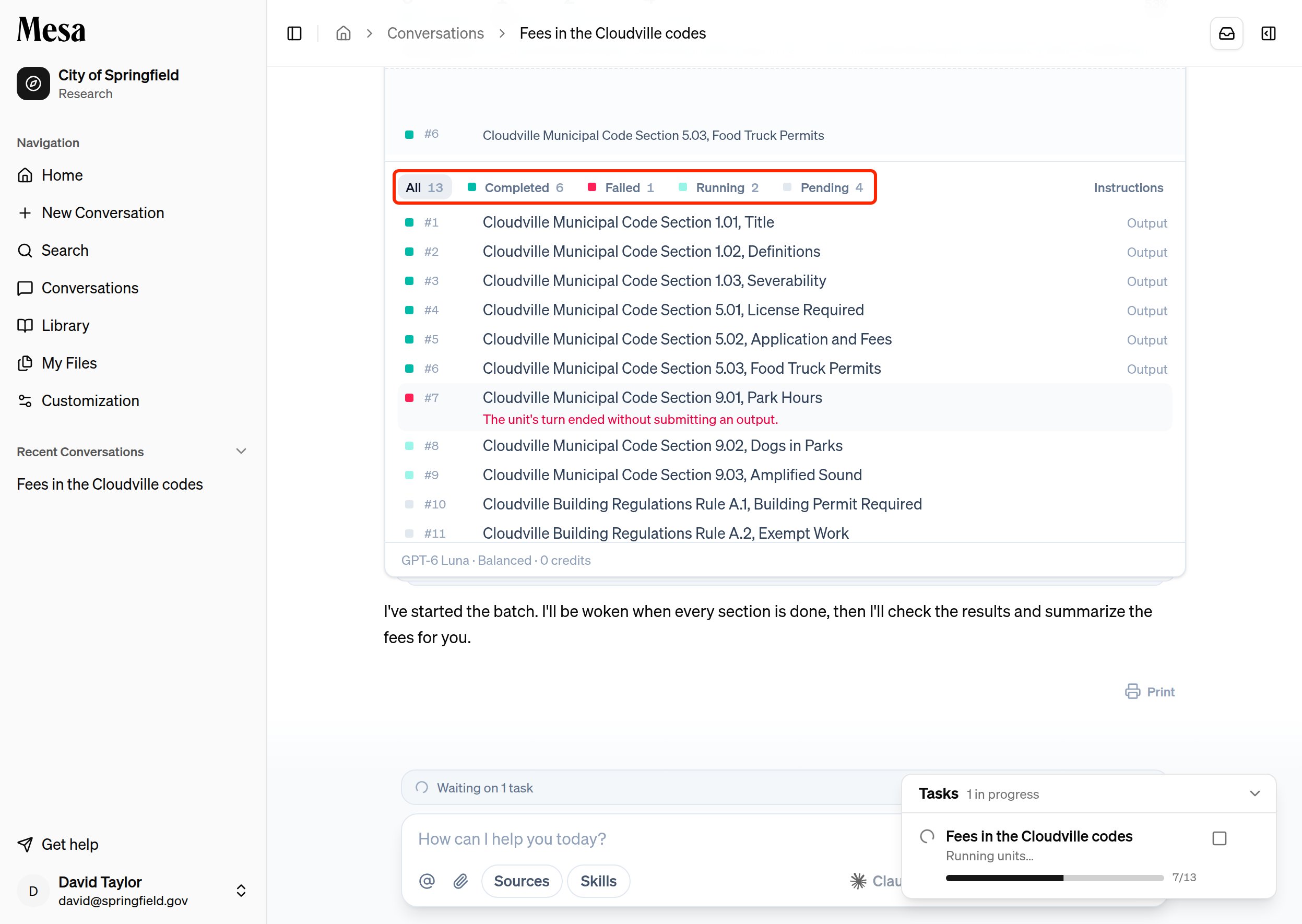
Stop a batch
To stop a batch early, click the square stop button at the top of the card, then click Stop. Units that already finished keep their results; running units stop, and units that haven’t started don’t run.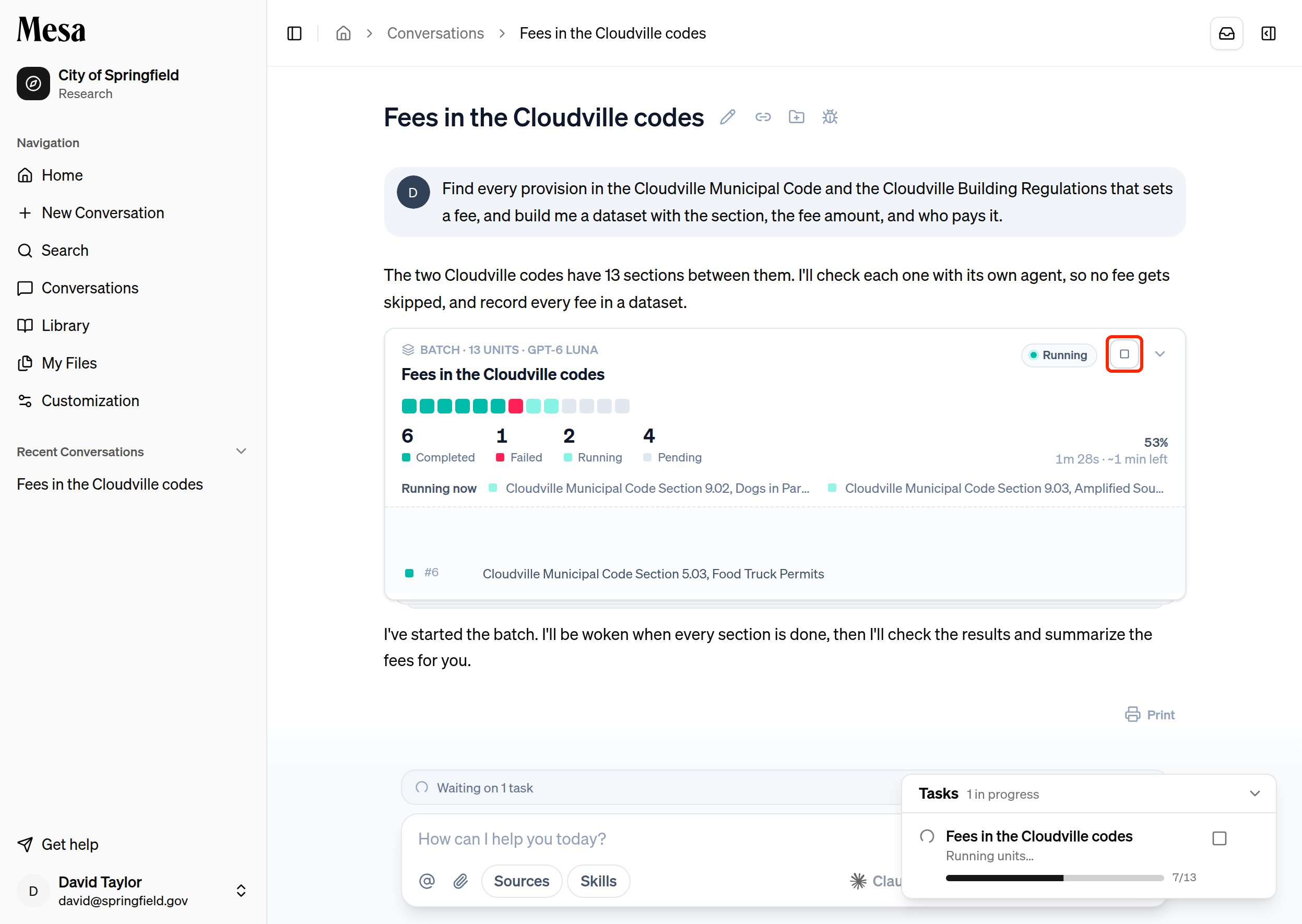
Related articles
Files
Find and manage the datasets that batches create.
Prompting
Write requests that get complete, consistent results.
Models
Choose models and effort levels suited to large research tasks.