

Open the Organization page
Click your organization name in the top-left corner and select Organization from the dropdown.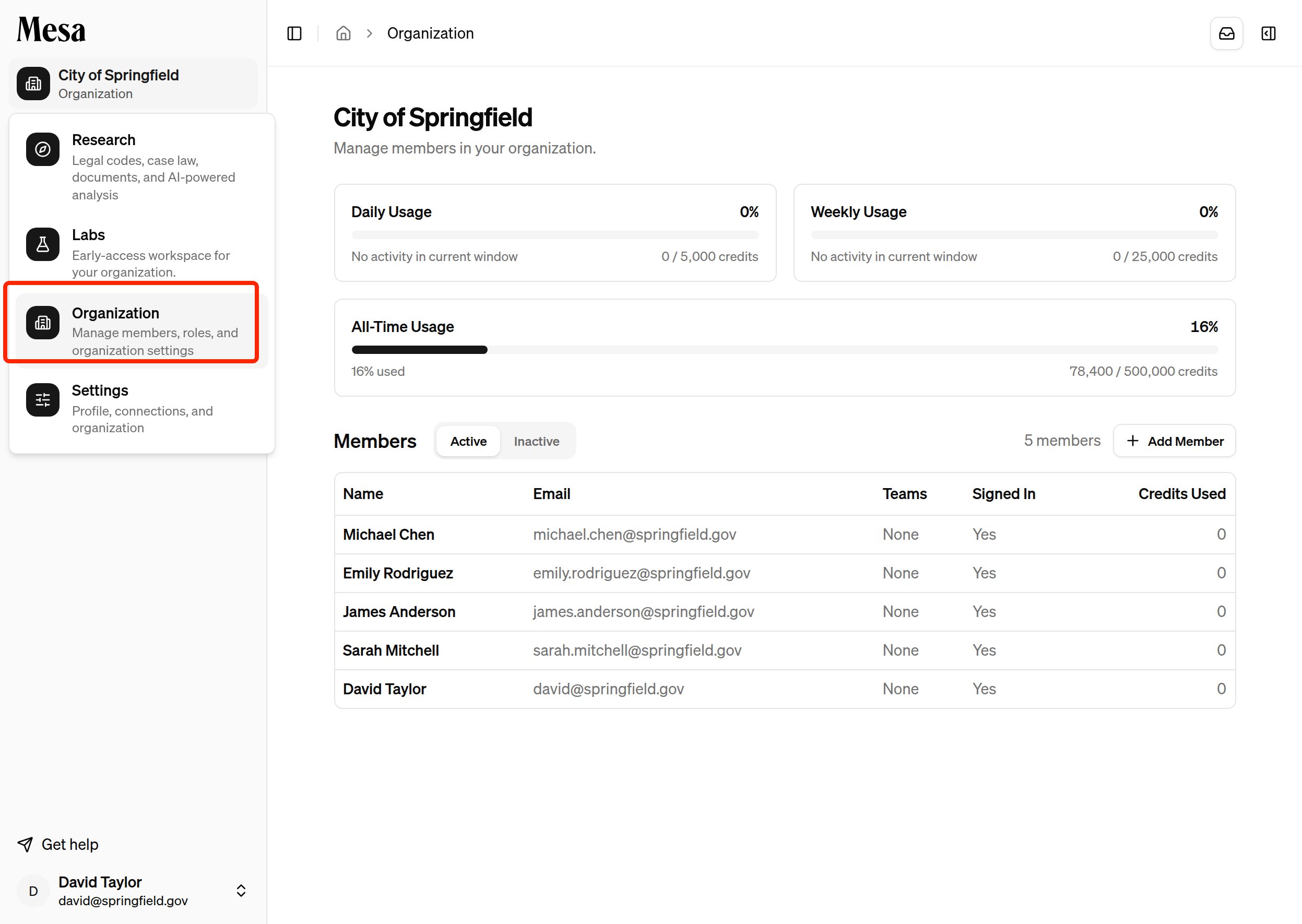
Monitor usage
The Organization page shows organization-wide daily and weekly usage across all members. If your organization has an all-time usage limit, an All-Time Usage card also appears below them. It tracks your organization’s lifetime usage against that limit and, unlike daily and weekly usage, never resets. Click any member’s name in the list to view their individual usage.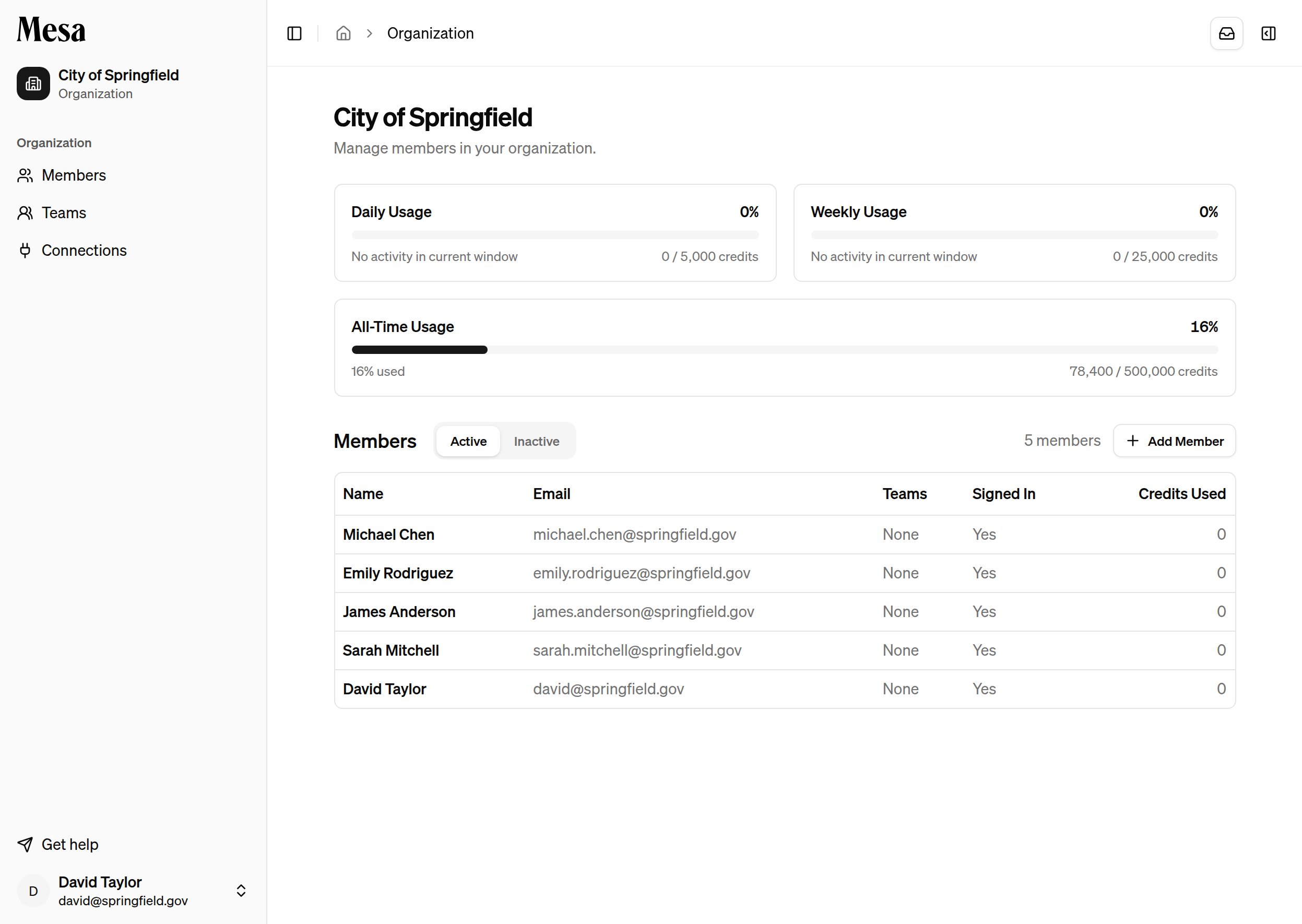
Manage existing members
From a member’s profile, you can edit their display name, role and permissions, and allocated usage. To remove someone from the workspace, click Deactivate in the top-right of their profile.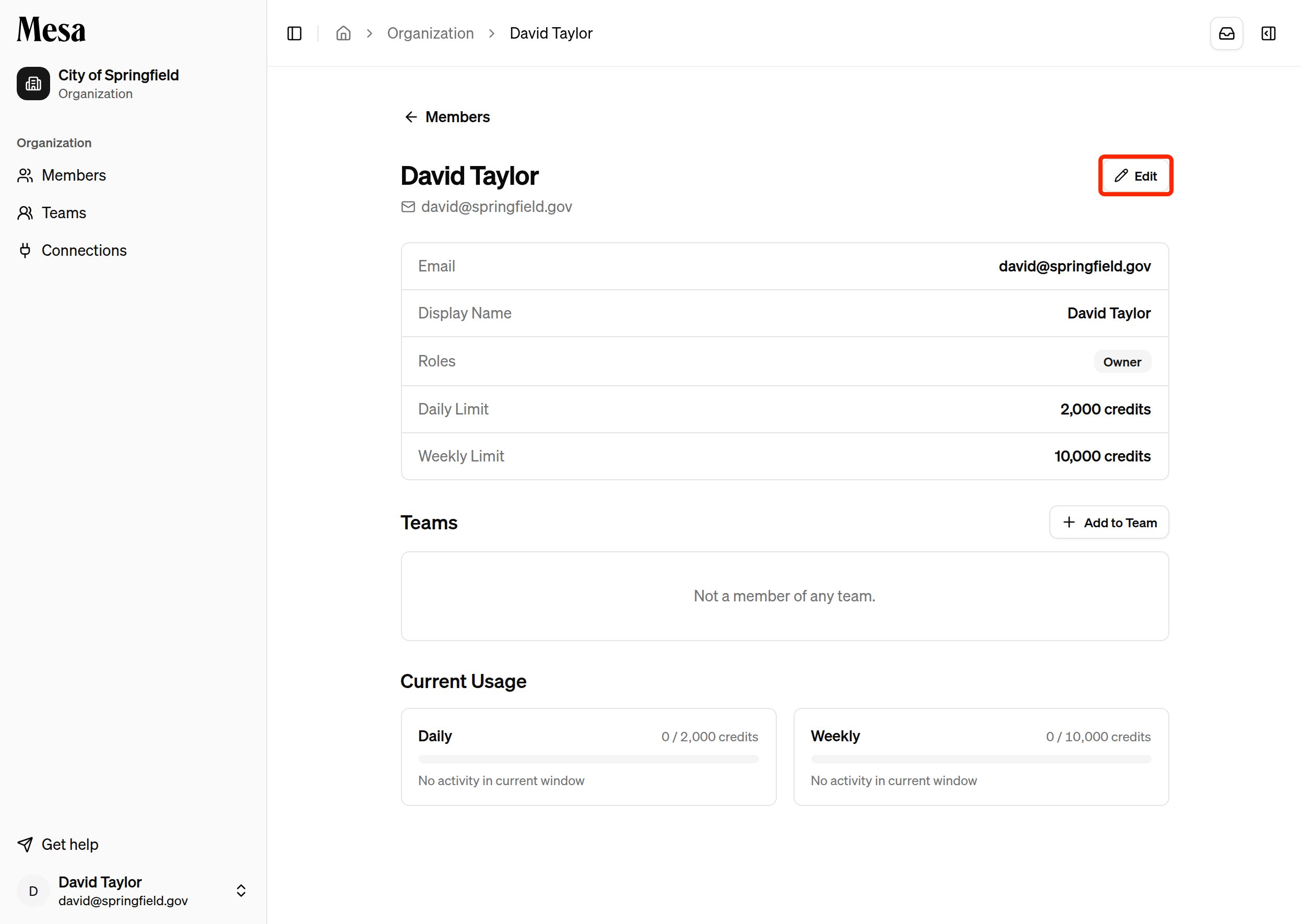
The Deactivate button doesn’t appear when you’re viewing your own account.
Add new members
From the Organization page, add a new member by filling out their email, display name, permissions, and allocated usage.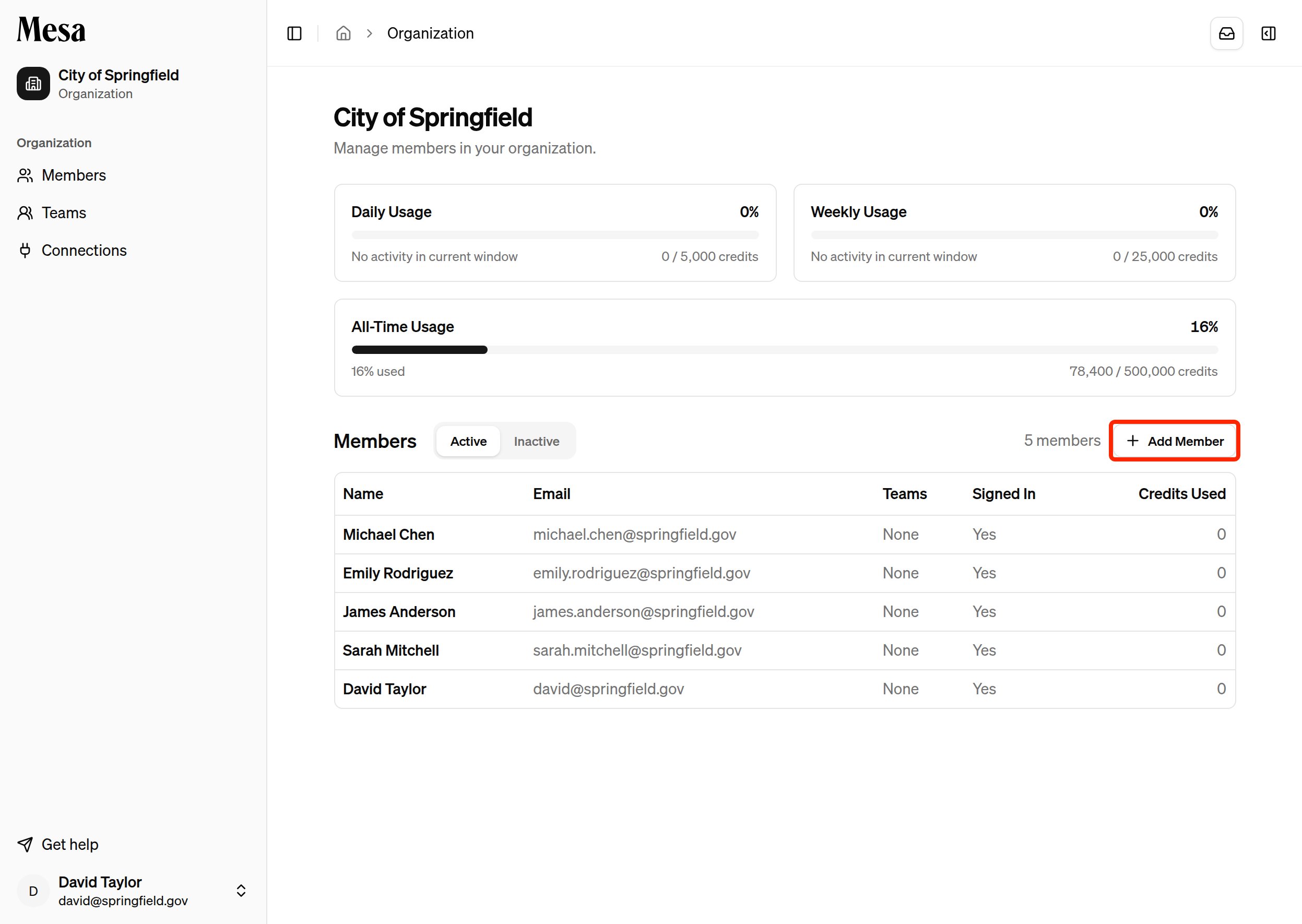
Service accounts
Service accounts are identities that Mesa uses to run unattended work for your organization. They hold roles, teams, and credit limits like members, but never sign in. They’re managed on their own Service Accounts page, not in the members list. See Organization service accounts.Roles and permissions
Assign each member one or more roles. A member with no role has no workspace access until you grant one.Roles are additive: a member can hold more than one, and their permissions are the union of every role they hold. You can assign a role to a member directly, or grant it to a group of members at once through a team.
Troubleshooting
- A new member didn’t receive their invite: double-check the email address you entered and ask them to check their spam folder.
- You need to change someone’s role but aren’t an Owner: ask a current Owner to make the change.
Related articles
Teams
Group members into teams so they inherit the same roles at once.
Organization service accounts
Create identities for work Mesa runs on your organization’s behalf.
Organization customization
Set shared preferences, pinned skills, and pinned content for your team.
Usage
Understand daily and weekly usage before adjusting allocations.
Navigation
Find the organization menu from the Mesa home page.