

Open the Service Accounts page
Open the Organization page and choose Service Accounts from the sidebar. The page lists your organization’s service accounts with their email, roles, teams, and credits used. Switch between Active and Inactive to see deactivated service accounts.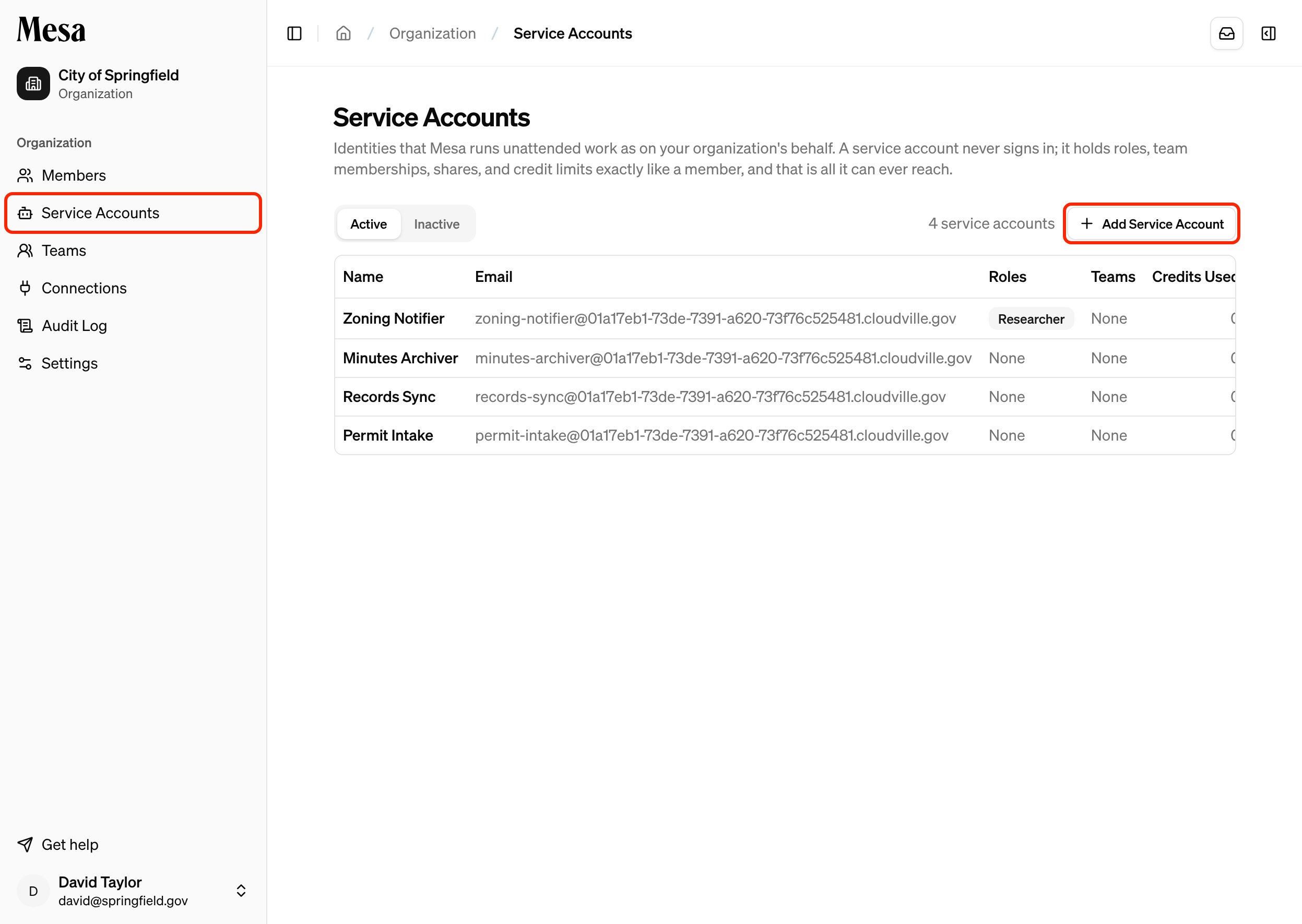
Service accounts are listed only on the Service Accounts page. The Members list shows people only.
Add a service account
1
Start a new service account
Click Add Service Account on the Service Accounts page.
2
Fill in the details
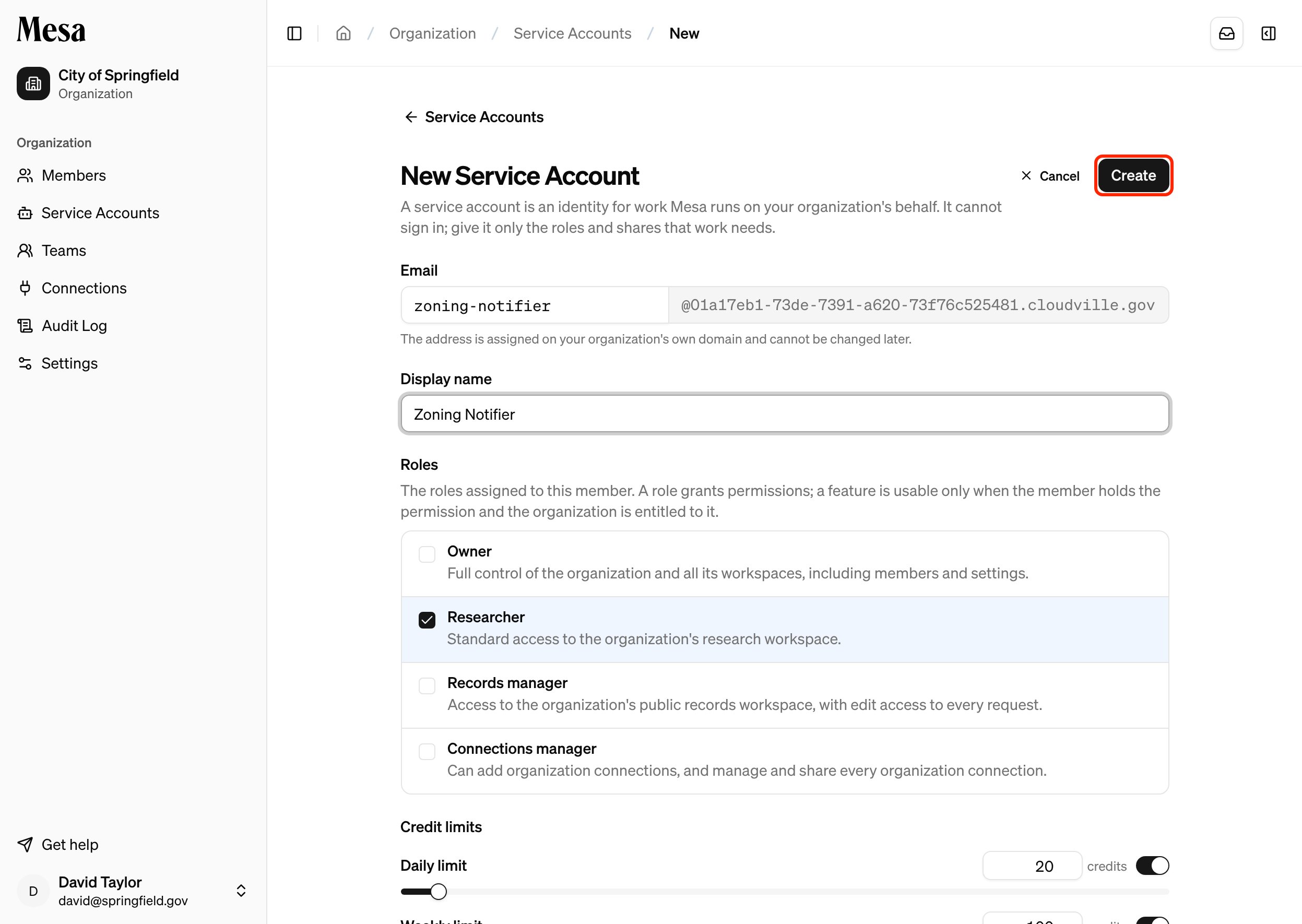
- Email: enter the first part of the address. Mesa assigns the rest on your organization’s own service account domain. You can’t change the address later.
- Display name: the name members see wherever the service account appears.
- Roles: the roles the service account holds, just like a member’s.
- Credit limits: the service account’s daily and weekly limits.
3
Create the service account
Click Create. Mesa opens the service account’s page.
Manage a service account
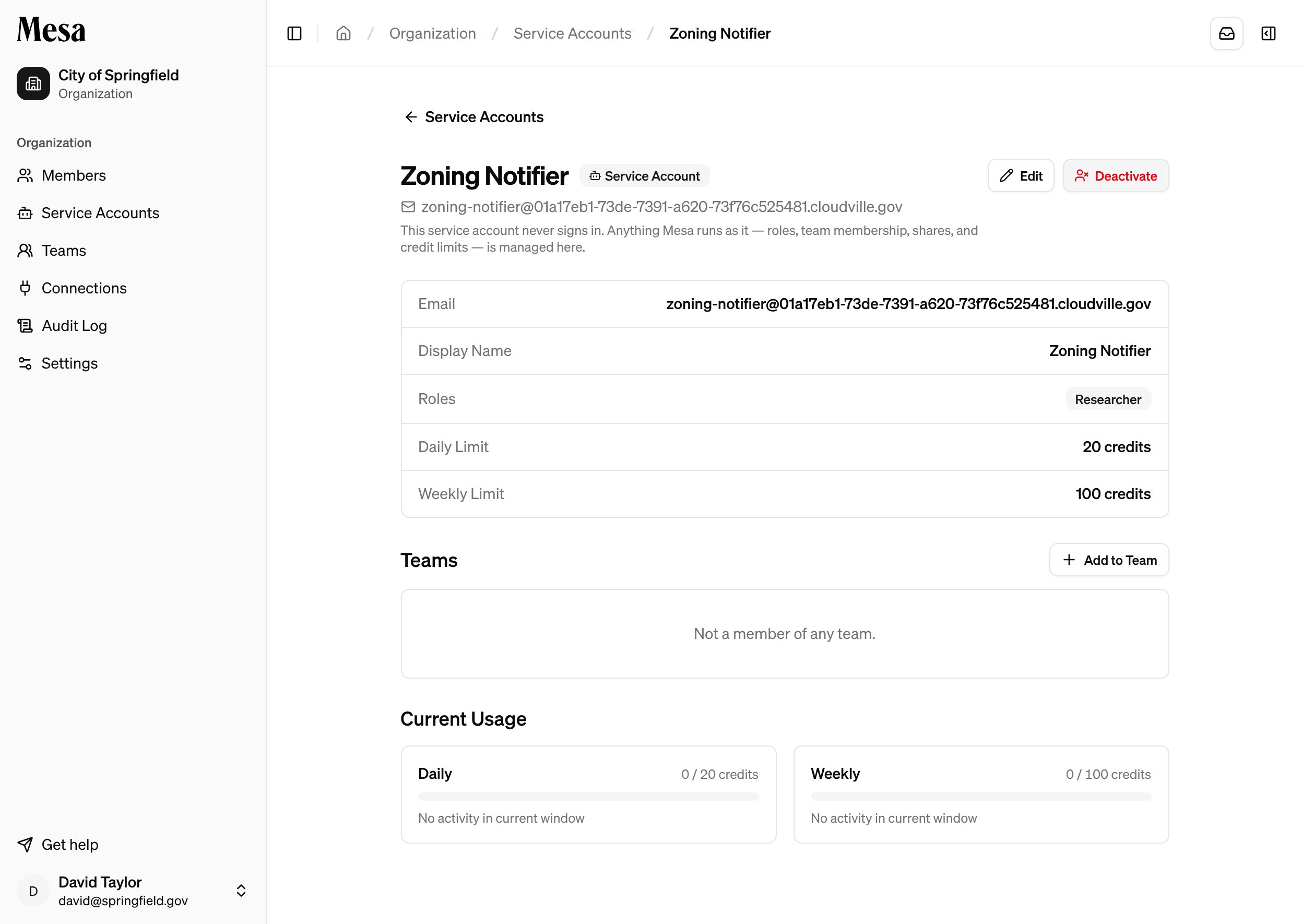
Click a service account in the list to open its page. A Service Account badge sits next to its name. From here you can:- Click Edit to change its display name, roles, or credit limits.
- Click Add to Team to give it the roles of a team.
- Review its daily and weekly usage under Current Usage.
- Click Deactivate to stop Mesa from running work as the service account. Deactivated service accounts move to the Inactive list.
Related articles
Organization admin
Add members, assign roles, and monitor usage across your workspace.
Teams
Group members and service accounts into teams that share the same roles.
Organization audit log
Review activity across your organization, including work done by service accounts.