

1
Log in and look around
When you log in, you land on the Mesa home page. The chat box sits in the center, your organization name is in the top-left, and the sidebar on the left holds your conversations, library, files, and customization options.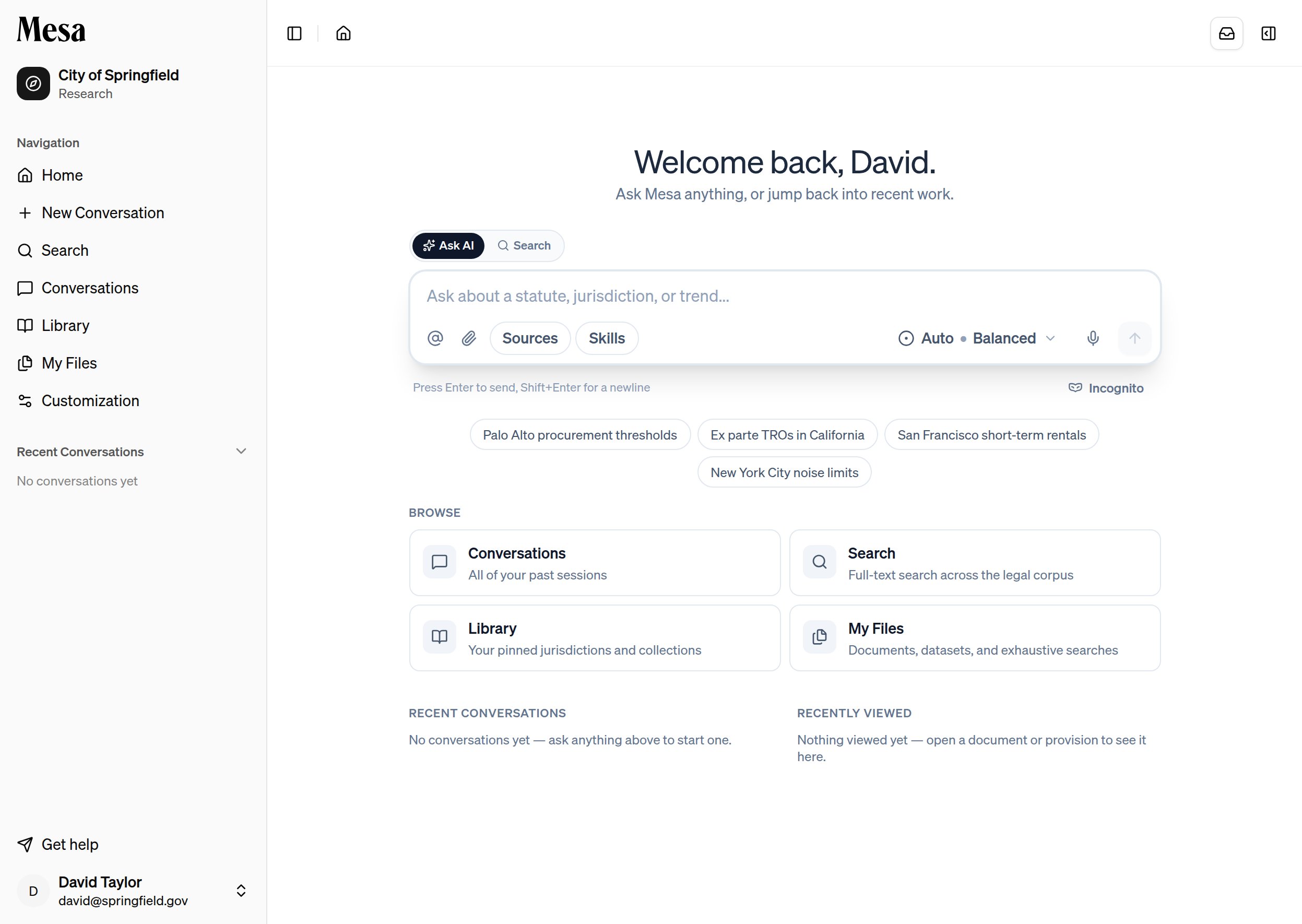
2
Choose a model and effort level
Above the chat box, use the dropdown to pick a model and effort level. As a rule of thumb: use a lighter model on Fast for quick questions, and a higher-capability model on Balanced or Deep Research for research and drafting.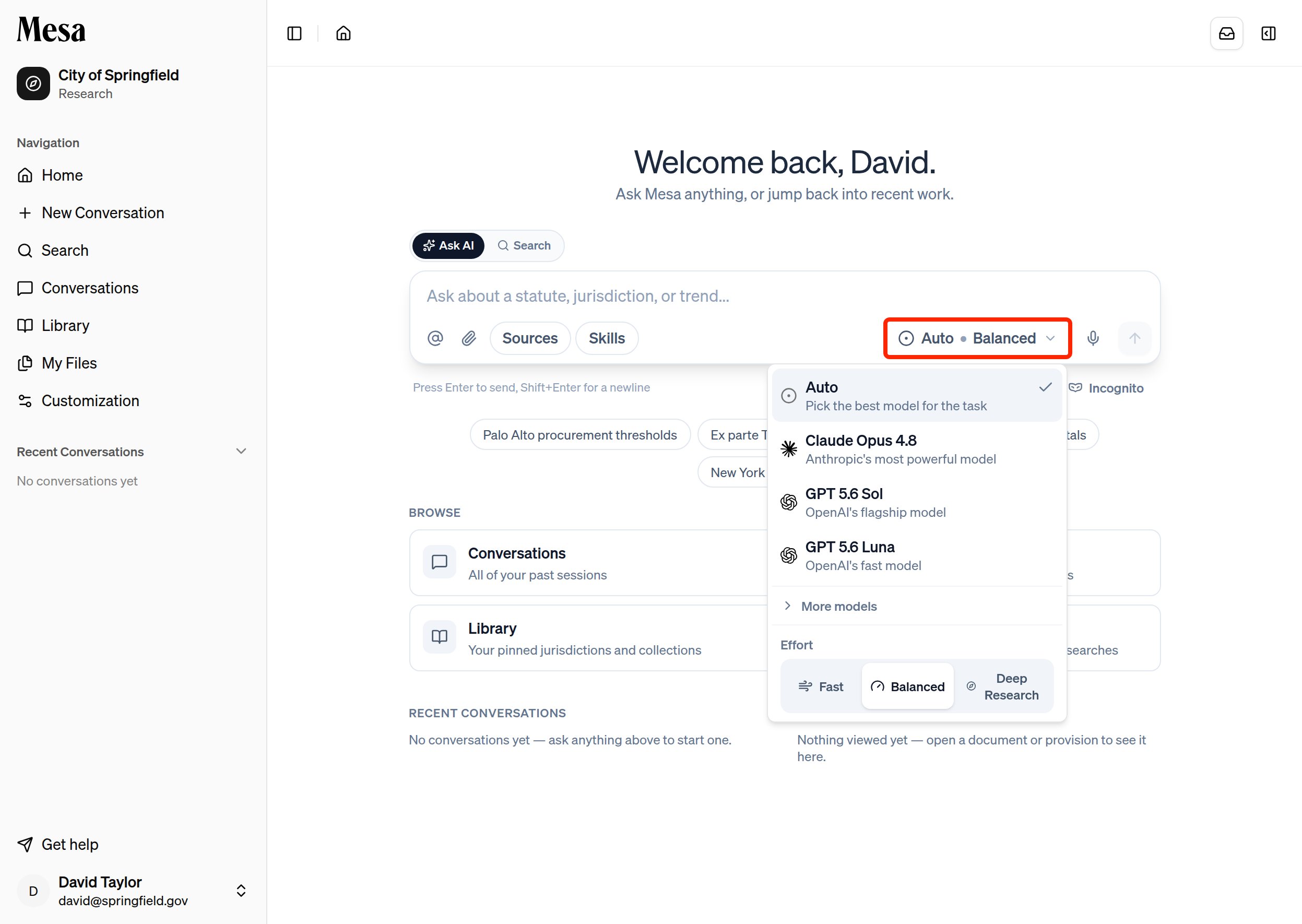
3
Ask your first question
Use the toggle above the chat box to choose between Search, which searches a curated legal corpus, and Ask AI, which sends your request to Mesa’s agents.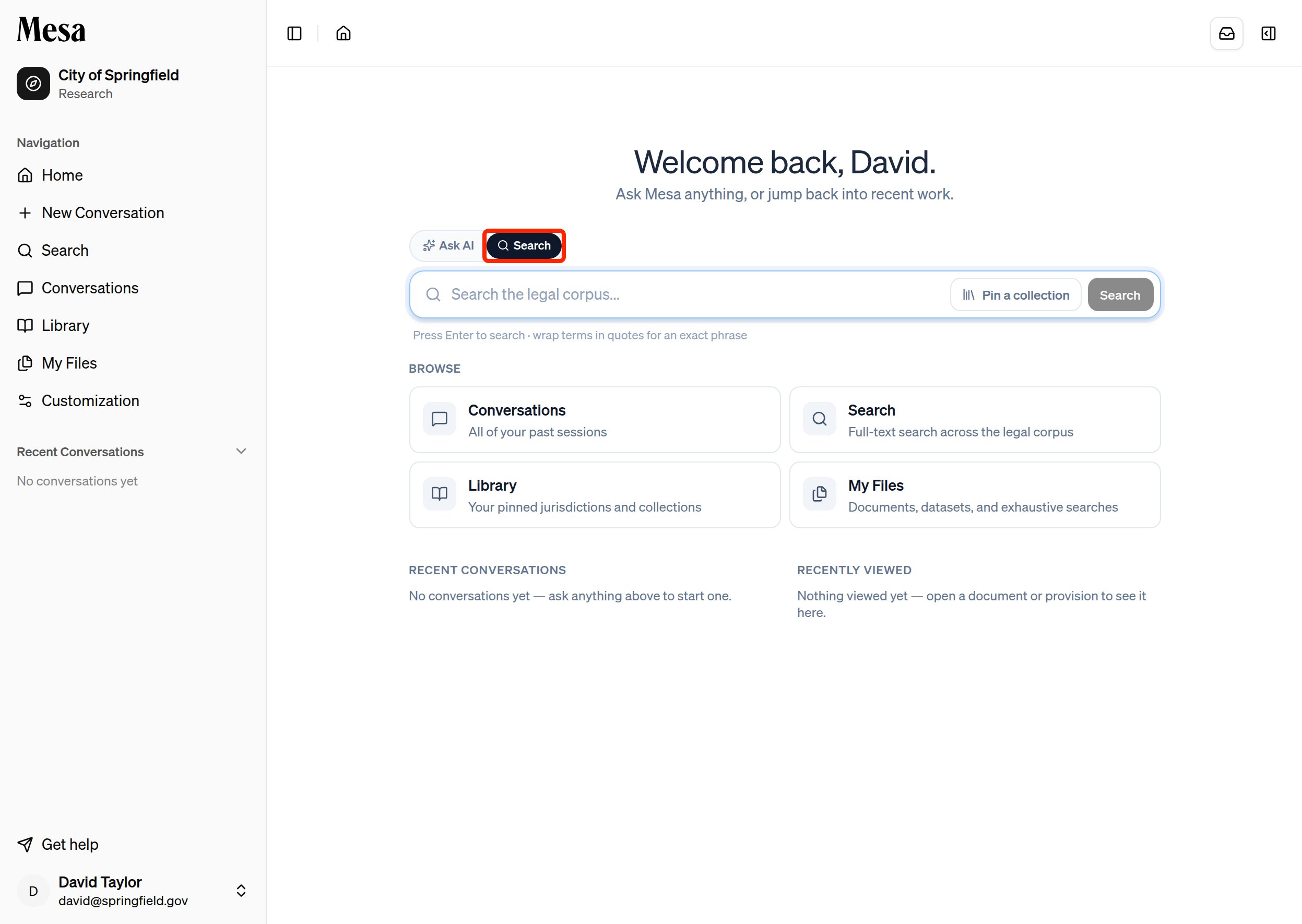
Summarize the financial reporting obligations for public companies in Delaware, formatted as a short memo for a senior partner.Press
Enter to send your message.4
Add a document
Mesa can ground its answers in your own documents. You have two options: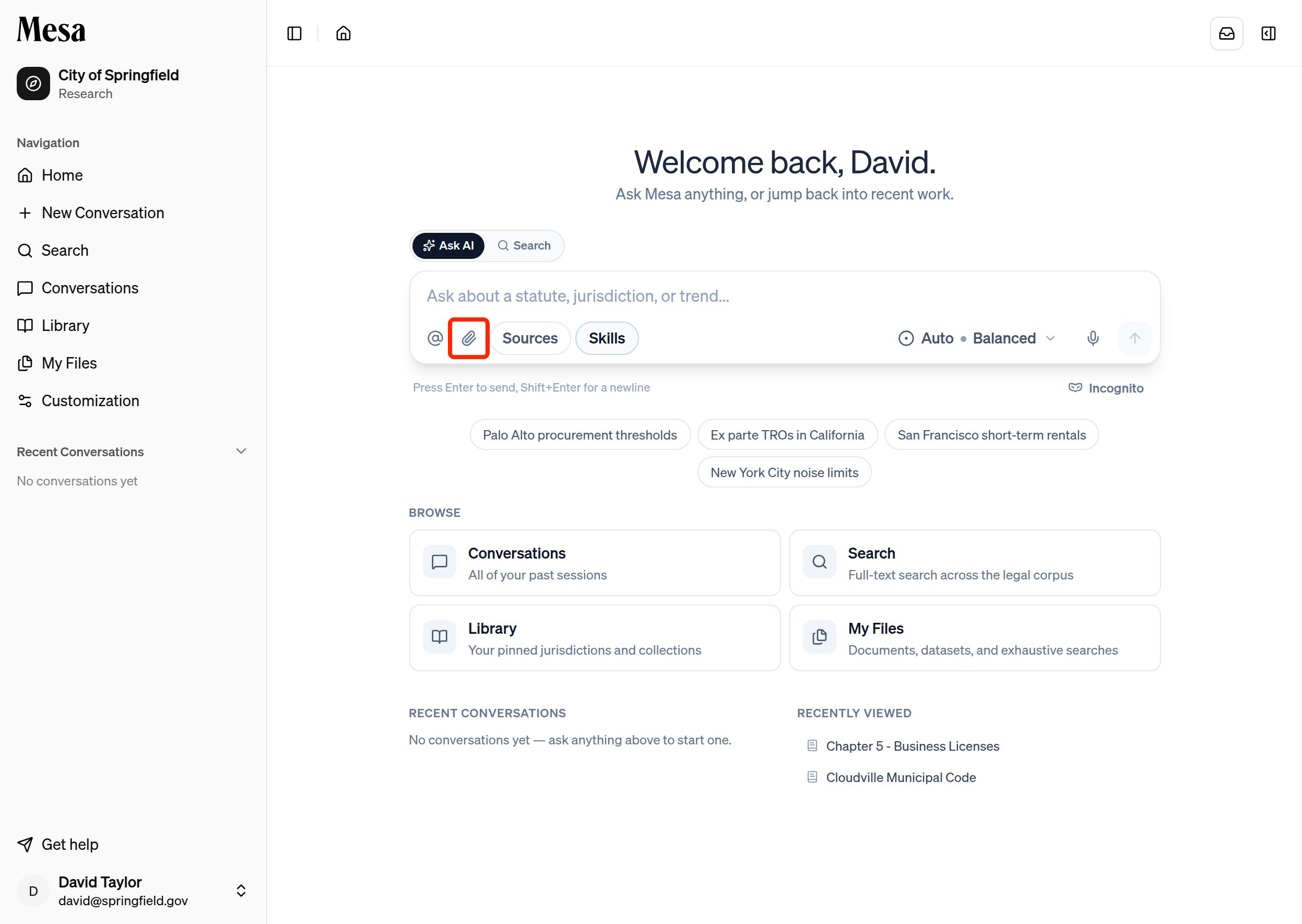
- Click the paperclip icon or drag and drop a file into the chat box to attach it to this conversation only.
- Type
@to tag a file you’ve already saved to Mesa, so you can reuse it across conversations.
5
Step away and let Mesa notify you
Long-running requests, like deep research or a batch, don’t need you to watch the screen. While an agent is running, click Notify me when done. Mesa sends you an in-app notification and an email the moment your request finishes.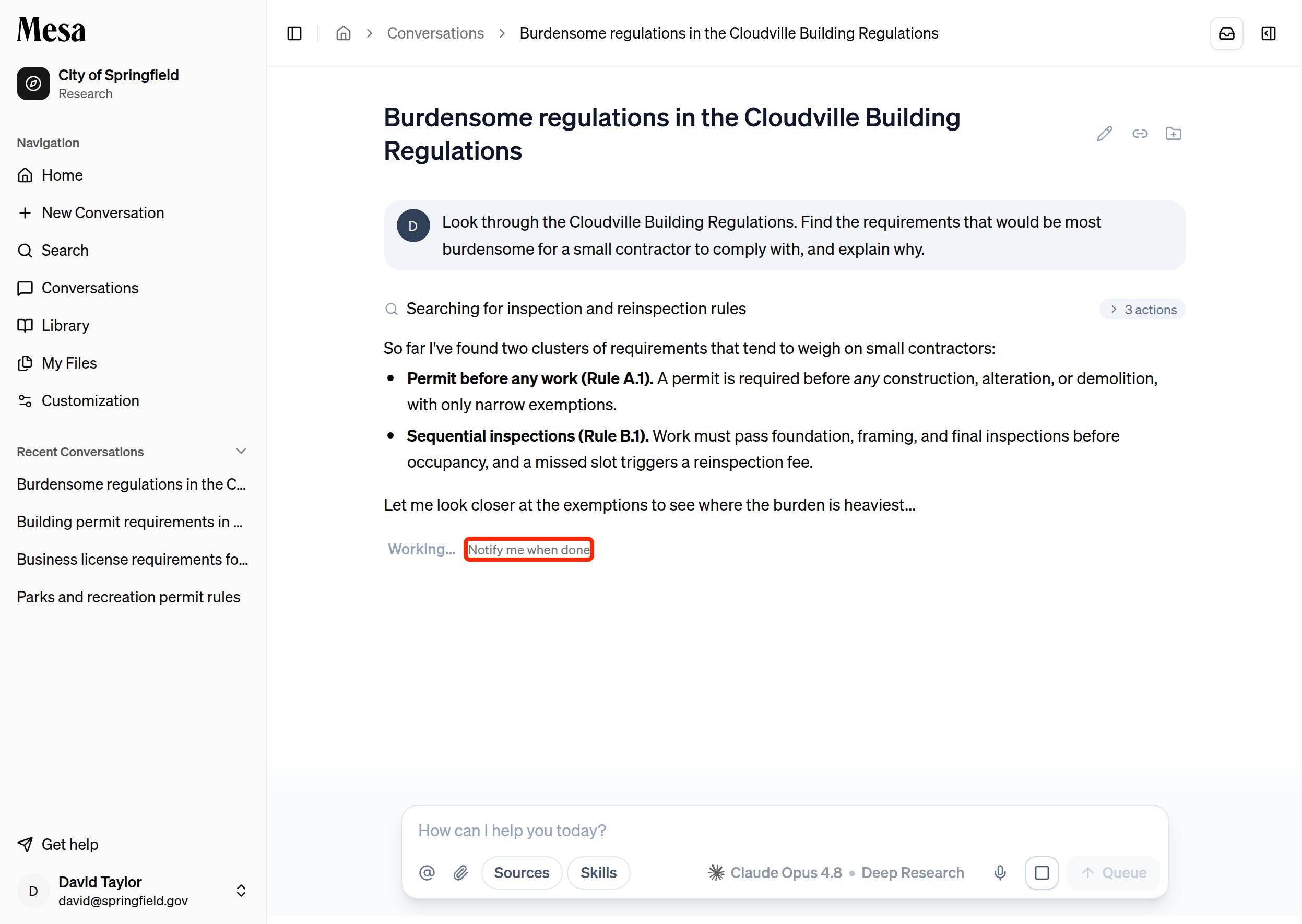
Where to go next
You’ve completed your first request. From here, build out the rest of your workspace:Settings
Set your theme, sidebar layout, and how you send messages.
Files
Upload the documents you use most so they’re always ready to tag.
Library
Pin the jurisdictions and collections relevant to your practice.
Preferences
Give Mesa standing instructions so every conversation starts smart.