

Open Organization settings
Click your organization name in the top-left corner, select Organization, then choose Settings from the sidebar.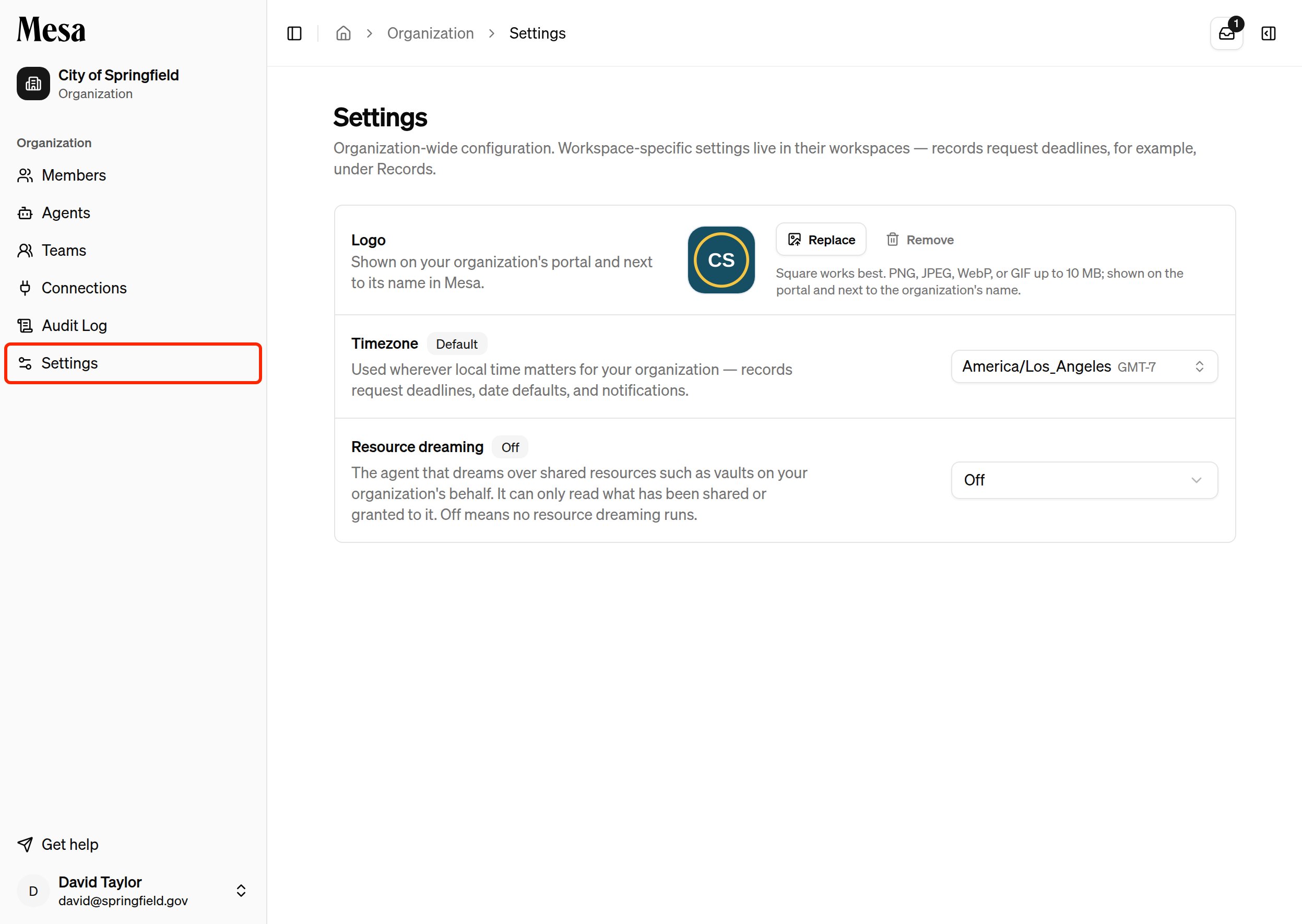
Add your organization’s logo
Your logo appears on your organization’s portal, where people outside Mesa open the reports you publish.1
Choose an image
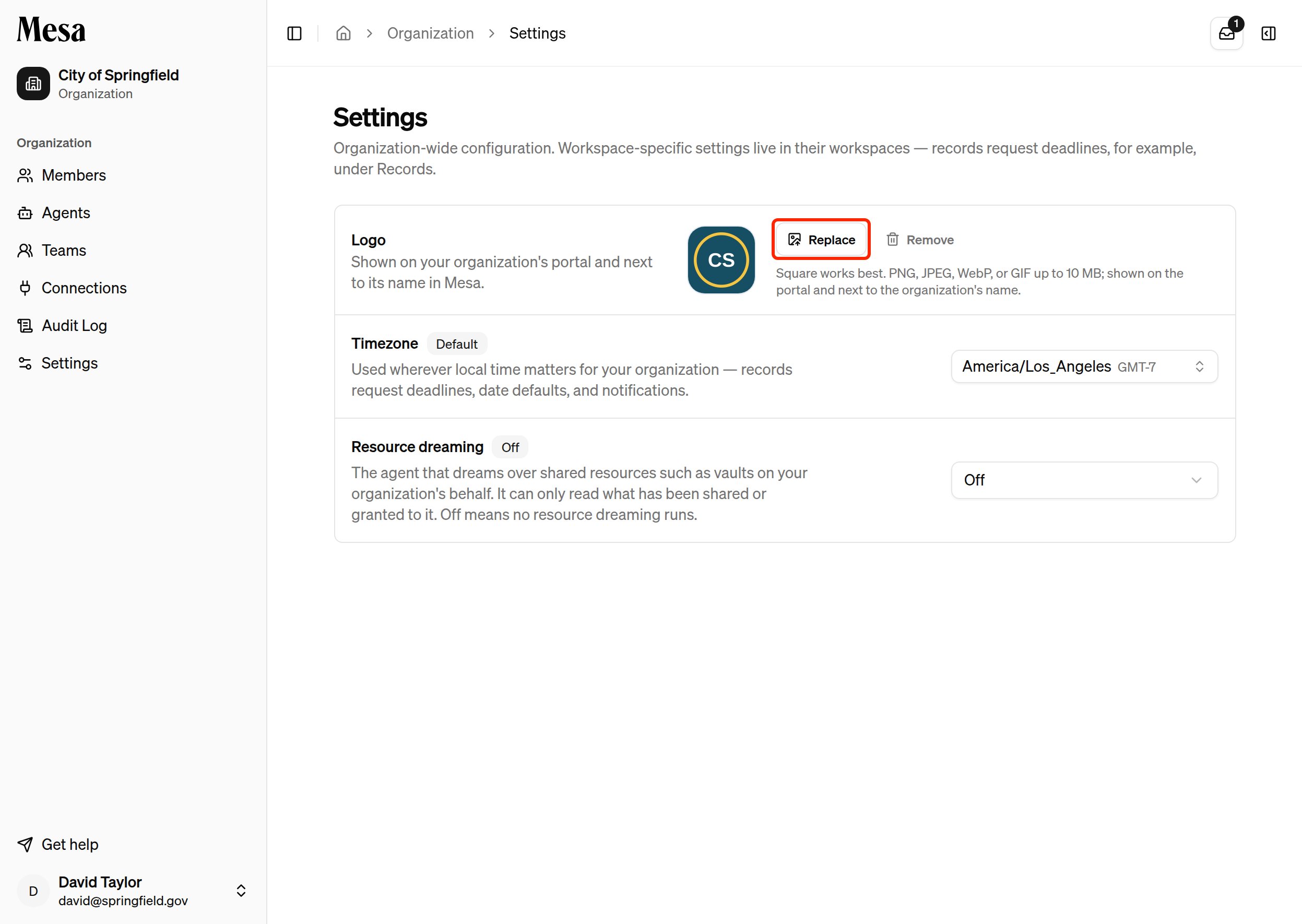
In the Logo row, click Upload logo and pick an image. Mesa accepts PNG, JPEG, WebP, or GIF files up to 10 MB. Square images work best.
2
Crop and save
In the Crop your logo dialog, drag the image to position it and use the Zoom slider to fit it inside the square frame. The preview shows how the logo will look. Click Save logo.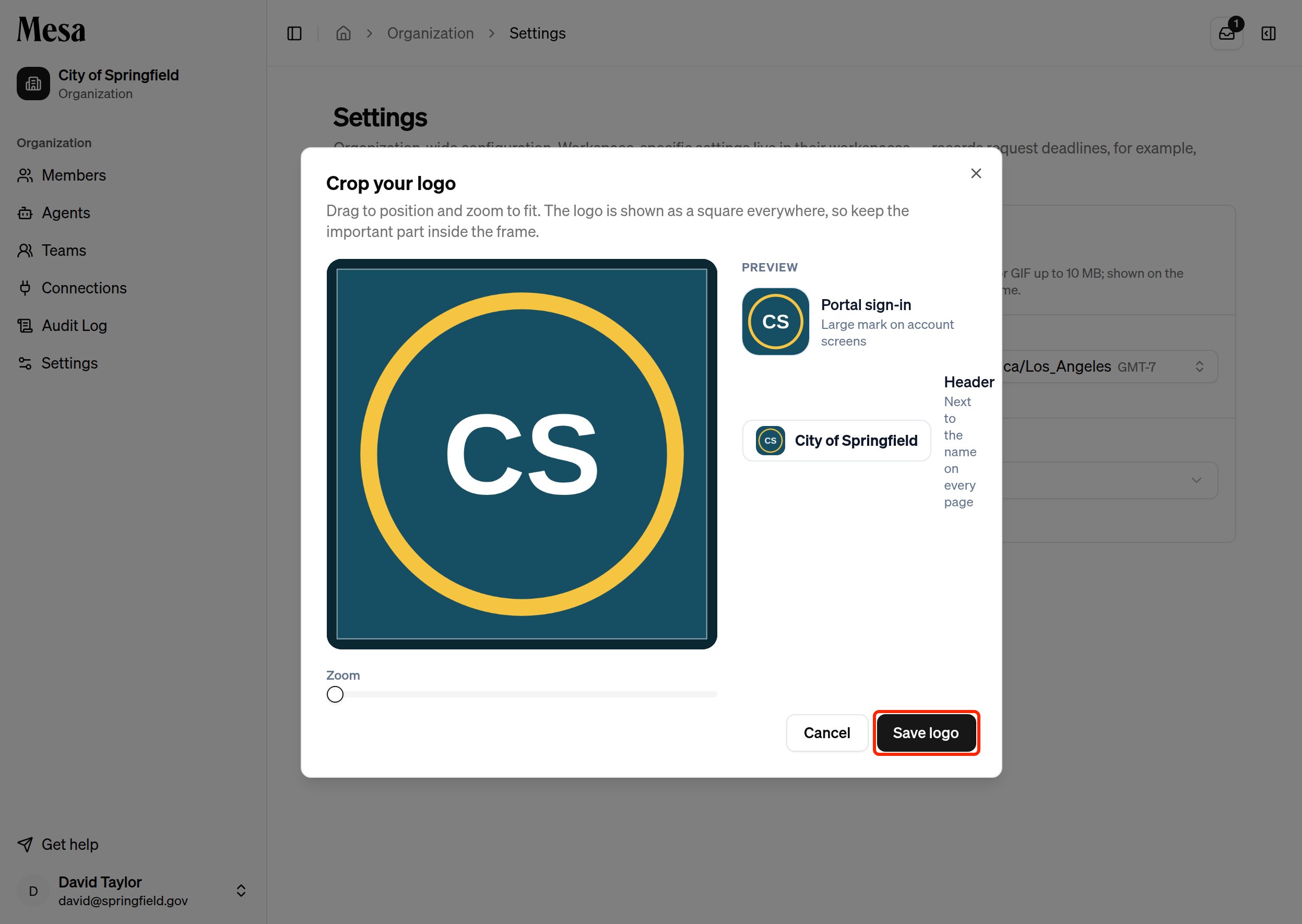
Set your organization’s timezone
The timezone is used wherever local time matters for your organization, such as date defaults and notifications. Until you set one, Mesa uses the platform default and shows a Default badge next to the setting.1
Open the timezone picker
Click the timezone dropdown on the right side of the Timezone row. Common United States timezones are listed first, and you can search all timezones by name.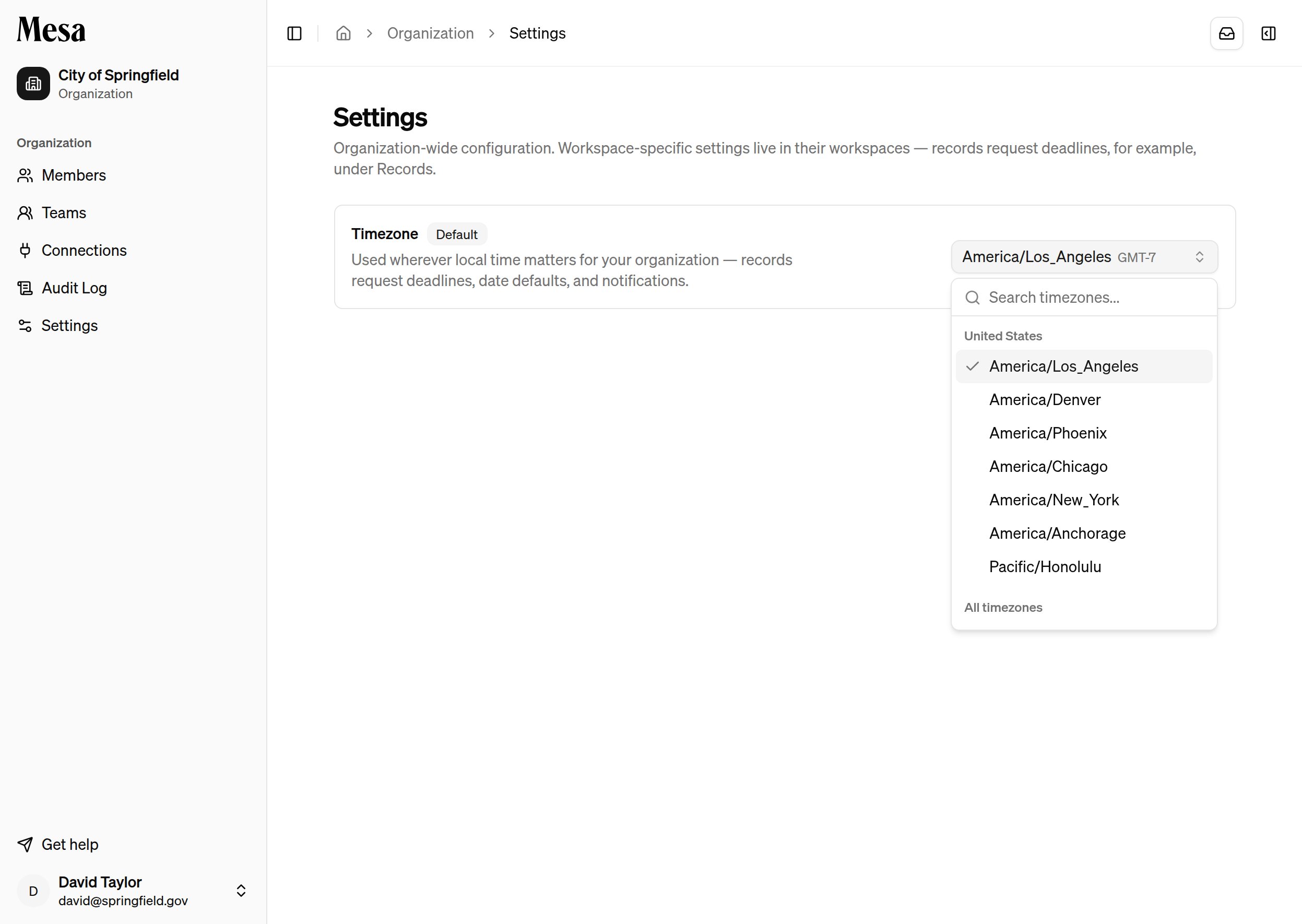
2
Pick a timezone
Select your organization’s local timezone. The change saves immediately and applies to everyone in the organization.
Set a default model
The default model is the model new conversations start on when members leave the model picker on Auto. Until you set one, the dropdown shows Mesa default (Auto) and Mesa picks the model for each task.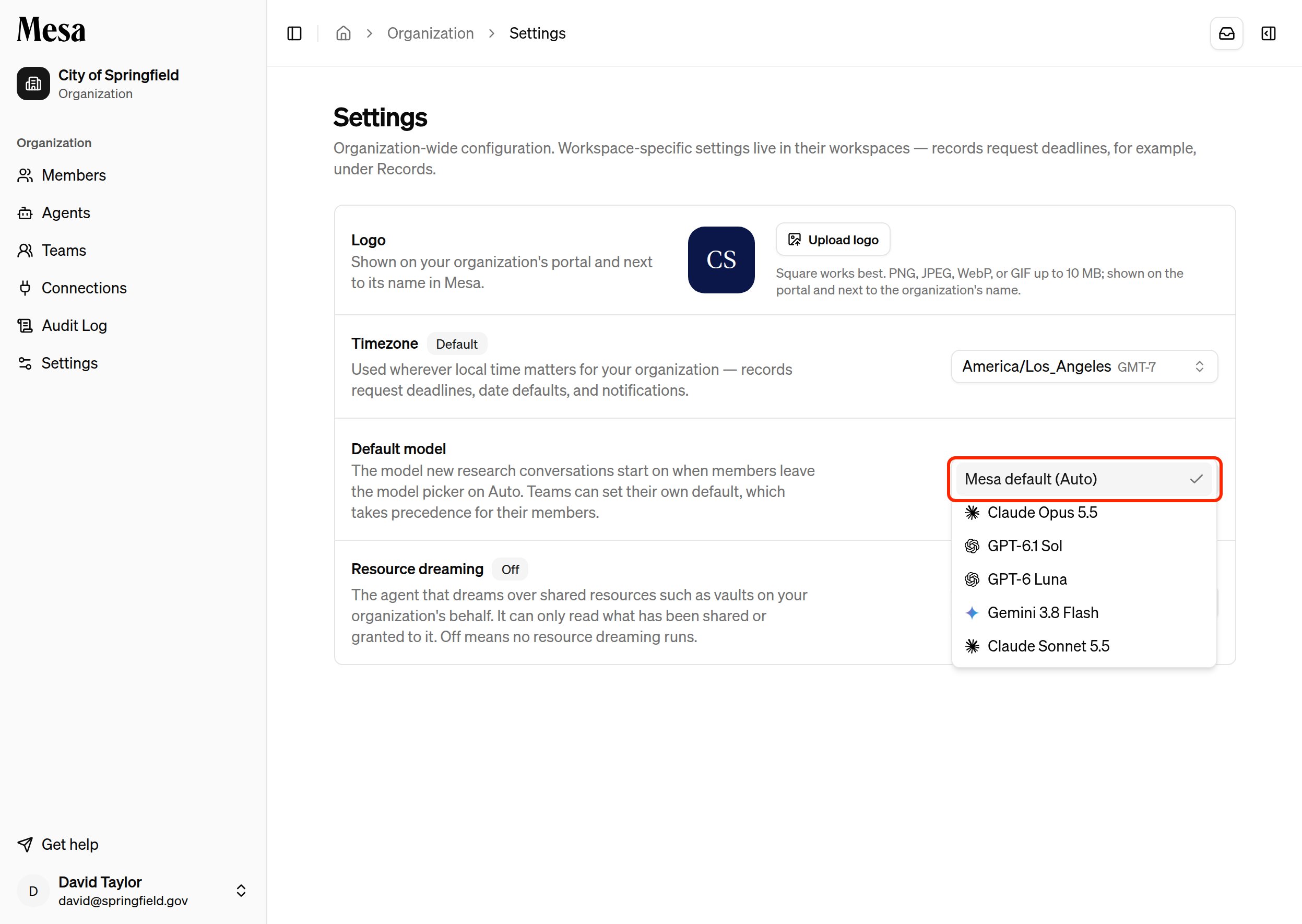
Related articles
Organization admin
Add members, assign roles, and monitor usage across your workspace.
Models
Compare the models members can pick for a conversation.
Organization portal
See where your logo appears when you publish reports.
Organization audit log
Review security-relevant events across your organization.
Settings
Configure your personal theme, sidebar behavior, and message controls.