

Open the Teams page
Click your organization name in the top-left corner, select Organization, then choose Teams from the sidebar.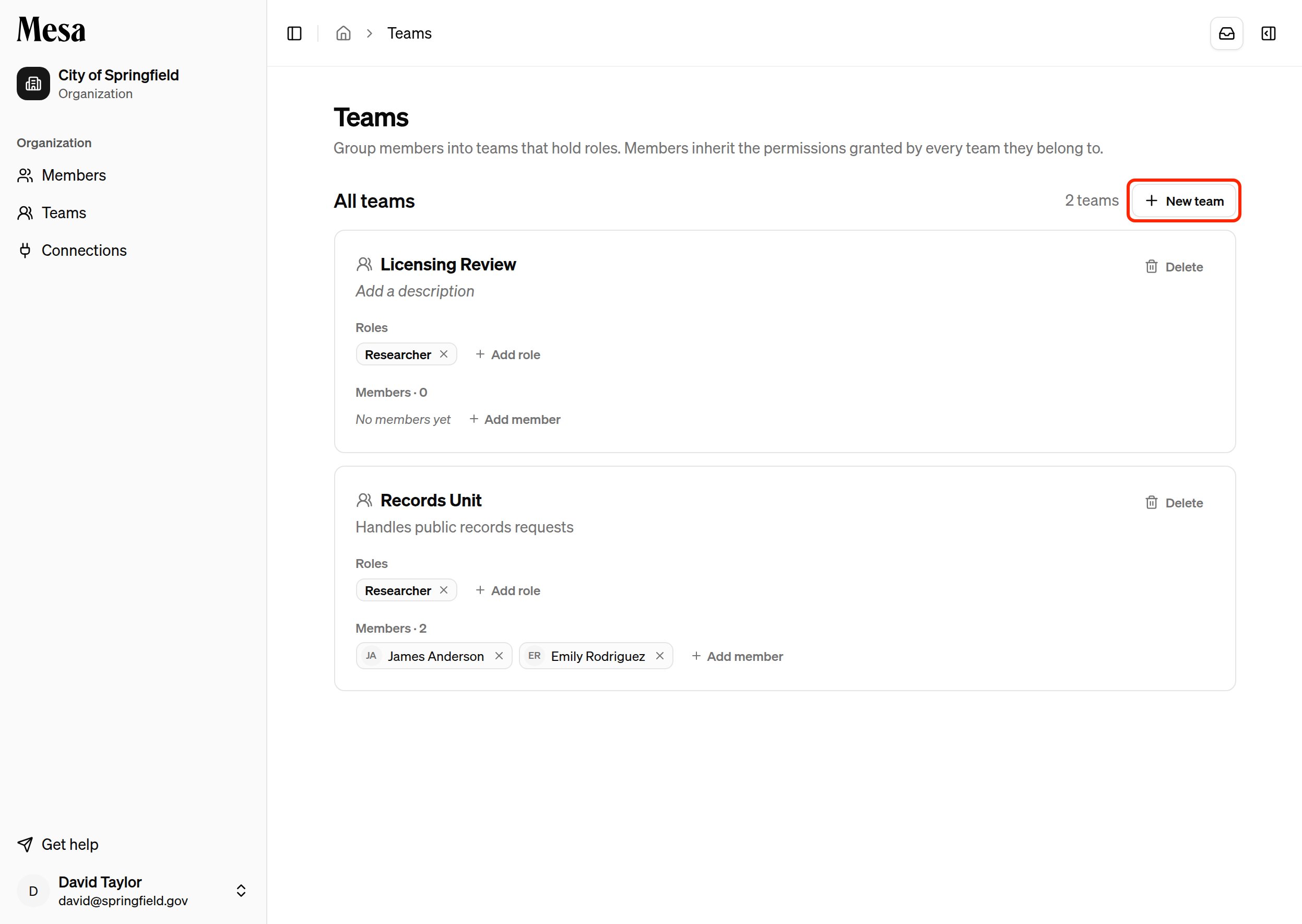
Create a team
1
Start a new team
Click New team in the top-right of the Teams page.
2
Name the team and pick its roles
Give the team a name (for example, 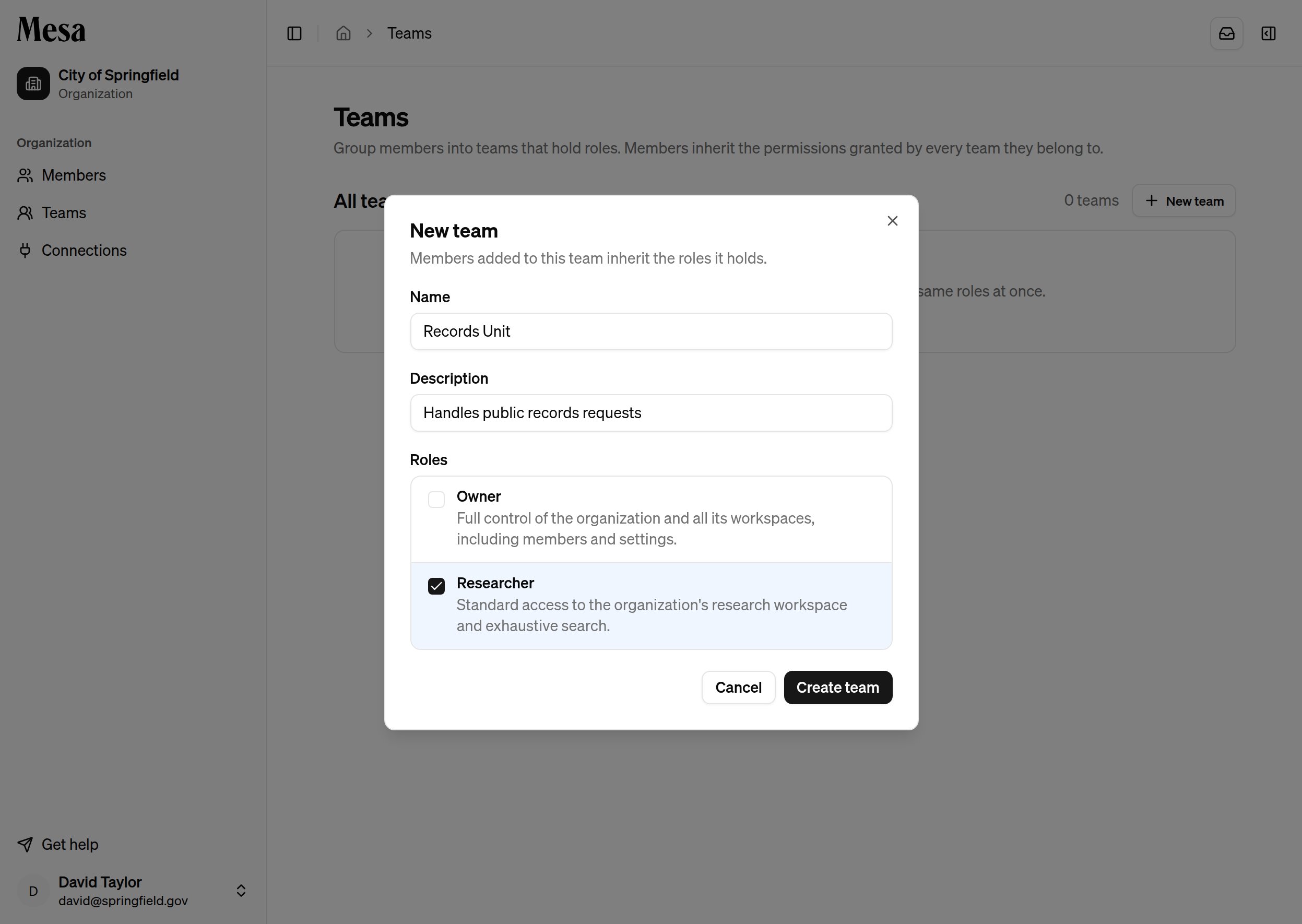
Records Unit), an optional description, and check the roles it should grant. Every member you add later inherits the permissions of these roles.3
Create
Click Create team. The new team appears as a card on the page, ready for members.
Add and remove members
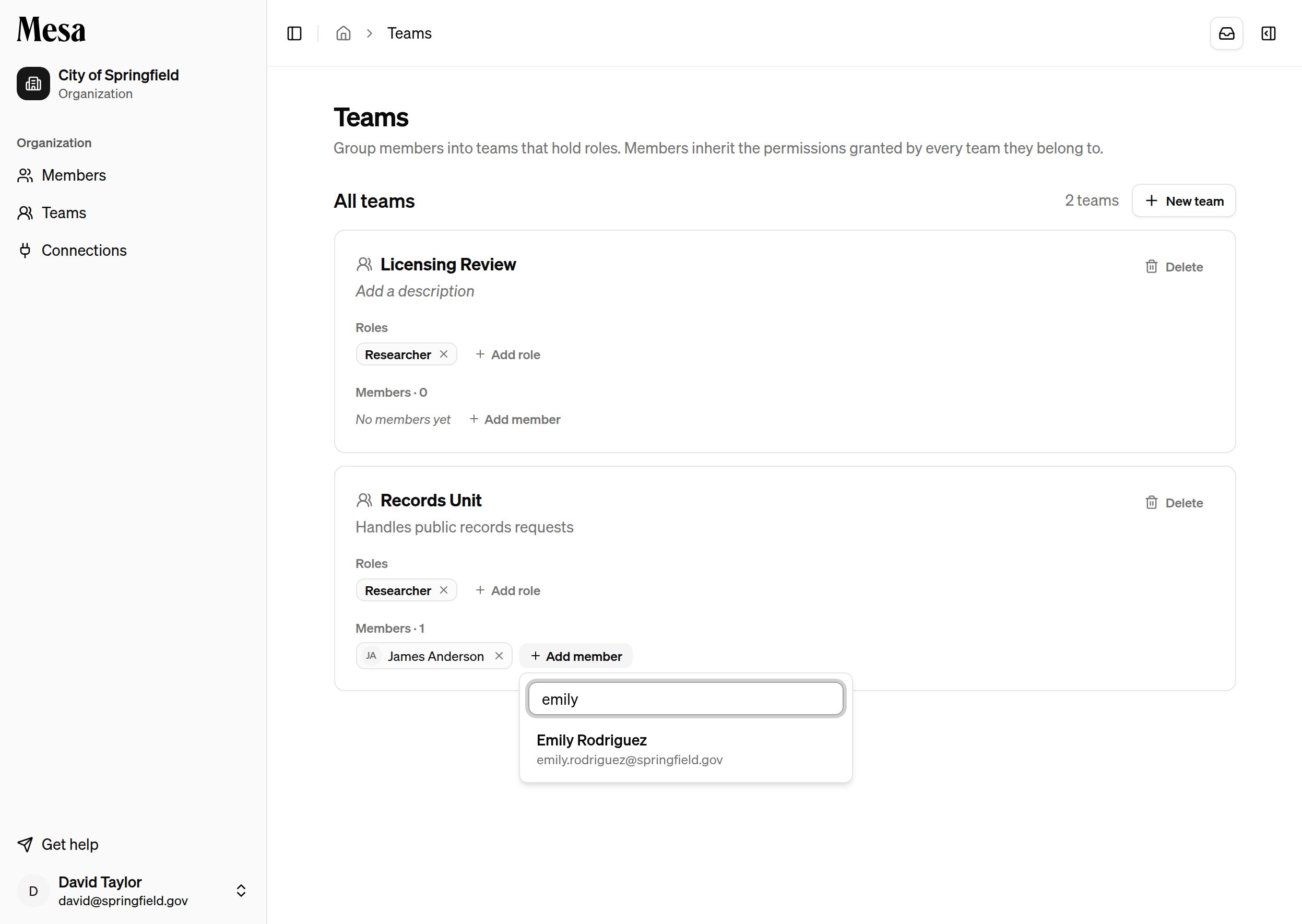
Manage a team’s roster directly on its card.- Add a member: click Add member, search for a member of your organization, and select them. They immediately inherit the team’s roles.
- Remove a member: click the x on their chip. They lose any permissions they held only through this team.
A member’s effective permissions are the union of the roles assigned to them directly and the roles granted by every team they belong to. Removing a member from a team never revokes a role they also hold directly.
Edit or delete a team
Everything else on the card works the same way:- Name and description are edited in place; click the text, type, and your change saves when you click away.
- Roles: click Add role to grant another role, or the x on a role chip to remove it. Changing a team’s roles updates the permissions of every member at once.
- Delete removes the team. Members lose any permissions they held only through it. This cannot be undone.
Team settings
Each team has its own page with settings that apply to the team’s members: a default model and custom instructions.1
Open the team's page
Choose Members from the Organization sidebar. In the Teams column, click the team’s name next to any of its members.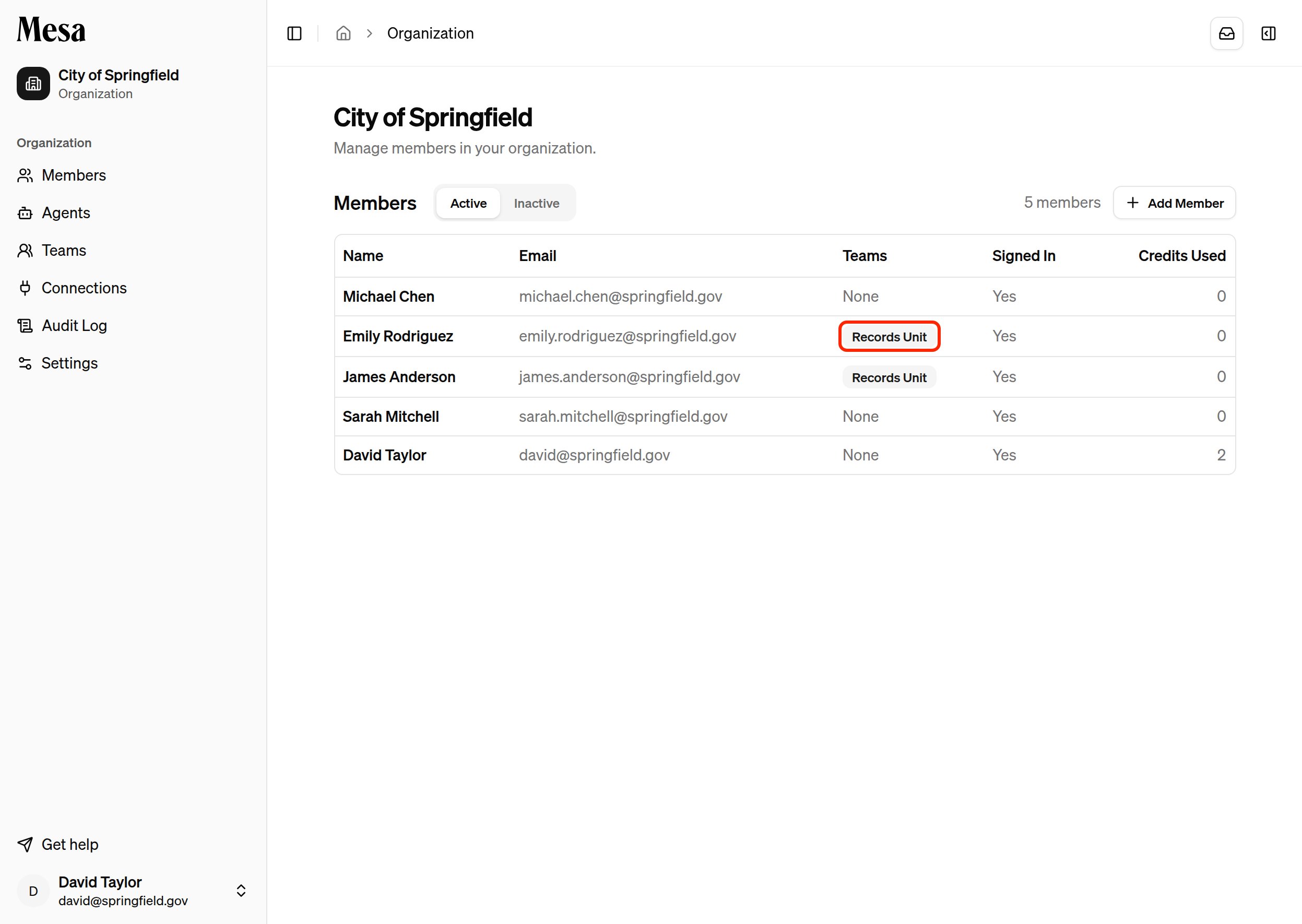
2
Pick a default model
Under Default model, choose the model new conversations start on when a member of this team leaves the model picker on Auto. The team default overrides the organization’s default model. Members can still pick any model for a single conversation.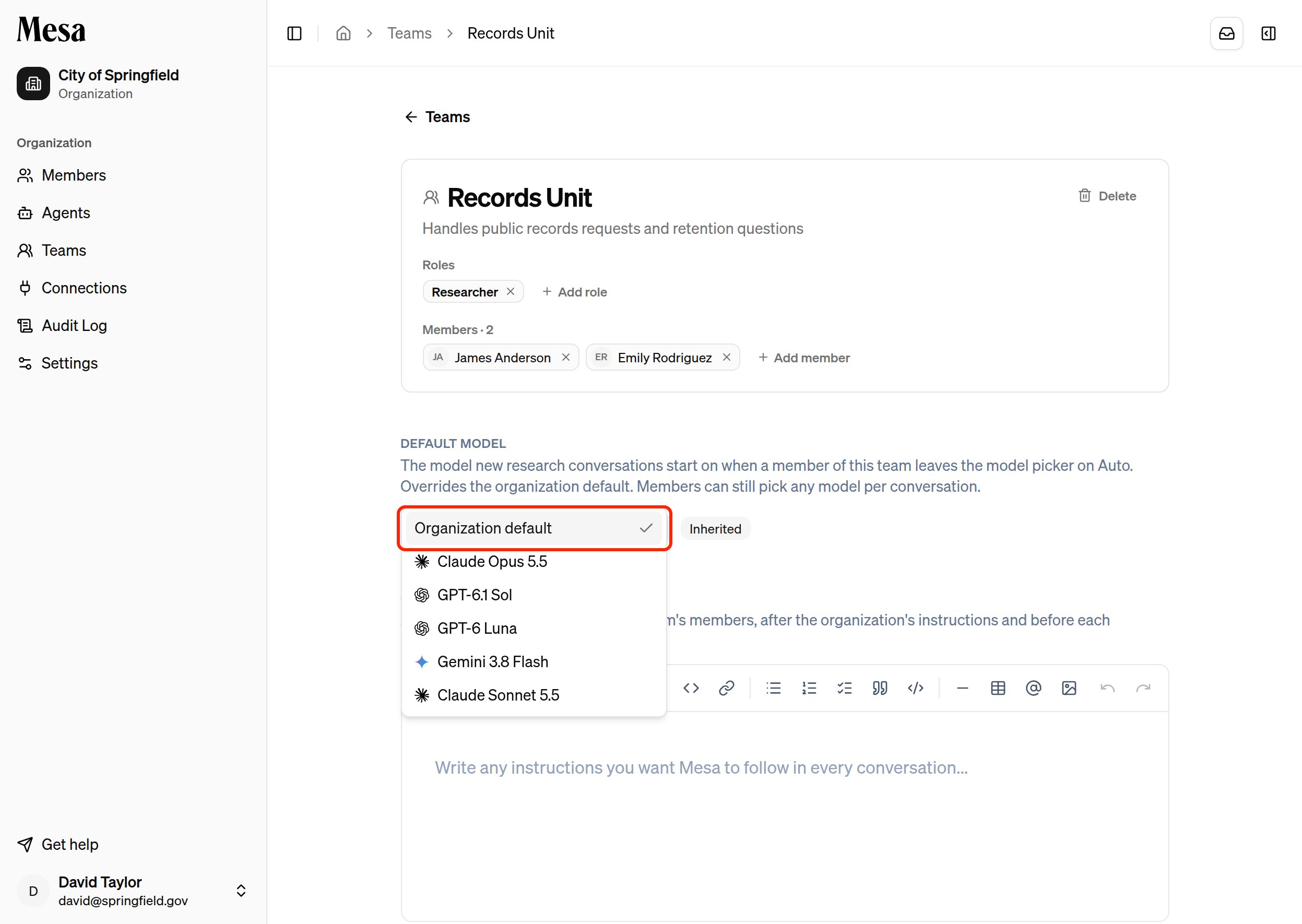
3
Add custom instructions
Under Custom instructions, write the instructions you want Mesa to follow in every conversation of this team’s members.
Roles and permissions
Teams grant the same roles you can assign to a member directly. For what each role can do, see Organization admin.Related articles
Organization admin
Assign roles to individual members and manage usage allocations.
Organization settings
Set the organization-wide default model that team defaults override.
Organization customization
Set shared skills, preferences, and pinned content for your team.