> ## Documentation Index
> Fetch the complete documentation index at: https://support.calderapbc.com/llms.txt
> Use this file to discover all available pages before exploring further.
# Version history
> Keep every iteration of a file or report, preview past versions, and restore an earlier one.
Mesa keeps a history of your files and reports as they change. Every time you upload a new copy of a file, or the agent revises a report, Mesa saves the previous state as its own version. Nothing is overwritten, so you can always look back at an earlier iteration or roll one forward to be current again.
## File versions
Open a file from [My Files](/files) to see its version history alongside the document.
 ### Upload a new version
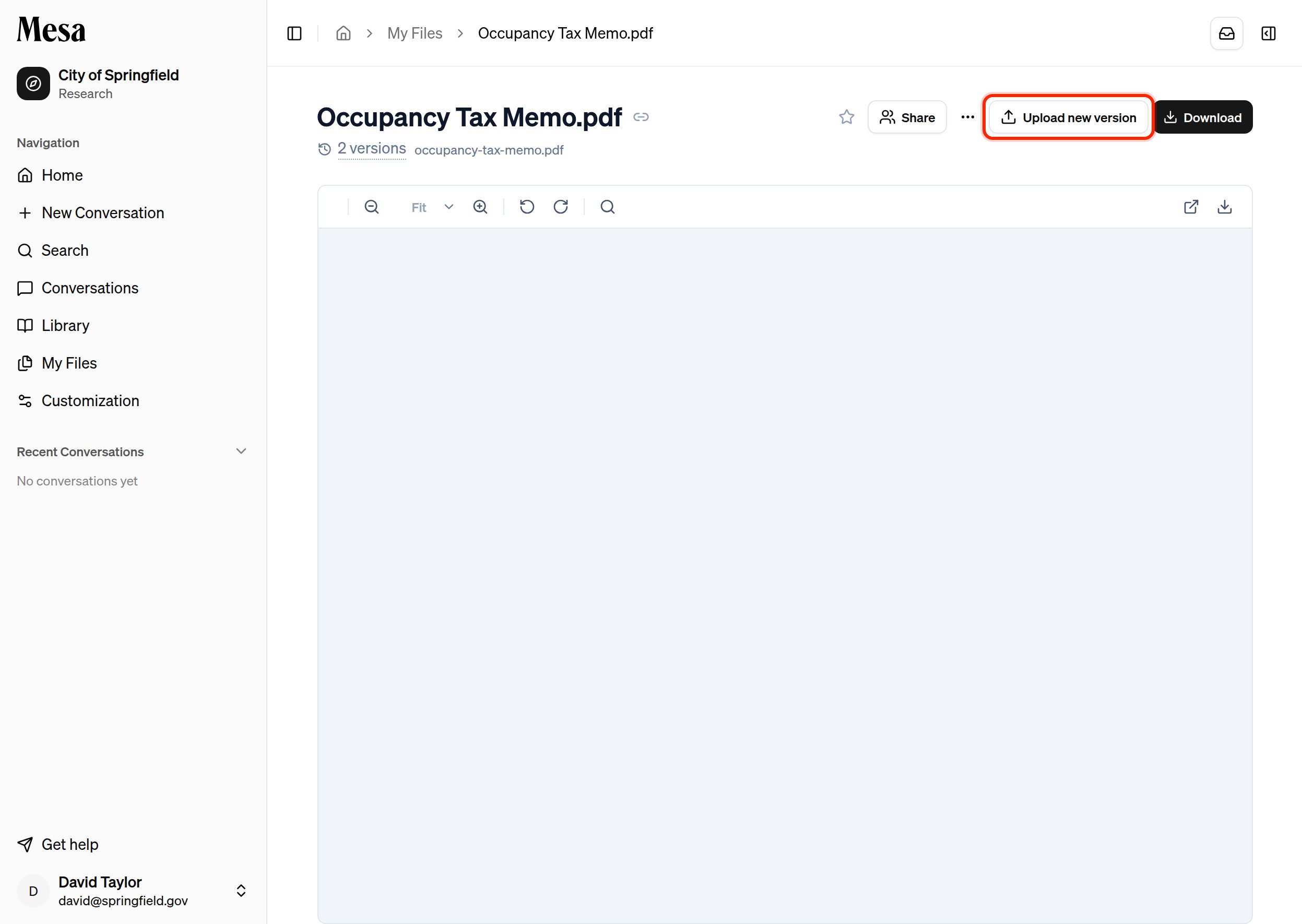
Click **Upload new version** (shown above) and choose a file to replace the current copy. The document you had before isn't lost: it drops into the version history, and the copy you just uploaded becomes current. This keeps the file's identity, sharing, and any references to it intact while its contents move forward.
### Preview and restore
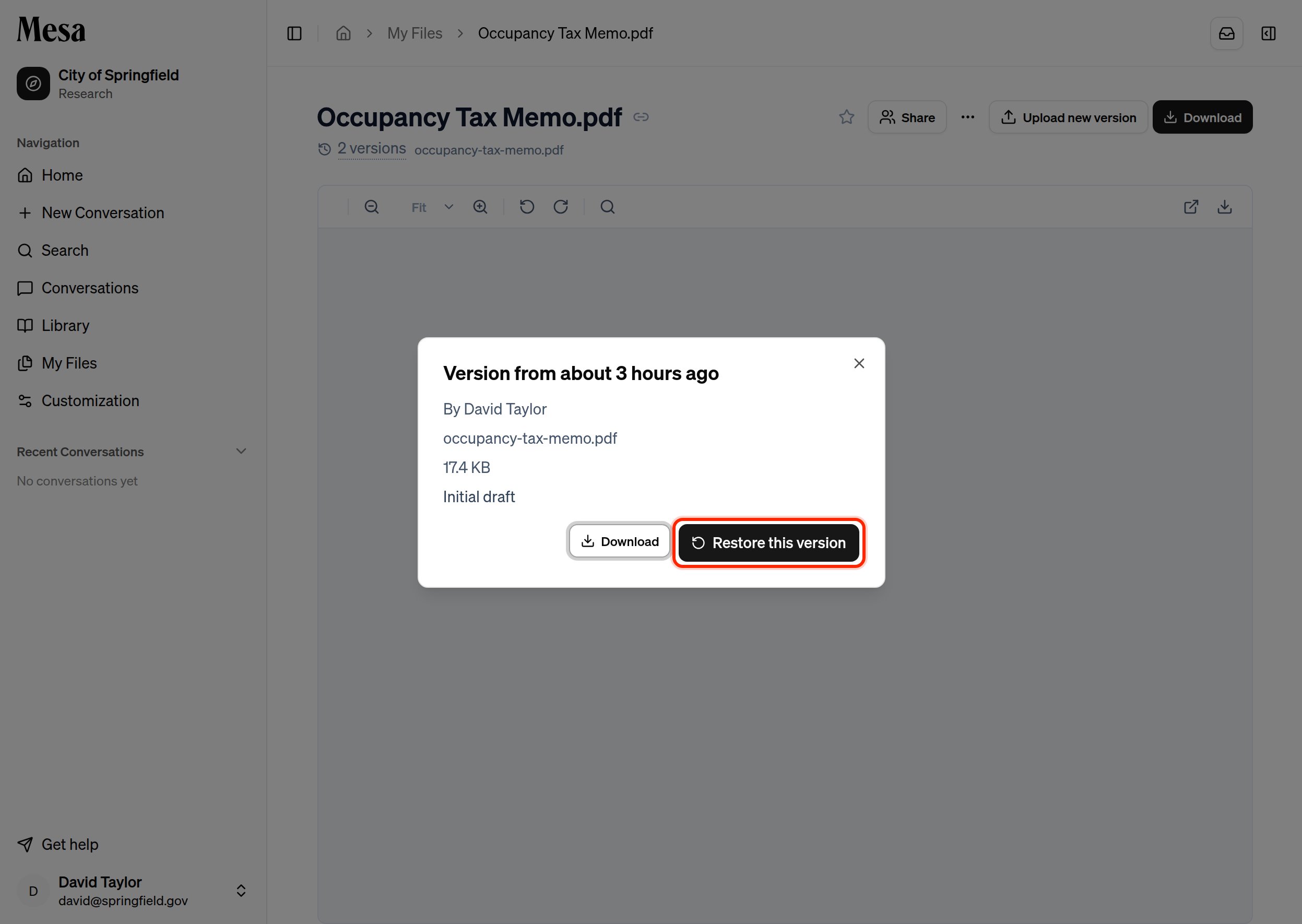
Click any entry in the version history to preview it without changing anything. Each entry shows when it was added and who added it. From the preview, choose **Restore** to make that version current again; the version that was current moves into the history, so restoring is itself just another step you can undo.
### Upload a new version
Click **Upload new version** (shown above) and choose a file to replace the current copy. The document you had before isn't lost: it drops into the version history, and the copy you just uploaded becomes current. This keeps the file's identity, sharing, and any references to it intact while its contents move forward.
### Preview and restore
Click any entry in the version history to preview it without changing anything. Each entry shows when it was added and who added it. From the preview, choose **Restore** to make that version current again; the version that was current moves into the history, so restoring is itself just another step you can undo.
 ## Report revisions
Reports the agent produces are versioned the same way. When the agent edits a report, or you ask it to make changes, the earlier text is preserved as a revision.
## Report revisions
Reports the agent produces are versioned the same way. When the agent edits a report, or you ask it to make changes, the earlier text is preserved as a revision.
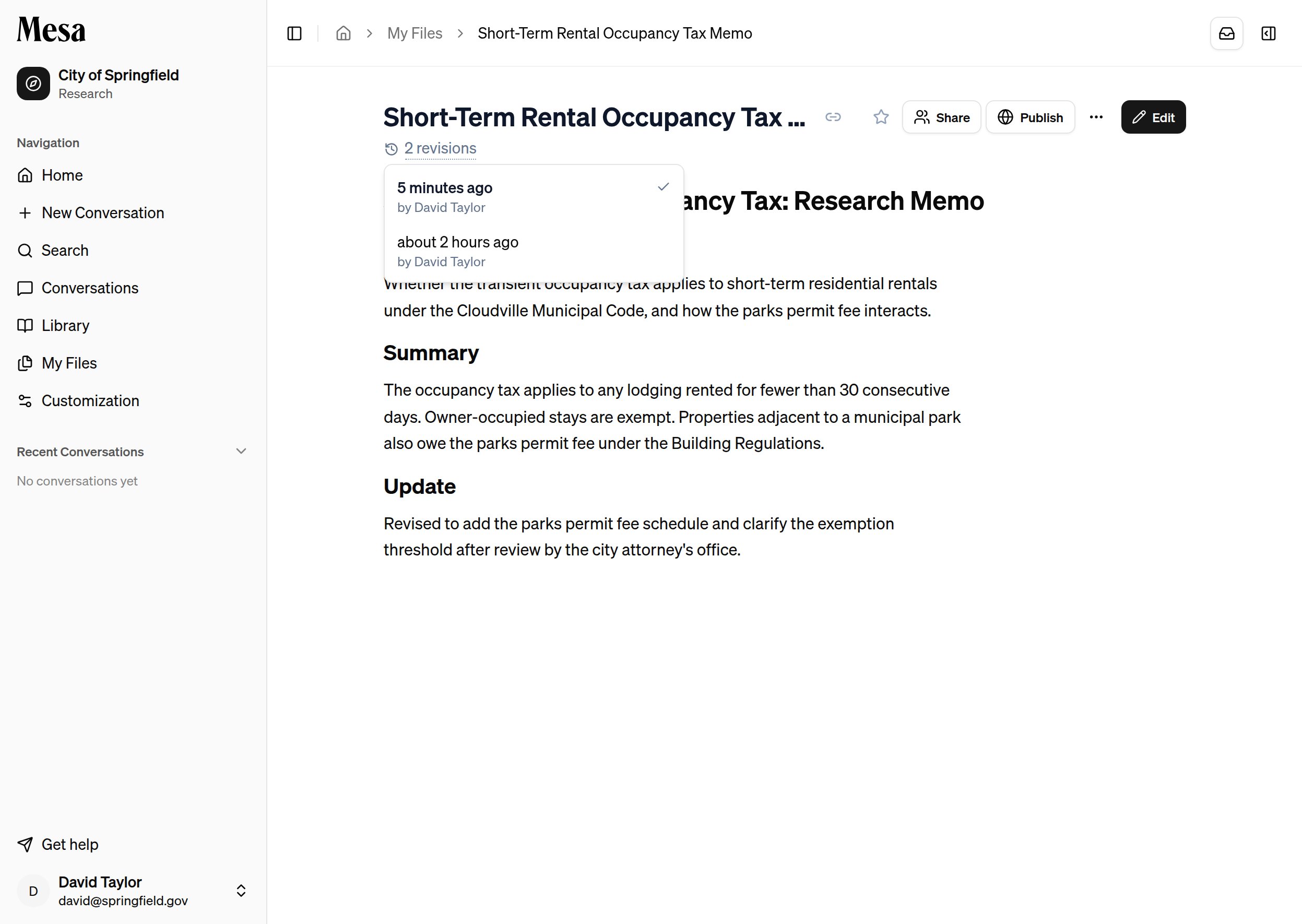 Open the revision history to preview any earlier draft, and **Restore this version** to bring it back as the current report.
Because restoring only moves versions around and never deletes them, it's safe to compare a few and roll back if you change your mind.
## Related articles
Upload, organize, and share the documents whose versions Mesa tracks.
Reference a file in a conversation; tags always point at its current version.
Open the revision history to preview any earlier draft, and **Restore this version** to bring it back as the current report.
Because restoring only moves versions around and never deletes them, it's safe to compare a few and roll back if you change your mind.
## Related articles
Upload, organize, and share the documents whose versions Mesa tracks.
Reference a file in a conversation; tags always point at its current version.