> ## Documentation Index
> Fetch the complete documentation index at: https://support.calderapbc.com/llms.txt
> Use this file to discover all available pages before exploring further.
# Vaults
> Research your organization's own documents (contracts, filings, records) alongside Mesa's legal library.
A vault is a private, organization-owned document collection that Mesa indexes for research just like the public legal library. Upload your own material (contracts, filings, records, policies) and then search it, read it, and ask the agent questions scoped to it. Vaults are visible to everyone in your organization, so your team researches the same private corpus together.
Vaults are available to organizations with the vaults capability enabled. If you don't see the **Vaults** section on the Library page, your organization doesn't have it yet; contact [support@calderapbc.com](mailto:support@calderapbc.com).
## Create a vault
Open the **Library** from the sidebar. The **Vaults** section sits at the top, above your pinned jurisdictions.
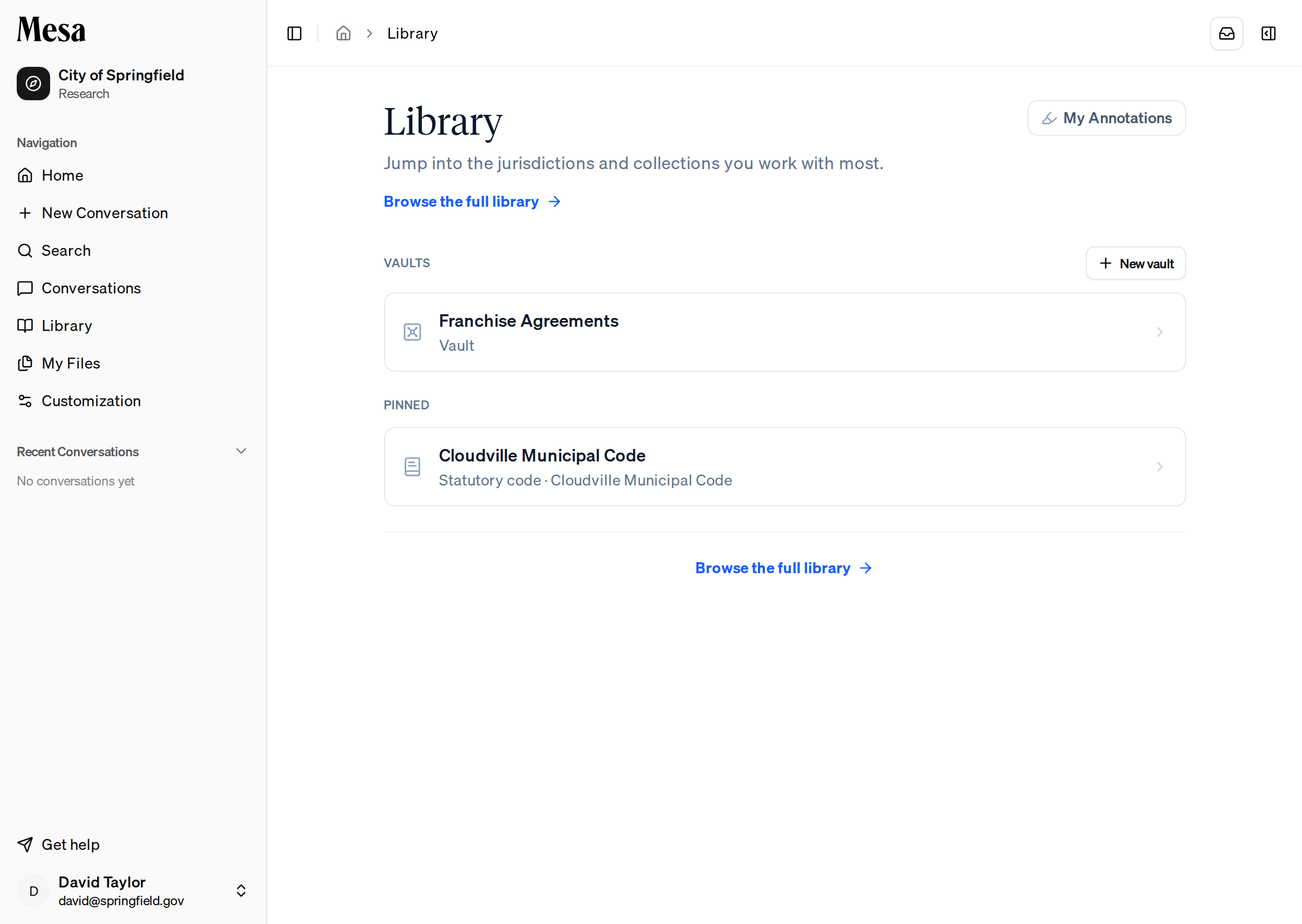 Click **New vault**, give it a name (for example, "Franchise Agreements"), and create it. You'll land inside the empty vault, ready for documents.
 ## Add documents
Bring documents in two ways:
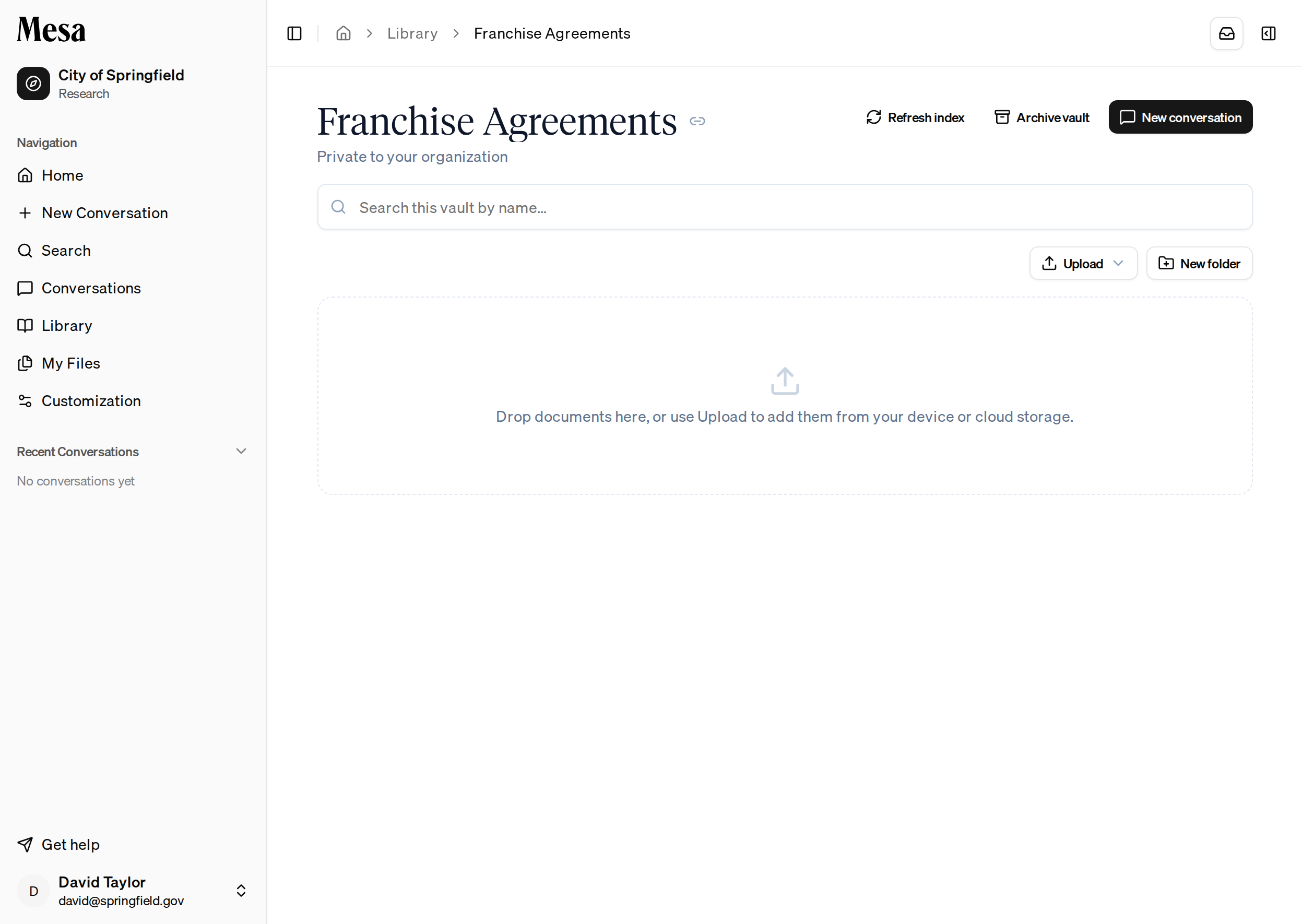
* **Upload** from your device or a [connection](/connections), using the **Upload** button.
* **Drag and drop** files, or whole folders, straight onto the page.
Vaults accept any file type. As each document arrives, Mesa indexes it for search; a document shows a processing status until it's ready. Use **New folder** to organize documents as you go.
If a document seems stuck, click **Refresh index** in the header to wake the pipeline and retry anything that failed.
## Search and research a vault
* Use the **Search this vault by name** box to filter the document list as you type.
* Press `Enter` to run a full content search across everything the vault has indexed.
* Click **New conversation** to start an [Ask AI](/models) chat scoped to the vault, so the agent reasons over your documents the way it does over the legal library.
You can also point the agent at a vault from the **Sources** button on any chat box; see [Text editor](/editor).
## Manage a vault
* **Archive vault** hides it from your organization. Archiving is one-way, but citations to its documents keep resolving.
* Documents can be archived individually from the right-click menu.
## Related articles
Browse and pin the public legal content vaults sit alongside.
Keep personal documents separate from your organization's vaults.
Scope a conversation to a vault from the chat box.
## Add documents
Bring documents in two ways:
* **Upload** from your device or a [connection](/connections), using the **Upload** button.
* **Drag and drop** files, or whole folders, straight onto the page.
Vaults accept any file type. As each document arrives, Mesa indexes it for search; a document shows a processing status until it's ready. Use **New folder** to organize documents as you go.
If a document seems stuck, click **Refresh index** in the header to wake the pipeline and retry anything that failed.
## Search and research a vault
* Use the **Search this vault by name** box to filter the document list as you type.
* Press `Enter` to run a full content search across everything the vault has indexed.
* Click **New conversation** to start an [Ask AI](/models) chat scoped to the vault, so the agent reasons over your documents the way it does over the legal library.
You can also point the agent at a vault from the **Sources** button on any chat box; see [Text editor](/editor).
## Manage a vault
* **Archive vault** hides it from your organization. Archiving is one-way, but citations to its documents keep resolving.
* Documents can be archived individually from the right-click menu.
## Related articles
Browse and pin the public legal content vaults sit alongside.
Keep personal documents separate from your organization's vaults.
Scope a conversation to a vault from the chat box.