> ## Documentation Index
> Fetch the complete documentation index at: https://support.calderapbc.com/llms.txt
> Use this file to discover all available pages before exploring further.
# Usage
> Understand your model usage allocation and how to make the most of it.
Every Mesa user has an allocation of model usage. Keeping an eye on it helps you pace your work and save higher-capability models for the tasks that need them.
## Check your usage
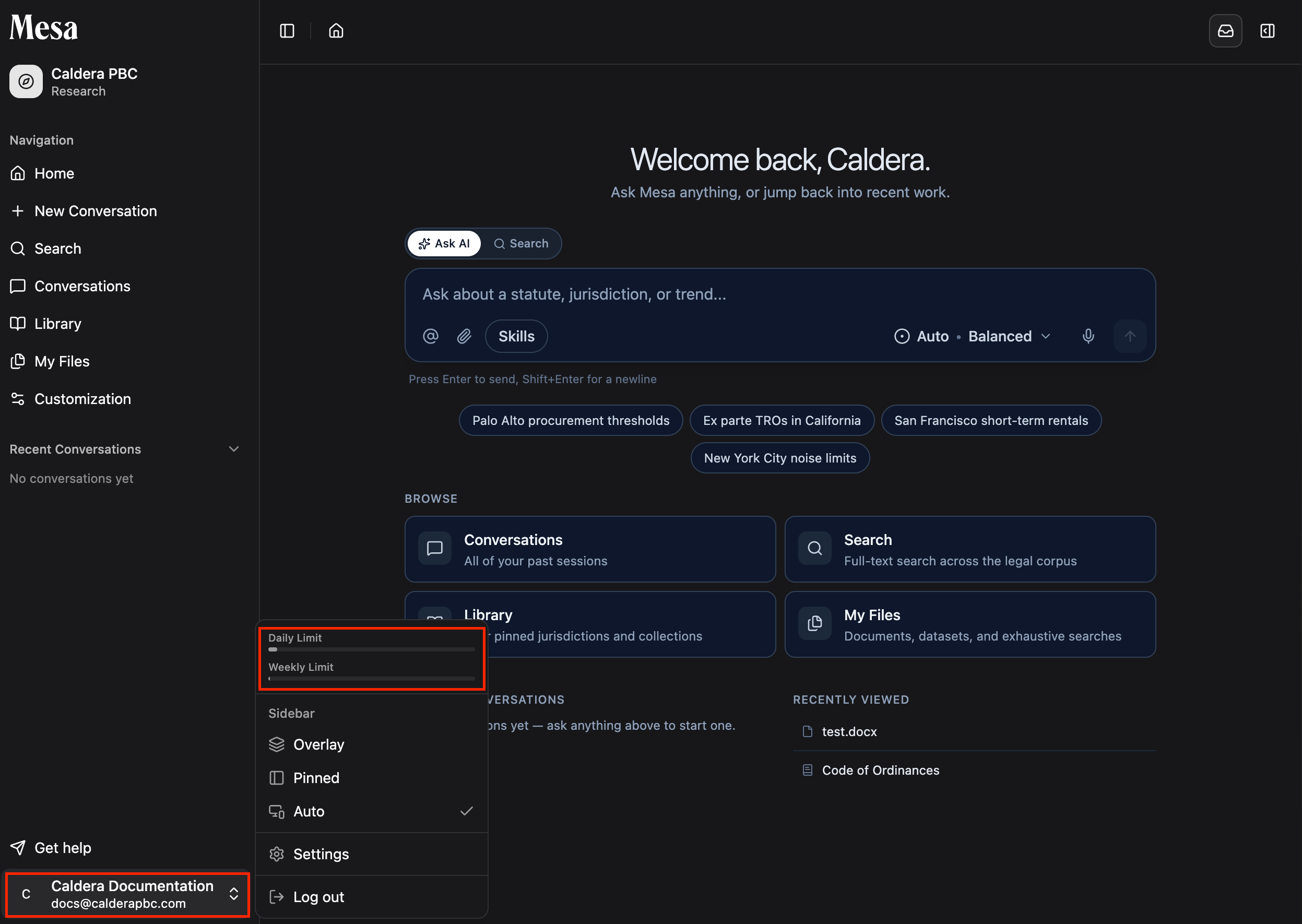
Click your email in the bottom-left corner of the home page to see how much usage you've consumed and how much you have left.
 ## How usage works
Usage is shown as two values:
* **Daily usage** tells you what you've used recently.
* **Weekly usage** helps you plan across a longer stretch of work.
Your allocation is set by your organization's **Owner**, who can view and adjust each member's usage from the Organization page. If you're unsure how usage is calculated for your account, ask your Owner.
## Make the most of your allocation
* Use lighter models like **Claude Sonnet 5**, **GPT 5.4 Mini**, or **Gemini 3.5 Flash** for short questions and simple tasks.
* Reserve higher-capability models like **Claude Opus 4.8** and **GPT 5.5** for research, drafting, and complex work.
* Save **Deep Research** effort for tasks that involve large context, many files, or a deliverable-style output.
* Check your usage before starting a long work session so you're not surprised mid-task.
[Models](/models) compares every model and effort level so you can match each task to the right amount of usage.
## Related articles
Pick models and effort levels that fit your task and usage budget.
Owners: review organization-wide usage and adjust member allocations.
Manage your personal account from the same bottom-left menu.
## How usage works
Usage is shown as two values:
* **Daily usage** tells you what you've used recently.
* **Weekly usage** helps you plan across a longer stretch of work.
Your allocation is set by your organization's **Owner**, who can view and adjust each member's usage from the Organization page. If you're unsure how usage is calculated for your account, ask your Owner.
## Make the most of your allocation
* Use lighter models like **Claude Sonnet 5**, **GPT 5.4 Mini**, or **Gemini 3.5 Flash** for short questions and simple tasks.
* Reserve higher-capability models like **Claude Opus 4.8** and **GPT 5.5** for research, drafting, and complex work.
* Save **Deep Research** effort for tasks that involve large context, many files, or a deliverable-style output.
* Check your usage before starting a long work session so you're not surprised mid-task.
[Models](/models) compares every model and effort level so you can match each task to the right amount of usage.
## Related articles
Pick models and effort levels that fit your task and usage budget.
Owners: review organization-wide usage and adjust member allocations.
Manage your personal account from the same bottom-left menu.