> ## Documentation Index
> Fetch the complete documentation index at: https://support.calderapbc.com/llms.txt
> Use this file to discover all available pages before exploring further.
# Teams
> Group members into teams that hold roles, so everyone on the team inherits the same permissions.
Teams let **Owners** grant the same roles to a group of members at once. Instead of assigning roles to each person individually, you create a team, give it the roles you want, and add members to it. Every member inherits the permissions of every team they belong to, on top of any roles assigned to them directly.
Only users with the **Owner** role can create and manage teams. Teams live on the Organization page alongside Members.
## Open the Teams page
Click your organization name in the top-left corner, select **Organization**, then choose **Teams** from the sidebar.
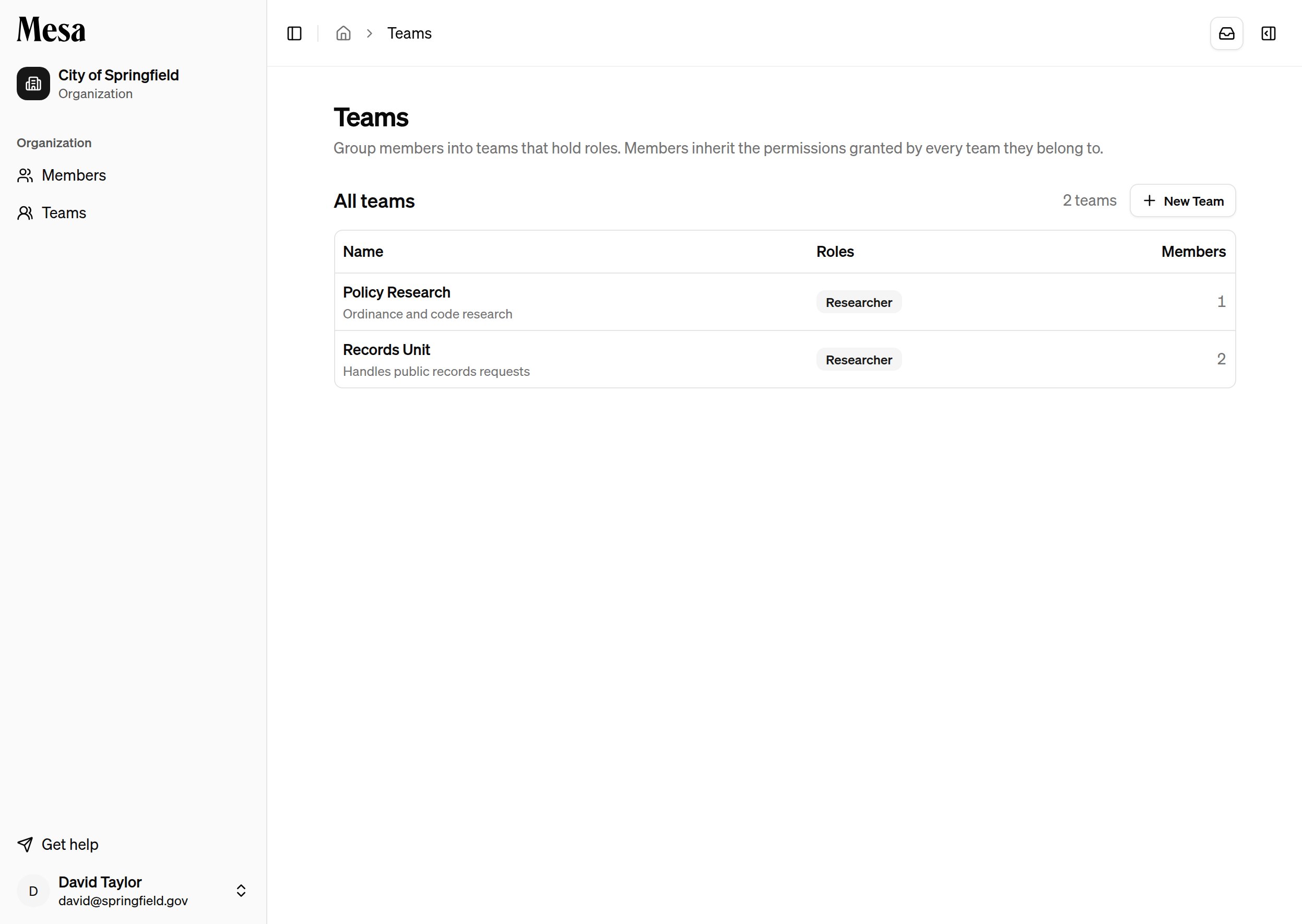 The Teams table shows each team's name, the roles it grants, and how many members belong to it. Click any team to open its detail page.
## Create a team
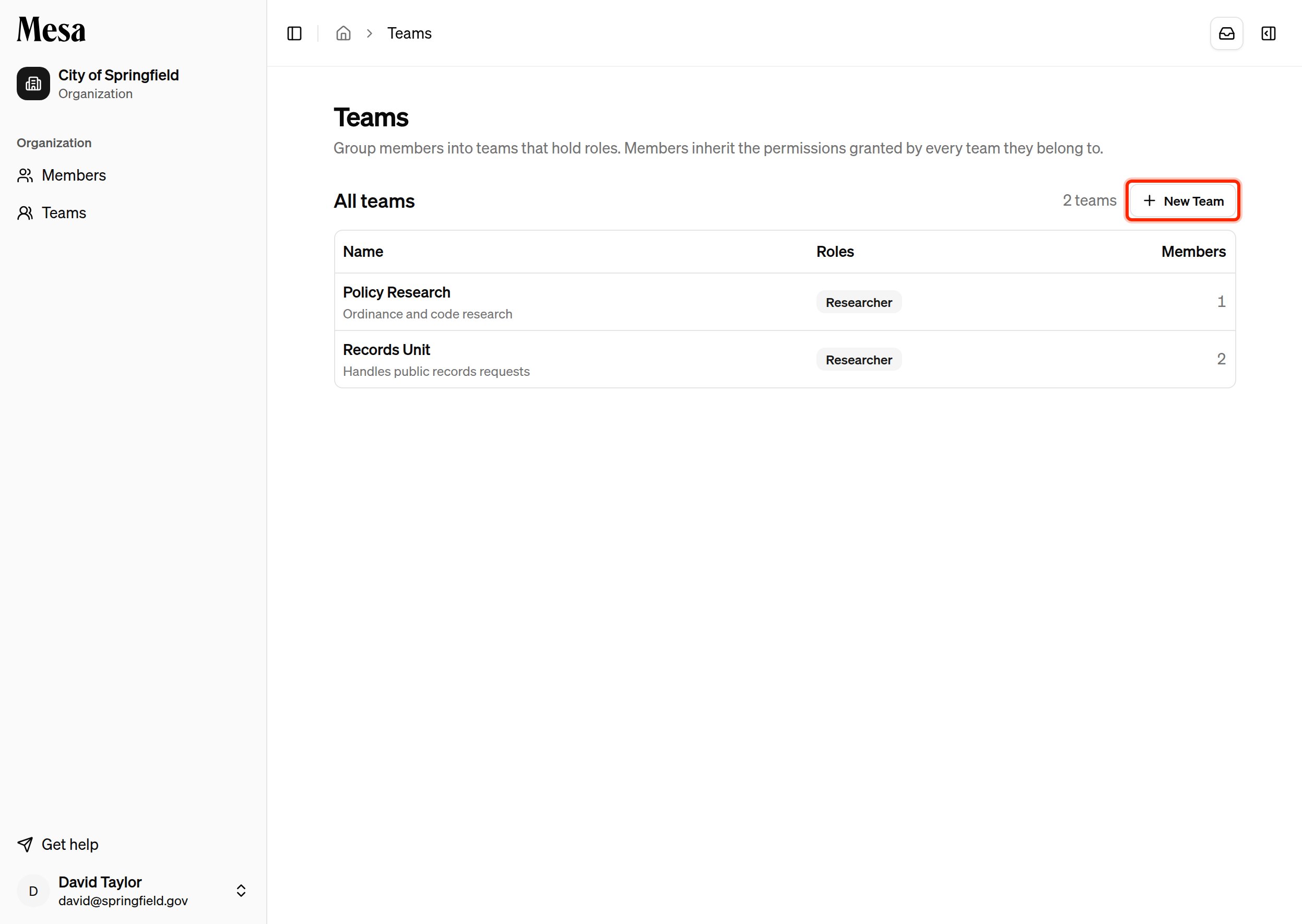
Click **New Team** in the top-right of the Teams page.
The Teams table shows each team's name, the roles it grants, and how many members belong to it. Click any team to open its detail page.
## Create a team
Click **New Team** in the top-right of the Teams page.
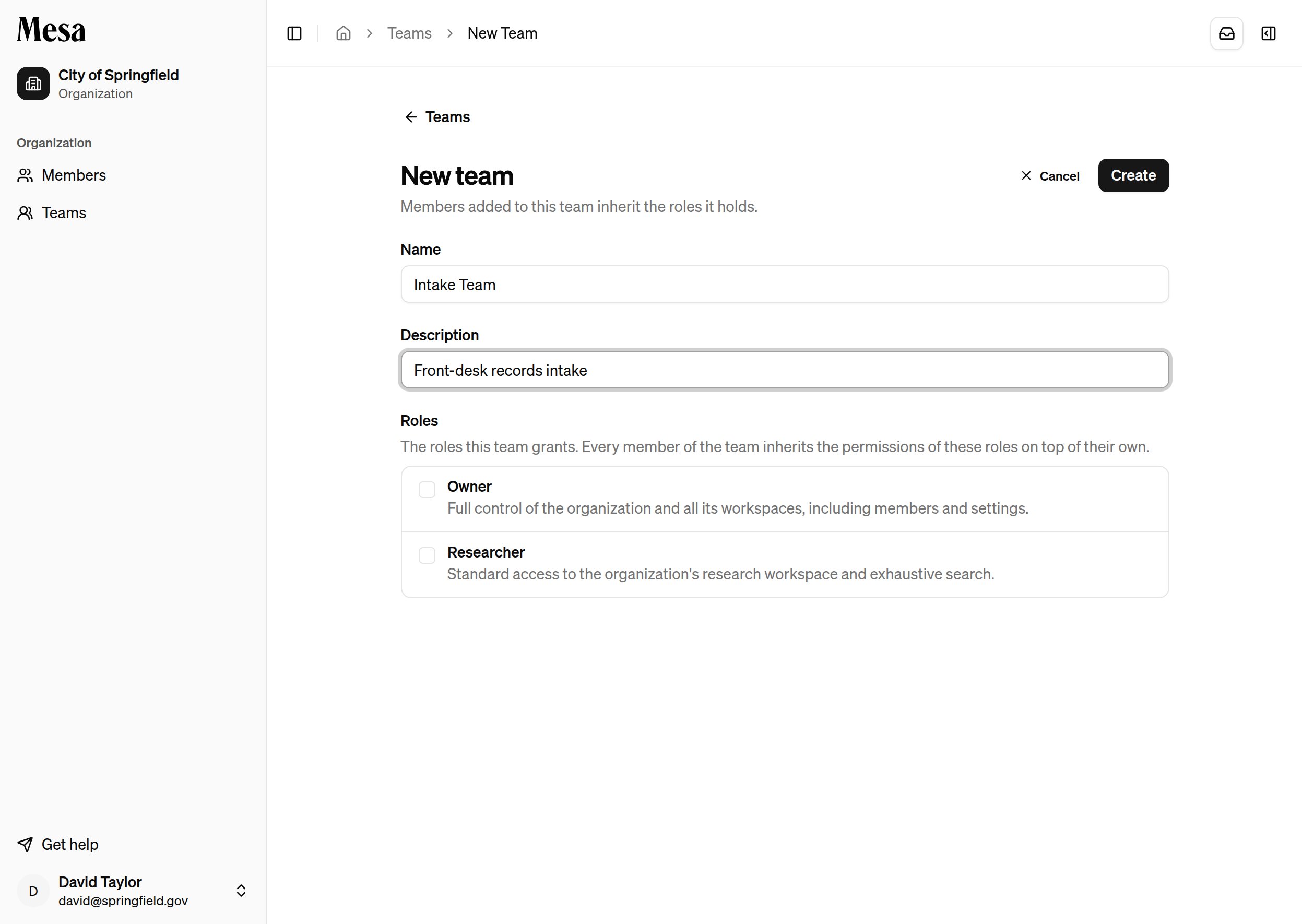
 Give the team a name (for example, `Records Unit`), an optional description, and select the roles it should grant. Every member you add later inherits the permissions of these roles.
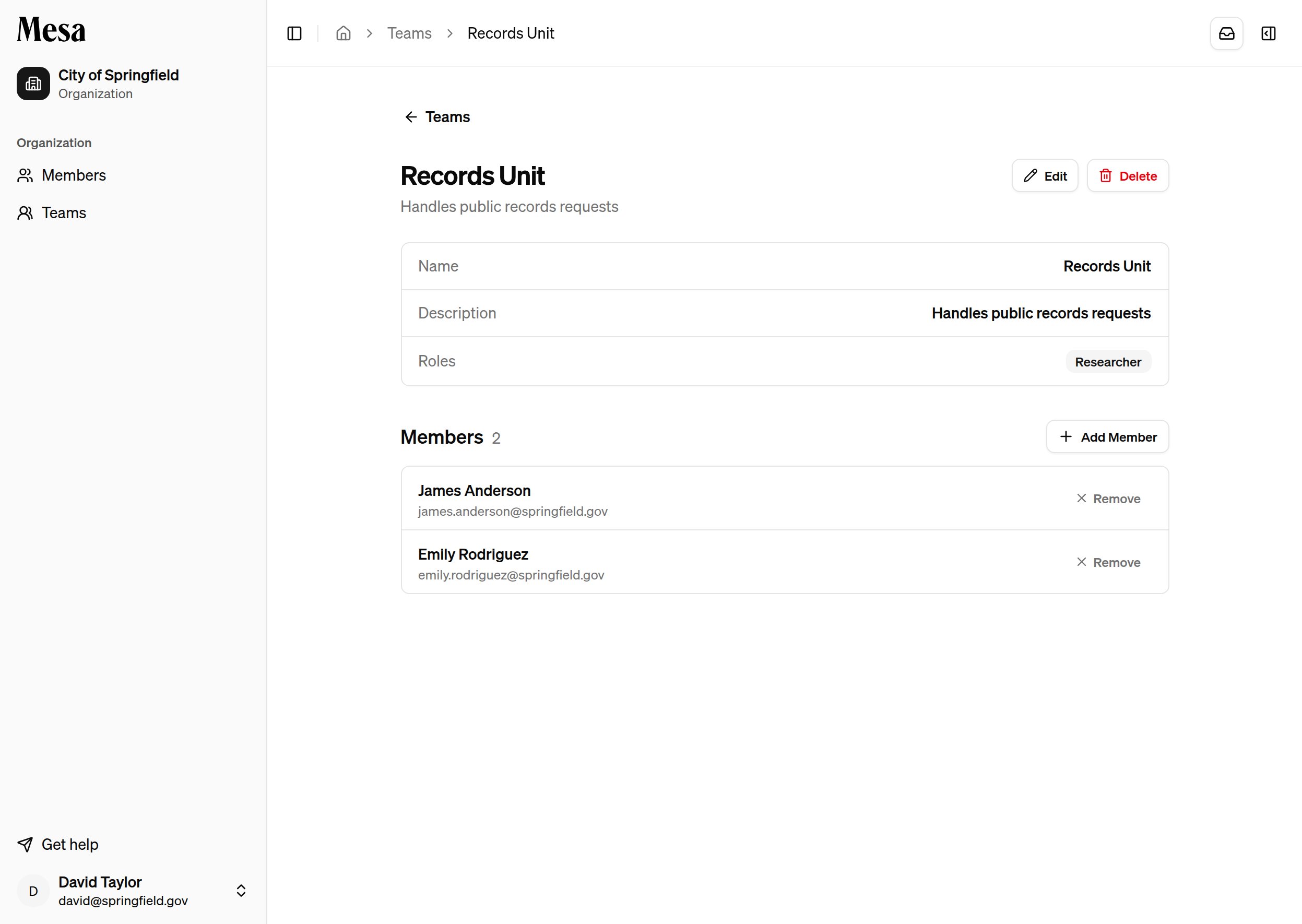
 Click **Create**. Mesa opens the new team's detail page, where you can add members.
## Add and remove members
Open a team to manage who belongs to it.
* **Add a member**: click **Add Member**, then search for and select a member of your organization. They immediately inherit the team's roles.
* **Remove a member**: click **Remove** next to their name and confirm. They lose any permissions they held only through this team.
Click **Create**. Mesa opens the new team's detail page, where you can add members.
## Add and remove members
Open a team to manage who belongs to it.
* **Add a member**: click **Add Member**, then search for and select a member of your organization. They immediately inherit the team's roles.
* **Remove a member**: click **Remove** next to their name and confirm. They lose any permissions they held only through this team.
 A member's effective permissions are the union of the roles assigned to them directly and the roles granted by every team they belong to. Removing a member from a team never revokes a role they also hold directly.
## Edit or delete a team
From a team's detail page:
* **Edit** changes the team's name, description, or the roles it grants. Changing a team's roles updates the permissions of every member at once.
* **Delete** removes the team. Members lose any permissions they held only through it. This cannot be undone.
## Roles and permissions
Teams grant the same roles you can assign to a member directly. For what each role can do, see [Organization admin](/organization-admin).
## Related articles
Assign roles to individual members and manage usage allocations.
Set shared skills, preferences, and pinned content for your team.
A member's effective permissions are the union of the roles assigned to them directly and the roles granted by every team they belong to. Removing a member from a team never revokes a role they also hold directly.
## Edit or delete a team
From a team's detail page:
* **Edit** changes the team's name, description, or the roles it grants. Changing a team's roles updates the permissions of every member at once.
* **Delete** removes the team. Members lose any permissions they held only through it. This cannot be undone.
## Roles and permissions
Teams grant the same roles you can assign to a member directly. For what each role can do, see [Organization admin](/organization-admin).
## Related articles
Assign roles to individual members and manage usage allocations.
Set shared skills, preferences, and pinned content for your team.