> ## Documentation Index
> Fetch the complete documentation index at: https://support.calderapbc.com/llms.txt
> Use this file to discover all available pages before exploring further.
# Get help
> Reach the Caldera team from inside Mesa when you need a hand.
If you get stuck or something isn't working, you can send the Caldera team a message without leaving Mesa. The **Get help** button lives at the bottom of the sidebar, in every part of the app.
## Send a support request
Click **Get help** at the bottom of the left sidebar.
Tell us what you need a hand with. You can attach screenshots or files if they'll help us understand the problem.
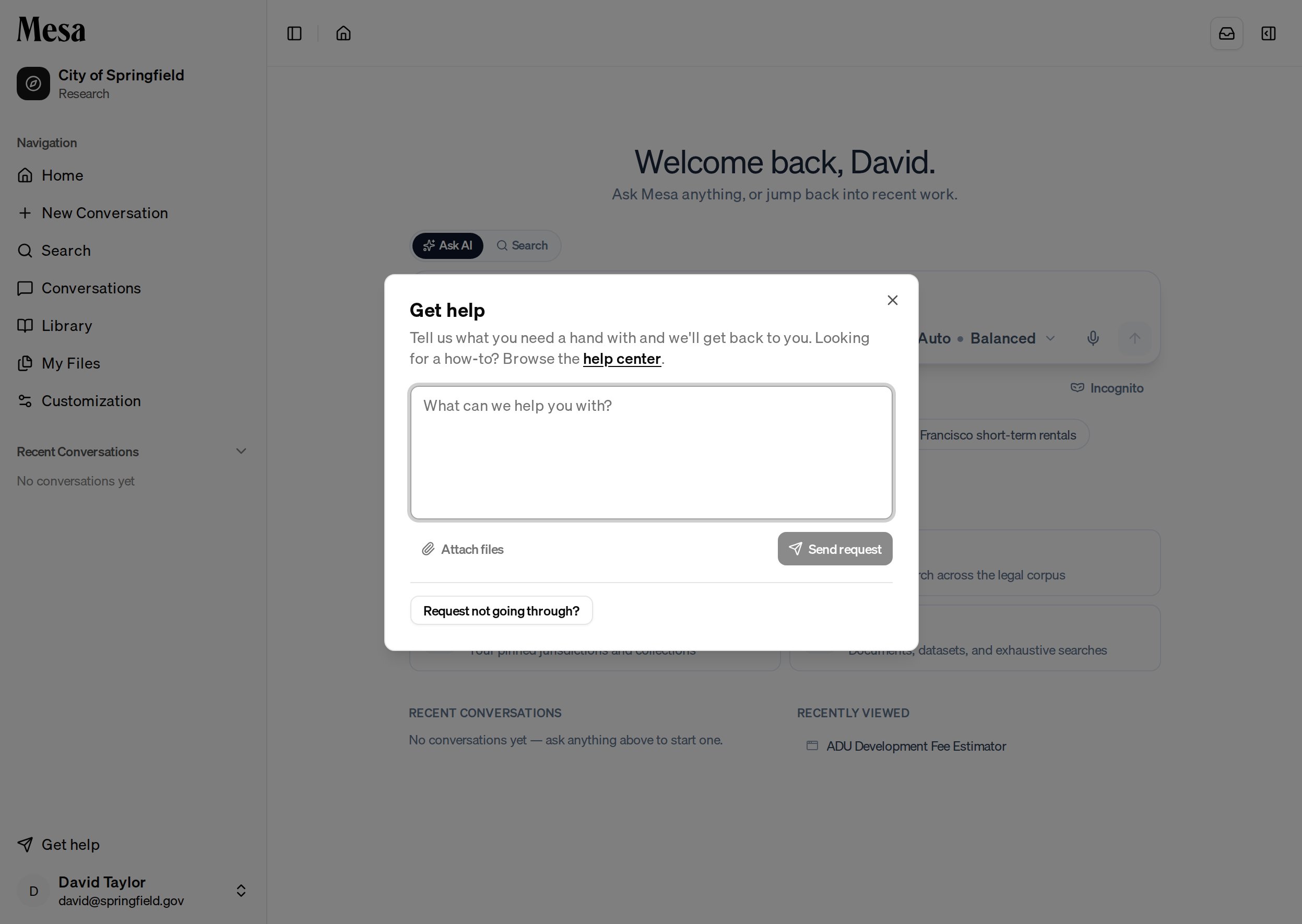 Click **Send request**. You'll get a confirmation with a reference code, and an email confirming we received it. We'll follow up by email.
Mesa automatically includes a bit of technical context with your request (such as your app version and browser) so we can diagnose issues faster. If the request won't go through, open **Request not going through?** to copy that context and email us directly at [support@calderapbc.com](mailto:support@calderapbc.com).
## Related articles
Find your way around the sidebar, top bar, and side panel.
New to Mesa? Walk through your first conversation.
Click **Send request**. You'll get a confirmation with a reference code, and an email confirming we received it. We'll follow up by email.
Mesa automatically includes a bit of technical context with your request (such as your app version and browser) so we can diagnose issues faster. If the request won't go through, open **Request not going through?** to copy that context and email us directly at [support@calderapbc.com](mailto:support@calderapbc.com).
## Related articles
Find your way around the sidebar, top bar, and side panel.
New to Mesa? Walk through your first conversation.