> ## Documentation Index
> Fetch the complete documentation index at: https://support.calderapbc.com/llms.txt
> Use this file to discover all available pages before exploring further.
# Settings
> Configure your theme, sidebar behavior, and message controls.
Settings control how Mesa looks and feels for you: your color theme, how the sidebar behaves, and how you send messages. They apply only to your personal account and don't affect other members of your organization.
## Open your settings
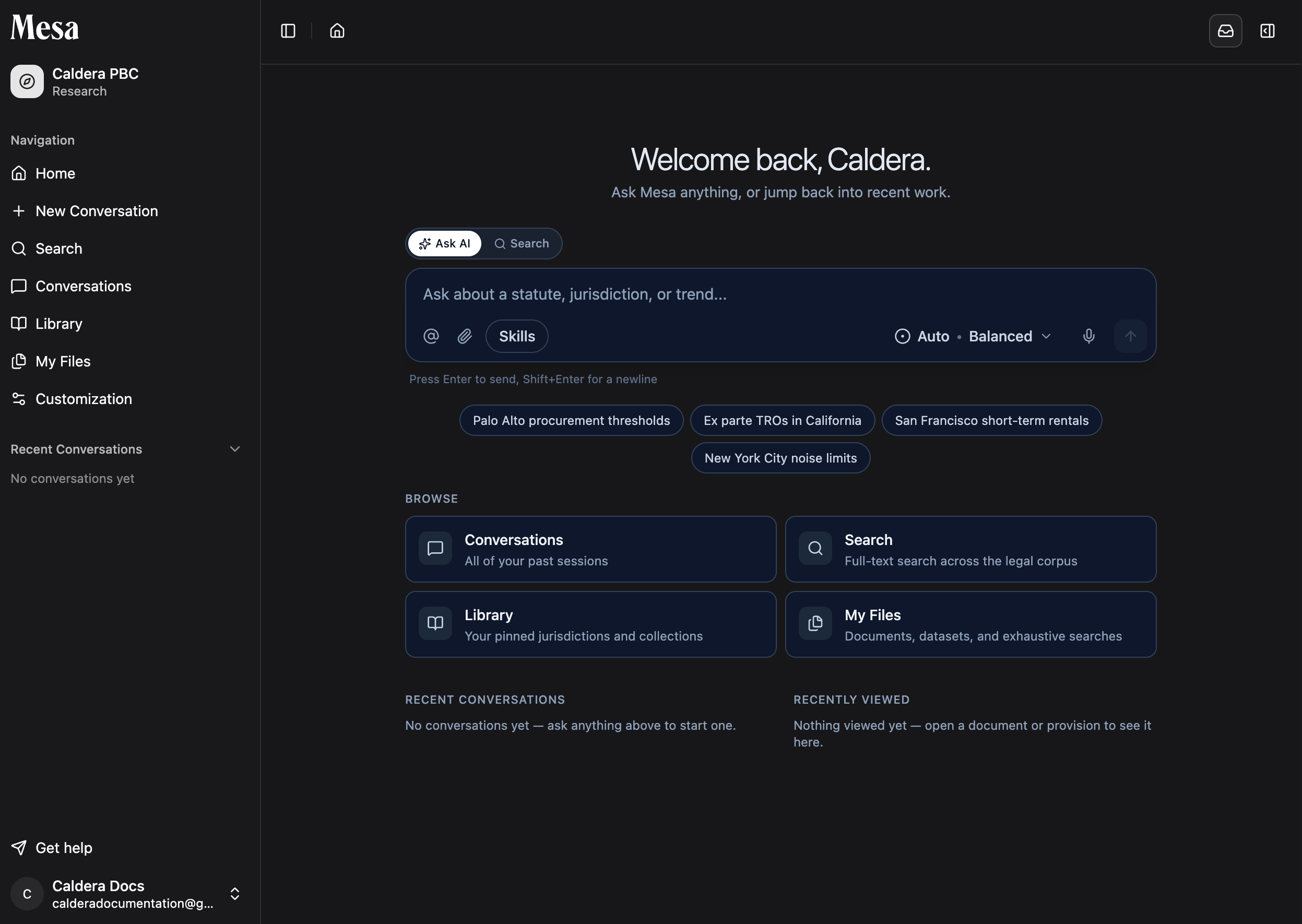
From the home page, click your name in the bottom-left corner.
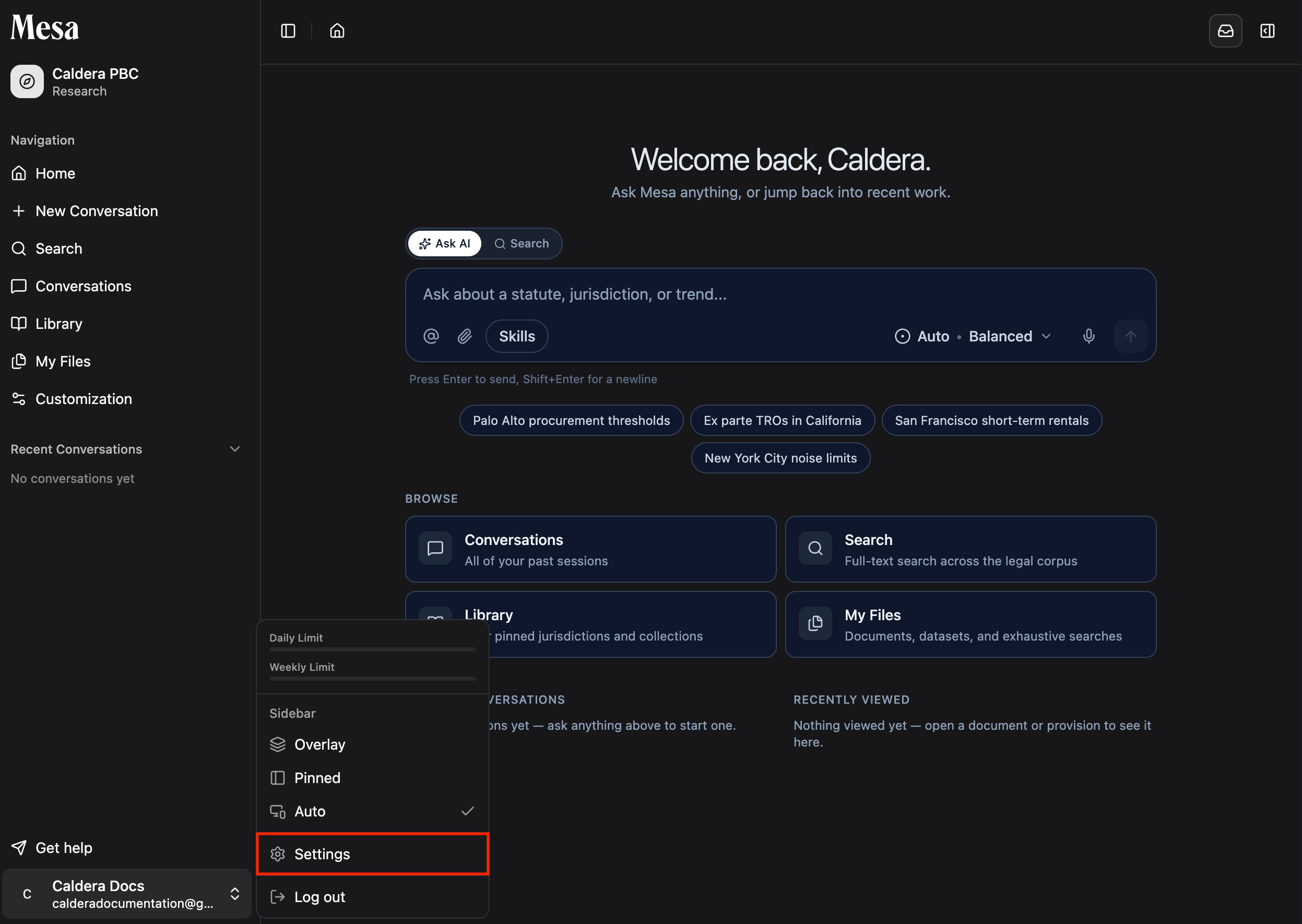
 Select **Settings** from the menu.
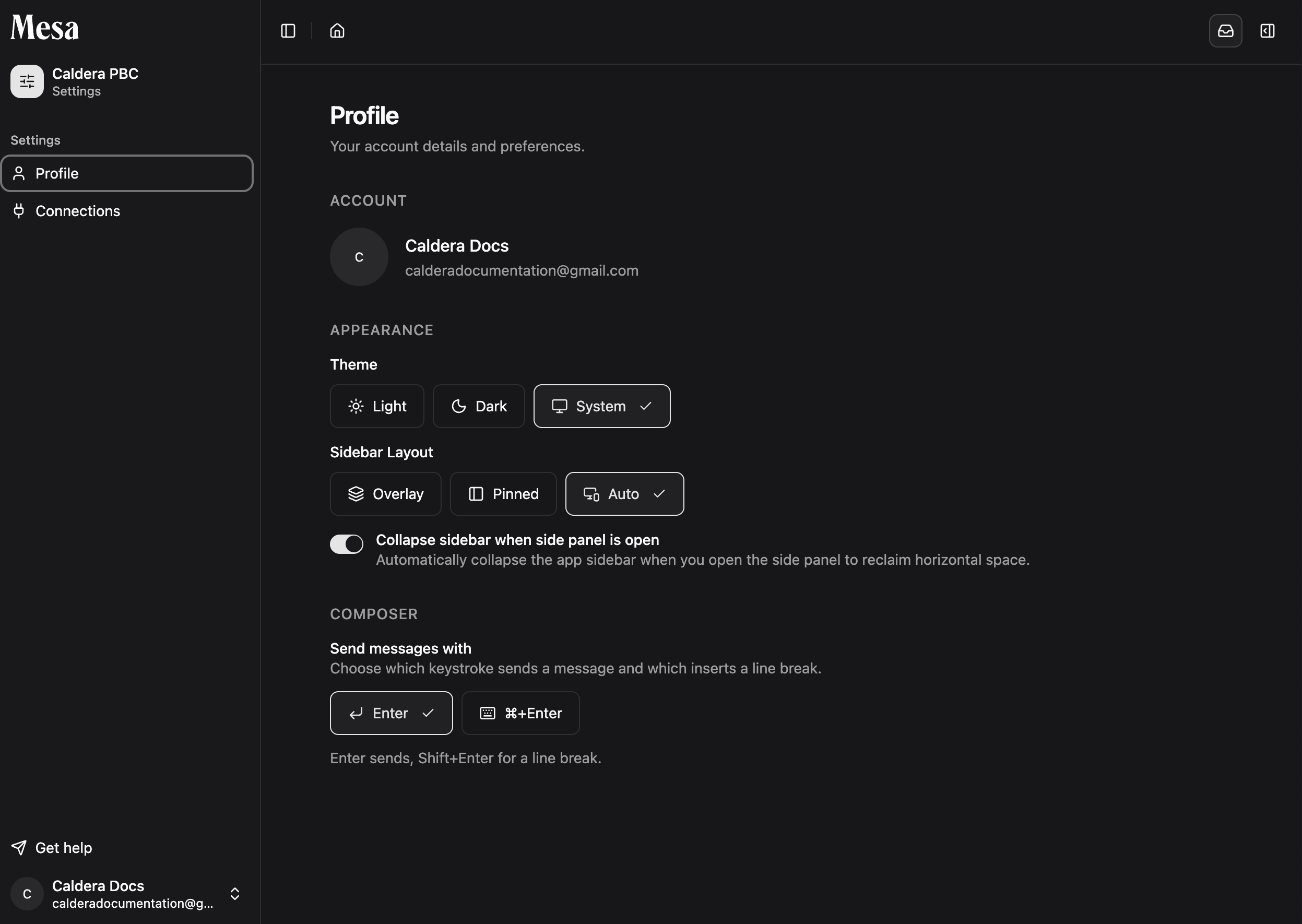
 You land on the **Profile** tab, where all of the settings below live.
 ## What each setting does
| Setting | Options | What it does |
| -------------------------------------------- | ------------------------- | --------------------------------------------------------------------------------------------------- |
| **Theme** | **Light** / **Dark** | Sets Mesa's color scheme |
| **Sidebar Layout** | **Overlay** / **Pinned** | **Overlay** closes the sidebar by default for more room; **Pinned** keeps it on screen at all times |
| **Collapse sidebar when side panel is open** | **On** / **Off** | Automatically closes the sidebar when the side panel opens, freeing up screen space |
| **Send messages with** | `Enter` / `Shift + Enter` | Controls which key sends a message and which starts a new line |
Not sure what the side panel is? See [Navigation](/navigation) for a tour of the interface.
With **Send messages with** set to `Enter`, pressing `Enter` sends your message and `Shift + Enter` starts a new line. Switch it if you often write multi-paragraph prompts and prefer `Enter` to create new lines instead.
## Troubleshooting
If your settings aren't saving, refresh the page and check again. Settings are tied to your personal account and persist across sessions.
## Related articles
Get a full tour of the home page, sidebar, and side panel.
Link external storage accounts from the Connections tab in Settings.
Set standing instructions that shape how Mesa responds to you.
## What each setting does
| Setting | Options | What it does |
| -------------------------------------------- | ------------------------- | --------------------------------------------------------------------------------------------------- |
| **Theme** | **Light** / **Dark** | Sets Mesa's color scheme |
| **Sidebar Layout** | **Overlay** / **Pinned** | **Overlay** closes the sidebar by default for more room; **Pinned** keeps it on screen at all times |
| **Collapse sidebar when side panel is open** | **On** / **Off** | Automatically closes the sidebar when the side panel opens, freeing up screen space |
| **Send messages with** | `Enter` / `Shift + Enter` | Controls which key sends a message and which starts a new line |
Not sure what the side panel is? See [Navigation](/navigation) for a tour of the interface.
With **Send messages with** set to `Enter`, pressing `Enter` sends your message and `Shift + Enter` starts a new line. Switch it if you often write multi-paragraph prompts and prefer `Enter` to create new lines instead.
## Troubleshooting
If your settings aren't saving, refresh the page and check again. Settings are tied to your personal account and persist across sessions.
## Related articles
Get a full tour of the home page, sidebar, and side panel.
Link external storage accounts from the Connections tab in Settings.
Set standing instructions that shape how Mesa responds to you.