> ## Documentation Index
> Fetch the complete documentation index at: https://support.calderapbc.com/llms.txt
> Use this file to discover all available pages before exploring further.
# Reports
> Mesa-drafted documents you can edit, comment on, share, and publish.
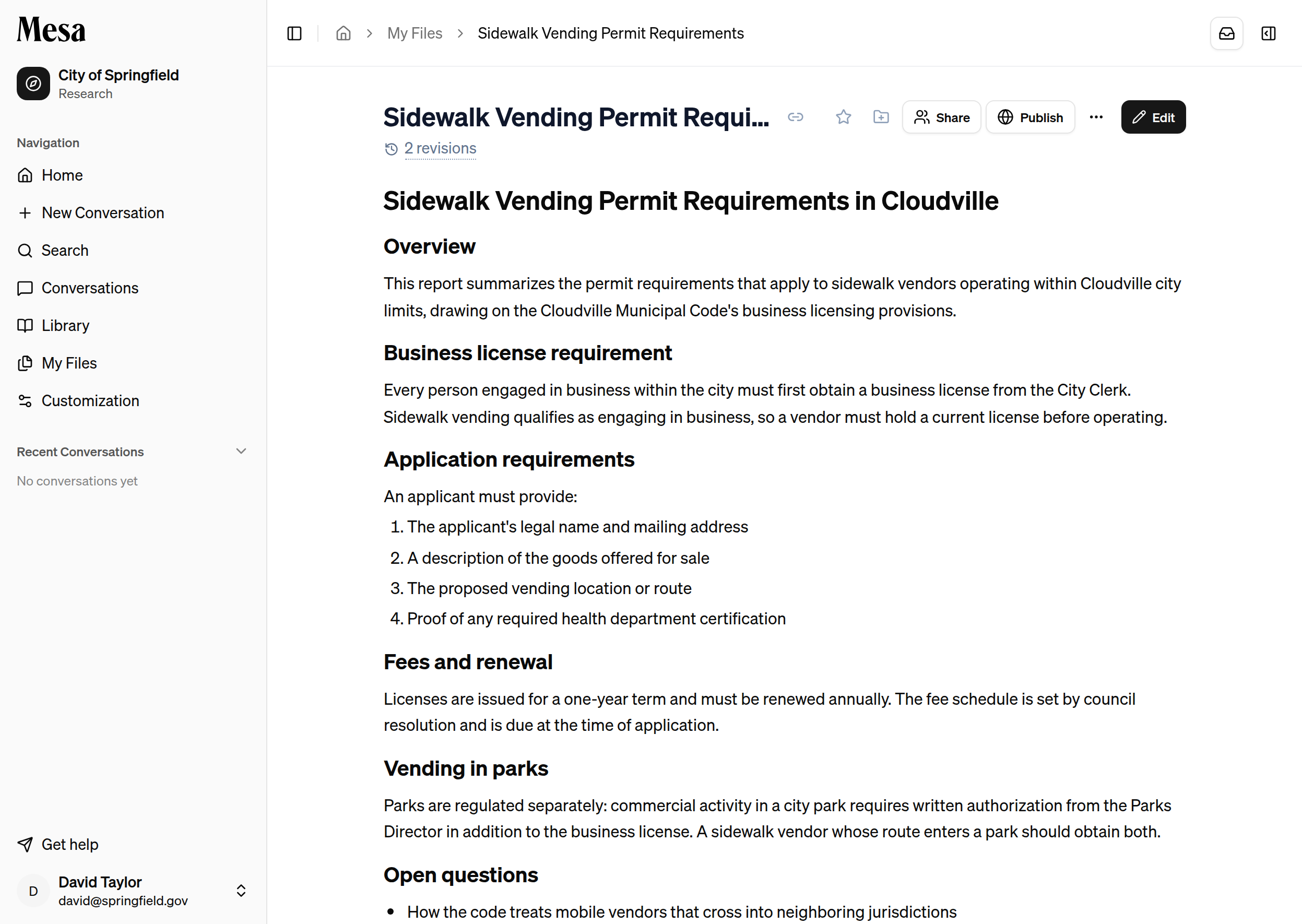
A report is a formatted document Mesa's agent writes for you inside a conversation: a research memo, a policy summary, an analysis of the provisions you've been discussing. Reports are saved to [My Files](/files) alongside your other work, and they stay live after the conversation ends. You can edit them, roll back to earlier revisions, discuss them in comments, share them with teammates, and publish them as a link.
 ## Ask for one
You don't create reports from a blank page; you ask the agent for one in an [Ask AI](/models) conversation. Describe what you want in plain language, for example:
* "Write a report summarizing the permit requirements for sidewalk vendors."
* "Turn what we've found so far into a memo I can send to the planning department."
The agent writes the report and a card appears in the chat showing what it created. Click the card to open the report in the side panel. If it isn't quite right, keep asking: each change the agent makes is saved as its own revision, so nothing is overwritten.
## Open a report
You can reach a report three ways:
* **In the conversation** where the agent wrote it, as a card in the chat.
* **From [My Files](/files)**, where reports appear as rows with a report icon. Double-click one to open it.
* **From a direct link.** The copy-link button next to the title copies a link you can send to anyone the report is shared with. Pasting that link into the chat box [tags the report](/tagging-files) in a new conversation.
## Edit a report
Click **Edit** to open the report in a rich text editor. The owner can always edit; anyone the report is shared with at **Can edit** can too.
## Ask for one
You don't create reports from a blank page; you ask the agent for one in an [Ask AI](/models) conversation. Describe what you want in plain language, for example:
* "Write a report summarizing the permit requirements for sidewalk vendors."
* "Turn what we've found so far into a memo I can send to the planning department."
The agent writes the report and a card appears in the chat showing what it created. Click the card to open the report in the side panel. If it isn't quite right, keep asking: each change the agent makes is saved as its own revision, so nothing is overwritten.
## Open a report
You can reach a report three ways:
* **In the conversation** where the agent wrote it, as a card in the chat.
* **From [My Files](/files)**, where reports appear as rows with a report icon. Double-click one to open it.
* **From a direct link.** The copy-link button next to the title copies a link you can send to anyone the report is shared with. Pasting that link into the chat box [tags the report](/tagging-files) in a new conversation.
## Edit a report
Click **Edit** to open the report in a rich text editor. The owner can always edit; anyone the report is shared with at **Can edit** can too.
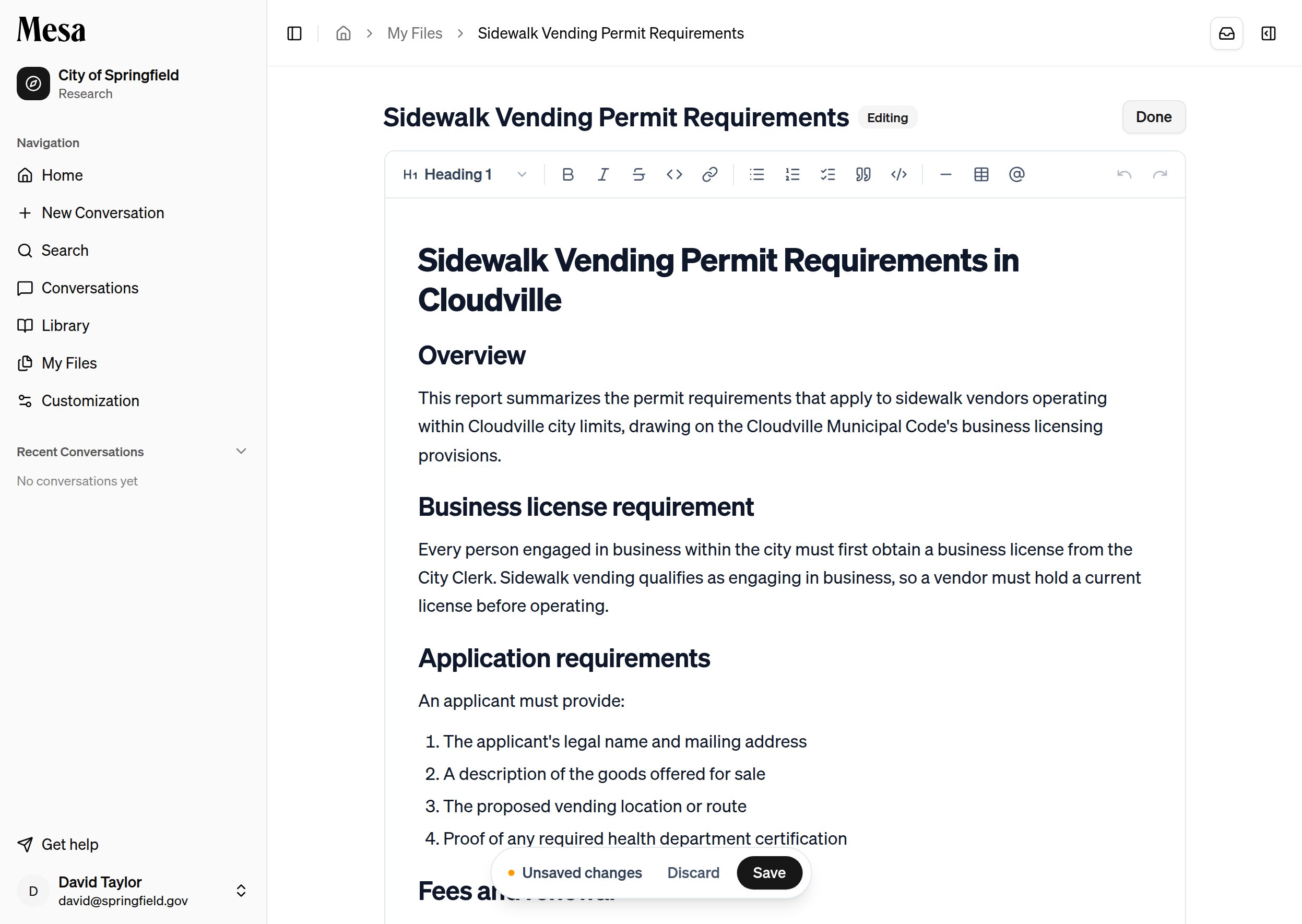 The toolbar covers headings, emphasis, lists, quotes, tables, and links. As soon as you change something, a save bar appears at the bottom: **Save** writes your changes as a new revision, and **Discard** returns to the saved text. `Cmd+S` (or `Ctrl+S`) saves too. If you navigate away with unsaved changes, Mesa asks before letting them go, and it keeps a local draft so an accidental tab close doesn't lose your work.
## Revisions
Every save, whether by you, a teammate, or the agent, becomes a revision. The revision count under the title opens the full history: preview any earlier draft, compare it against the current text, and **Restore this version** to bring it back. See [Version history](/versioning) for the details.
## Comment on a report
Select a passage of the report and click **Comment** to start a thread anchored to that text. Anyone the report is shared with can read the threads and reply, so feedback stays attached to the exact sentence it's about. You can resolve threads you started; editors can resolve any thread.
## Share a report
Click **Share** to control who can open the report. Sharing works the same way as for [files](/files):
The toolbar covers headings, emphasis, lists, quotes, tables, and links. As soon as you change something, a save bar appears at the bottom: **Save** writes your changes as a new revision, and **Discard** returns to the saved text. `Cmd+S` (or `Ctrl+S`) saves too. If you navigate away with unsaved changes, Mesa asks before letting them go, and it keeps a local draft so an accidental tab close doesn't lose your work.
## Revisions
Every save, whether by you, a teammate, or the agent, becomes a revision. The revision count under the title opens the full history: preview any earlier draft, compare it against the current text, and **Restore this version** to bring it back. See [Version history](/versioning) for the details.
## Comment on a report
Select a passage of the report and click **Comment** to start a thread anchored to that text. Anyone the report is shared with can read the threads and reply, so feedback stays attached to the exact sentence it's about. You can resolve threads you started; editors can resolve any thread.
## Share a report
Click **Share** to control who can open the report. Sharing works the same way as for [files](/files):
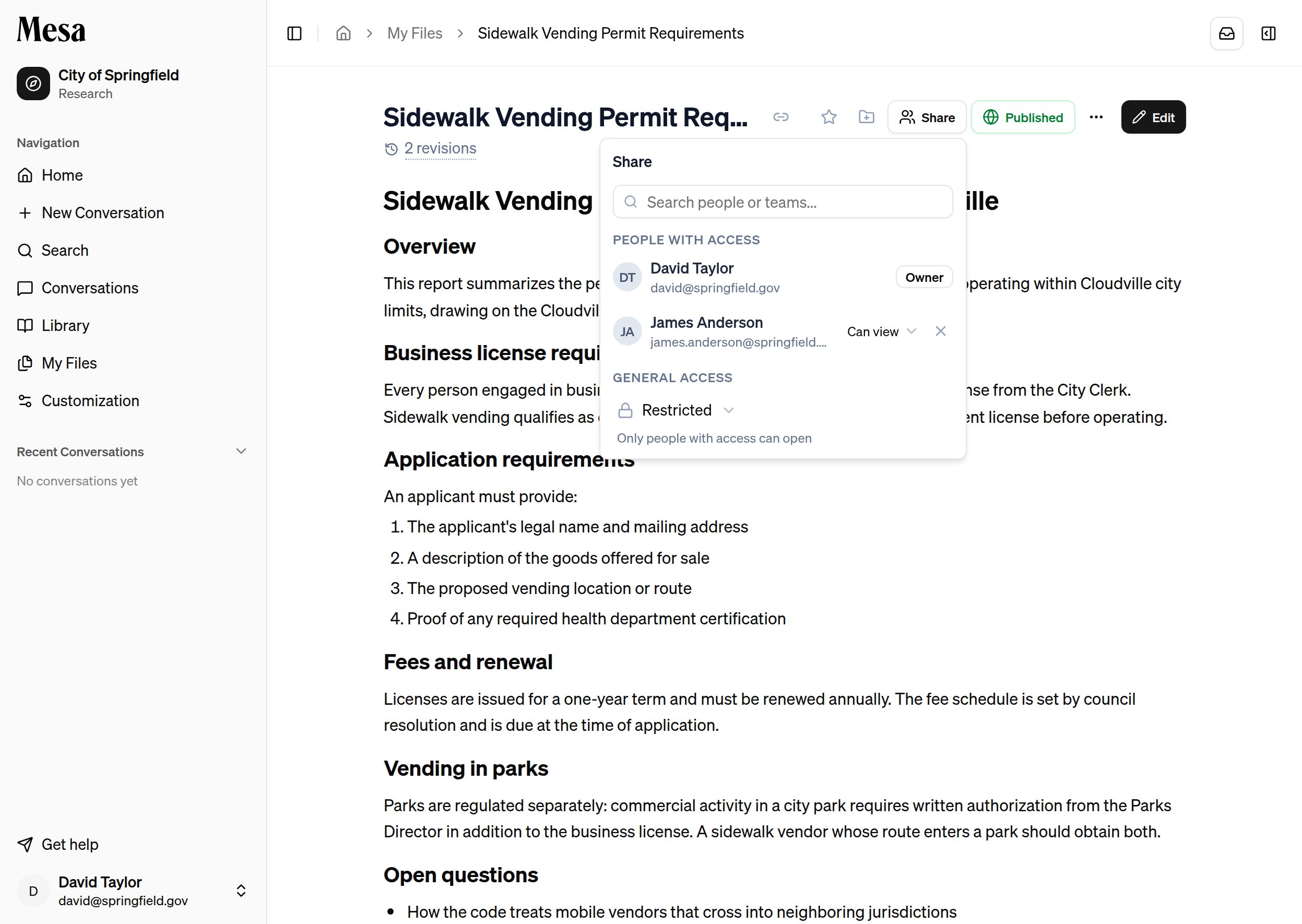 * **Search people or teams** and add them at **Can view** or **Can edit**. Editors can change the text and add new revisions; viewers can only read and comment.
* **General access** controls the default: **Restricted** means only people you've added can open it, while choosing your organization lets anyone in your org with the link view (or edit, if you say so).
* A report inside a shared folder inherits that folder's access automatically.
## Publish a report
Sharing grants access person by person. Publishing creates a single link that works for anyone who can sign in to Mesa, which is the easy way to circulate a finished report widely. Only the report's owner can publish.
* **Search people or teams** and add them at **Can view** or **Can edit**. Editors can change the text and add new revisions; viewers can only read and comment.
* **General access** controls the default: **Restricted** means only people you've added can open it, while choosing your organization lets anyone in your org with the link view (or edit, if you say so).
* A report inside a shared folder inherits that folder's access automatically.
## Publish a report
Sharing grants access person by person. Publishing creates a single link that works for anyone who can sign in to Mesa, which is the easy way to circulate a finished report widely. Only the report's owner can publish.
 Click **Publish**, then confirm. Mesa creates the public link and copies it to your clipboard:
 Readers who open the link see a clean, read-only page with the report's content and a footer noting who published it and when it was last updated. The published page always shows the latest revision, so you can keep improving the report after sending the link out.
 To take the report back down, open the **Published** popover and click **Unpublish**. The link stops working immediately; sharing you've set up person by person is unaffected.
Publishing doesn't make the report anonymous or public to the internet. Readers still sign in to Mesa before they can view it.
## Manage a report
The header of an open report gives you the same controls as any artifact:
| Action | How to do it |
| -------------- | ---------------------------------------------------------------- |
| Bookmark | Click the star to pin it for quick access |
| Add a shortcut | File a [pointer to the report](/shortcuts) in My Files |
| Rename | Open the three-dots menu and choose **Rename** (owner only) |
| Download | Open the three-dots menu and choose **Download** to export a PDF |
| Archive | Open the three-dots menu and choose **Archive** |
## Related articles
Preview and restore earlier revisions of a report.
Find, organize, and share the reports Mesa saves for you.
When a document isn't enough, ask the agent for a live tool instead.
To take the report back down, open the **Published** popover and click **Unpublish**. The link stops working immediately; sharing you've set up person by person is unaffected.
Publishing doesn't make the report anonymous or public to the internet. Readers still sign in to Mesa before they can view it.
## Manage a report
The header of an open report gives you the same controls as any artifact:
| Action | How to do it |
| -------------- | ---------------------------------------------------------------- |
| Bookmark | Click the star to pin it for quick access |
| Add a shortcut | File a [pointer to the report](/shortcuts) in My Files |
| Rename | Open the three-dots menu and choose **Rename** (owner only) |
| Download | Open the three-dots menu and choose **Download** to export a PDF |
| Archive | Open the three-dots menu and choose **Archive** |
## Related articles
Preview and restore earlier revisions of a report.
Find, organize, and share the reports Mesa saves for you.
When a document isn't enough, ask the agent for a live tool instead.