> ## Documentation Index
> Fetch the complete documentation index at: https://support.calderapbc.com/llms.txt
> Use this file to discover all available pages before exploring further.
# Preferences
> Set standing instructions and manage the memories Mesa builds from your conversations.
Preferences shape how Mesa behaves in every conversation you have. They come in two parts: **Custom Instructions**, which you write yourself, and **Memories**, which Mesa builds automatically from your past conversations. Together, they make Mesa feel like it already knows how you work.
## Custom instructions vs. memories
| | Custom Instructions | Memories |
| ------------ | --------------------------------------------------- | -------------------------------------------------- |
| Source | You write them manually | Mesa records them automatically |
| When applied | Every conversation | Every conversation |
| How to edit | Edit directly in the textbox | Click the three dots next to any memory |
| Best for | Explicit standing rules: tone, format, jurisdiction | Patterns Mesa has observed from past conversations |
## Set custom instructions
On your Customization page, write your custom instructions in the textbox. Mesa applies them to every conversation.
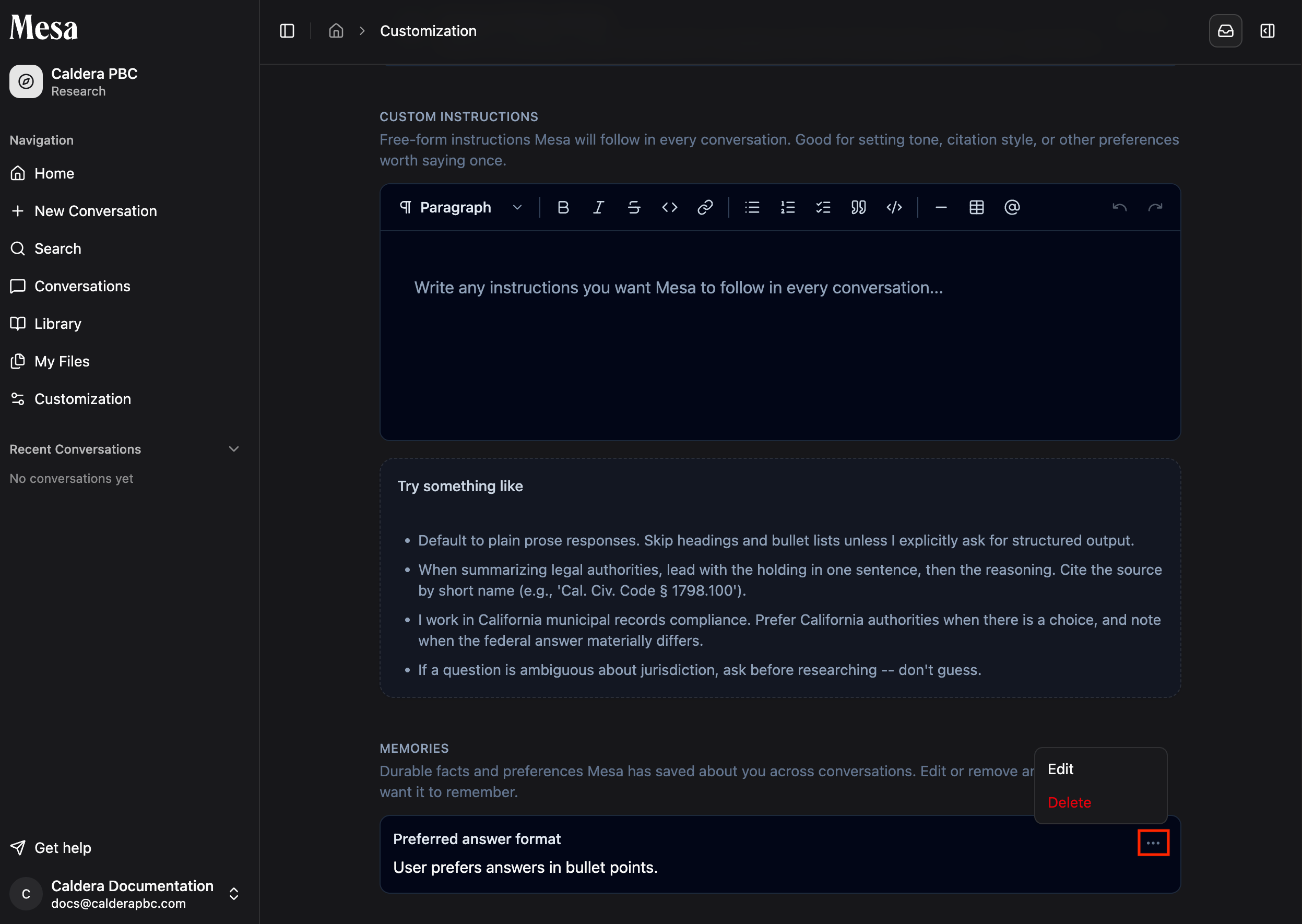 Instructions that tend to pay off:
* **Your role or practice area**: "I'm a corporate associate focused on M\&A transactions."
* **Your preferred output format**: "Structure answers as memos with headings."
* **Jurisdiction defaults**: "Apply New York law unless told otherwise."
* **Keep them concise** so Mesa can apply them consistently.
## Manage memories
Mesa generates memories automatically from your conversations. On the same Customization page, you can review every memory it has saved. Click the three dots next to a memory to edit it, or delete it if it's outdated or wrong.
Instructions that tend to pay off:
* **Your role or practice area**: "I'm a corporate associate focused on M\&A transactions."
* **Your preferred output format**: "Structure answers as memos with headings."
* **Jurisdiction defaults**: "Apply New York law unless told otherwise."
* **Keep them concise** so Mesa can apply them consistently.
## Manage memories
Mesa generates memories automatically from your conversations. On the same Customization page, you can review every memory it has saved. Click the three dots next to a memory to edit it, or delete it if it's outdated or wrong.
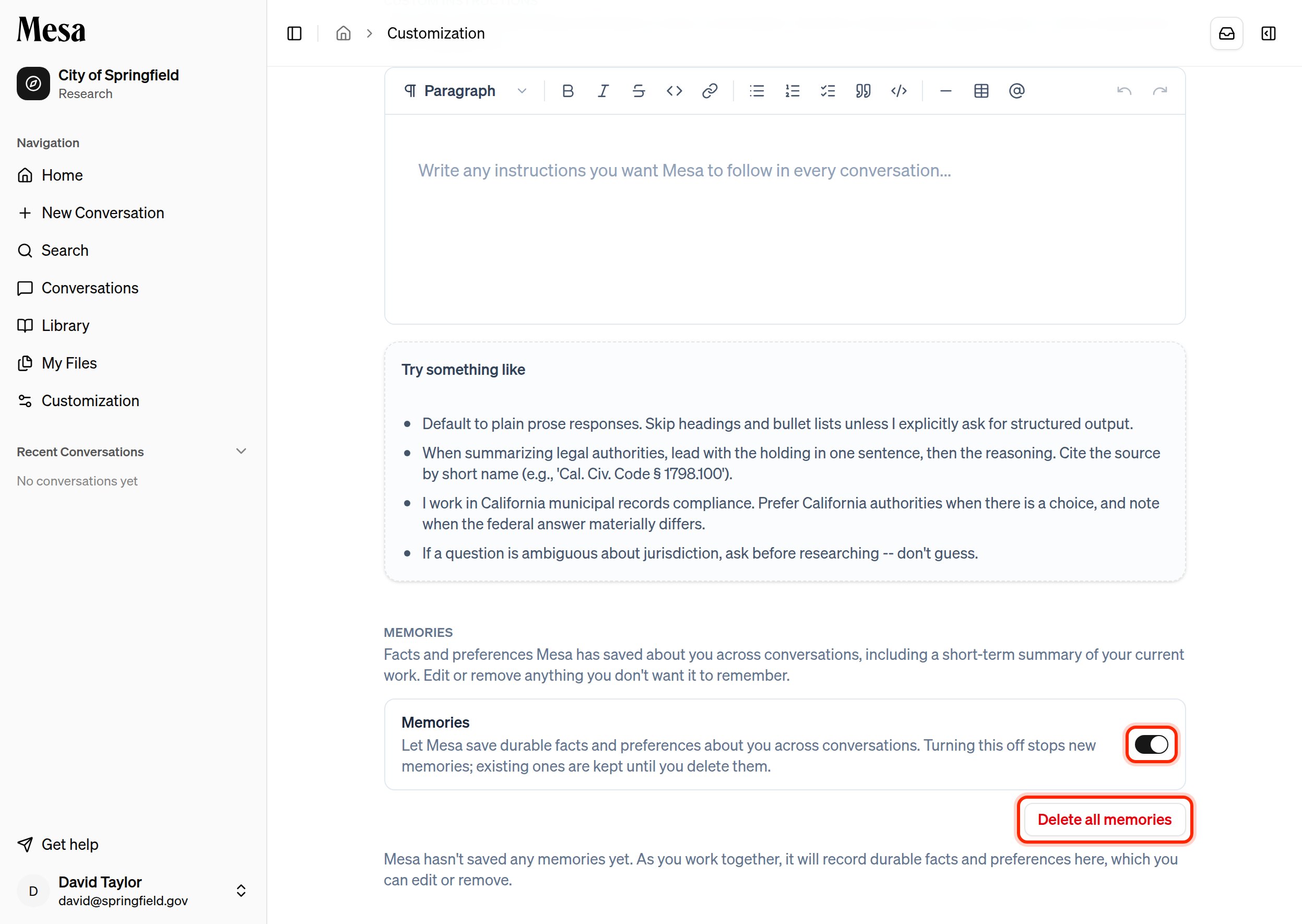 You also control memories as a whole from the **Memories** section:
* **Turn memories on or off** with the toggle. Switching it off stops Mesa from creating new memories. Existing memories are kept and still applied until you remove them.
* **Delete all memories** clears everything Mesa has saved about you in one step. This can't be undone.
Review your memories periodically to make sure Mesa's assumptions about your work are still accurate.
## Related articles
Create reusable instructions for specific recurring tasks.
Apply shared preferences across your whole workspace.
Pair standing preferences with well-written individual prompts.
You also control memories as a whole from the **Memories** section:
* **Turn memories on or off** with the toggle. Switching it off stops Mesa from creating new memories. Existing memories are kept and still applied until you remove them.
* **Delete all memories** clears everything Mesa has saved about you in one step. This can't be undone.
Review your memories periodically to make sure Mesa's assumptions about your work are still accurate.
## Related articles
Create reusable instructions for specific recurring tasks.
Apply shared preferences across your whole workspace.
Pair standing preferences with well-written individual prompts.