> ## Documentation Index
> Fetch the complete documentation index at: https://support.calderapbc.com/llms.txt
> Use this file to discover all available pages before exploring further.
# Organization settings
> Set organization-wide configuration like your organization's timezone.
The Settings page on the Organization page holds configuration that applies to your whole organization, not to any one member, such as your organization's timezone.
Only users with the **Owner** role can open the Organization page and change these settings. Personal settings like theme and sidebar behavior live in your own [Settings](/settings) instead.
## Open Organization settings
Click your organization name in the top-left corner, select **Organization**, then choose **Settings** from the sidebar.
 ## Set your organization's timezone
The timezone is used wherever local time matters for your organization, such as date defaults and notifications. Until you set one, Mesa uses the platform default and shows a **Default** badge next to the setting.
Click the timezone dropdown on the right side of the **Timezone** row. Common United States timezones are listed first, and you can search all timezones by name.
## Set your organization's timezone
The timezone is used wherever local time matters for your organization, such as date defaults and notifications. Until you set one, Mesa uses the platform default and shows a **Default** badge next to the setting.
Click the timezone dropdown on the right side of the **Timezone** row. Common United States timezones are listed first, and you can search all timezones by name.
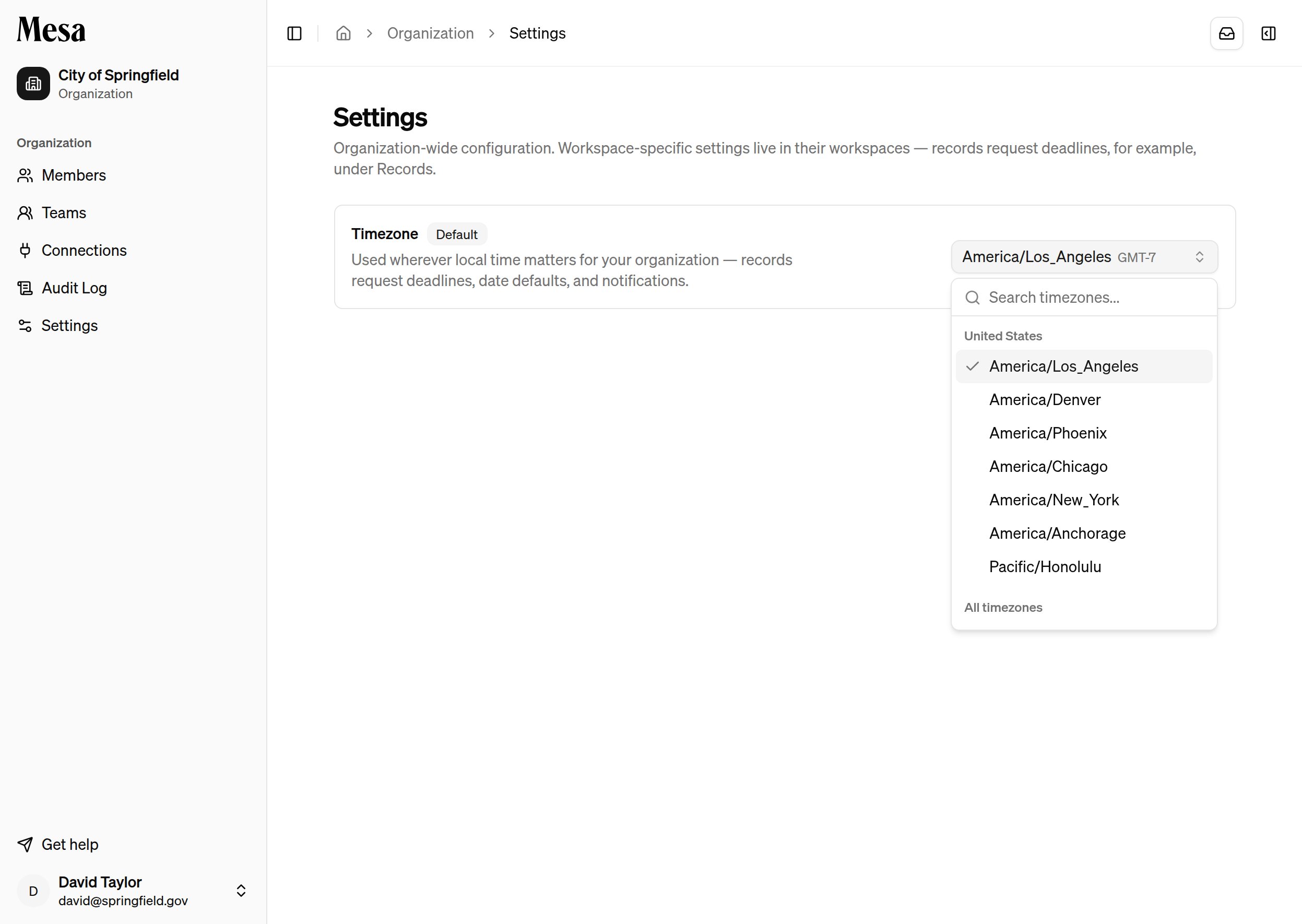 Select your organization's local timezone. The change saves immediately and applies to everyone in the organization.
To go back to the platform default, click **Reset to default** next to the picker. The button only appears once you've set a timezone explicitly.
## Related articles
Add members, assign roles, and monitor usage across your workspace.
Review security-relevant events across your organization.
Configure your personal theme, sidebar behavior, and message controls.
Select your organization's local timezone. The change saves immediately and applies to everyone in the organization.
To go back to the platform default, click **Reset to default** next to the picker. The button only appears once you've set a timezone explicitly.
## Related articles
Add members, assign roles, and monitor usage across your workspace.
Review security-relevant events across your organization.
Configure your personal theme, sidebar behavior, and message controls.