> ## Documentation Index
> Fetch the complete documentation index at: https://support.calderapbc.com/llms.txt
> Use this file to discover all available pages before exploring further.
# Organization connections
> Connect external government data sources once, for your whole team, so the agent can search them on everyone's behalf.
Organization connections let an **Owner** link external government data sources to the whole workspace. Connect a source once and every member's agent can search and analyze it during a conversation; no per-person setup. This is different from personal [Connections](/connections), which link your own Google Drive or OneDrive; organization connections are shared, public data sources managed for the entire org.
Only users with the **Owner** role (or a role granted the organization-management permission) can manage organization connections.
## Supported sources
| Source | What it is |
| ------------------------------- | ---------------------------------------------------------------------------------------- |
| **Open Data Portal (CKAN)** | Public open-data portals like `data.boston.gov`, published on the CKAN platform |
| **ArcGIS Server** | Public GIS servers publishing map layers like parcels, zoning, and district boundaries |
| **Legistar Legislative Portal** | A city, county, or state's Legistar portal: its ordinances, meetings, agendas, and votes |
## Connect a source
Switch to the **Organization** area in the sidebar and click **Connections**. You'll see the available source types and any connections you've already made.
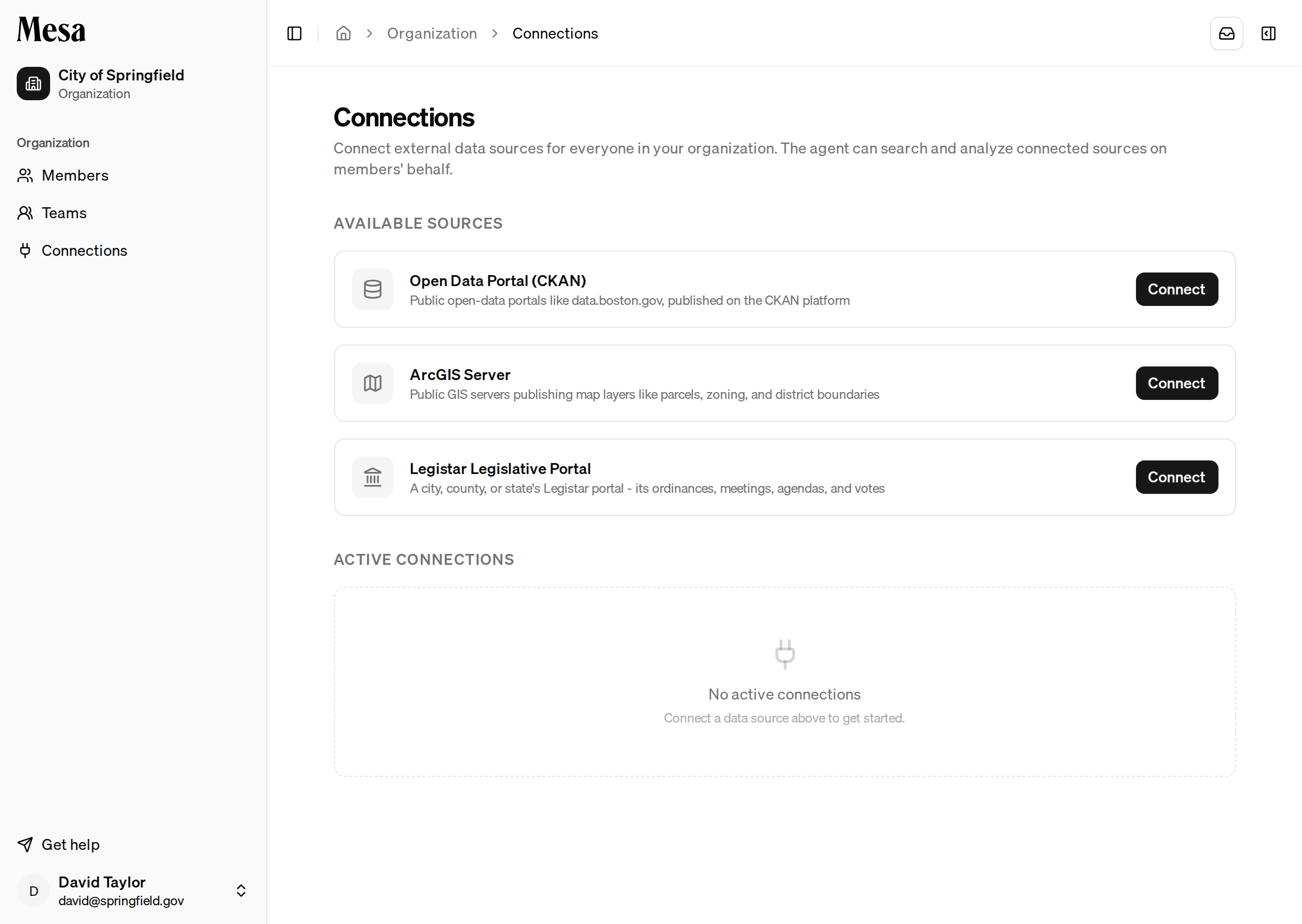 Click **Connect** on the source you want, then paste the portal or server URL (or, for Legistar, the portal address). Click **Test** to confirm Mesa can reach it; a successful test shows details like the site title and how many datasets, services, or legislative bodies it found.
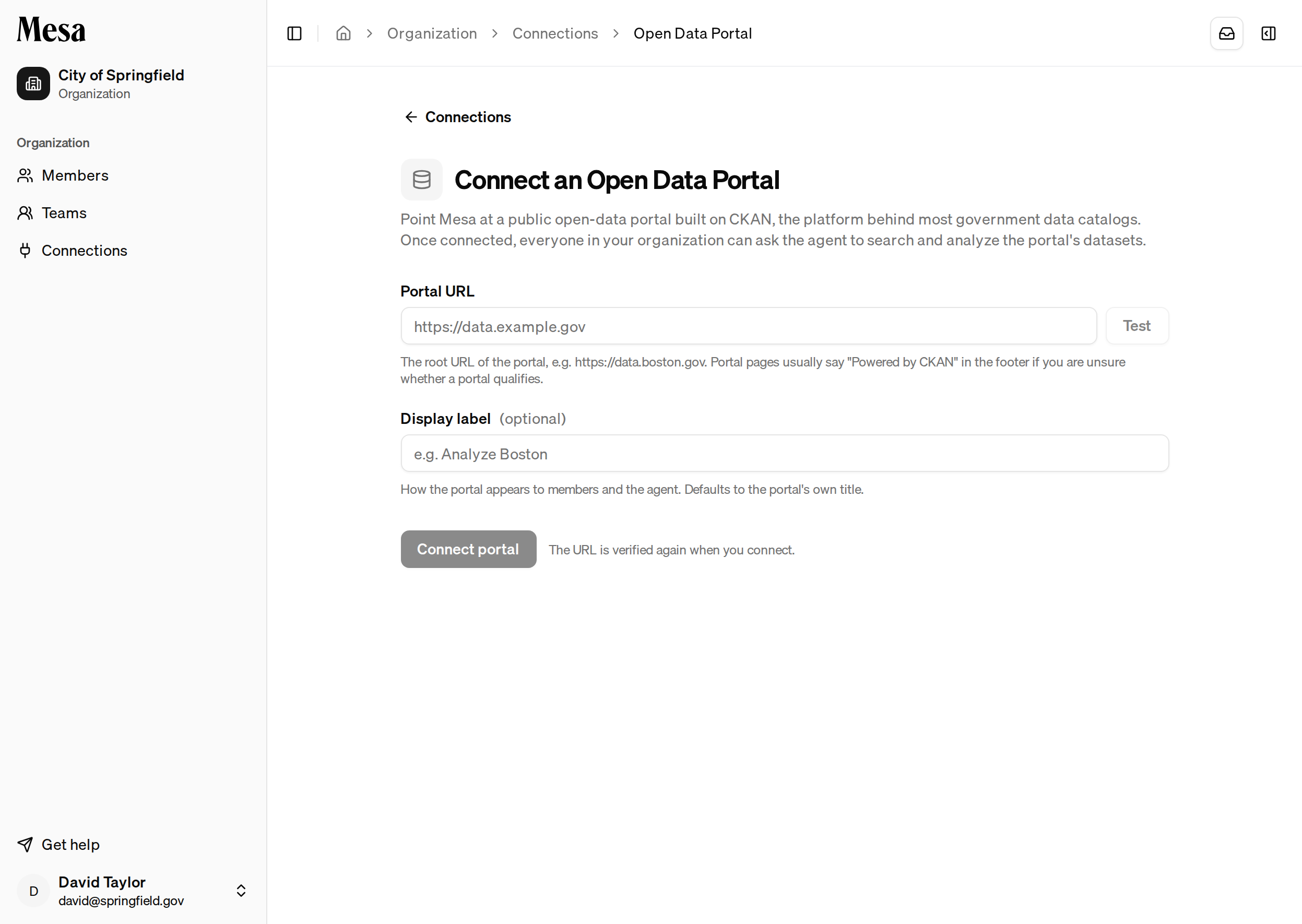 Optionally give the connection a friendly display label, then confirm. The source is added under **Active connections** and its agent access is turned on by default.
## Control agent access
Each active connection has an **Agent access** switch. While it's on, every member's agent can search and analyze that source during a conversation. Turn it off to keep the connection but stop the agent from using it. Only connections with agent access enabled appear in the [Sources picker](/editor) on the chat box.
Members choose which connected sources to point the agent at from the **Sources** button on the chat box. See [Text editor](/editor).
## Remove a connection
Open the connection and remove it, or use the trash icon on its row. Removal takes effect for the whole organization immediately, and the agent loses access to the source.
## Related articles
Link your own Google Drive or OneDrive for personal file imports.
Point the agent at specific sources from the chat box.
Manage members, roles, and usage across your workspace.
Optionally give the connection a friendly display label, then confirm. The source is added under **Active connections** and its agent access is turned on by default.
## Control agent access
Each active connection has an **Agent access** switch. While it's on, every member's agent can search and analyze that source during a conversation. Turn it off to keep the connection but stop the agent from using it. Only connections with agent access enabled appear in the [Sources picker](/editor) on the chat box.
Members choose which connected sources to point the agent at from the **Sources** button on the chat box. See [Text editor](/editor).
## Remove a connection
Open the connection and remove it, or use the trash icon on its row. Removal takes effect for the whole organization immediately, and the agent loses access to the source.
## Related articles
Link your own Google Drive or OneDrive for personal file imports.
Point the agent at specific sources from the chat box.
Manage members, roles, and usage across your workspace.