> ## Documentation Index
> Fetch the complete documentation index at: https://support.calderapbc.com/llms.txt
> Use this file to discover all available pages before exploring further.
# Organization audit log
> Review security- and operationally-relevant events across your organization, with filters by event group, member, actor type, and time.
The audit log gives **Owners** a record of security- and operationally-relevant events across the organization, newest first: sharing changes, organization administration, file activity, agent actions, and more. Use it to answer "who did what, and when" without leaving Mesa.
Only users with the **Owner** role can open the Organization page and its audit log. Viewing the audit log is itself audited.
## Open the audit log
Click your organization name in the top-left corner, select **Organization**, then choose **Audit Log** from the sidebar.
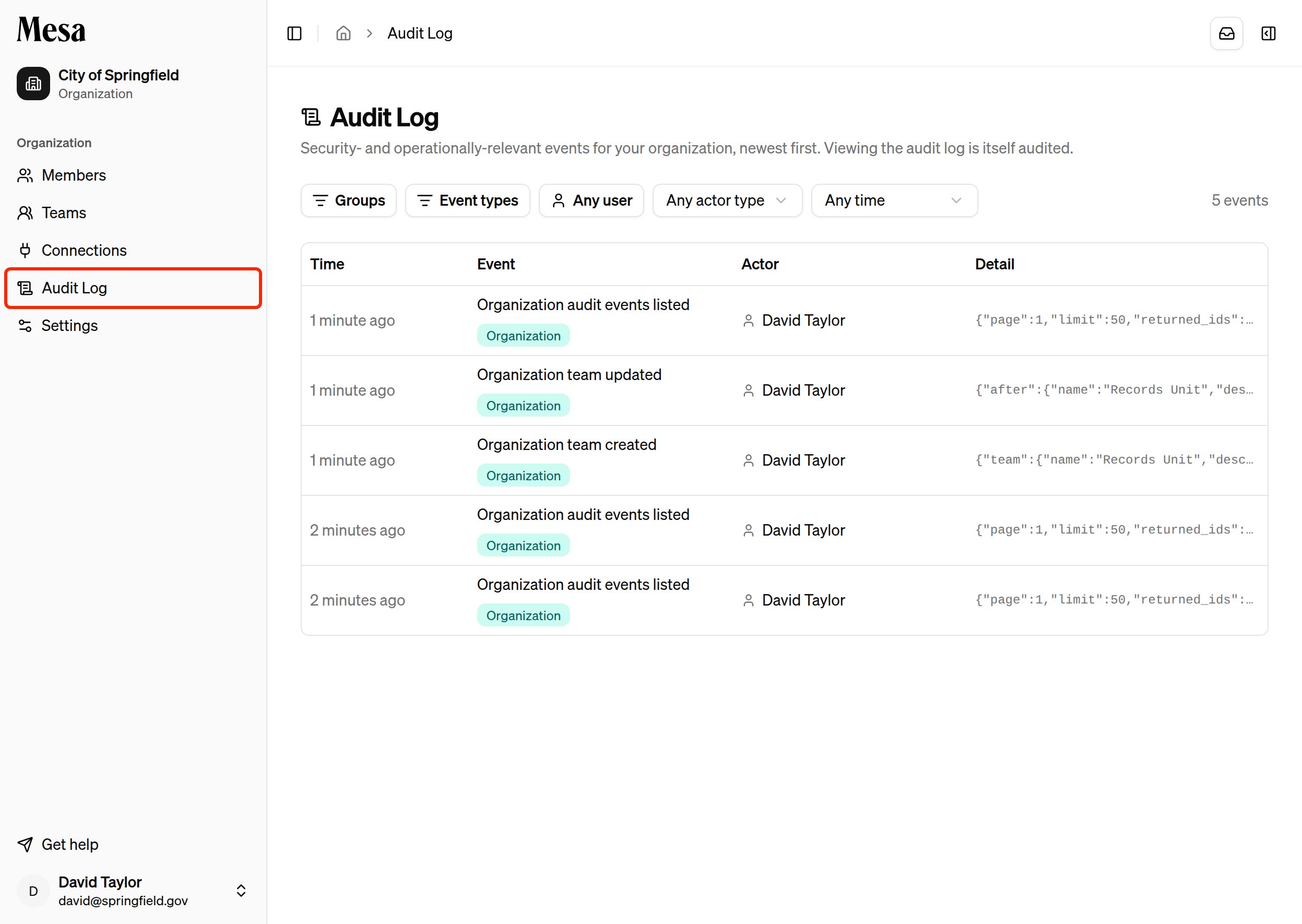 Each row shows when the event happened, what it was (with a colored badge for its group), who did it, and a preview of the event's detail. Events are listed 50 to a page, newest first.
## Filter events
The filter bar narrows the log along several dimensions, and filters combine:
* **Groups**: limit to one or more event categories, such as Sharing, Files, Organization, or Agent Activity.
* **Event types**: pick specific event types by name, with a search box to find them quickly.
* **User**: show only events by a particular member.
* **Actor type**: distinguish actions people took themselves (**Human**), actions an agent took on someone's behalf (**Agent**), and automatic platform activity (**System**).
* **Time**: restrict to the last hour, 24 hours, 7 days, or 30 days.
Each row shows when the event happened, what it was (with a colored badge for its group), who did it, and a preview of the event's detail. Events are listed 50 to a page, newest first.
## Filter events
The filter bar narrows the log along several dimensions, and filters combine:
* **Groups**: limit to one or more event categories, such as Sharing, Files, Organization, or Agent Activity.
* **Event types**: pick specific event types by name, with a search box to find them quickly.
* **User**: show only events by a particular member.
* **Actor type**: distinguish actions people took themselves (**Human**), actions an agent took on someone's behalf (**Agent**), and automatic platform activity (**System**).
* **Time**: restrict to the last hour, 24 hours, 7 days, or 30 days.
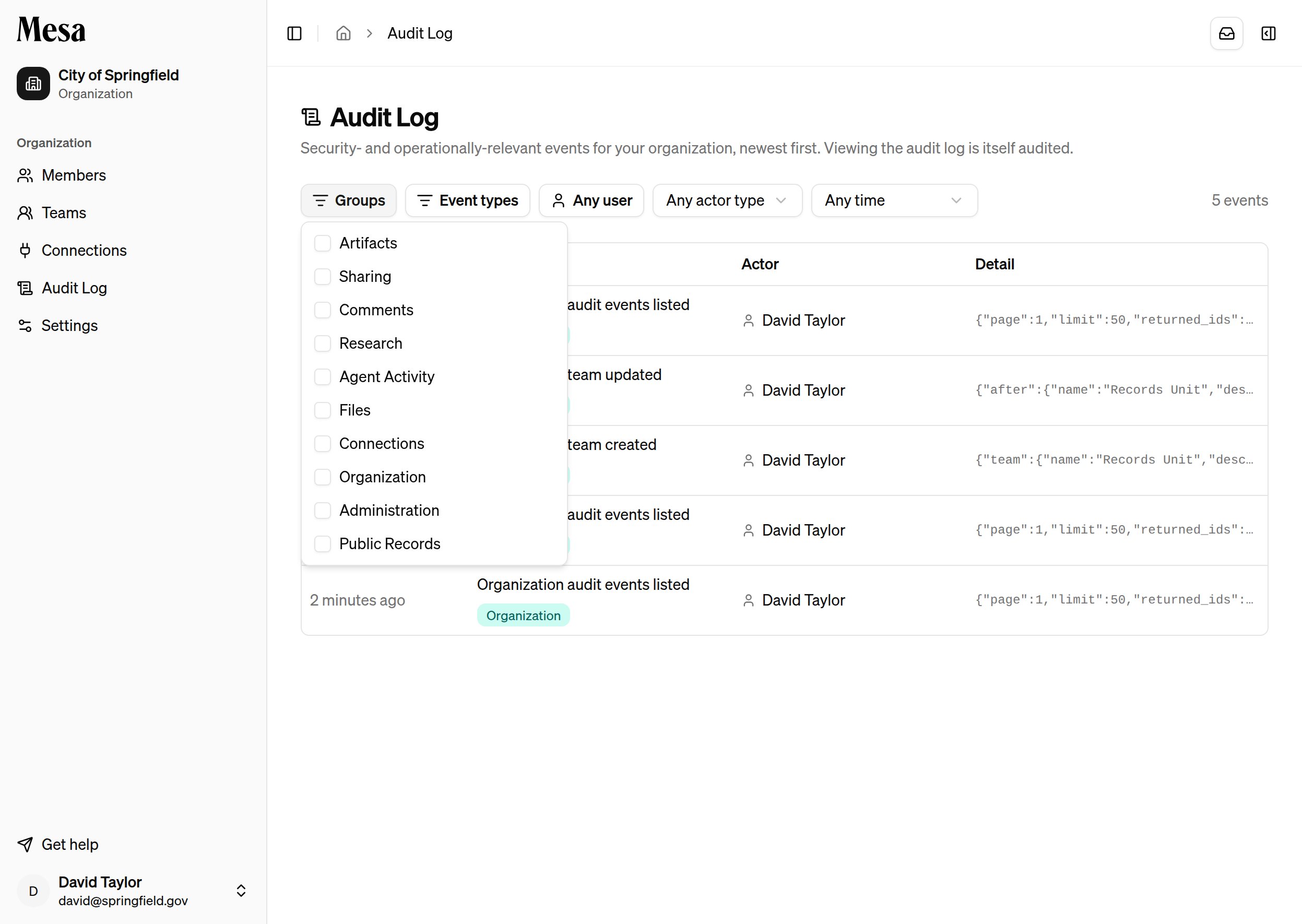 Click **Clear filters** to reset everything at once. The event count on the right updates to reflect the current filters.
## Inspect an event
Click any row to open the event's detail panel. It shows the full event type, the event's unique ID, the actor with a link to their member profile, and the complete detail payload, including before-and-after values for changes.
Click **Clear filters** to reset everything at once. The event count on the right updates to reflect the current filters.
## Inspect an event
Click any row to open the event's detail panel. It shows the full event type, the event's unique ID, the actor with a link to their member profile, and the complete detail payload, including before-and-after values for changes.
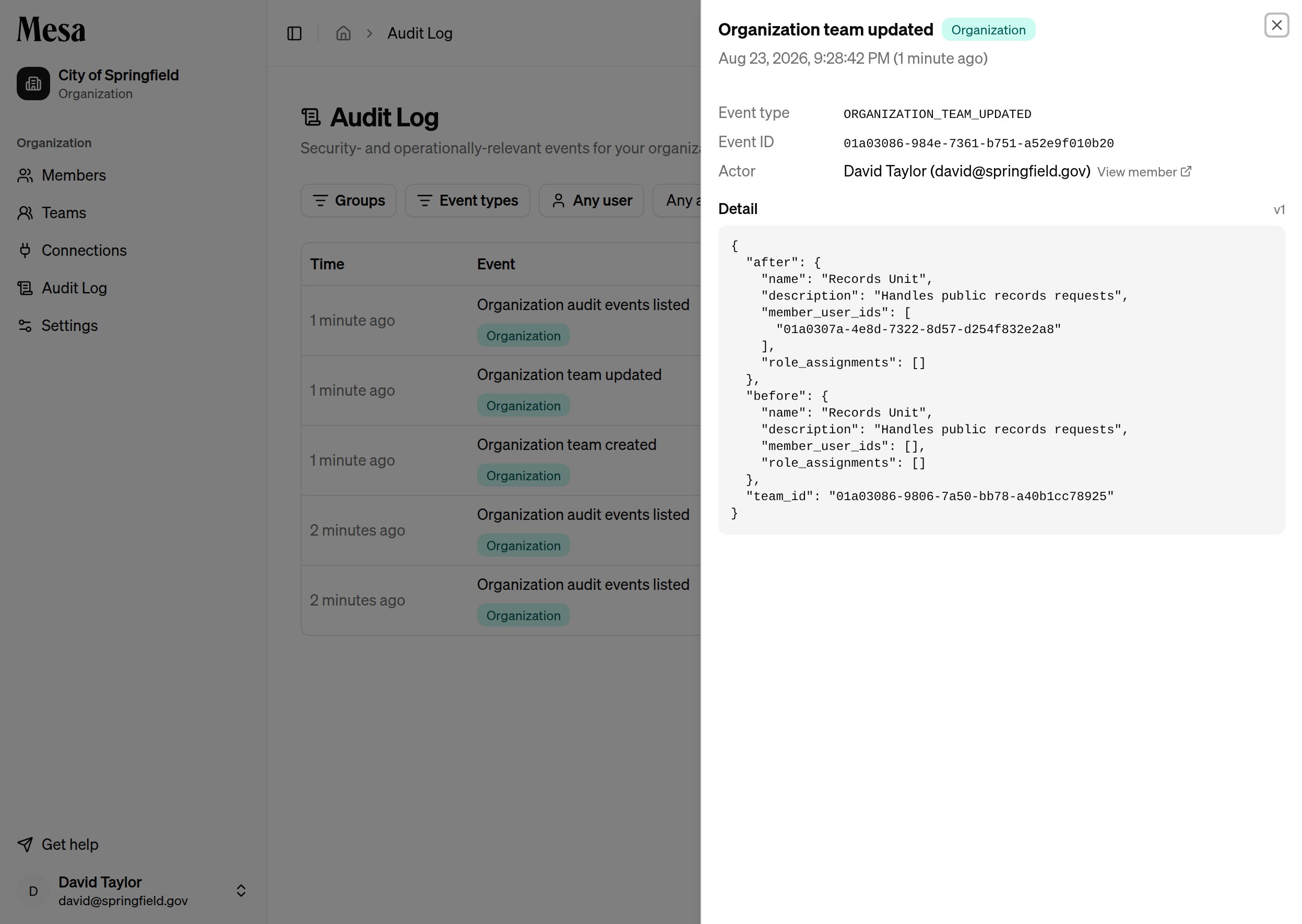 Actions taken by an agent during a conversation are attributed to the member who ran the conversation, marked with a **via agent** badge in the event detail.
## Related articles
Add members, assign roles, and monitor usage across your workspace.
Set organization-wide configuration like your organization's timezone.
Group members into teams so they inherit the same permissions.
Actions taken by an agent during a conversation are attributed to the member who ran the conversation, marked with a **via agent** badge in the event detail.
## Related articles
Add members, assign roles, and monitor usage across your workspace.
Set organization-wide configuration like your organization's timezone.
Group members into teams so they inherit the same permissions.