> ## Documentation Index
> Fetch the complete documentation index at: https://support.calderapbc.com/llms.txt
> Use this file to discover all available pages before exploring further.
# Organization agents
> Create identities that Mesa uses to run unattended work on your organization's behalf.
An agent is an identity that Mesa uses to run unattended work for your organization. It works like a member account: it holds roles, team memberships, shares, and credit limits. Unlike a member, an agent never signs in. It can only reach what you grant it, so give each agent only the roles and shares its work needs.
Only users with the **Owner** role can open the Organization page and manage agents.
## Open the Agents page
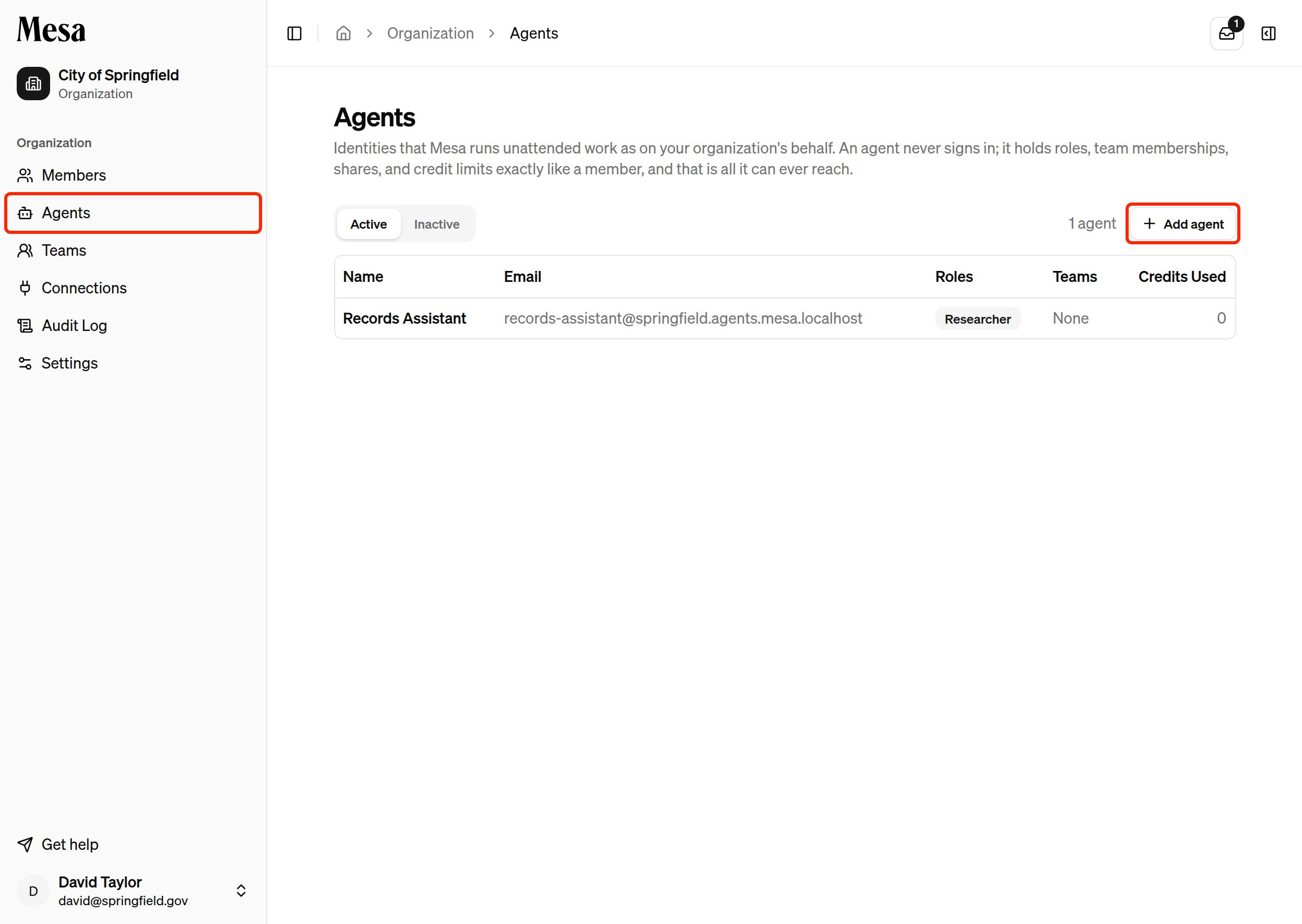
Open the Organization page and choose **Agents** from the sidebar. The page lists your organization's agents with their email, roles, teams, and credits used. Switch between **Active** and **Inactive** to see deactivated agents.
 Agents are listed only on the Agents page. The **Members** list shows people only.
## Add an agent
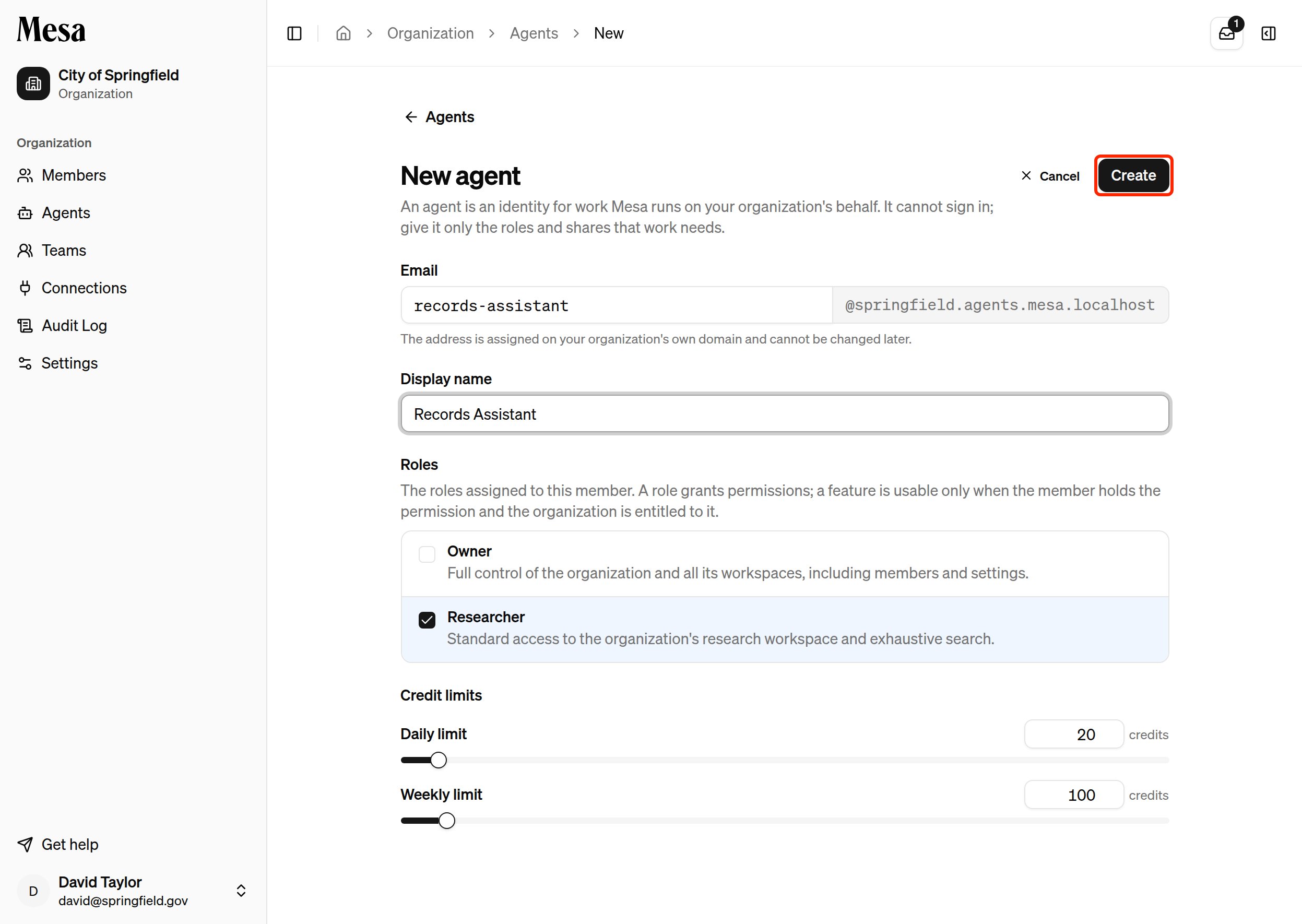
Click **Add agent** on the Agents page.
* **Email**: enter the first part of the address. Mesa assigns the rest on your organization's own agent domain. You can't change the address later.
* **Display name**: the name members see wherever the agent appears.
* **Roles**: the roles the agent holds, just like a member's.
* **Credit limits**: the agent's daily and weekly limits.
Agents are listed only on the Agents page. The **Members** list shows people only.
## Add an agent
Click **Add agent** on the Agents page.
* **Email**: enter the first part of the address. Mesa assigns the rest on your organization's own agent domain. You can't change the address later.
* **Display name**: the name members see wherever the agent appears.
* **Roles**: the roles the agent holds, just like a member's.
* **Credit limits**: the agent's daily and weekly limits.
 Click **Create**. Mesa opens the agent's page.
## Manage an agent
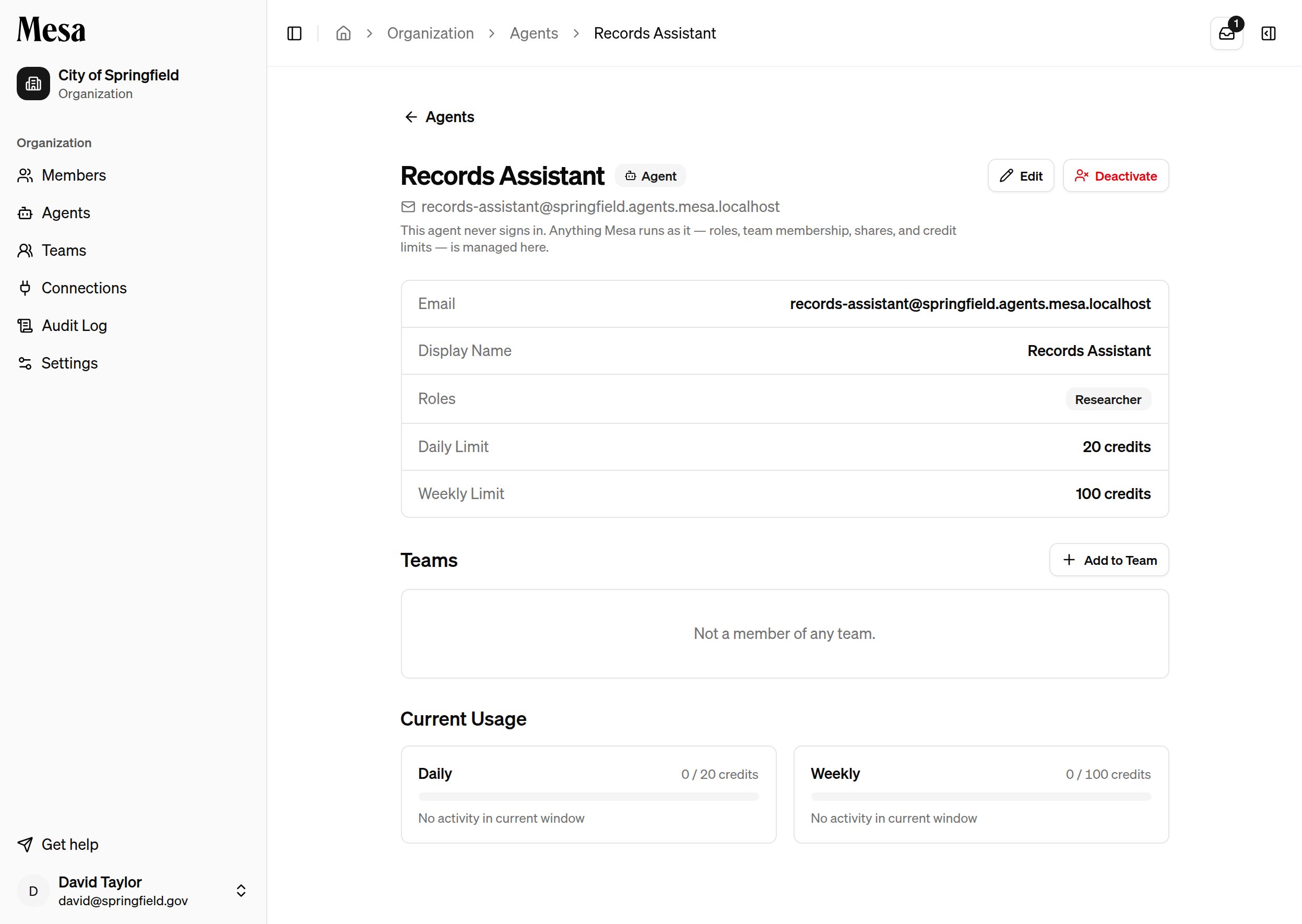
Click an agent in the list to open its page. An **Agent** badge sits next to its name. From here you can:
* Click **Edit** to change its display name, roles, or credit limits.
* Click **Add to Team** to give it the roles of a [team](/teams).
* Review its daily and weekly usage under **Current Usage**.
* Click **Deactivate** to stop Mesa from running work as the agent. Deactivated agents move to the **Inactive** list.
Click **Create**. Mesa opens the agent's page.
## Manage an agent
Click an agent in the list to open its page. An **Agent** badge sits next to its name. From here you can:
* Click **Edit** to change its display name, roles, or credit limits.
* Click **Add to Team** to give it the roles of a [team](/teams).
* Review its daily and weekly usage under **Current Usage**.
* Click **Deactivate** to stop Mesa from running work as the agent. Deactivated agents move to the **Inactive** list.
 ## Related articles
Add members, assign roles, and monitor usage across your workspace.
Group members and agents into teams that share the same roles.
Review activity across your organization, including work done by agents.
## Related articles
Add members, assign roles, and monitor usage across your workspace.
Group members and agents into teams that share the same roles.
Review activity across your organization, including work done by agents.