> ## Documentation Index
> Fetch the complete documentation index at: https://support.calderapbc.com/llms.txt
> Use this file to discover all available pages before exploring further.
# Organization admin
> Add members, assign roles, and monitor usage across your Mesa workspace.
The Organization page gives **Owners** full control over their Mesa workspace: who has access, what roles they hold, and how much usage each member is allocated. Use it to onboard new team members, adjust permissions, and monitor team-wide usage.
Only users with the **Owner** role can access the Organization page. If you're not an Owner and need a change made, contact your organization's Owner.
## Open the Organization page
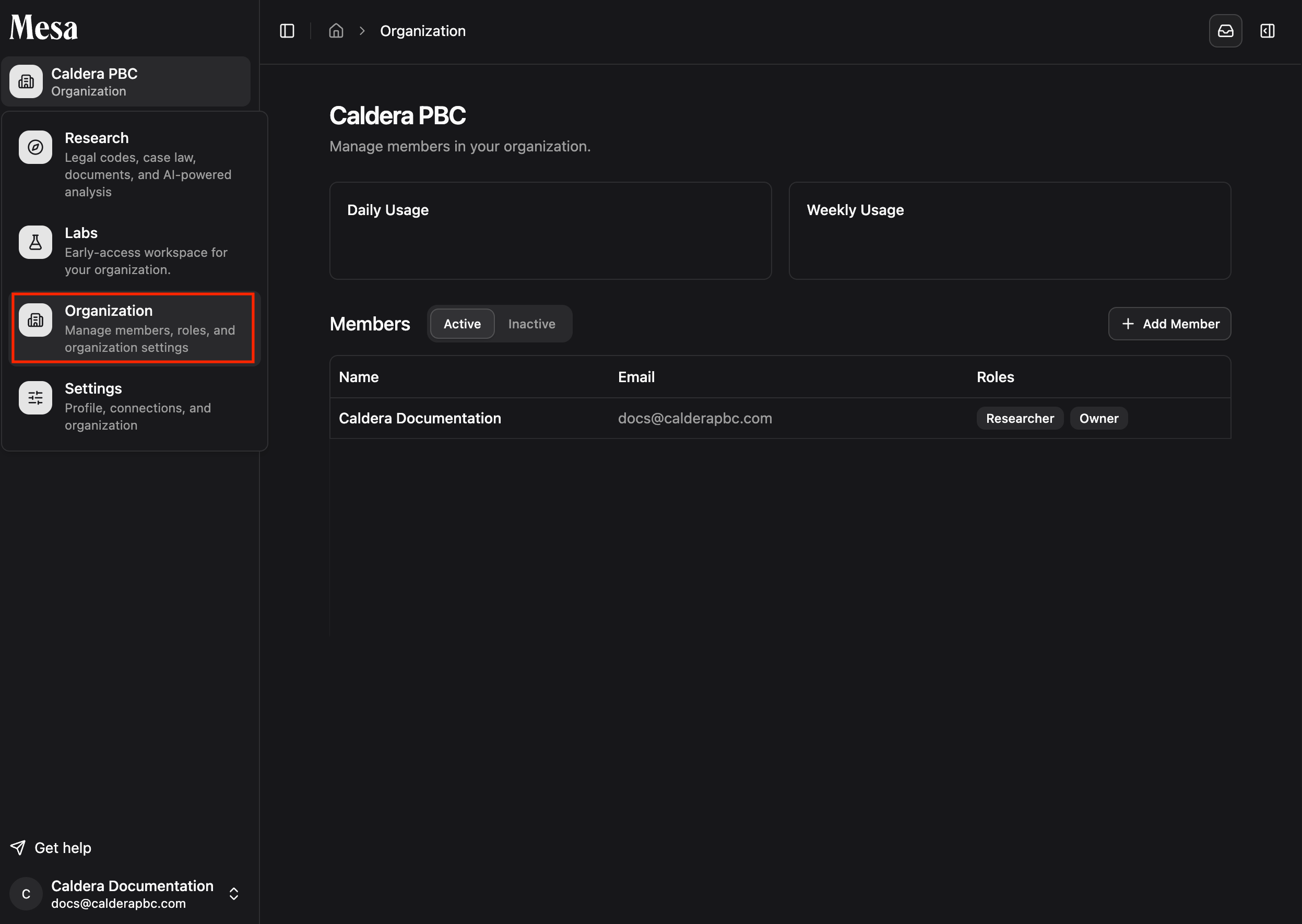
Click your organization name in the top-left corner and select **Organization** from the dropdown.
 ## Monitor usage
The Organization page shows organization-wide daily and weekly usage across all members. Click any member's name in the list to view their individual usage.
For how daily and weekly usage works from a member's point of view, see [Usage](/usage).
## Manage existing members
From a member's profile, you can edit their display name, role and permissions, and allocated usage. To remove someone from the workspace, click **Deactivate** in the top-right of their profile.
## Monitor usage
The Organization page shows organization-wide daily and weekly usage across all members. Click any member's name in the list to view their individual usage.
For how daily and weekly usage works from a member's point of view, see [Usage](/usage).
## Manage existing members
From a member's profile, you can edit their display name, role and permissions, and allocated usage. To remove someone from the workspace, click **Deactivate** in the top-right of their profile.
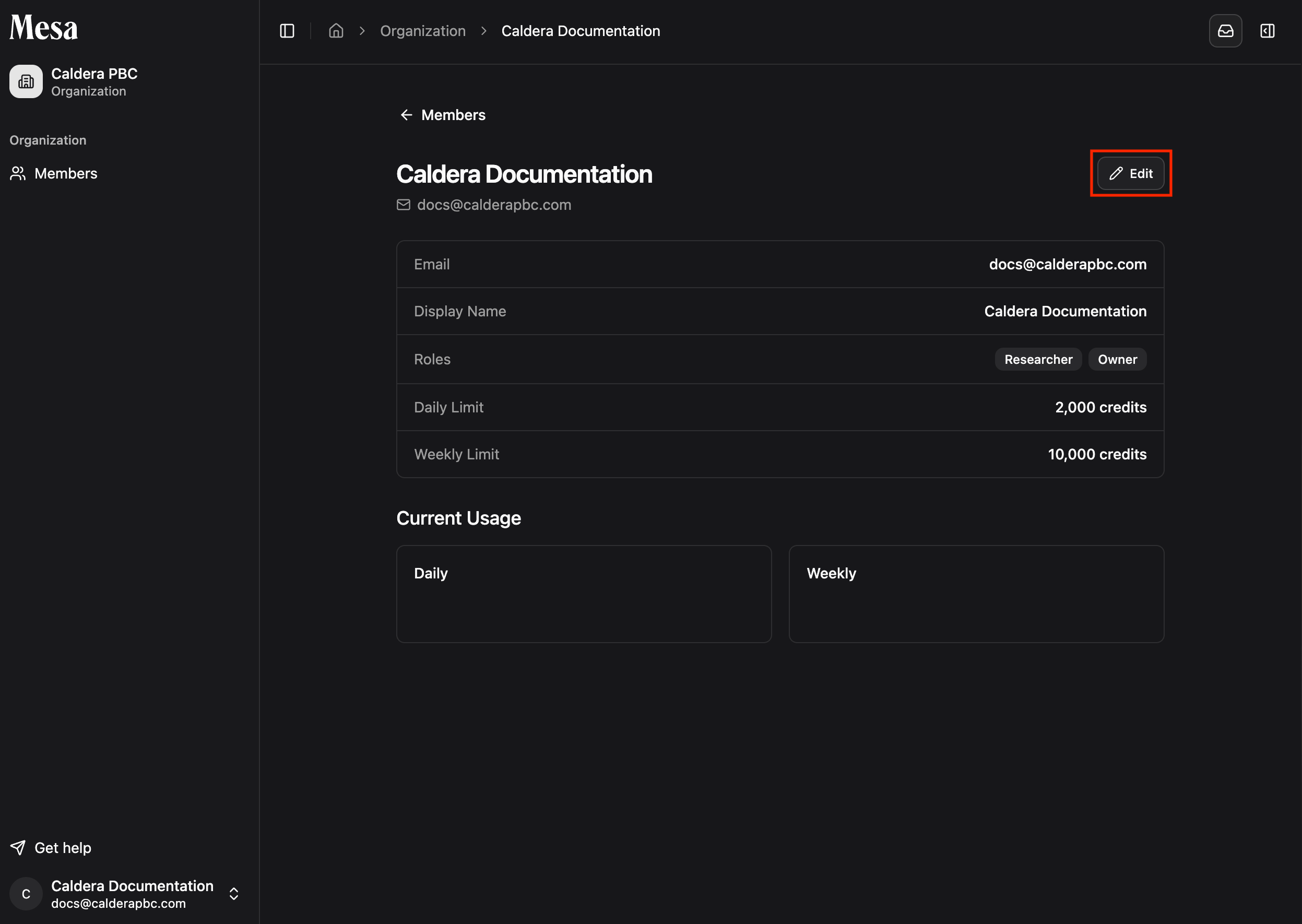 The **Deactivate** button doesn't appear when you're viewing your own account.
## Add new members
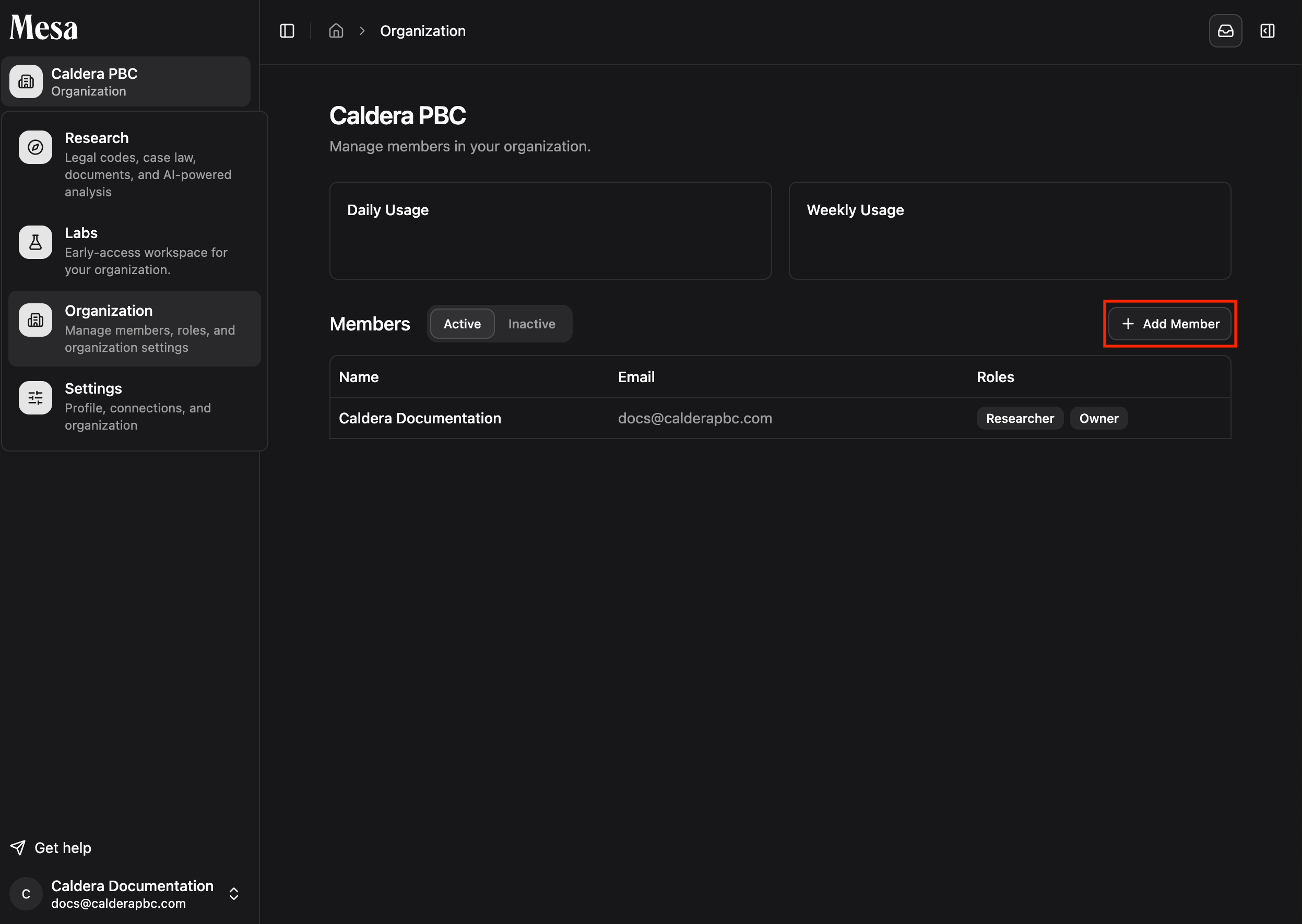
From the Organization page, add a new member by filling out their email, display name, permissions, and allocated usage.
The **Deactivate** button doesn't appear when you're viewing your own account.
## Add new members
From the Organization page, add a new member by filling out their email, display name, permissions, and allocated usage.
 ## Roles and permissions
| Role | Can use Mesa | Can access Organization page | Can edit organization settings |
| ---------- | ------------ | ---------------------------- | ------------------------------ |
| **Member** | Yes | No | No |
| **Owner** | Yes | Yes | Yes |
## Troubleshooting
* **A new member didn't receive their invite**: double-check the email address you entered and ask them to check their spam folder.
* **You need to change someone's role but aren't an Owner**: ask a current Owner to make the change.
## Related articles
Set shared skills, preferences, and pinned content for your team.
Understand daily and weekly usage before adjusting allocations.
Find the organization menu from the Mesa home page.
## Roles and permissions
| Role | Can use Mesa | Can access Organization page | Can edit organization settings |
| ---------- | ------------ | ---------------------------- | ------------------------------ |
| **Member** | Yes | No | No |
| **Owner** | Yes | Yes | Yes |
## Troubleshooting
* **A new member didn't receive their invite**: double-check the email address you entered and ask them to check their spam folder.
* **You need to change someone's role but aren't an Owner**: ask a current Owner to make the change.
## Related articles
Set shared skills, preferences, and pinned content for your team.
Understand daily and weekly usage before adjusting allocations.
Find the organization menu from the Mesa home page.