> ## Documentation Index
> Fetch the complete documentation index at: https://support.calderapbc.com/llms.txt
> Use this file to discover all available pages before exploring further.
# Navigation
> Find your way around the Mesa home page, top bar, sidebar, and side panel.
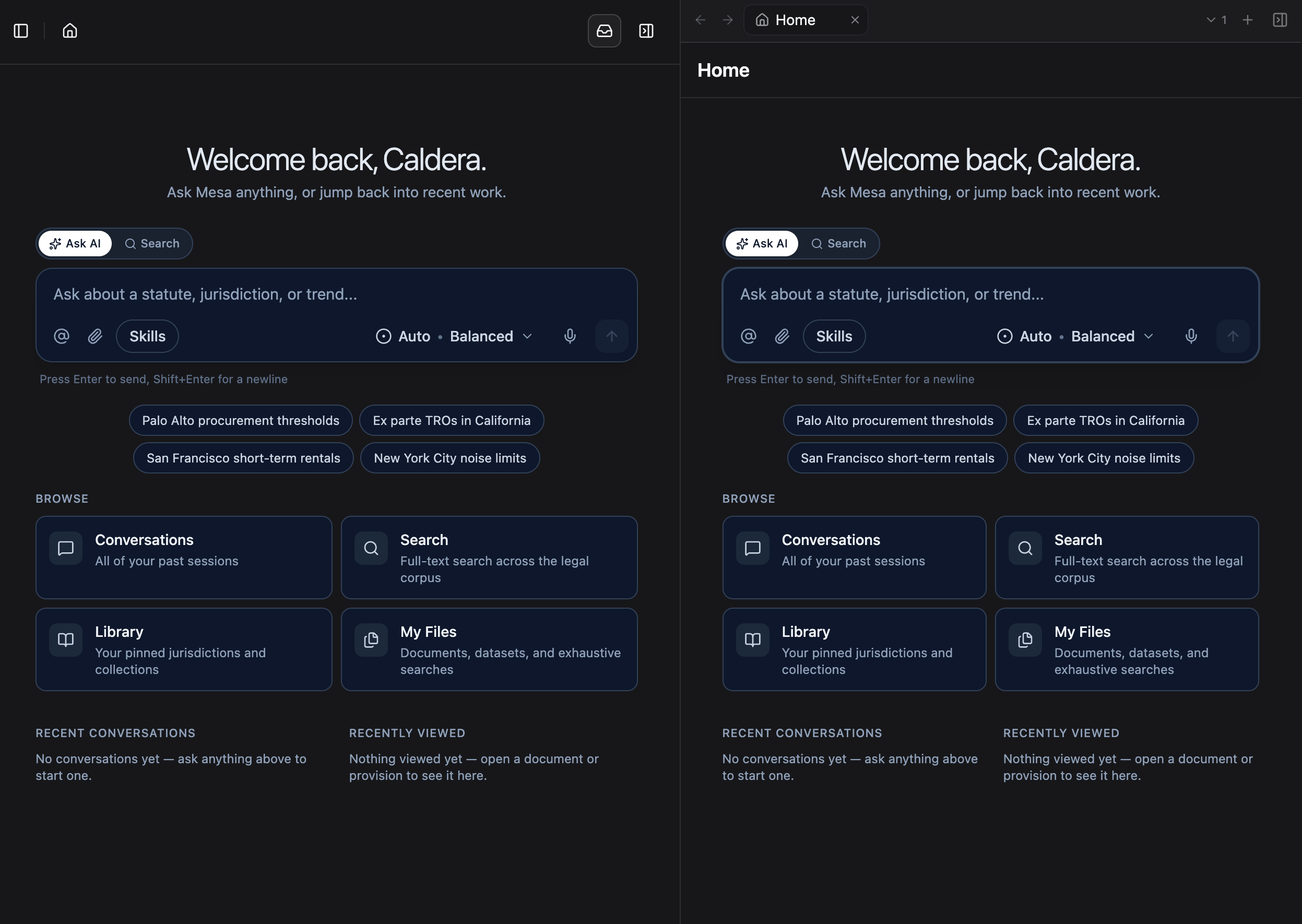
Mesa is built around a central home page with a sidebar for everything you've created and saved. Once you know the layout, you can move between research, conversations, files, and customization without losing your place.
New to Mesa? Read this page before moving on to chat features; knowing the layout makes every other page in this guide easier to follow.
## Top bar
Click your organization name in the top-left to open a dropdown with links to other pages, including your settings. If you hold the **Owner** role, you'll also see the Organization page here.
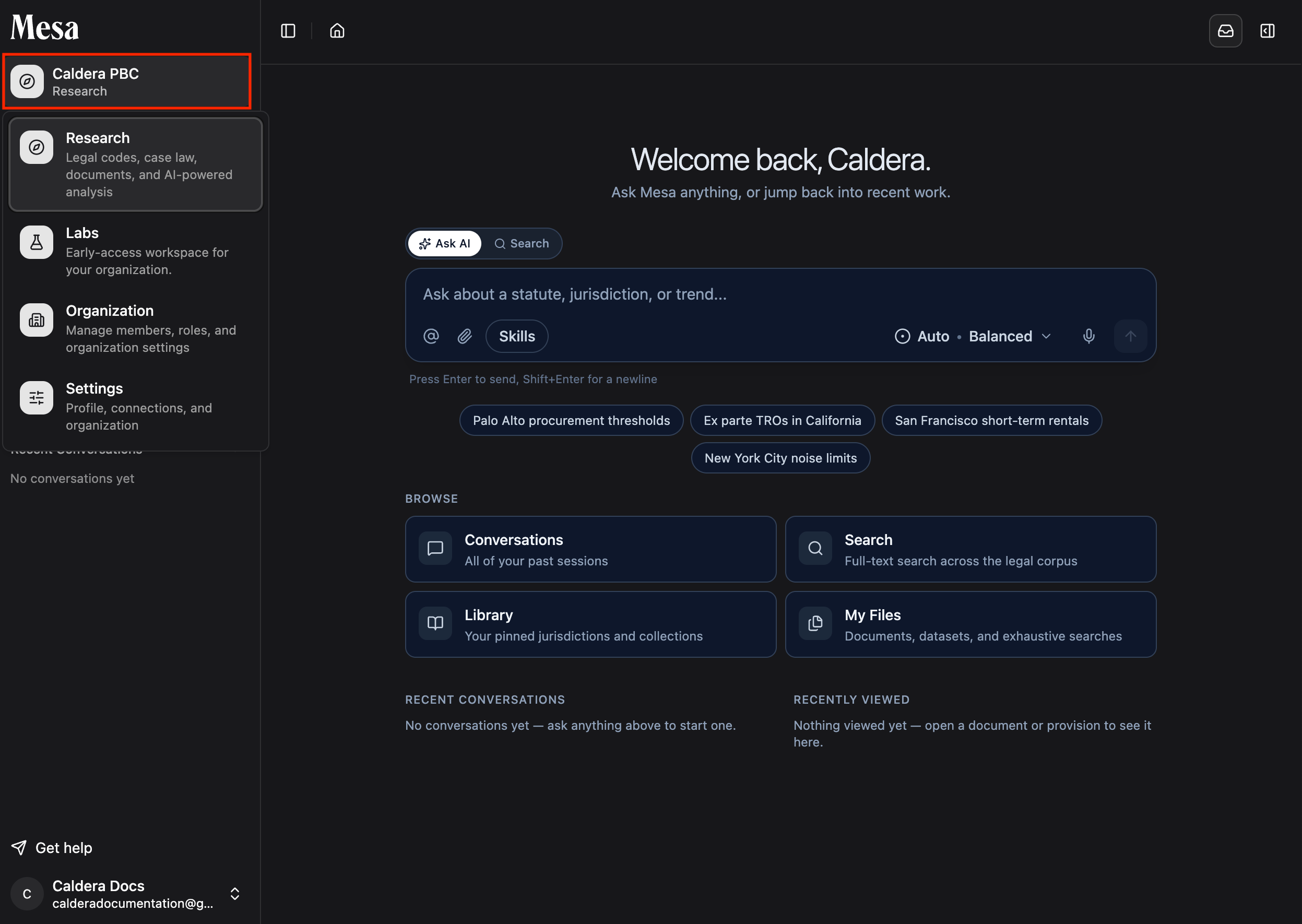 Learn what Owners can manage in [Organization admin](/organization-admin).
## Search and Ask AI
The toggle in the center of the home page switches between two modes:
* **Search** looks through a curated legal corpus.
* **Ask AI** sends your request to Mesa's agents for research, drafting, and analysis.
Learn what Owners can manage in [Organization admin](/organization-admin).
## Search and Ask AI
The toggle in the center of the home page switches between two modes:
* **Search** looks through a curated legal corpus.
* **Ask AI** sends your request to Mesa's agents for research, drafting, and analysis.
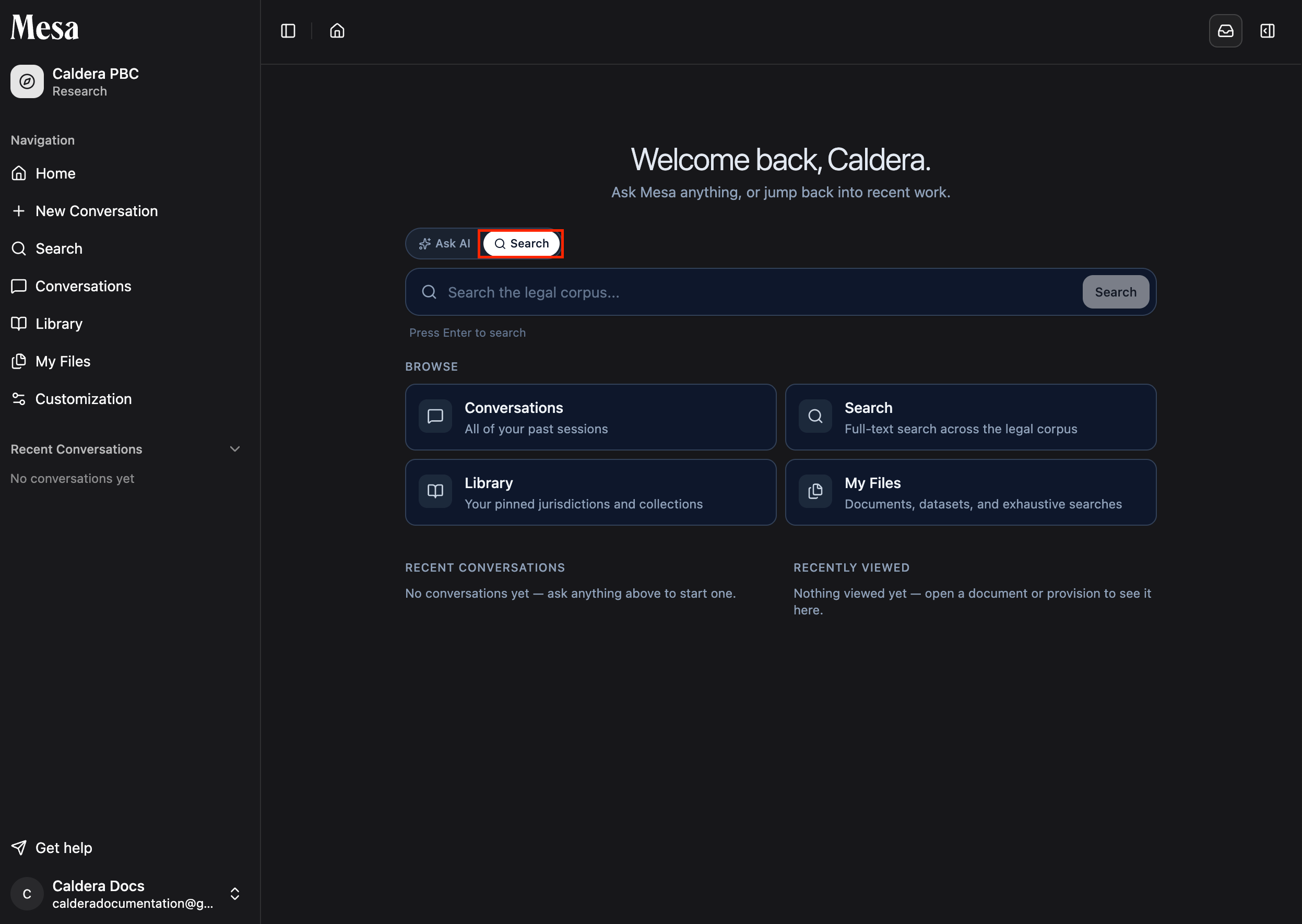 For everything you can do in Ask AI, see [Models](/models), [Text editor](/editor), [Attachments](/attachments), [Tagging files](/tagging-files), and [Exhaustive search](/exhaustive-search).
## Notifications and side panel
The bell icon in the top-right opens your notifications, where Mesa alerts you when long-running requests finish.
For everything you can do in Ask AI, see [Models](/models), [Text editor](/editor), [Attachments](/attachments), [Tagging files](/tagging-files), and [Exhaustive search](/exhaustive-search).
## Notifications and side panel
The bell icon in the top-right opens your notifications, where Mesa alerts you when long-running requests finish.
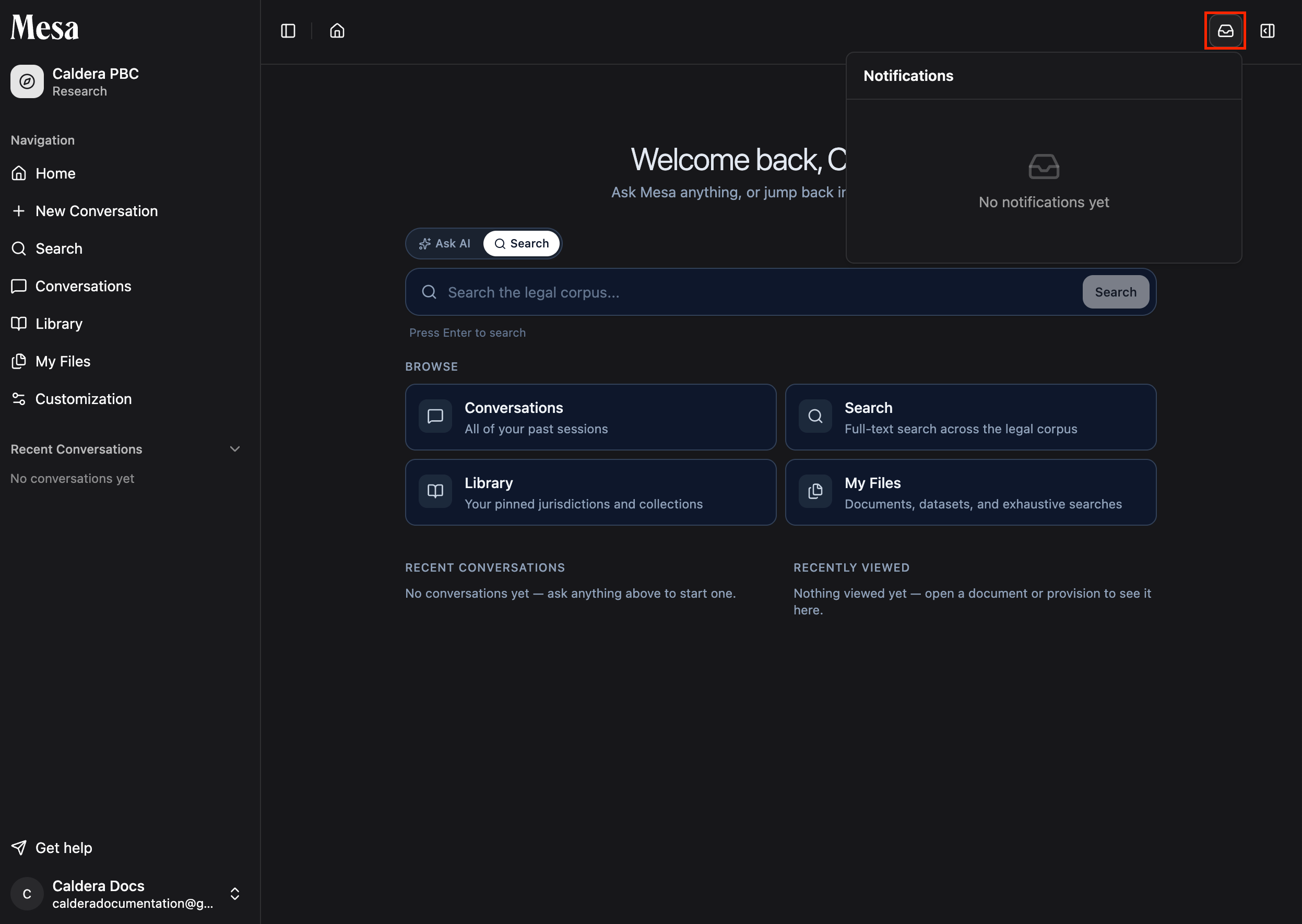 Learn how to request alerts for long-running tasks in [Notifications](/notifications).
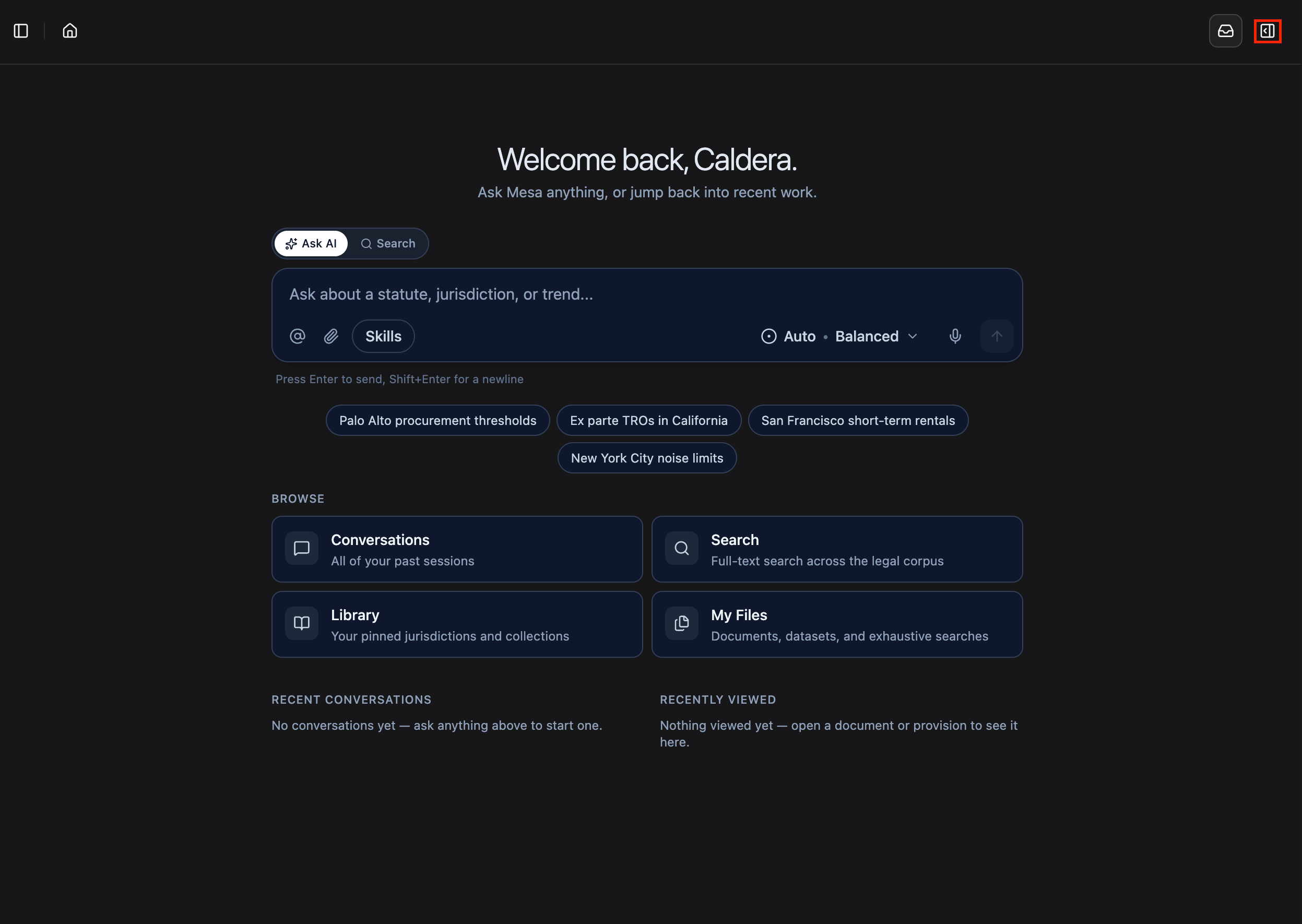
Next to it, you can open the side panel to multitask, for example by keeping a document in view while you chat.
Learn how to request alerts for long-running tasks in [Notifications](/notifications).
Next to it, you can open the side panel to multitask, for example by keeping a document in view while you chat.
 ## Sidebar
The left sidebar holds everything you've created and saved in Mesa.
### Conversations
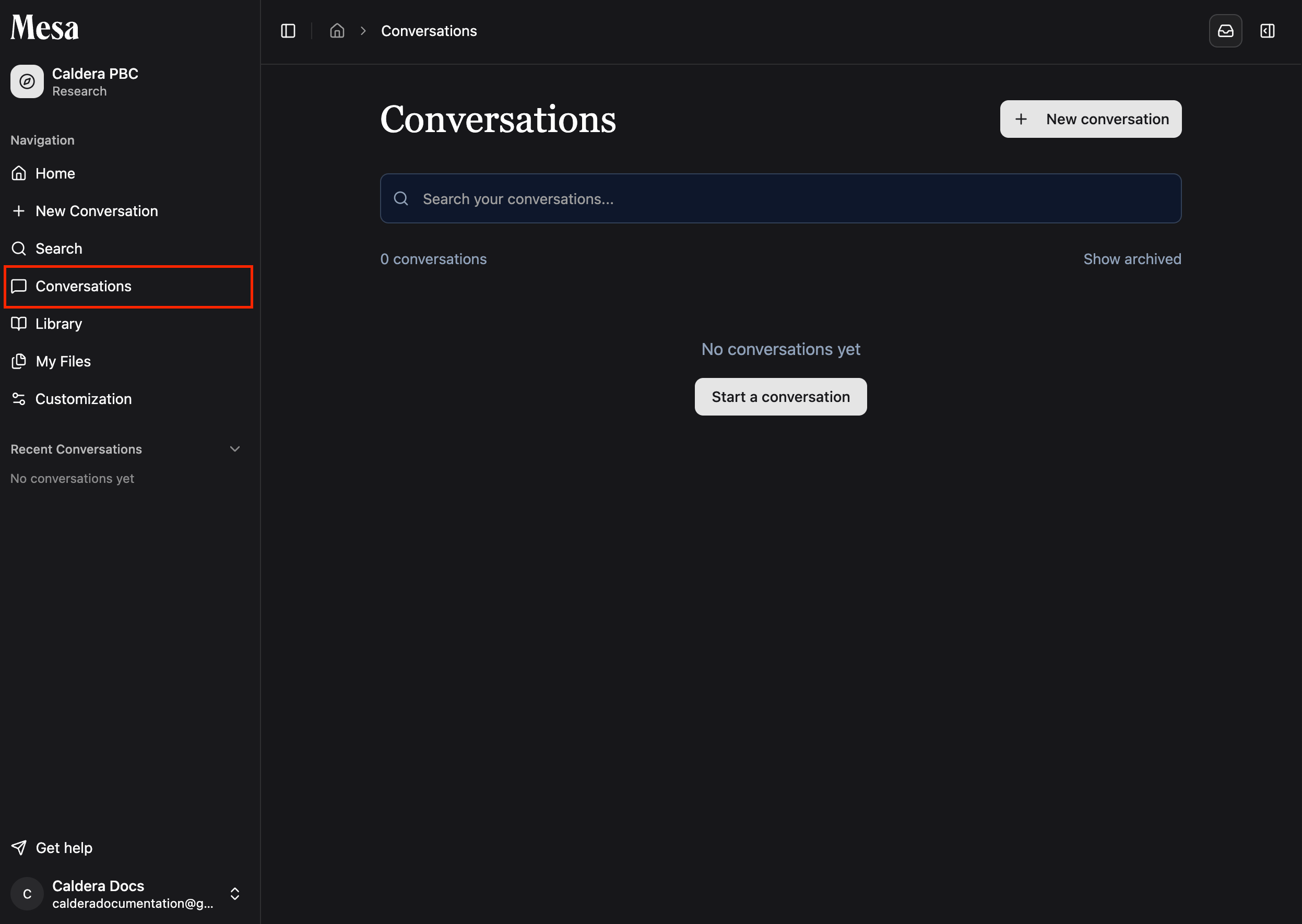
Click **Conversations** to see a list of all your prior conversations and pick up where you left off.
## Sidebar
The left sidebar holds everything you've created and saved in Mesa.
### Conversations
Click **Conversations** to see a list of all your prior conversations and pick up where you left off.
 ### Library
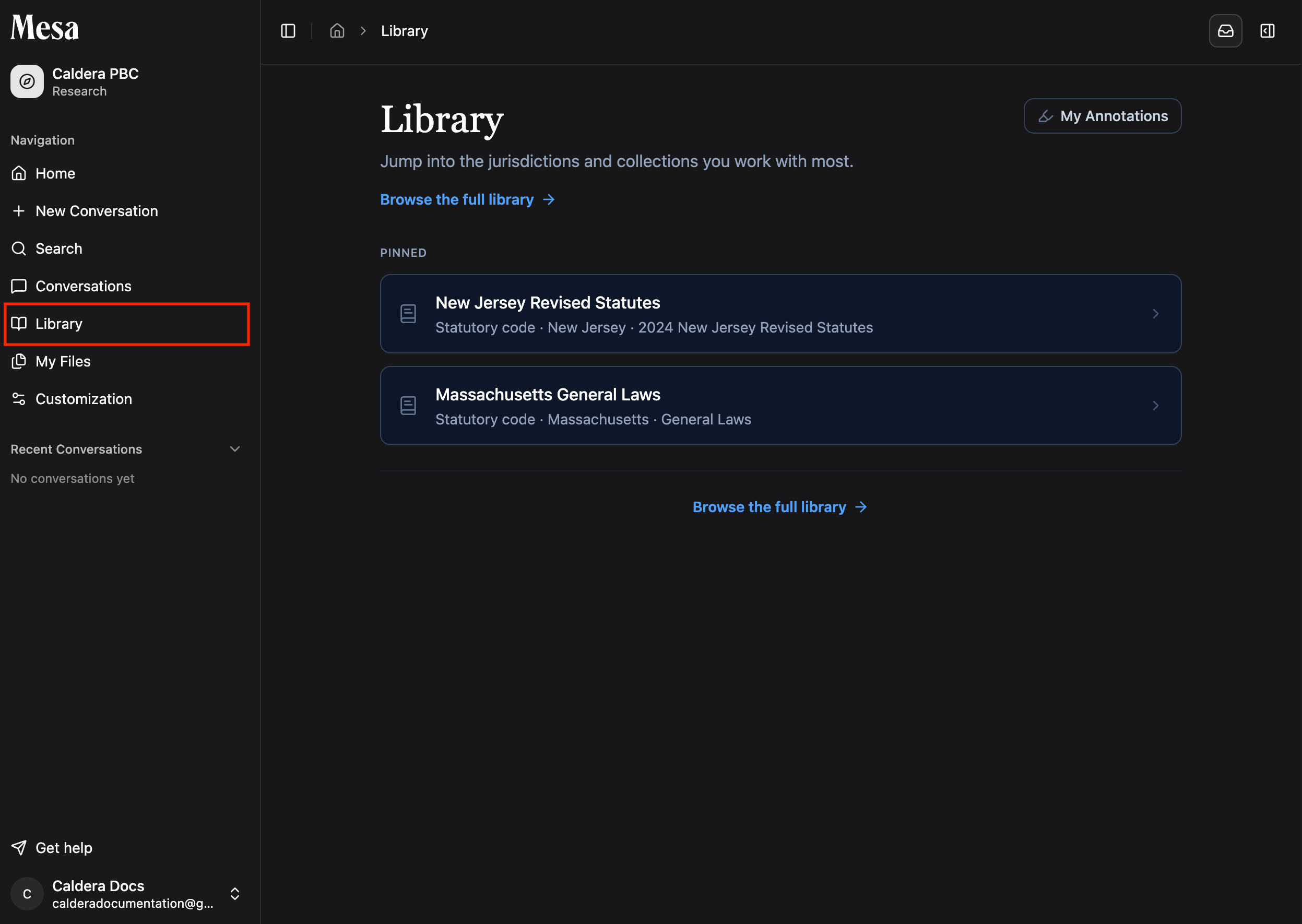
The **Library** tab shows jurisdictions and collections pinned by you or your organization. Click **Browse the full library** to find specific jurisdictions to read, or **My annotations** in the top-right to review the highlights and notes you've made.
### Library
The **Library** tab shows jurisdictions and collections pinned by you or your organization. Click **Browse the full library** to find specific jurisdictions to read, or **My annotations** in the top-right to review the highlights and notes you've made.
 Learn how to read, annotate, and pin content in [Library](/library).
### My Files
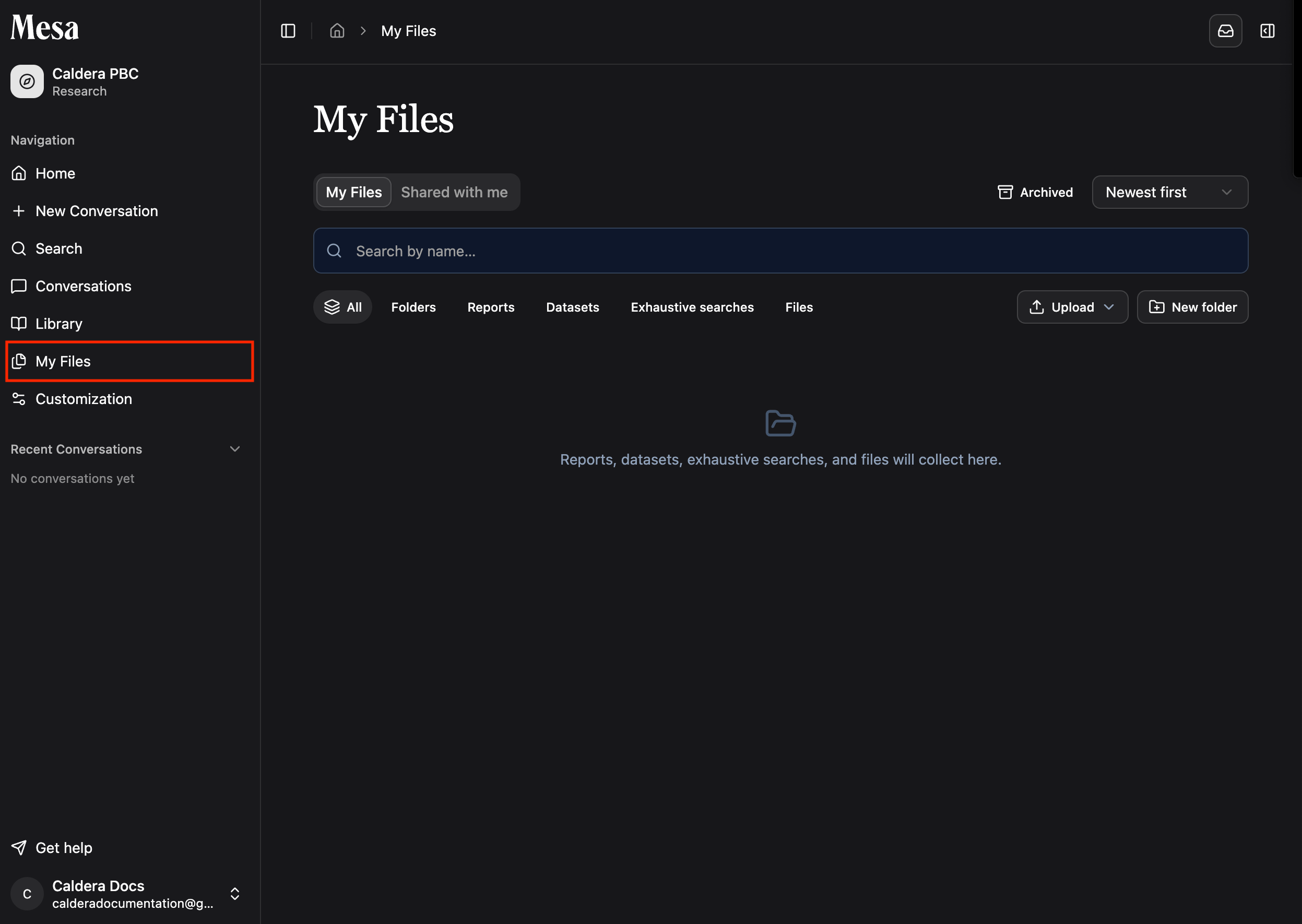
The **My Files** tab shows all of your uploads, organized by category.
Learn how to read, annotate, and pin content in [Library](/library).
### My Files
The **My Files** tab shows all of your uploads, organized by category.
 Learn how to organize, share, and archive documents in [Files](/files).
### Customization
The **Customization** tab is where you set up personal and organization-wide features, including skills and preferences.
Learn how to organize, share, and archive documents in [Files](/files).
### Customization
The **Customization** tab is where you set up personal and organization-wide features, including skills and preferences.
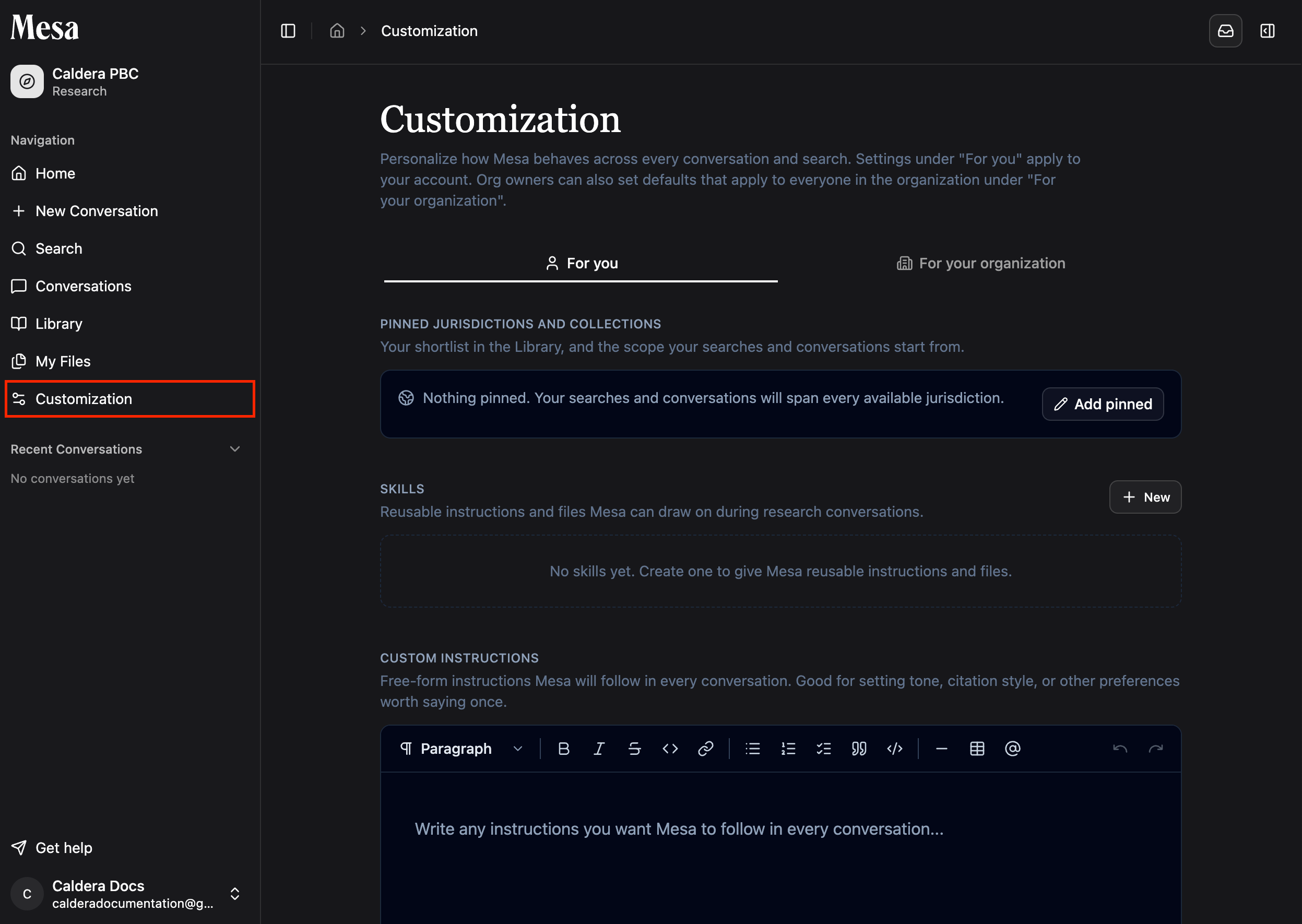 Learn about personal customization in [Skills](/skills) and [Preferences](/preferences), and workspace-wide defaults in [Organization customization](/organization-customization).
## Related articles
Walk through your first conversation from login to finished request.
Configure your theme, sidebar behavior, and message controls.
Pick the right model and effort level before starting chat work.
Learn about personal customization in [Skills](/skills) and [Preferences](/preferences), and workspace-wide defaults in [Organization customization](/organization-customization).
## Related articles
Walk through your first conversation from login to finished request.
Configure your theme, sidebar behavior, and message controls.
Pick the right model and effort level before starting chat work.