> ## Documentation Index
> Fetch the complete documentation index at: https://support.calderapbc.com/llms.txt
> Use this file to discover all available pages before exploring further.
# Interactives
> Live, agent-built HTML tools: maps, dashboards, and calculators you can click, not just read.
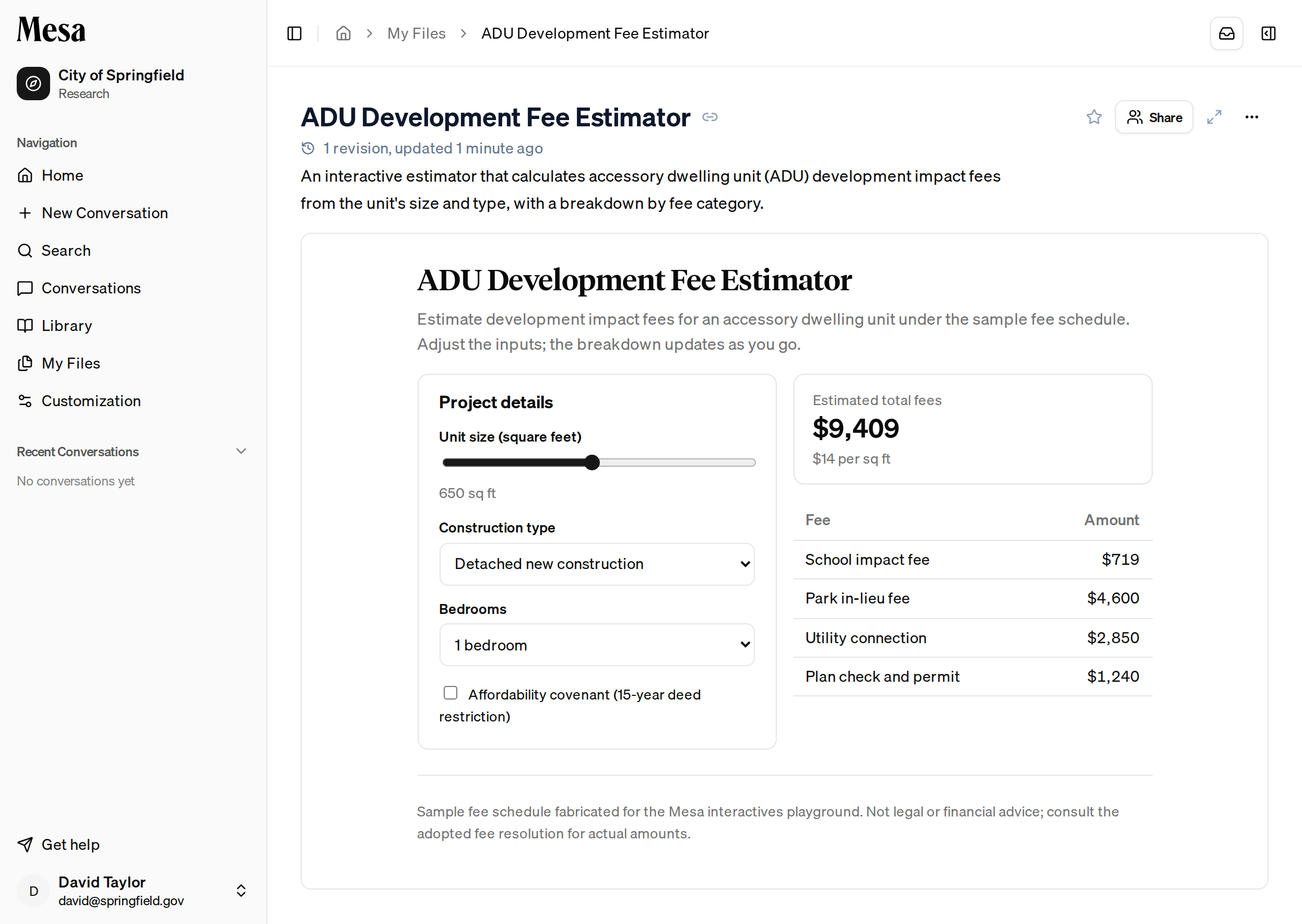
An Interactive is a small, self-contained web page that Mesa's agent builds for you inside a conversation: a fee calculator, a map, a chart, a dashboard, a data explorer. Instead of handing you a static answer, the agent writes a working tool you can click, drag, and type into, and saves it alongside your other work. Interactives are a sibling of [reports](/files) and datasets, another kind of artifact Mesa produces and keeps in [My Files](/files).
 ## What you can build
Interactives are useful whenever a static answer isn't enough and you'd rather explore the material yourself. Common uses:
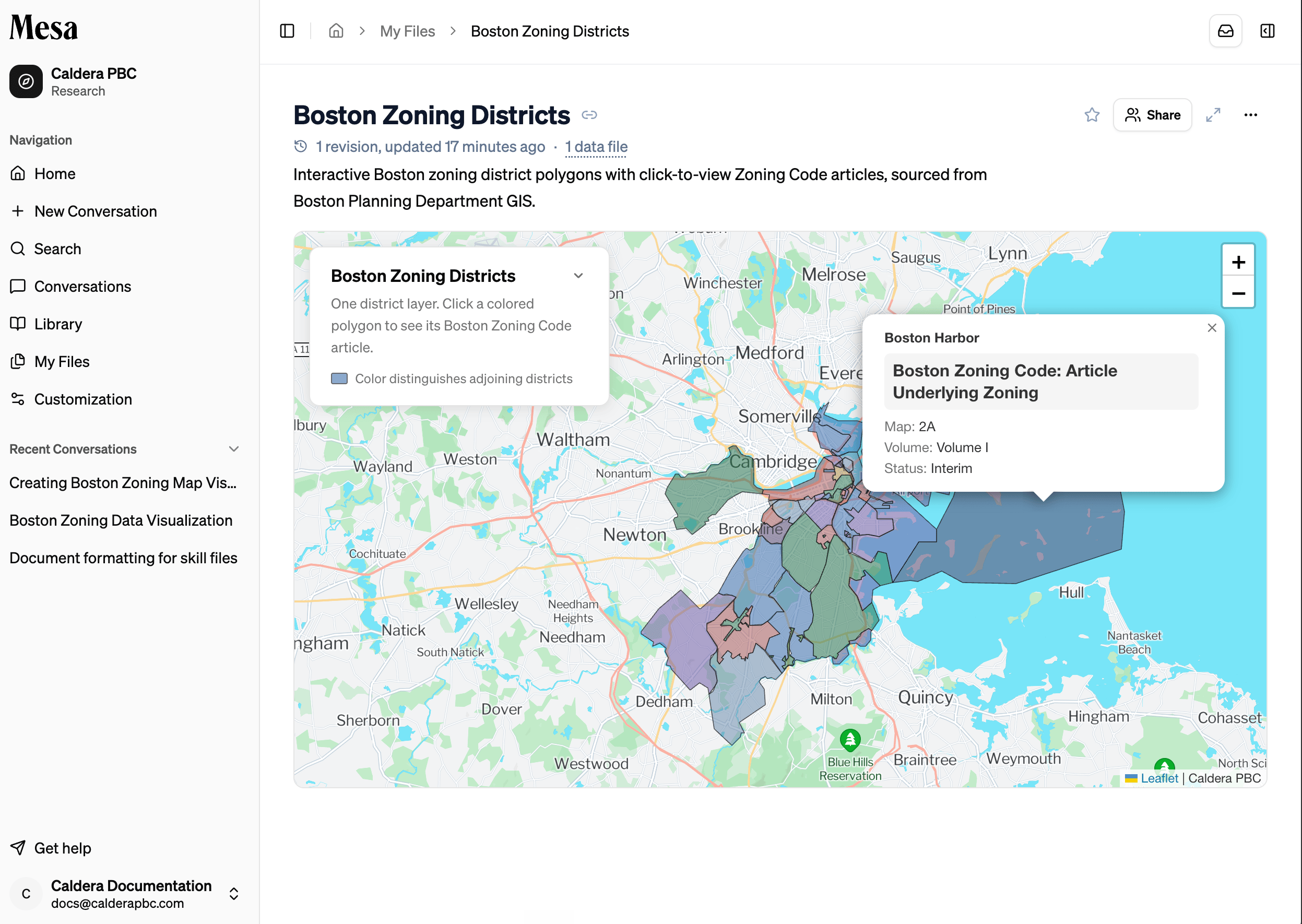
* **Maps**: plot parcels, districts, or zoning from a connected ArcGIS server or a dataset, then click a feature to see its details.
* **Dashboards**: filter and sort a set of records (permits, cases, budget lines) to spot patterns.
* **Calculators**: turn a fee schedule, tax formula, or eligibility rule into inputs you can adjust and see results instantly.
* **Charts**: visualize trends in data you've gathered or uploaded.
* **Explorers**: walk through a decision tree, a checklist, or a set of scenarios one step at a time.
## Ask for one
You don't build Interactives yourself; you ask the agent for one in an [Ask AI](/models) conversation. Describe the tool you want in plain language, for example:
* "Build me a calculator that estimates development impact fees from a unit's size and type."
* "Make an interactive map of the parcels in this dataset."
* "Turn these permit numbers into a dashboard I can filter by department."
The agent writes the page and renders it live in the conversation. If it isn't quite right, ask for changes the same way you would with a report; each change is saved as a new revision.
## Example: a clickable district map
Interactives pair especially well with an [organization connection](/organization-connections). Suppose your organization has connected an ArcGIS server that publishes district boundaries. You can ask the agent to build a map from it:
> "Build a map of the city's districts from our ArcGIS connection. Fill each district with a color, and let me click one to see its zoning code."
The agent pulls the district polygons from the connected server, renders them as a colored map, and wires up the click behavior: clicking a district reveals its zoning code right on the map. The result is a live tool you can explore and share, not a one-time answer.
## What you can build
Interactives are useful whenever a static answer isn't enough and you'd rather explore the material yourself. Common uses:
* **Maps**: plot parcels, districts, or zoning from a connected ArcGIS server or a dataset, then click a feature to see its details.
* **Dashboards**: filter and sort a set of records (permits, cases, budget lines) to spot patterns.
* **Calculators**: turn a fee schedule, tax formula, or eligibility rule into inputs you can adjust and see results instantly.
* **Charts**: visualize trends in data you've gathered or uploaded.
* **Explorers**: walk through a decision tree, a checklist, or a set of scenarios one step at a time.
## Ask for one
You don't build Interactives yourself; you ask the agent for one in an [Ask AI](/models) conversation. Describe the tool you want in plain language, for example:
* "Build me a calculator that estimates development impact fees from a unit's size and type."
* "Make an interactive map of the parcels in this dataset."
* "Turn these permit numbers into a dashboard I can filter by department."
The agent writes the page and renders it live in the conversation. If it isn't quite right, ask for changes the same way you would with a report; each change is saved as a new revision.
## Example: a clickable district map
Interactives pair especially well with an [organization connection](/organization-connections). Suppose your organization has connected an ArcGIS server that publishes district boundaries. You can ask the agent to build a map from it:
> "Build a map of the city's districts from our ArcGIS connection. Fill each district with a color, and let me click one to see its zoning code."
The agent pulls the district polygons from the connected server, renders them as a colored map, and wires up the click behavior: clicking a district reveals its zoning code right on the map. The result is a live tool you can explore and share, not a one-time answer.
 ## Open and use an Interactive
You can reach an Interactive three ways:
* **In the conversation** where the agent made it, as a card in the chat. Click **View Interactive** to open it in the side panel.
* **From [My Files](/files)**, where Interactives appear as rows with an **Interactive** badge. Double-click one to open it.
* **From a direct link**, if someone shared it with you.
Everything the agent built is live: sliders, dropdowns, inputs, and maps all respond as you use them. Because each Interactive runs in a sandbox, it can't reach the rest of your workspace; it only shows what the agent put in it.
## Manage an Interactive
The header of an open Interactive gives you the same controls as any artifact:
| Action | How to do it |
| ------------- | -------------------------------------------------------------------------------------------- |
| Bookmark | Click the star to pin it for quick access |
| Share | Click **Share** and choose who can view or edit |
| Maximize | Click the expand icon to fill the screen; press `Esc` to exit |
| Download data | If the Interactive has attached data files, open the **data files** popover to download them |
| Rename | Open the three-dots menu and choose **Rename** (owner only) |
| Archive | Open the three-dots menu and choose **Archive** |
An Interactive keeps every revision. Use the revision history next to the title to see when it changed, and roll back if a later version isn't what you wanted.
## Related articles
Find, organize, and share the Interactives Mesa saves for you.
Start an Ask AI conversation to have the agent build one.
File a pointer to an Interactive wherever you want it.
## Open and use an Interactive
You can reach an Interactive three ways:
* **In the conversation** where the agent made it, as a card in the chat. Click **View Interactive** to open it in the side panel.
* **From [My Files](/files)**, where Interactives appear as rows with an **Interactive** badge. Double-click one to open it.
* **From a direct link**, if someone shared it with you.
Everything the agent built is live: sliders, dropdowns, inputs, and maps all respond as you use them. Because each Interactive runs in a sandbox, it can't reach the rest of your workspace; it only shows what the agent put in it.
## Manage an Interactive
The header of an open Interactive gives you the same controls as any artifact:
| Action | How to do it |
| ------------- | -------------------------------------------------------------------------------------------- |
| Bookmark | Click the star to pin it for quick access |
| Share | Click **Share** and choose who can view or edit |
| Maximize | Click the expand icon to fill the screen; press `Esc` to exit |
| Download data | If the Interactive has attached data files, open the **data files** popover to download them |
| Rename | Open the three-dots menu and choose **Rename** (owner only) |
| Archive | Open the three-dots menu and choose **Archive** |
An Interactive keeps every revision. Use the revision history next to the title to see when it changed, and roll back if a later version isn't what you wanted.
## Related articles
Find, organize, and share the Interactives Mesa saves for you.
Start an Ask AI conversation to have the agent build one.
File a pointer to an Interactive wherever you want it.