> ## Documentation Index
> Fetch the complete documentation index at: https://support.calderapbc.com/llms.txt
> Use this file to discover all available pages before exploring further.
# Files
> Upload, organize, share, and archive the documents you use in Mesa.
The Files page is your personal document workspace. Upload the documents you rely on, organize them into folders, and tag them in conversations whenever you need them. Unlike one-off [attachments](/attachments), files persist across sessions.
## Browse your files
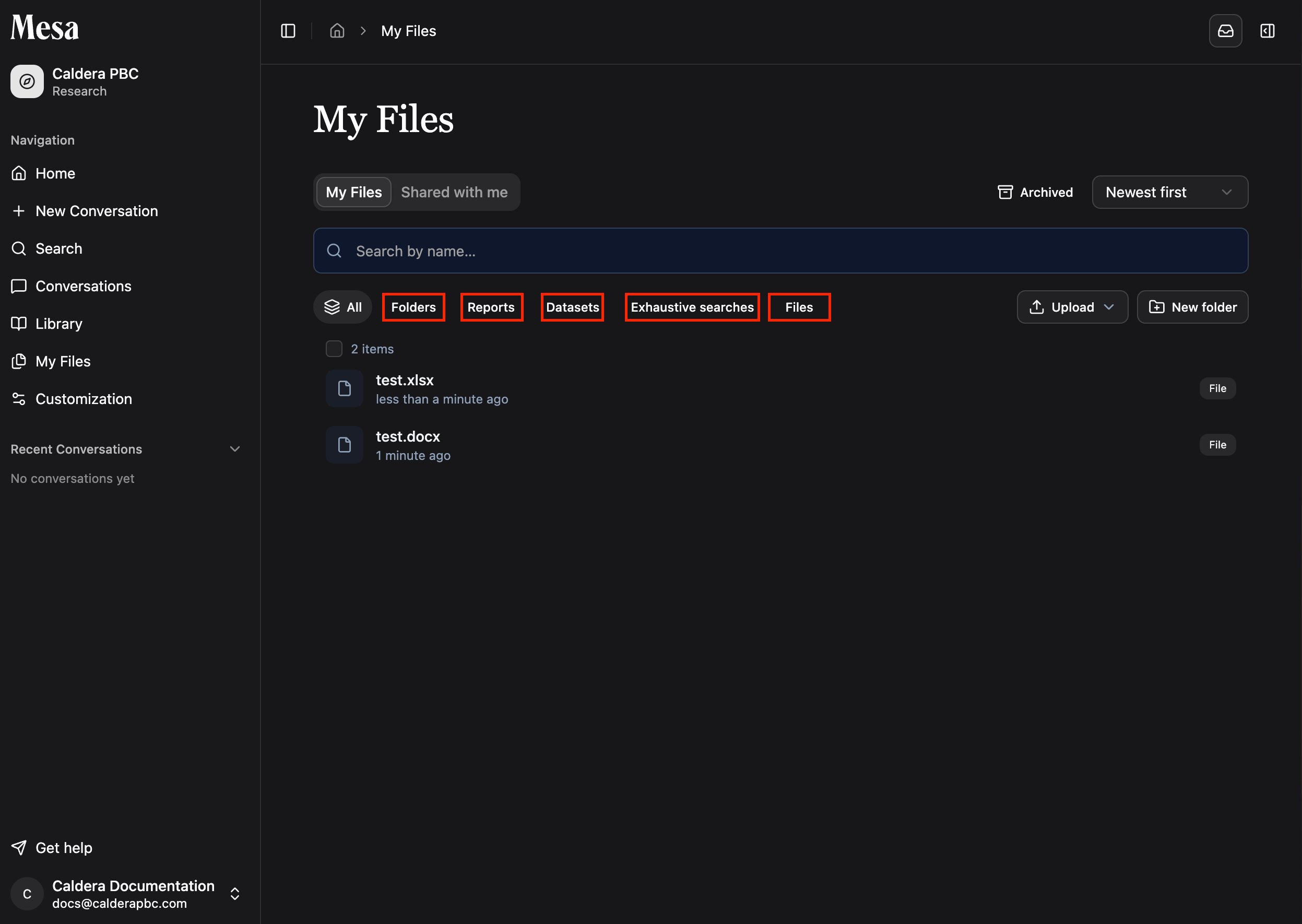
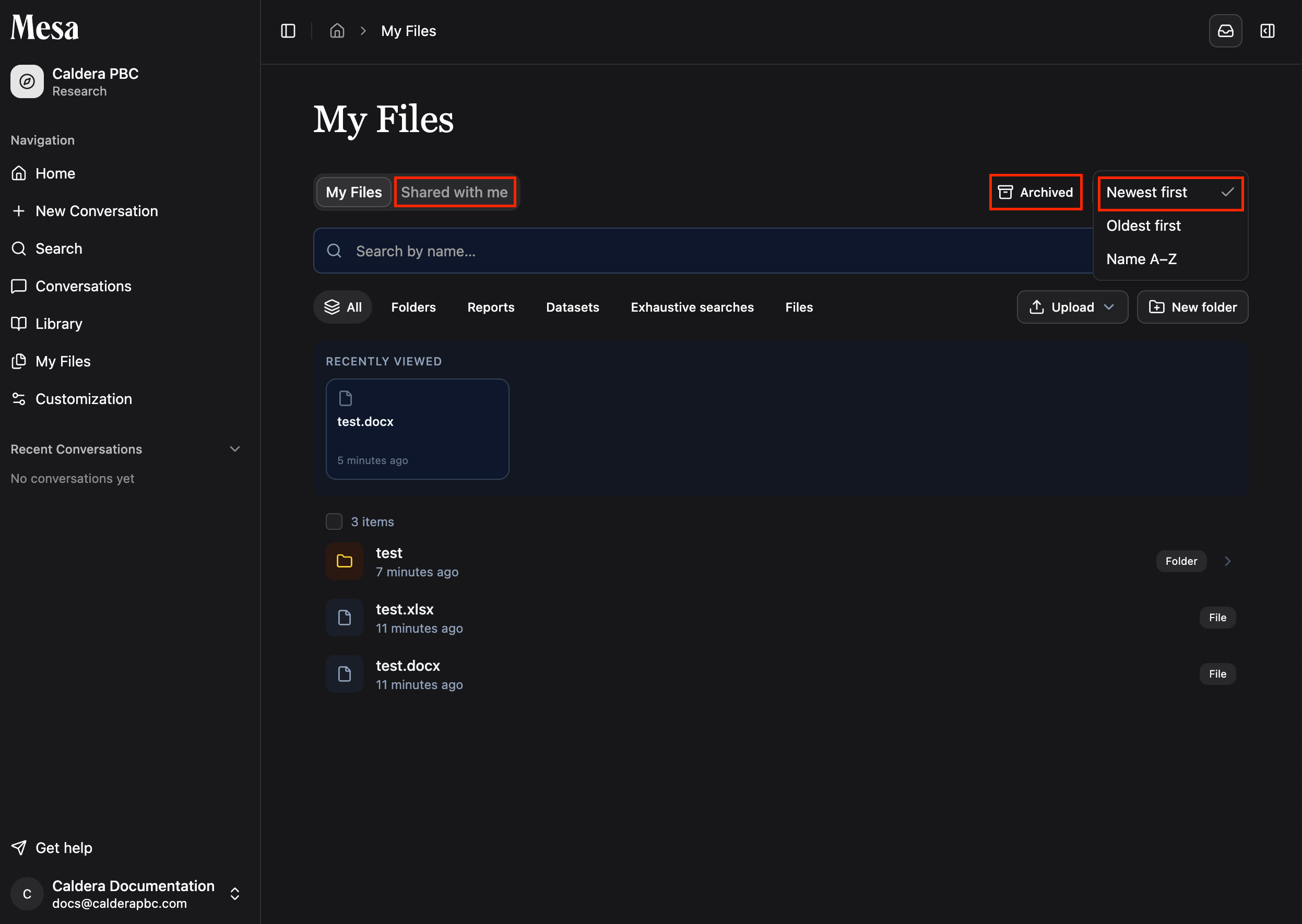
Open **My Files** from the sidebar. Use the tabs at the top to switch between the different file types on your account.
 ## Organize with folders
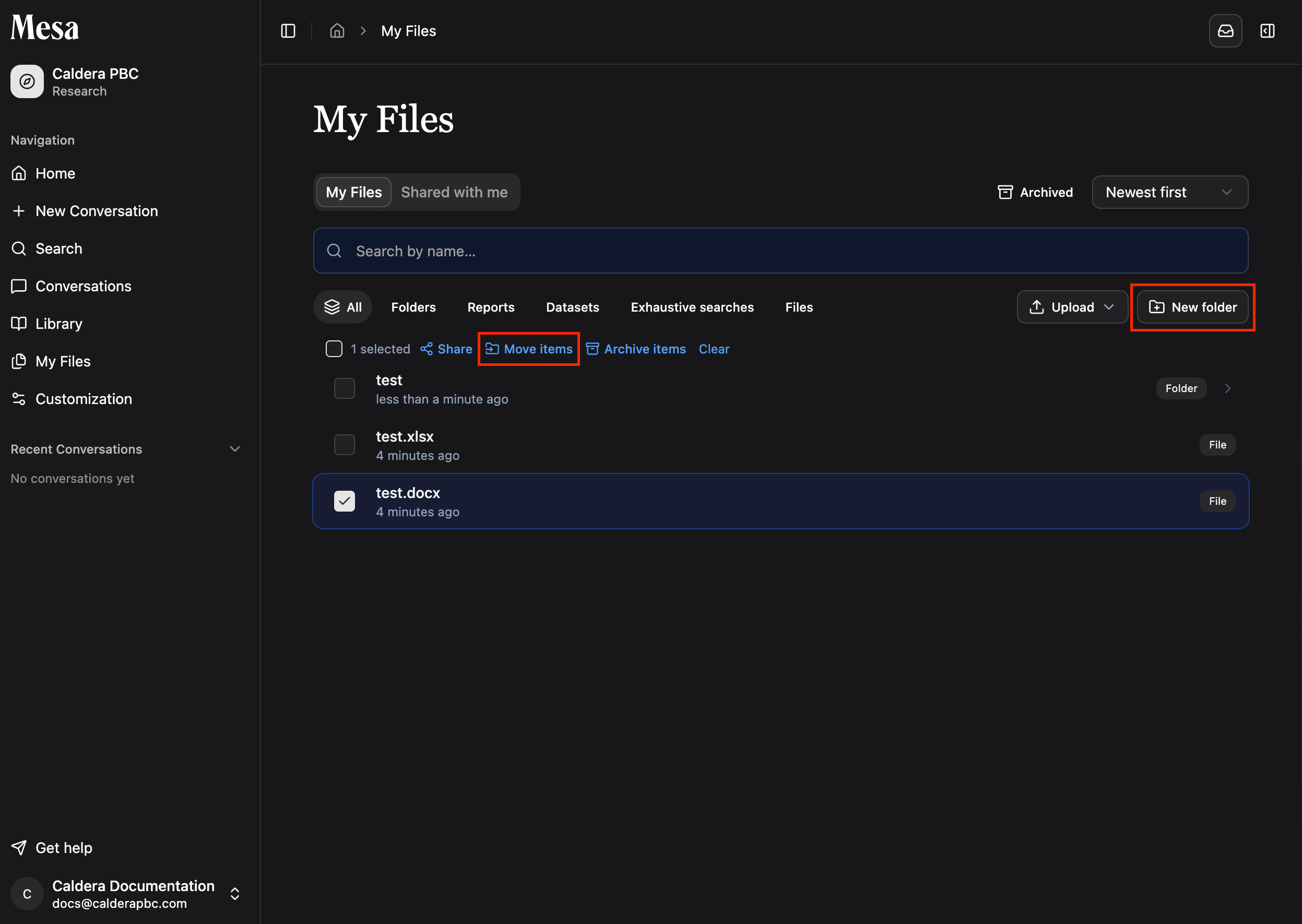
Click **New folder** in the top-right to create a folder. Move files in by dragging and dropping them, or by selecting them and clicking **Move items**.
## Organize with folders
Click **New folder** in the top-right to create a folder. Move files in by dragging and dropping them, or by selecting them and clicking **Move items**.
 ## Open and manage a file
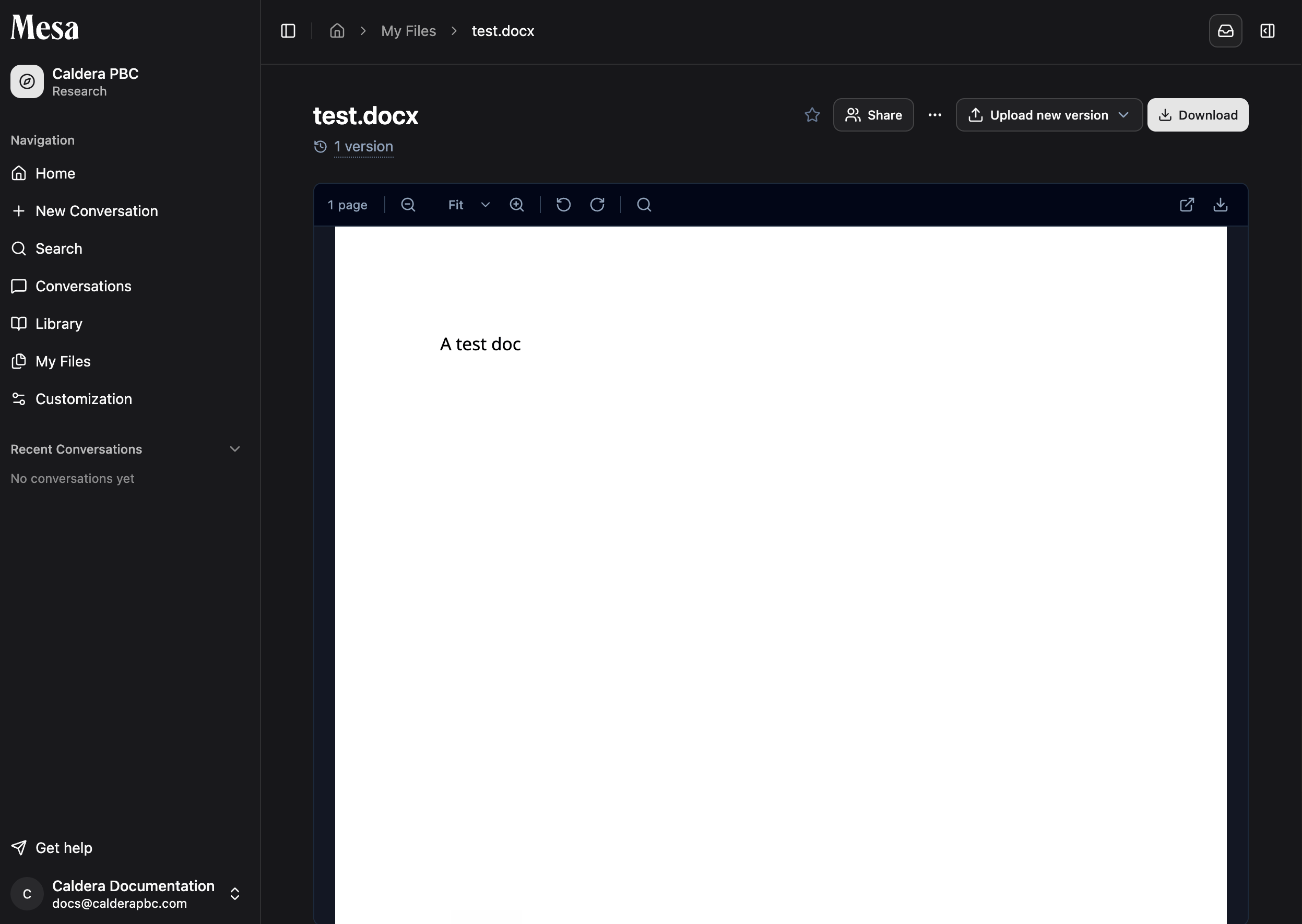
Double-click a file name to open it in a dedicated view. From there you can **Share**, **Download**, **Upload new version**, or **Rename** it (under the three dots menu).
## Open and manage a file
Double-click a file name to open it in a dedicated view. From there you can **Share**, **Download**, **Upload new version**, or **Rename** it (under the three dots menu).
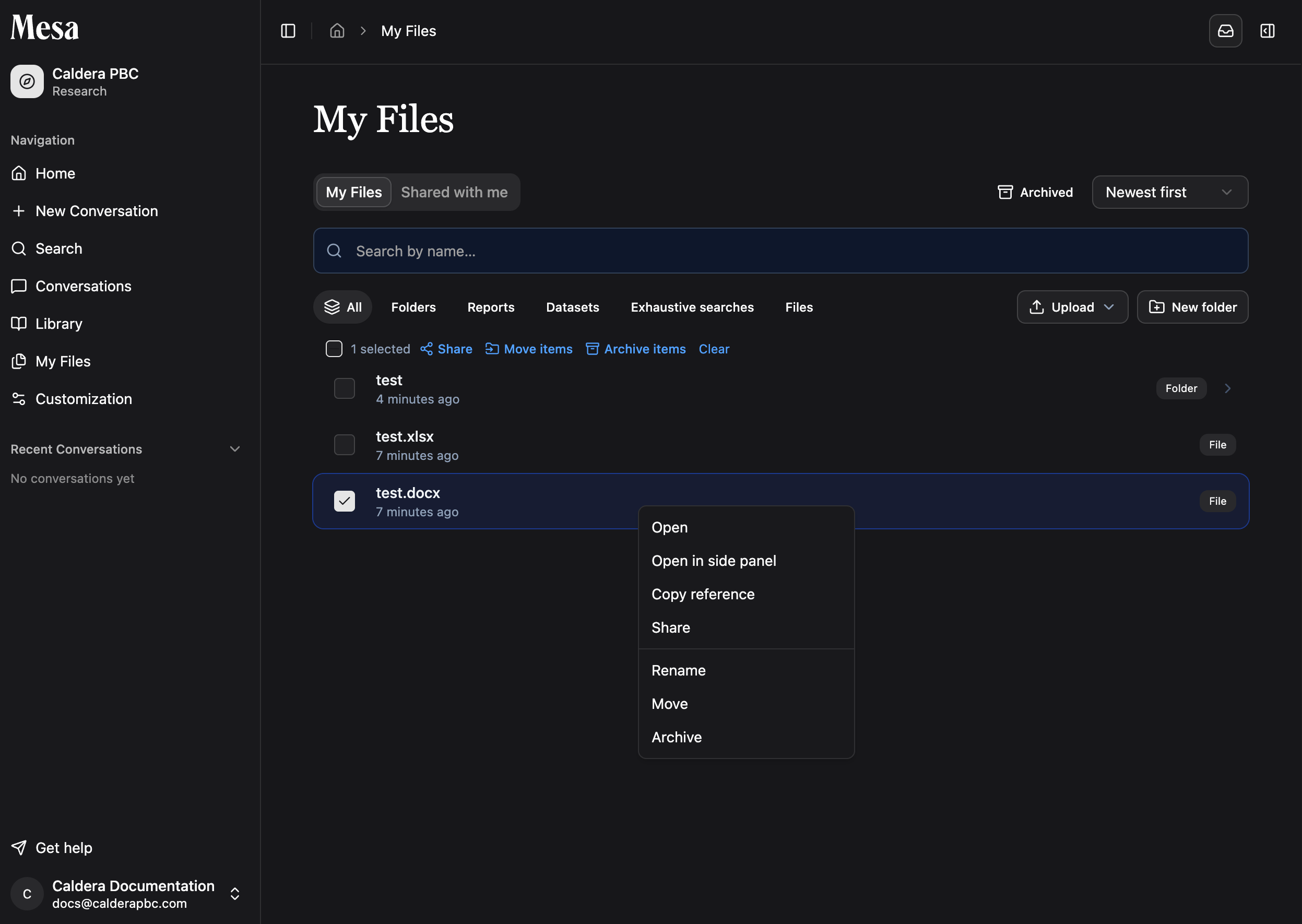
 Back in the main view, select or right-click files to **Share**, **Move**, or **Archive** them. Archiving clears files out of your working space when you no longer need them, without deleting them.
 ## File actions at a glance
| Action | How to do it |
| ------------------ | -------------------------------------------------------------------- |
| Create folder | Click **New folder** in the top-right |
| Move files | Drag and drop, or select files and click **Move items** |
| Rename | Double-click a file, open the three dots menu, then click **Rename** |
| Share | Right-click a file or select it, then click **Share** |
| Archive | Right-click a file or select it, then click **Archive** |
| Download | Double-click a file, then click **Download** |
| Upload new version | Double-click a file, then click **Upload new version** |
## Switch views and sort
Use the top bar to switch between your working files, files shared with you, and archived files. You can also change the sort order in the main view when you need to find a document quickly.
## File actions at a glance
| Action | How to do it |
| ------------------ | -------------------------------------------------------------------- |
| Create folder | Click **New folder** in the top-right |
| Move files | Drag and drop, or select files and click **Move items** |
| Rename | Double-click a file, open the three dots menu, then click **Rename** |
| Share | Right-click a file or select it, then click **Share** |
| Archive | Right-click a file or select it, then click **Archive** |
| Download | Double-click a file, then click **Download** |
| Upload new version | Double-click a file, then click **Upload new version** |
## Switch views and sort
Use the top bar to switch between your working files, files shared with you, and archived files. You can also change the sort order in the main view when you need to find a document quickly.
 Once your files are organized, pull them into any conversation with the `@` picker; see [Tagging files](/tagging-files).
## Related articles
Reference saved files directly in a Mesa conversation.
Import documents from external storage instead of uploading manually.
Review the search datasets Mesa saves back into your files.
Once your files are organized, pull them into any conversation with the `@` picker; see [Tagging files](/tagging-files).
## Related articles
Reference saved files directly in a Mesa conversation.
Import documents from external storage instead of uploading manually.
Review the search datasets Mesa saves back into your files.