> ## Documentation Index
> Fetch the complete documentation index at: https://support.calderapbc.com/llms.txt
> Use this file to discover all available pages before exploring further.
# Exhaustive search
> Catalogue every item in a corpus that matches your criteria, not just the best ones.
A normal search finds the best answers to your question. An exhaustive search finds **every single item in a corpus that matches your criteria** and returns them as a structured dataset. Use it when completeness matters more than speed: building datasets, compliance checklists, or issue spotters where missing one instance isn't acceptable.
## When to use it
| | Regular Ask AI | Exhaustive search |
| -------- | ---------------------------- | ----------------------------------------------- |
| Goal | Best answer to a question | Complete catalogue of all matching items |
| Speed | Faster | Slower |
| Output | Conversational response | Structured dataset saved to Files |
| Best for | Research, drafting, and Q\&A | Datasets, checklists, and comprehensive reviews |
## Request an exhaustive search
You trigger an exhaustive search through the wording of your prompt. Use phrases like:
* "Run an exhaustive search for..."
* "Catalog every ... in \[code]"
* "Find all provisions that ..."
* "I want to be sure I haven't missed any ..."
* "Build me a dataset/spreadsheet of \[X] from \[corpus]"
Use the exact words `exhaustive search`. Otherwise, the agent may decide the task isn't large enough to warrant one and run a normal search instead.
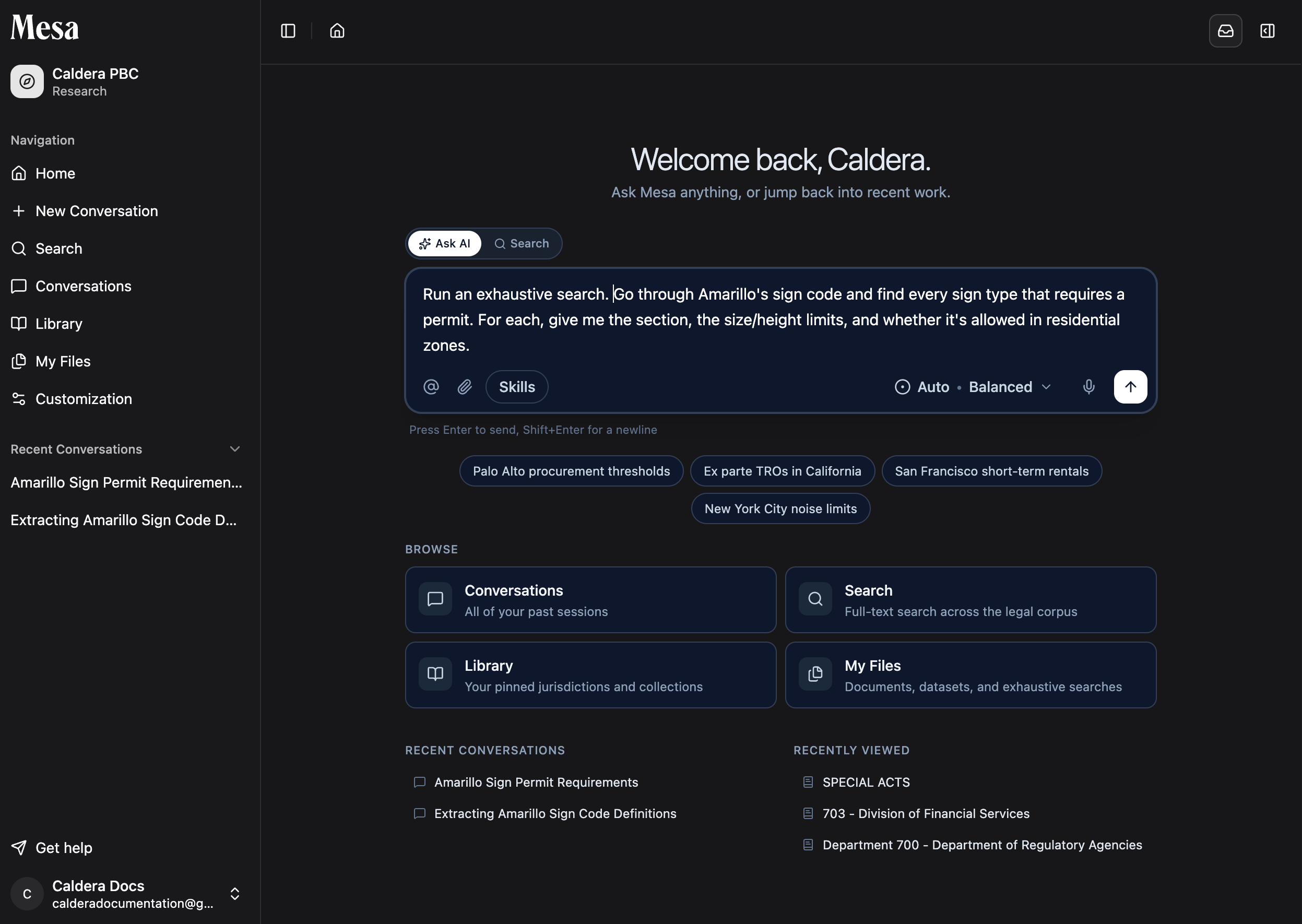 ## Define the search parameters
For a more tailored result, spell out three aspects of the search in your prompt. If you leave any of them out, the agent defines its own.
* **Filter**: the scope of the search. What should the agent look at?
* **Criteria**: the rules for which instances make it into the output.
* **Columns**: the variables the agent should record for each match.
## Define the search parameters
For a more tailored result, spell out three aspects of the search in your prompt. If you leave any of them out, the agent defines its own.
* **Filter**: the scope of the search. What should the agent look at?
* **Criteria**: the rules for which instances make it into the output.
* **Columns**: the variables the agent should record for each match.
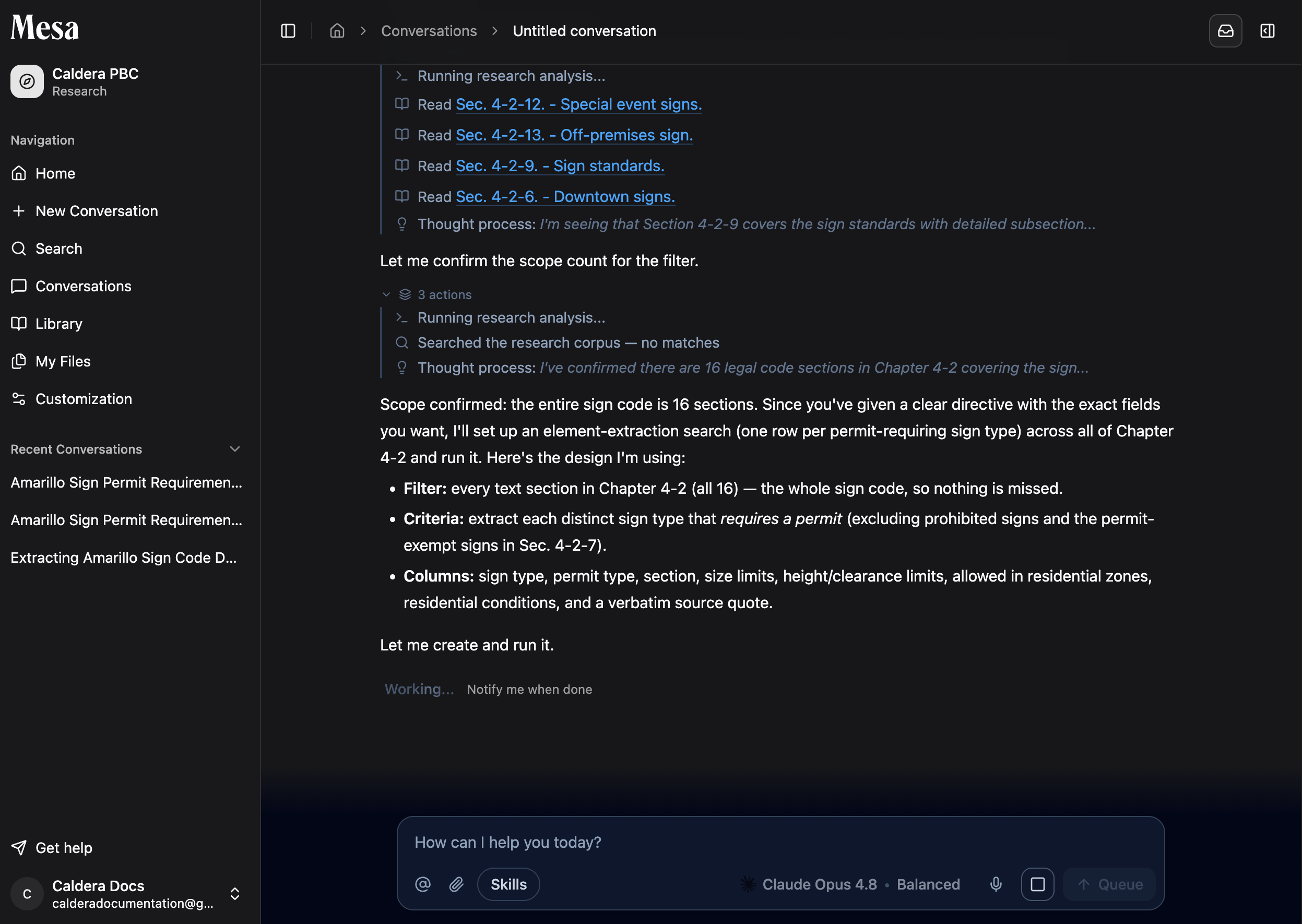 Putting it all together:
> Run an exhaustive search for all indemnification provisions in these contracts. Create a spreadsheet with columns for section number, indemnified party, trigger event, and cap amount.
## Find your results
When an exhaustive search finishes, the agent always saves its findings to **My Files**.
Putting it all together:
> Run an exhaustive search for all indemnification provisions in these contracts. Create a spreadsheet with columns for section number, indemnified party, trigger event, and cap amount.
## Find your results
When an exhaustive search finishes, the agent always saves its findings to **My Files**.
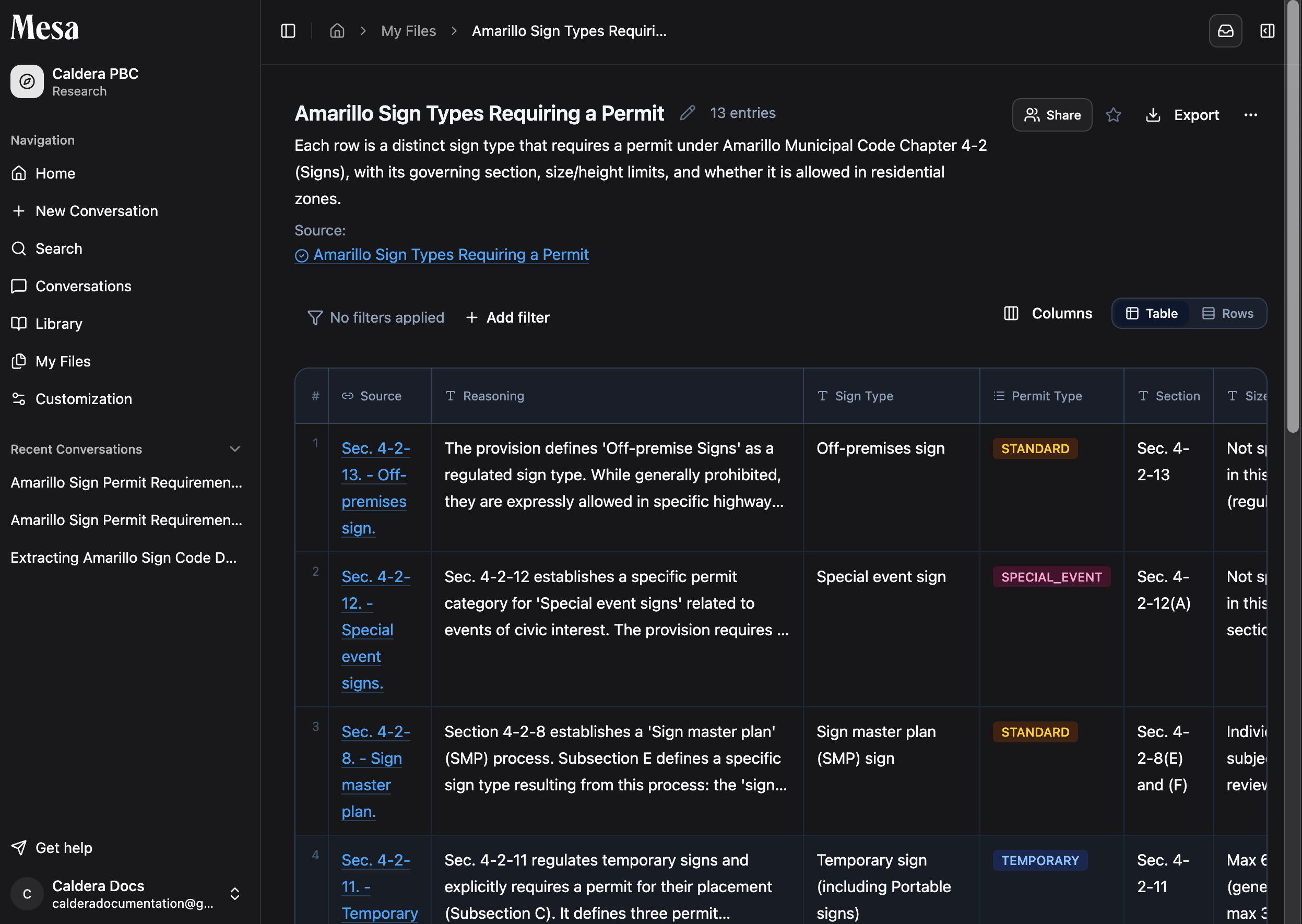
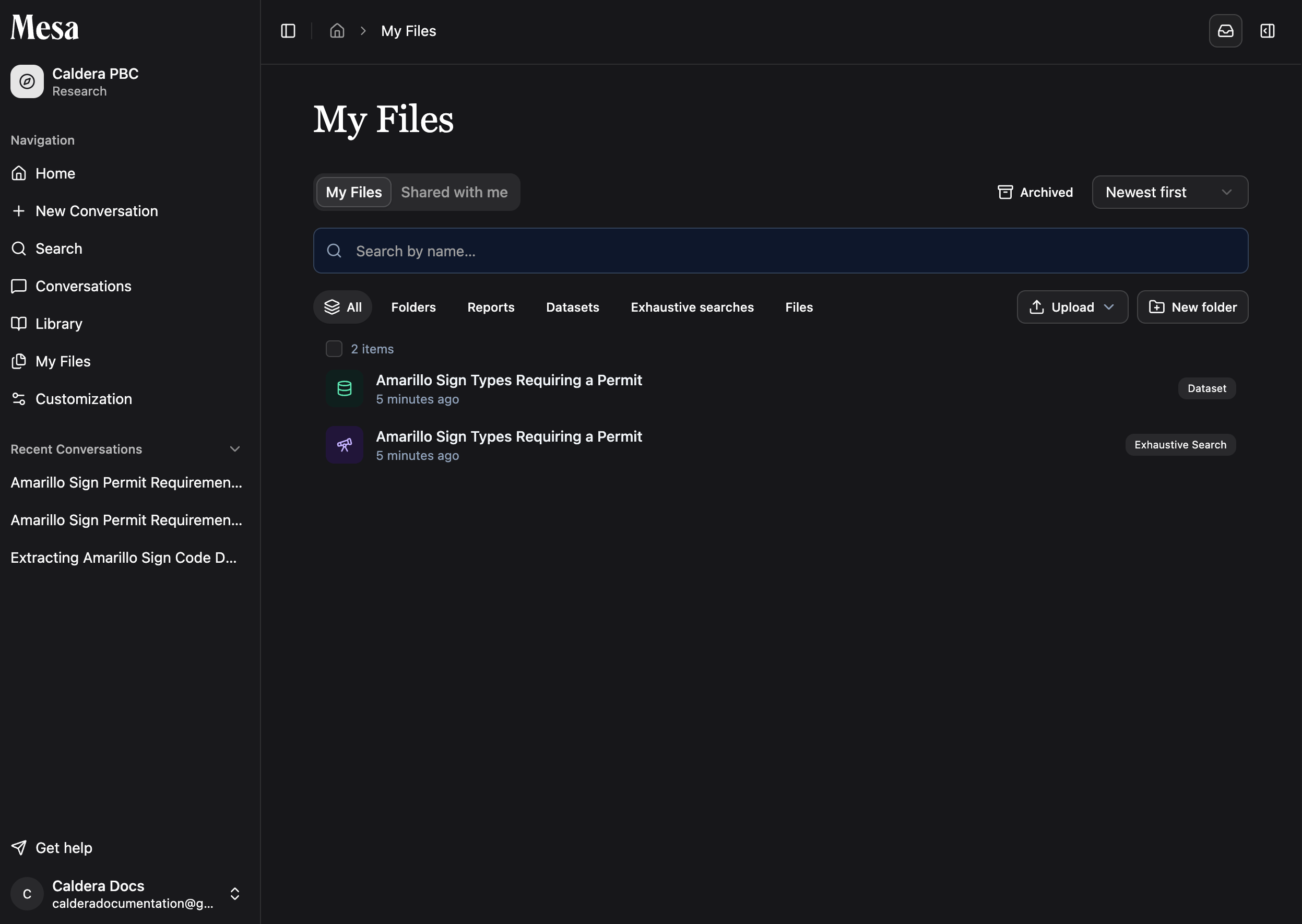 The **Exhaustive Search** item shows both the output dataset and the instructions the agent followed while building it.
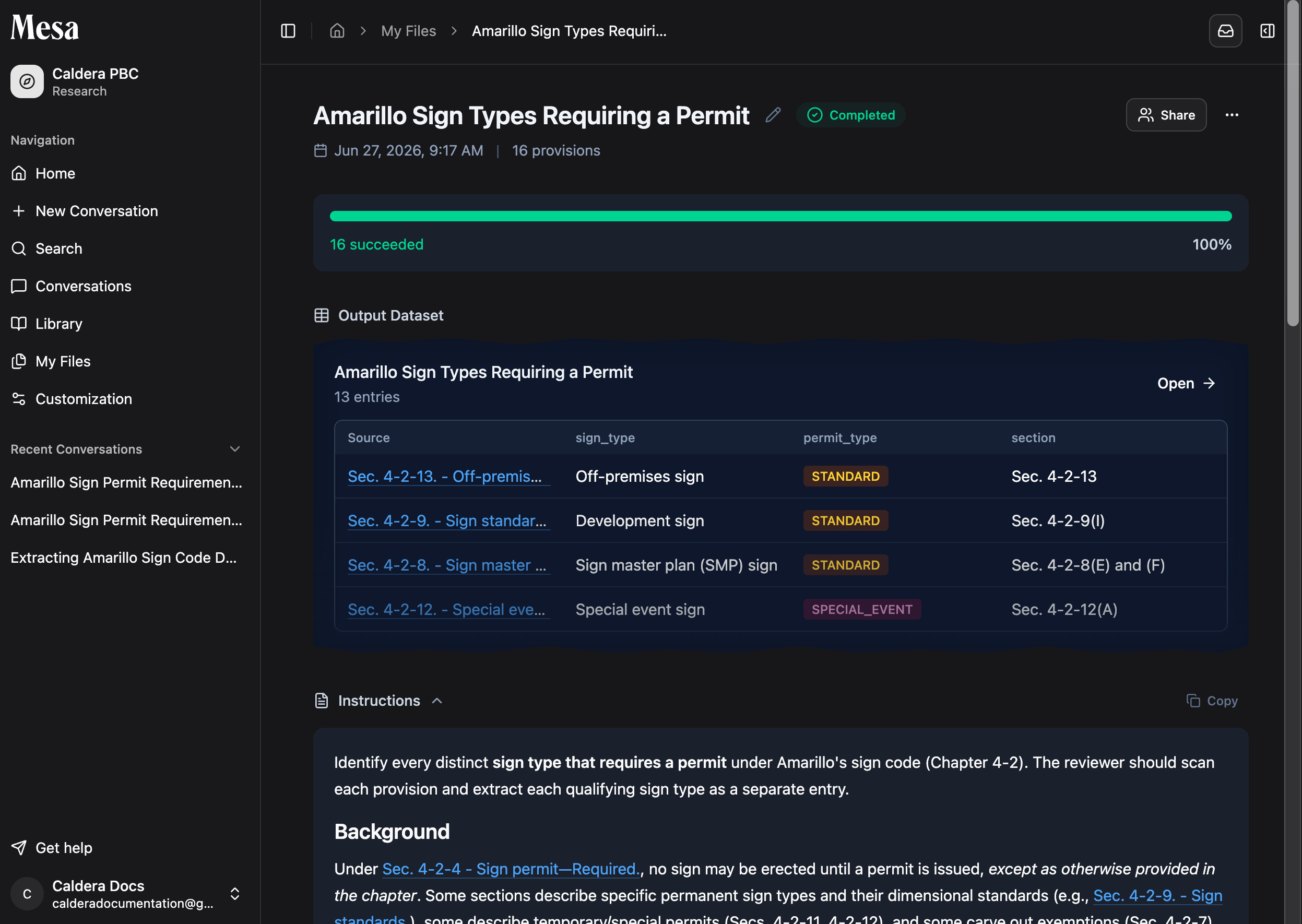 Open the dataset to view the full output. It stays in your files, so you can return to it, share it, or reuse it in later conversations.
 Exhaustive searches take time. Click **Notify me when done** so Mesa alerts you when the dataset is ready; see [Notifications](/notifications).
## Related articles
Find and manage the datasets created by exhaustive searches.
Tag saved documents to define the corpus for a search.
Choose models and effort levels suited to large research tasks.
Exhaustive searches take time. Click **Notify me when done** so Mesa alerts you when the dataset is ready; see [Notifications](/notifications).
## Related articles
Find and manage the datasets created by exhaustive searches.
Tag saved documents to define the corpus for a search.
Choose models and effort levels suited to large research tasks.