> ## Documentation Index
> Fetch the complete documentation index at: https://support.calderapbc.com/llms.txt
> Use this file to discover all available pages before exploring further.
# Connections
> Import documents from Google Drive, OneDrive, and other external storage accounts.
Connections link your external storage accounts, such as Google Drive or OneDrive, to Mesa. Instead of downloading documents and re-uploading them by hand, you import them directly, and once imported, they work like any other file in Mesa.
## Set up a connection and import files
Go to your Settings page and switch to the **Connections** tab. This is where you create new connections and manage existing ones.
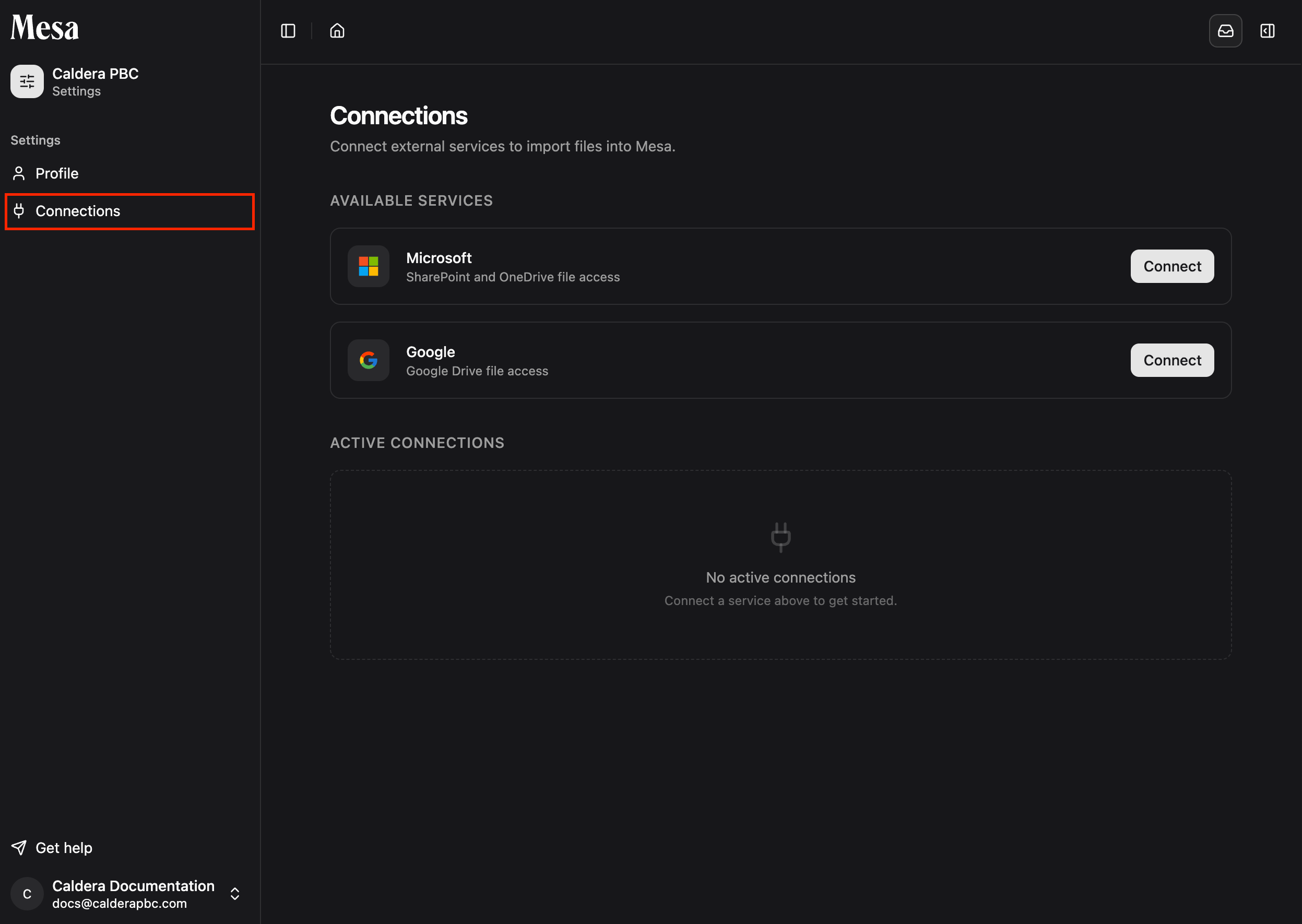 Create a new connection and authorize Mesa to access the external account.
Go to the **Files** page, click **Upload**, and select your connection as the source.
Create a new connection and authorize Mesa to access the external account.
Go to the **Files** page, click **Upload**, and select your connection as the source.
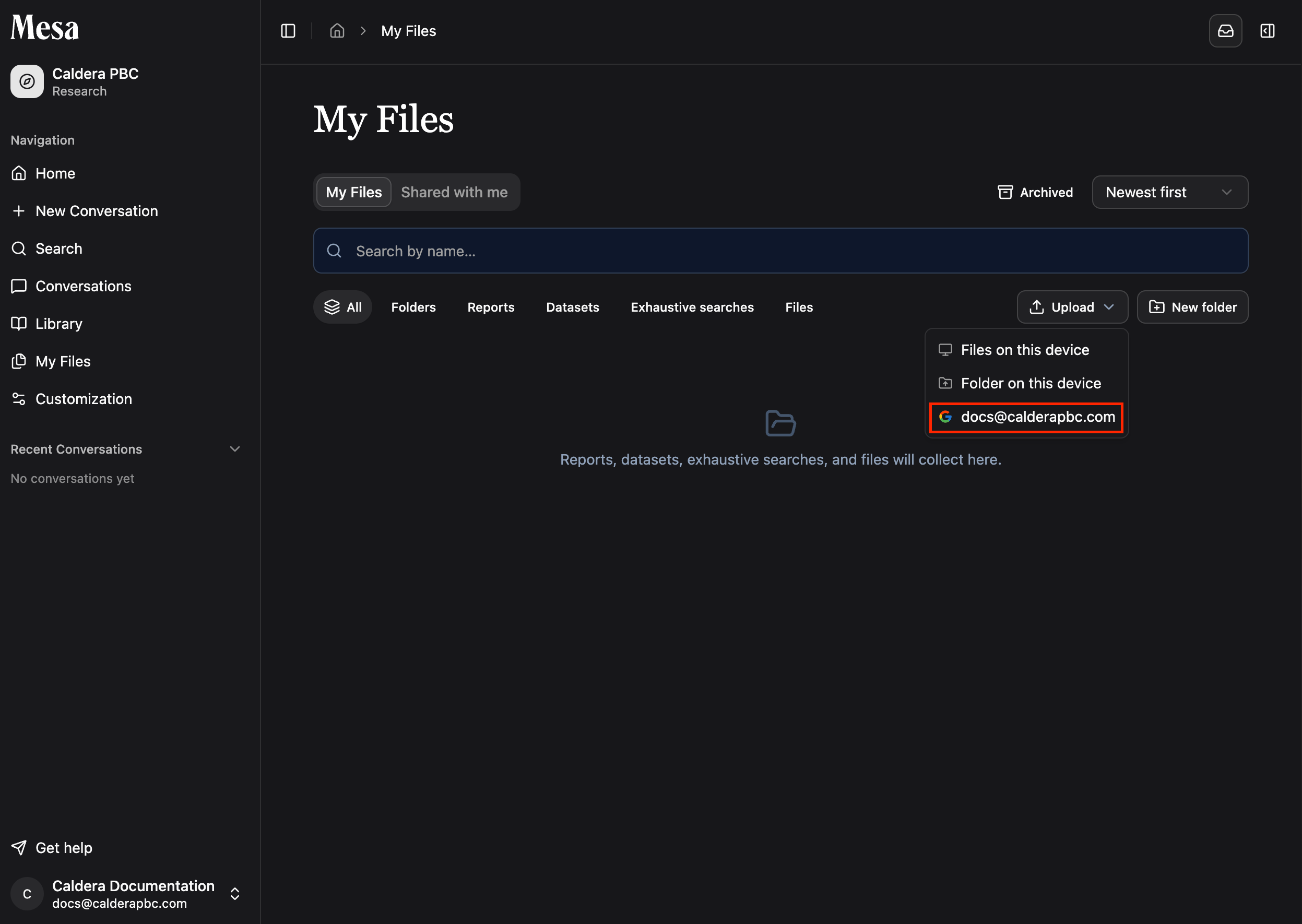 Select the files you want to bring into Mesa. Once imported, use them like any other file: organize them into folders, tag them in conversations, and share them.
## Supported file formats
Mesa imports `.docx` and `.xlsx` files from connections. From Google Drive, it also imports native **Google Workspace** documents (Docs, Sheets, Slides, and Drawings), converting them to their Office or image equivalents on the way in, so you no longer have to convert them by hand first.
Google caps Workspace exports at around 10 MB. A very large Google Doc or Sheet can fail at import time; if that happens, trim it or export it manually from Drive and upload the file instead.
## Let the agent use a connection
Beyond importing files yourself, you can let Mesa's agent browse, search, and import files from a connection during a research conversation, so you can ask it to pull in a document by name instead of importing it first.
Agent access is **off by default** for every connection. To turn it on, open the **Connections** tab, find the connection under **Active connections**, and switch on **Agent access**.
Select the files you want to bring into Mesa. Once imported, use them like any other file: organize them into folders, tag them in conversations, and share them.
## Supported file formats
Mesa imports `.docx` and `.xlsx` files from connections. From Google Drive, it also imports native **Google Workspace** documents (Docs, Sheets, Slides, and Drawings), converting them to their Office or image equivalents on the way in, so you no longer have to convert them by hand first.
Google caps Workspace exports at around 10 MB. A very large Google Doc or Sheet can fail at import time; if that happens, trim it or export it manually from Drive and upload the file instead.
## Let the agent use a connection
Beyond importing files yourself, you can let Mesa's agent browse, search, and import files from a connection during a research conversation, so you can ask it to pull in a document by name instead of importing it first.
Agent access is **off by default** for every connection. To turn it on, open the **Connections** tab, find the connection under **Active connections**, and switch on **Agent access**.
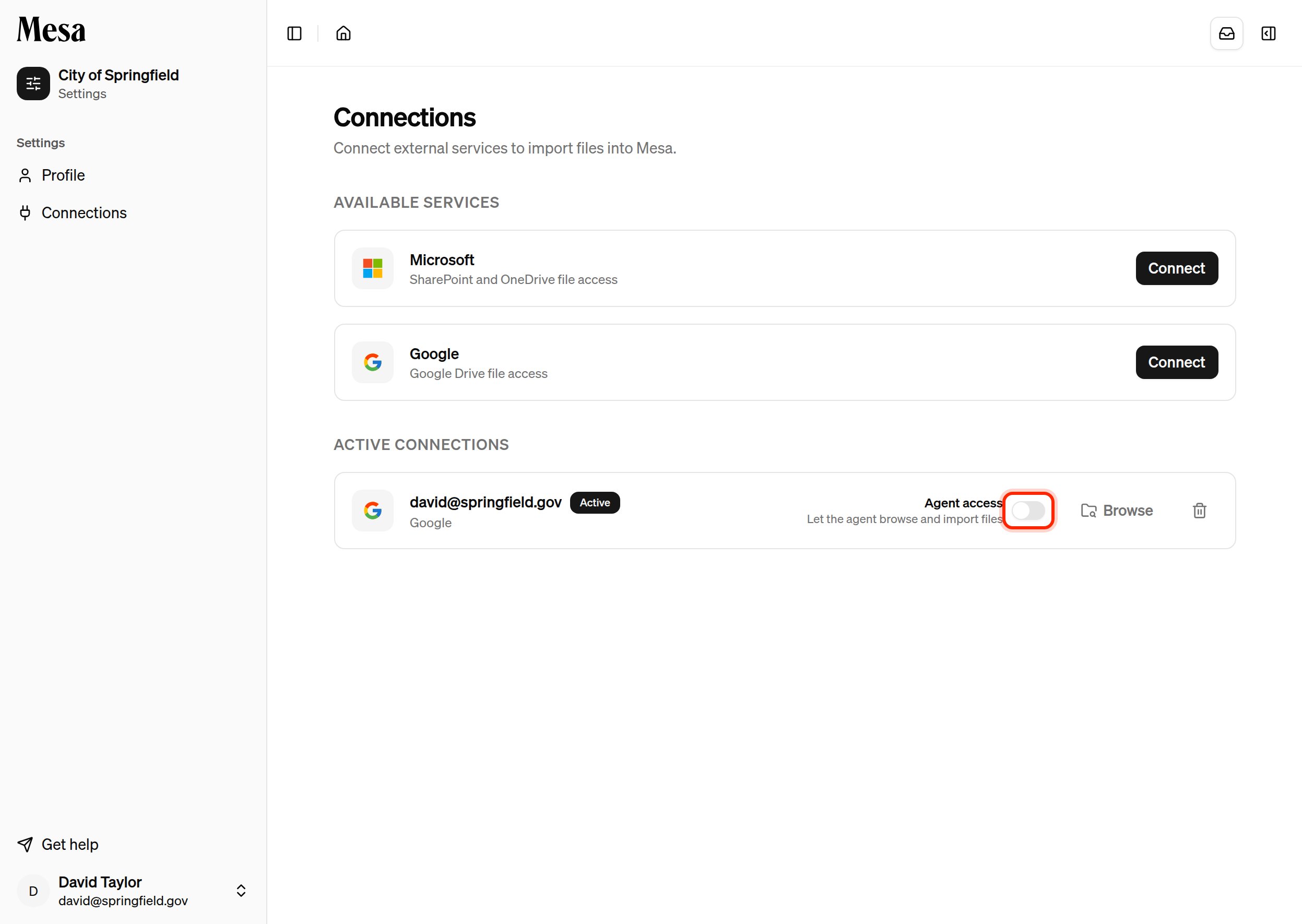 Once enabled, Mesa can reach that account when it needs a file, and any document it imports shows up inline in the conversation. Mesa only ever acts on the connections you've opted in; turn the switch back off at any time to revoke access.
## Related articles
Organize and manage documents after importing them into Mesa.
Use imported files in conversations through the `@` file picker.
Find the Connections tab on your Settings page.
Once enabled, Mesa can reach that account when it needs a file, and any document it imports shows up inline in the conversation. Mesa only ever acts on the connections you've opted in; turn the switch back off at any time to revoke access.
## Related articles
Organize and manage documents after importing them into Mesa.
Use imported files in conversations through the `@` file picker.
Find the Connections tab on your Settings page.