> ## Documentation Index
> Fetch the complete documentation index at: https://support.calderapbc.com/llms.txt
> Use this file to discover all available pages before exploring further.
# Batches
> Run the same task across hundreds of items at once, with one background agent per item.
Some research questions are really the same question asked many times: every provision in a code that sets a fee, the same rule checked across fifty jurisdictions, every chapter reviewed against one standard. A batch handles that kind of work. The agent splits the job into items, gives every item the same instructions, and runs one background agent per item. Because each item gets its own careful look, nothing gets skipped for lack of attention.
## When to use a batch
| | Regular Ask AI | Batch |
| -------- | ---------------------------- | ------------------------------------------------------------ |
| Goal | Best answer to a question | The same task done for every item in a set |
| Scale | A handful of lookups | Dozens to thousands of items |
| Output | Conversational response | Per-item results, often collected into a dataset in My Files |
| Best for | Research, drafting, and Q\&A | Catalogues, surveys, and comprehensive reviews |
Good fits include:
* Finding every provision in a code that creates a duty, sets a deadline, or imposes a fee.
* Asking the same question of many jurisdictions' codes.
* Reviewing a large document collection and sorting or flagging each document.
* Pulling the same fields out of many sources into one spreadsheet.
## Start a batch
Describe the whole job in your message and say what you want back. When you ask for every matching item, the agent runs a batch automatically.
> Find every provision in the Cloudville Municipal Code and the Cloudville Building Regulations that sets a fee, and build me a dataset with the section, the fee amount, and who pays it.
The more precisely you describe what counts, what doesn't, and which details to record for each match, the more consistent the results. For very large jobs, the agent first runs a small sample, checks the results, and tells you the expected cost of the full run before starting it.
## Follow a batch's progress
When the batch starts, a batch card appears in the conversation. The top line shows how many items (units) the batch has and which model runs them. Below it, one square per unit fills in as work finishes, with counts for **Completed**, **Failed**, **Running**, and **Pending**, the percentage done, and an estimate of the time left. **Running now** lists the units in progress.
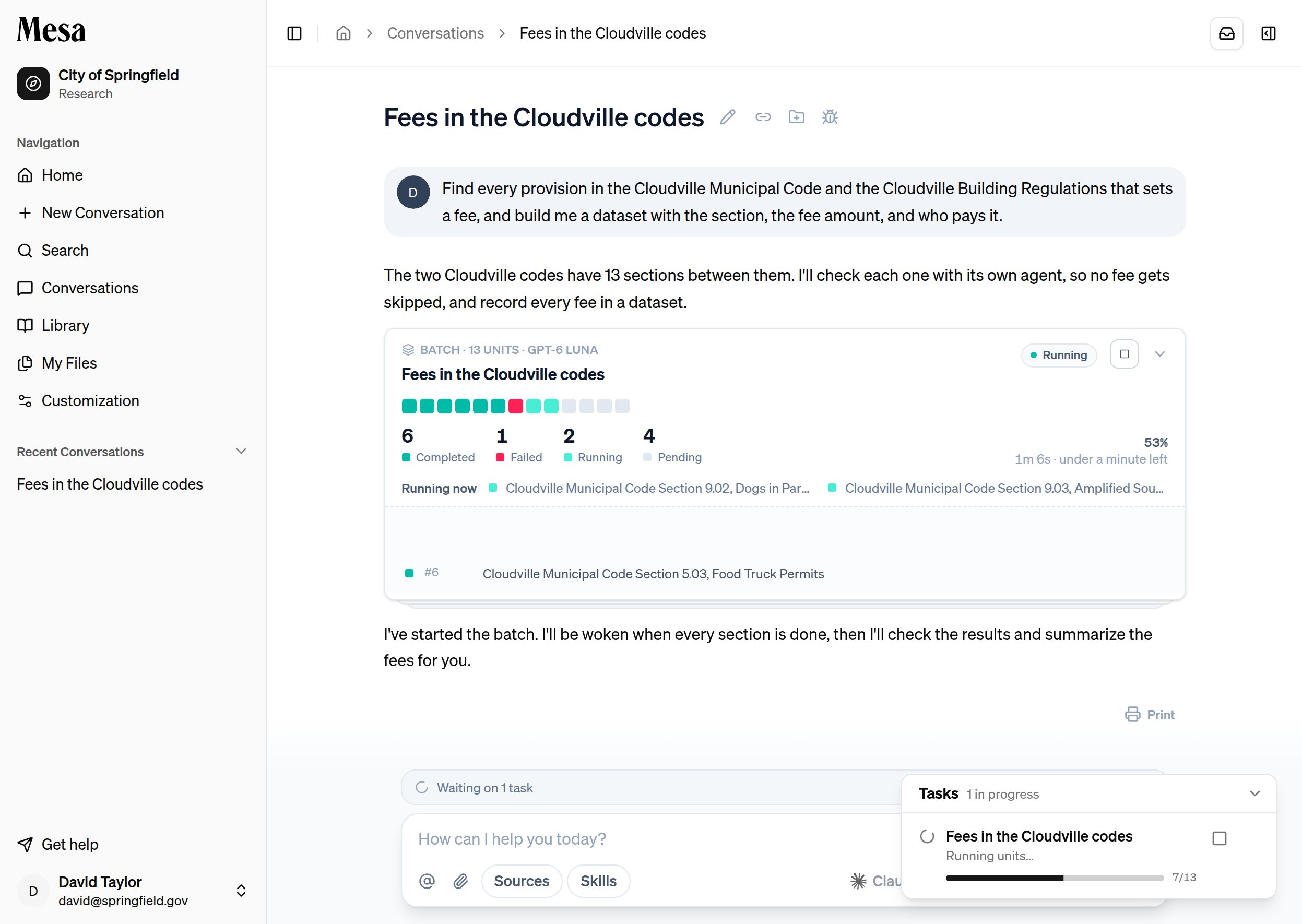 A batch keeps running in the background, so you can leave the conversation or start other work. It also appears in the **Tasks** tray and in the **Waiting on 1 task** strip above the chat box. Click **Notify me when done** in that strip to get a notification when it finishes; see [Notifications](/notifications). When the batch completes, the agent picks the conversation back up on its own, checks the results, and reports back.
## Review individual units
Click the top of the batch card to expand it into a list of every unit. Use the **All**, **Completed**, **Failed**, **Running**, and **Pending** filters to narrow the list, and click **Instructions** to read the instructions every unit received.
A batch keeps running in the background, so you can leave the conversation or start other work. It also appears in the **Tasks** tray and in the **Waiting on 1 task** strip above the chat box. Click **Notify me when done** in that strip to get a notification when it finishes; see [Notifications](/notifications). When the batch completes, the agent picks the conversation back up on its own, checks the results, and reports back.
## Review individual units
Click the top of the batch card to expand it into a list of every unit. Use the **All**, **Completed**, **Failed**, **Running**, and **Pending** filters to narrow the list, and click **Instructions** to read the instructions every unit received.
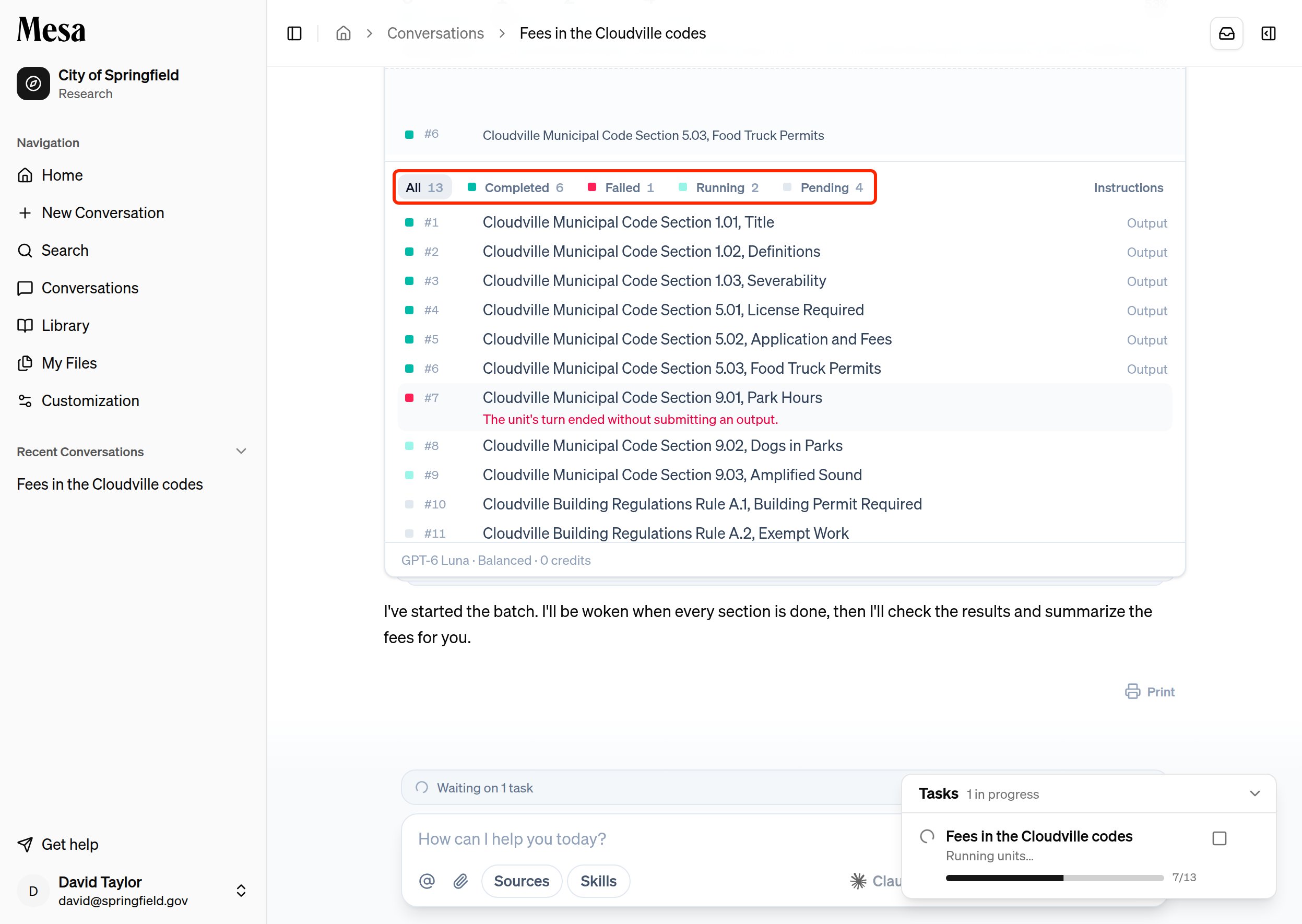 Click **Output** next to a finished unit to see what it returned. A failed unit shows its error in red under its label. To see exactly what a unit did, open its own conversation with the icon at the end of its row.
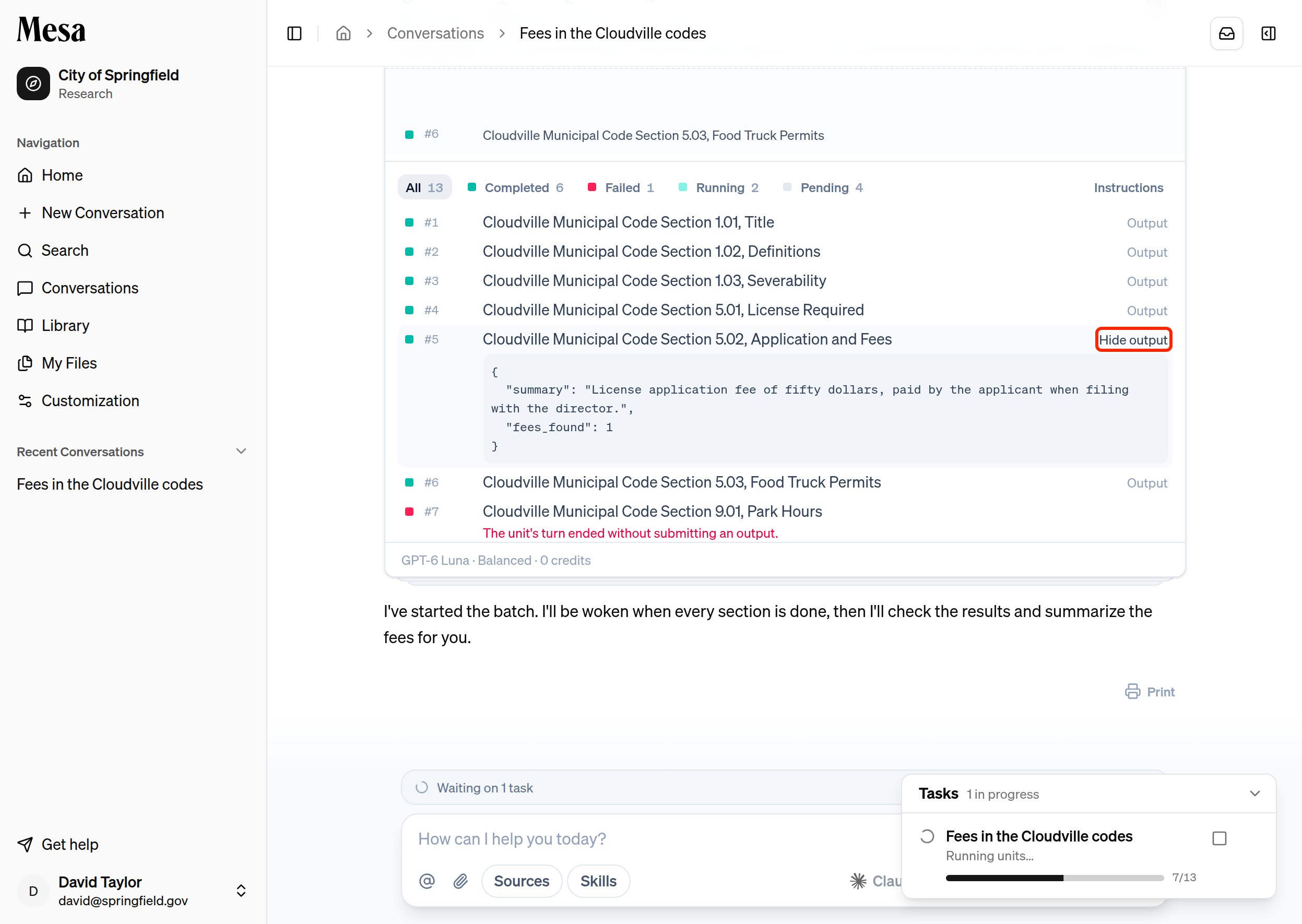 The footer of the expanded card shows the model, the effort level, and the credits the batch has used so far.
Units that fail can be run again. Ask the agent to retry the failed units, and it reruns just those with the same instructions.
## Stop a batch
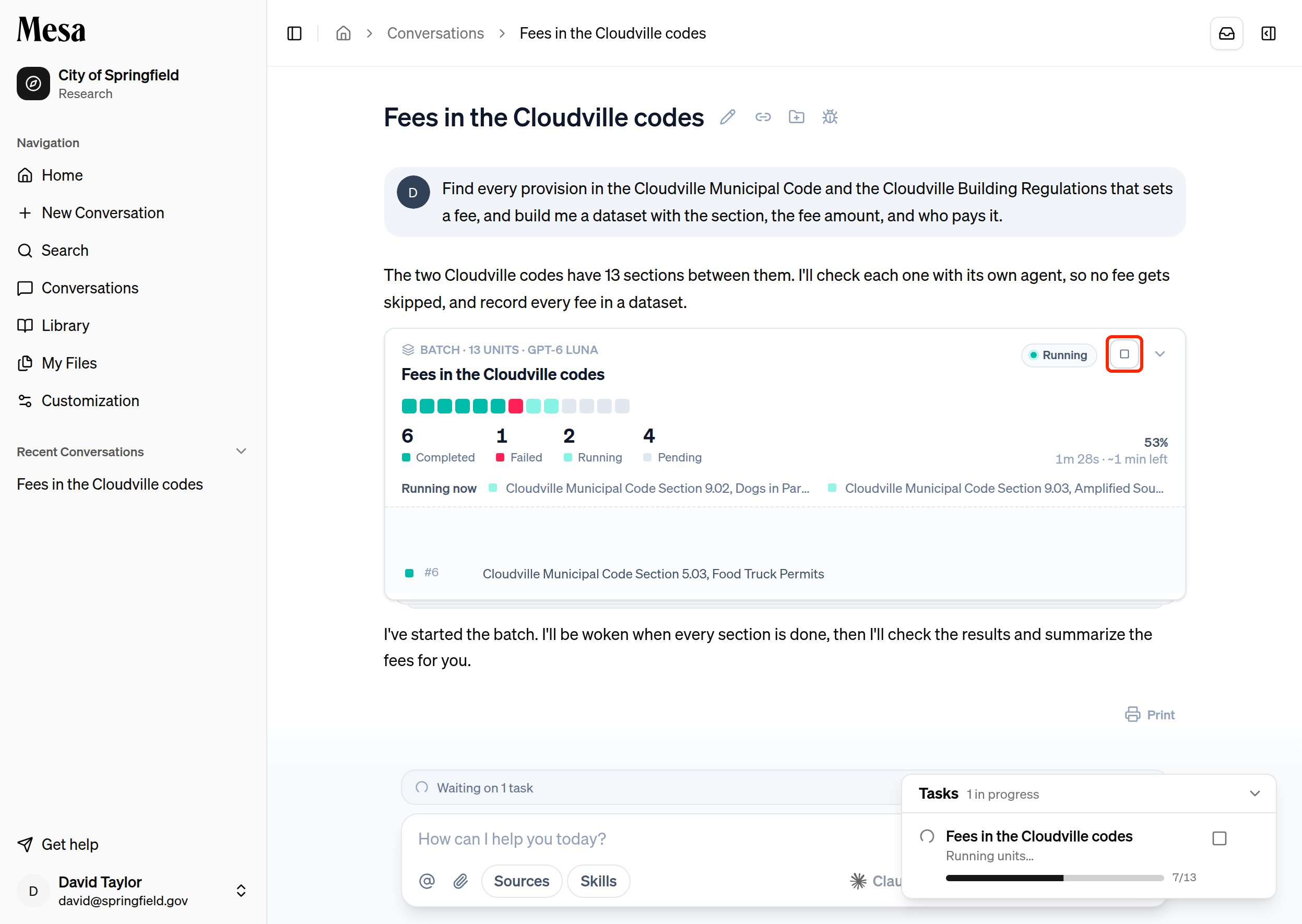
To stop a batch early, click the square stop button at the top of the card, then click **Stop**. Units that already finished keep their results; running units stop, and units that haven't started don't run.
The footer of the expanded card shows the model, the effort level, and the credits the batch has used so far.
Units that fail can be run again. Ask the agent to retry the failed units, and it reruns just those with the same instructions.
## Stop a batch
To stop a batch early, click the square stop button at the top of the card, then click **Stop**. Units that already finished keep their results; running units stop, and units that haven't started don't run.
 ## Related articles
Find and manage the datasets that batches create.
Write requests that get complete, consistent results.
Choose models and effort levels suited to large research tasks.
## Related articles
Find and manage the datasets that batches create.
Write requests that get complete, consistent results.
Choose models and effort levels suited to large research tasks.