> ## Documentation Index
> Fetch the complete documentation index at: https://support.calderapbc.com/llms.txt
> Use this file to discover all available pages before exploring further.
# Attachments
> Bring one-off documents into a conversation for Mesa to read and analyze.
Attachments let you hand Mesa a document to read and analyze in the current conversation. Unlike saved [Files](/files), attachments are temporary: they exist only for the conversation you add them to.
## Add an attachment
On the Home or New Conversation page, click the paperclip icon in the chat box and select the files you want Mesa to use.
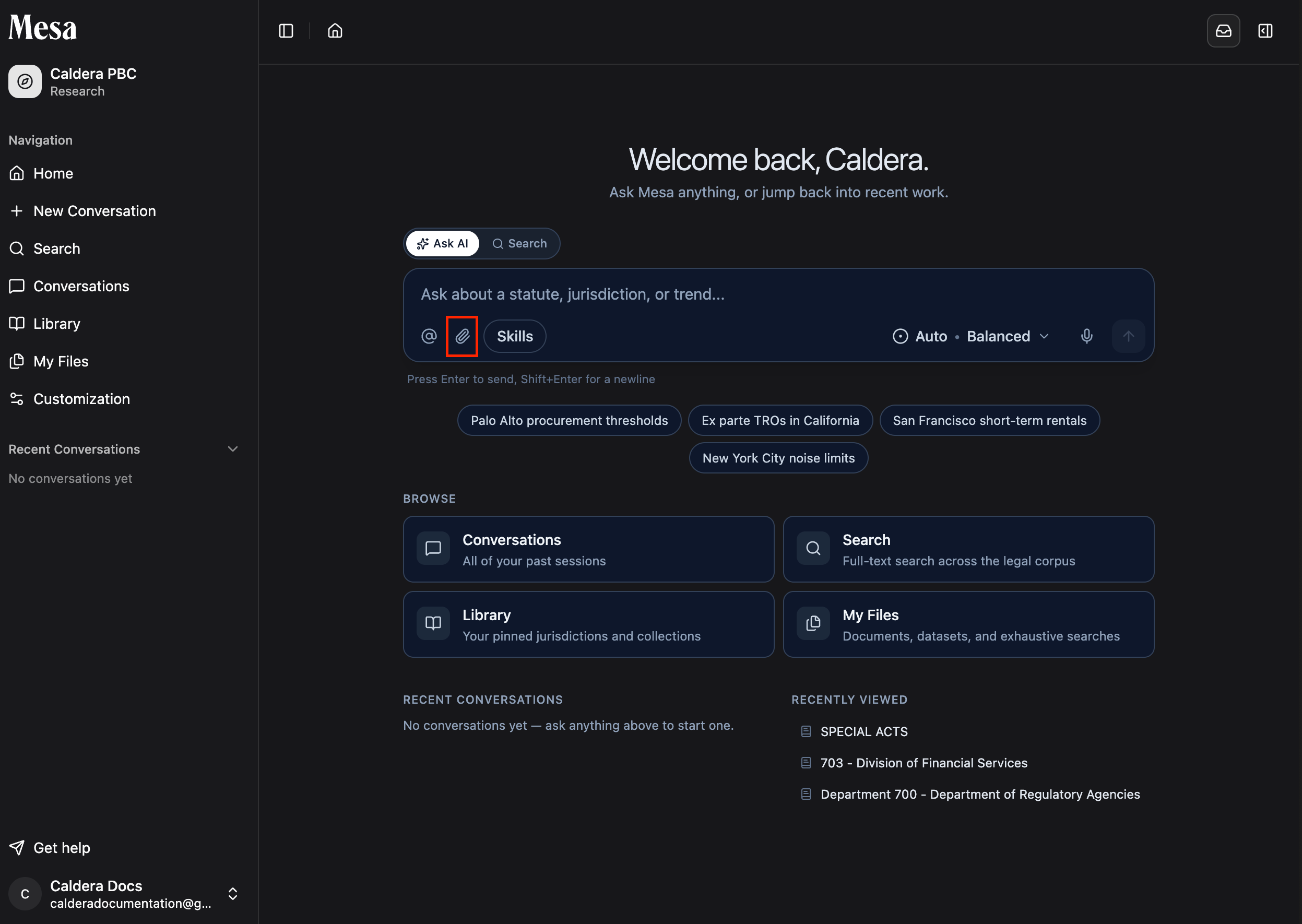 You can also drag and drop files directly into the chat box.
## Attachments vs. tagged files
| | Attachments | Tagged files |
| ------------------------------ | ------------------------------- | ---------------------------- |
| How to add | Paperclip icon or drag and drop | `@` key or `@` symbol button |
| Persists across conversations? | No | Yes |
| Best for | One-off documents | Files you use repeatedly |
If you'll reference a document again, like a template, a key contract, or a style guide, save it to [Files](/files) and tag it instead, so you never have to re-upload it. See [Tagging files](/tagging-files).
## Supported file types
If a file won't upload as an attachment, add it through [Files](/files) instead, or check whether it needs to be converted to a supported document format first.
## Related articles
Pull saved files into a conversation with the `@` file picker.
Upload and organize documents that persist across sessions.
Import documents from connected external storage accounts.
You can also drag and drop files directly into the chat box.
## Attachments vs. tagged files
| | Attachments | Tagged files |
| ------------------------------ | ------------------------------- | ---------------------------- |
| How to add | Paperclip icon or drag and drop | `@` key or `@` symbol button |
| Persists across conversations? | No | Yes |
| Best for | One-off documents | Files you use repeatedly |
If you'll reference a document again, like a template, a key contract, or a style guide, save it to [Files](/files) and tag it instead, so you never have to re-upload it. See [Tagging files](/tagging-files).
## Supported file types
If a file won't upload as an attachment, add it through [Files](/files) instead, or check whether it needs to be converted to a supported document format first.
## Related articles
Pull saved files into a conversation with the `@` file picker.
Upload and organize documents that persist across sessions.
Import documents from connected external storage accounts.