> ## Documentation Index
> Fetch the complete documentation index at: https://support.calderapbc.com/llms.txt
> Use this file to discover all available pages before exploring further.
# Accounts
> Use one sign-in for several organizations and portals, and switch between them.
You sign in to Mesa once, with your email address. That sign-in can hold several accounts:
* **Organization accounts**: one for each organization you belong to. Each has its own conversations, files, roles, and usage limits.
* **Portal accounts**: one for each organization [portal](/portal) where you've opened a published document.
You always work in one organization account at a time. You can switch between them without signing out.
## Choose an account
If you have more than one organization account, Mesa asks which one to use when you sign in. Click the organization you want to work in. The accounts you've used most recently are listed first.
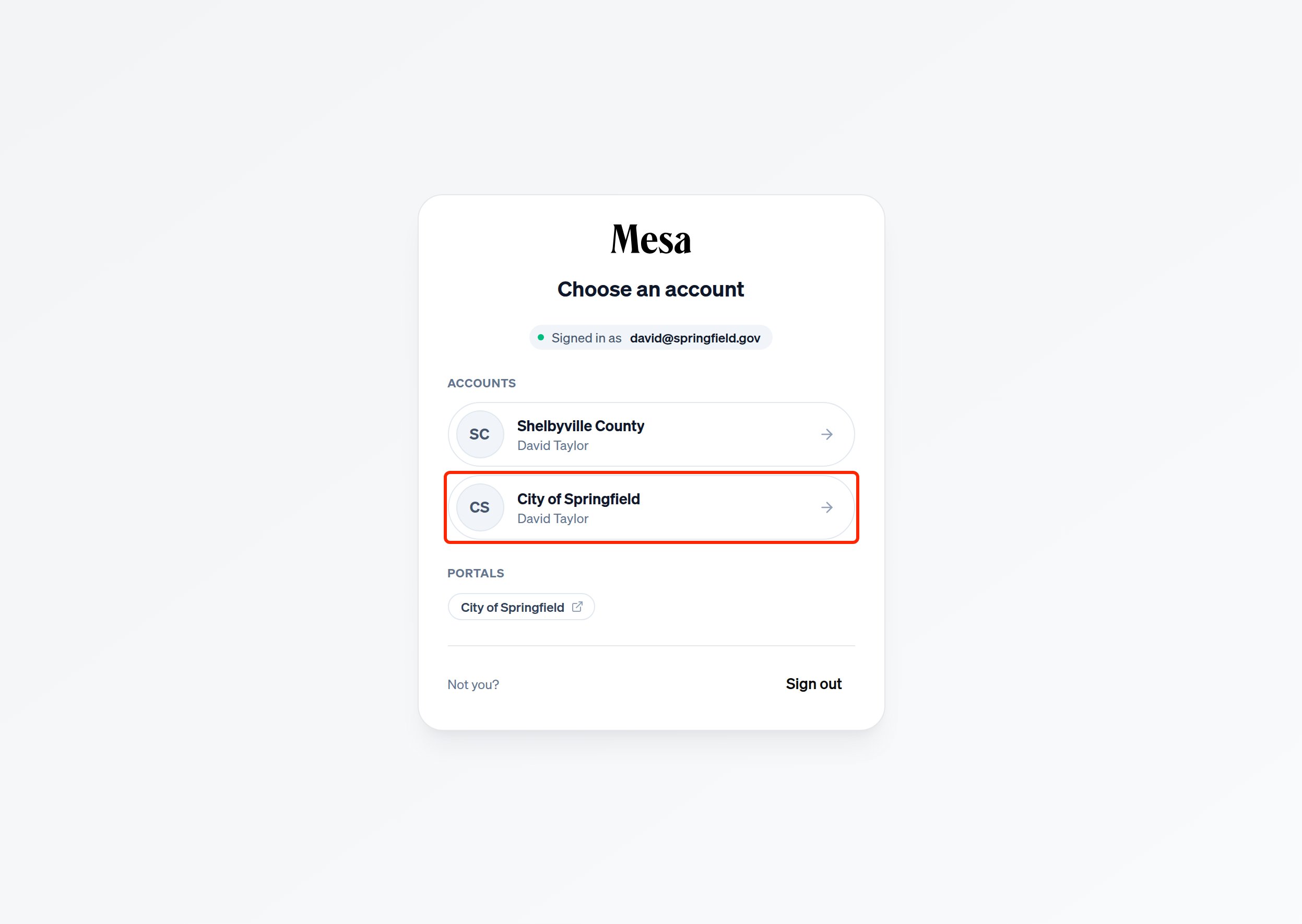 The **Portals** section links to the organization portals you have accounts on. Each one opens in a new tab.
## Accept an invitation
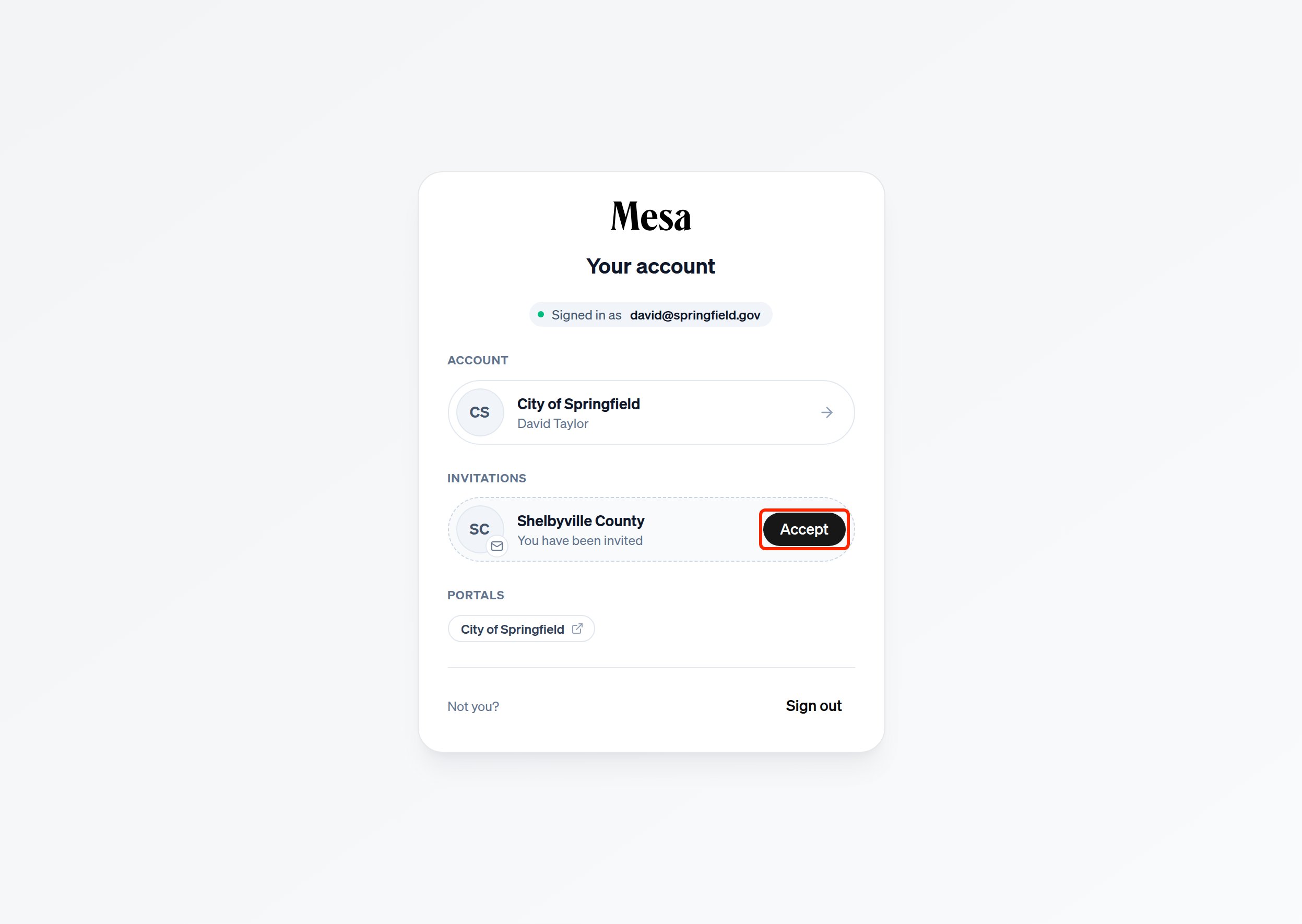
When an organization adds you as a member, the invitation appears under **Invitations** on the same screen. Click **Accept** to join the organization. It then appears in your list of accounts.
The **Portals** section links to the organization portals you have accounts on. Each one opens in a new tab.
## Accept an invitation
When an organization adds you as a member, the invitation appears under **Invitations** on the same screen. Click **Accept** to join the organization. It then appears in your list of accounts.
 ## Switch accounts
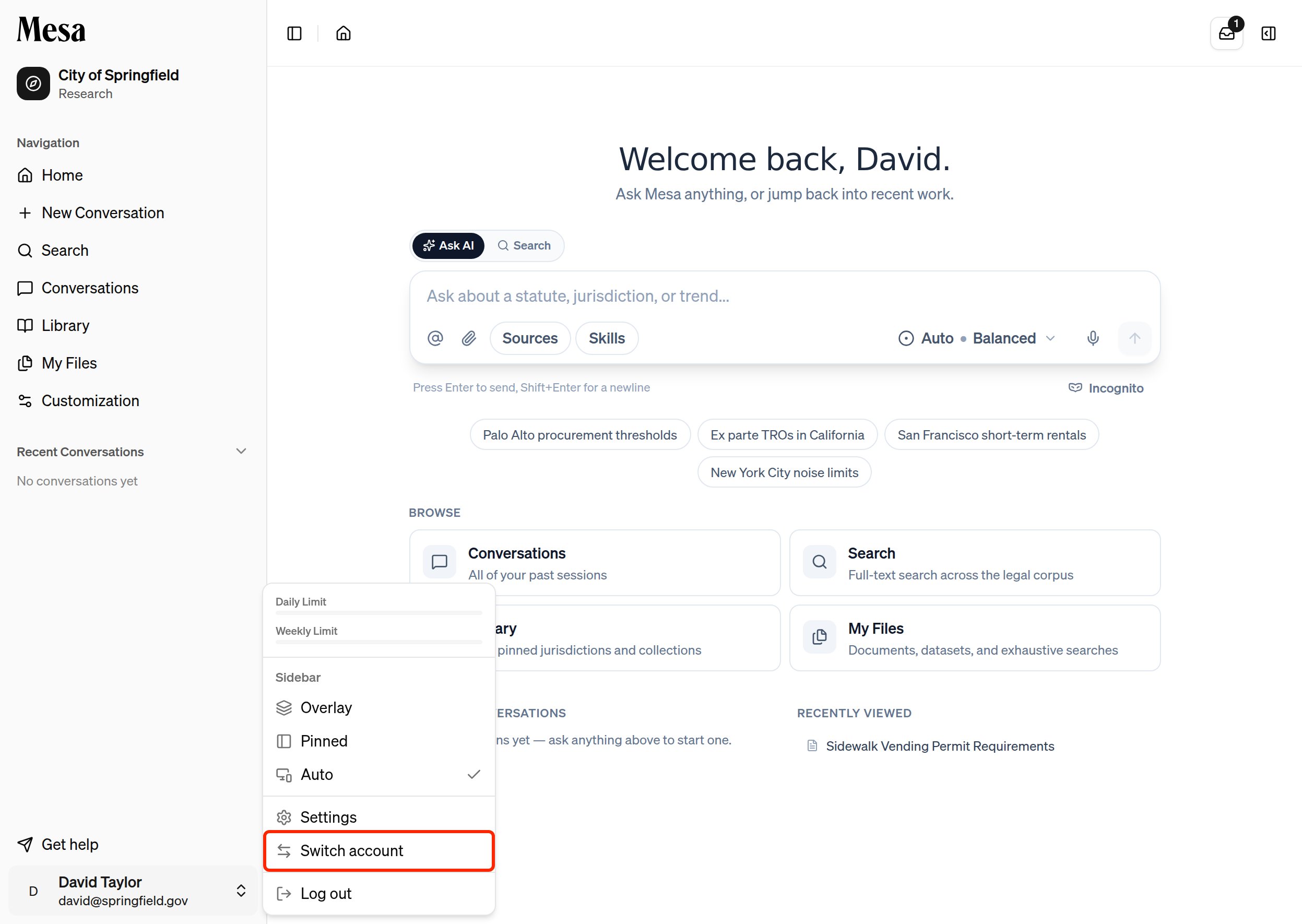
To move to a different organization while you're working, click your name at the bottom of the sidebar and choose **Switch account**.
## Switch accounts
To move to a different organization while you're working, click your name at the bottom of the sidebar and choose **Switch account**.
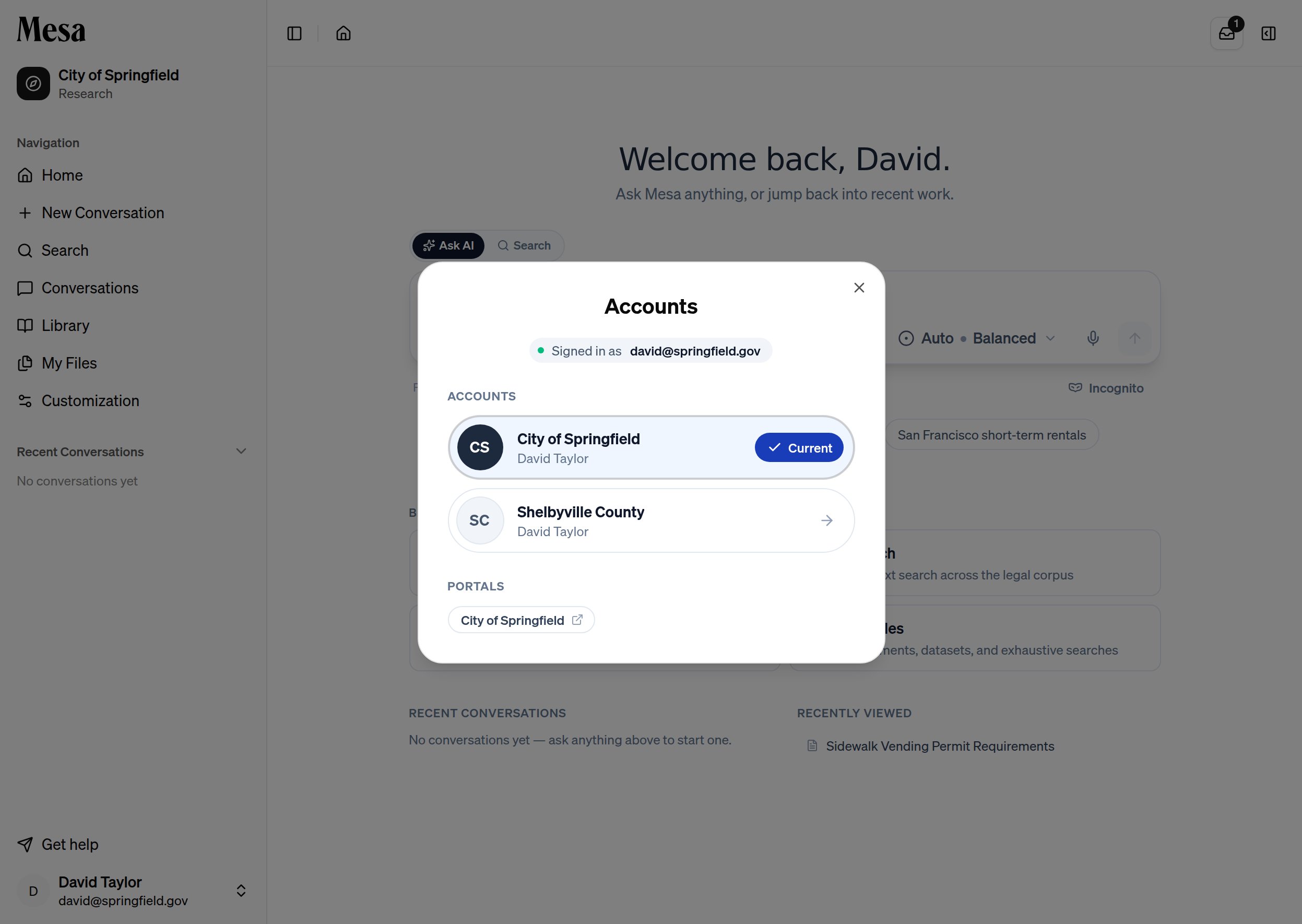
 The **Accounts** dialog lists your organizations, with a **Current** badge on the one you're using, plus any invitations and portals. Click another organization to switch to it. Mesa reloads in that organization.
 ## Know which account you're in
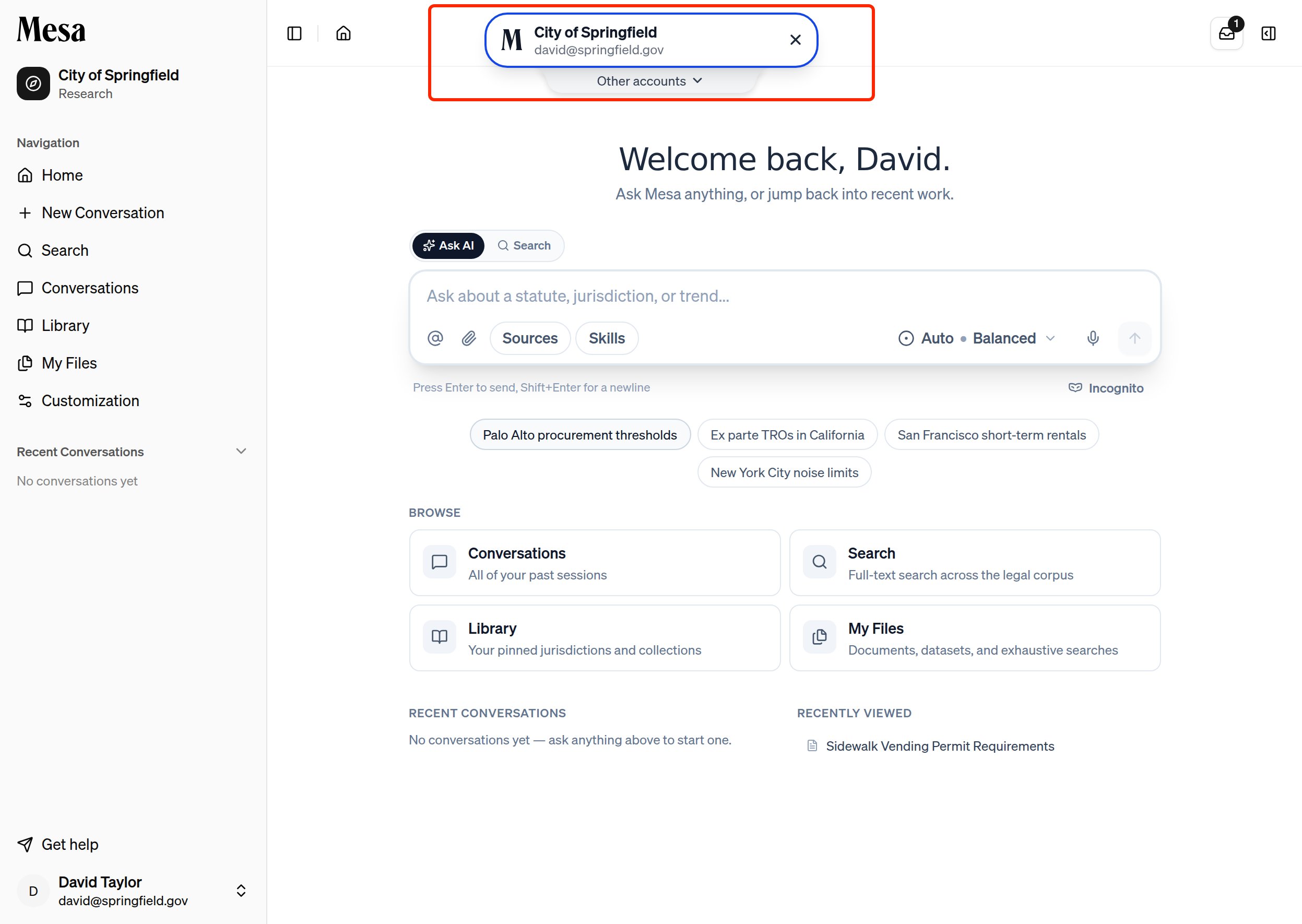
If you belong to more than one organization, a banner at the top of the page briefly shows the organization and email you're signed in with each time Mesa loads. Click **Other accounts** on the banner to see and switch to your other accounts, or click the **X** to dismiss it.
## Know which account you're in
If you belong to more than one organization, a banner at the top of the page briefly shows the organization and email you're signed in with each time Mesa loads. Click **Other accounts** on the banner to see and switch to your other accounts, or click the **X** to dismiss it.
 ## Related articles
Find the account menu and the rest of the Mesa layout.
See what people outside Mesa see when you publish a report.
Learn how Owners add members to an organization.
## Related articles
Find the account menu and the rest of the Mesa layout.
See what people outside Mesa see when you publish a report.
Learn how Owners add members to an organization.